Trigger an inventory scan manually
Refresh a device's inventory on demand from its detail page — and understand the messages octoja shows when the scan cannot start.
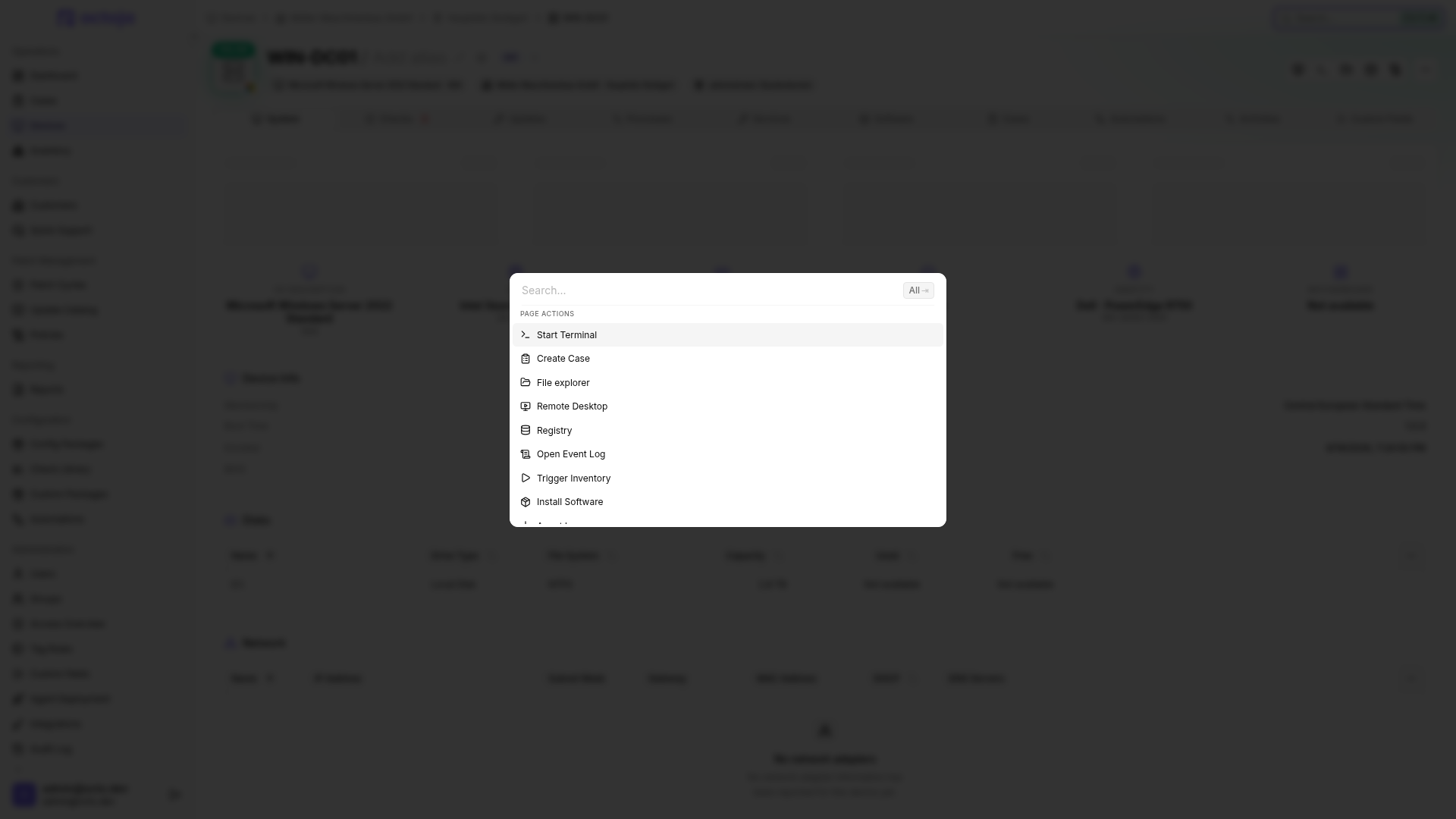
octoja inventories every device automatically every one to three hours — hardware, installed software and services are collected in the background without any action on your part. The manual trigger exists for the moments you want fresh data right now, for example after installing software or swapping hardware. You find it on the device detail page: a small play button next to the Last Inventory field, with the tooltip Trigger Inventory.
Run an inventory scan on demand
You need the Run Maintenance permission on the device. Ask your octoja administrator if you are not sure whether your group has it.
- Open the device's detail page and find the Last Inventory row in the details list.
- Click the play button next to the timestamp. The button shows a spinner while the scan runs, and it is unavailable while the device is not connected.
- When the scan finishes, octoja shows Inventory completed. and reloads the device's details, so anything the scan found is on the page straight away.
You can reach the same action from the keyboard: press Ctrl + K on the device page and pick Trigger Inventory under Page Actions.
Reading the Last Inventory timestamp
The agent always collects the full picture, so a scan on a busy machine can take several minutes. It then compares what it found against what octoja already holds and sends only the differences.
When nothing has changed, there is nothing to send: you still get Inventory completed., but the Last Inventory timestamp stays where it was. The timestamp marks the last scan that found a change, not the last scan that ran — so a device with a stable configuration can show a timestamp days old and still be inventoried on schedule.
If the scan reports an error
The trigger shows one of a few messages when the scan cannot start or does not finish in time. None of them stops the automatic background inventory — octoja keeps collecting your data on the regular schedule either way.
When to contact support
- The same device keeps reporting an error even after you restarted its agent service and the device is under no unusual load.
- You installed or removed software on the device and triggered a scan, but the change does not show up in the device's inventory.
- The message appears on several devices at the same time — check octoja Availability & Status first for known service incidents.
Related articles
FAQ
Why does the last user differ from the current session?
Why does the last user differ from the current session?
The displayed last user comes from inventory, not a live session query. Trigger inventory on the connected device before comparing it with the current session. Taking over an existing remote desktop session is not a new Windows sign-in.
If the user is still incorrect after the scan, send support the approximate sign-in time, whether it was local or through RDP, and whether several users were signed in at once.
Was this helpful?
Still need help? Ask the team