Navigate octoja Faster
Find devices, cases and customers faster with favorites, filters, saved views and links.
octoja productivity features
octoja includes several features that help you find devices, cases, and customers faster during day-to-day work. This article covers the most useful ones.
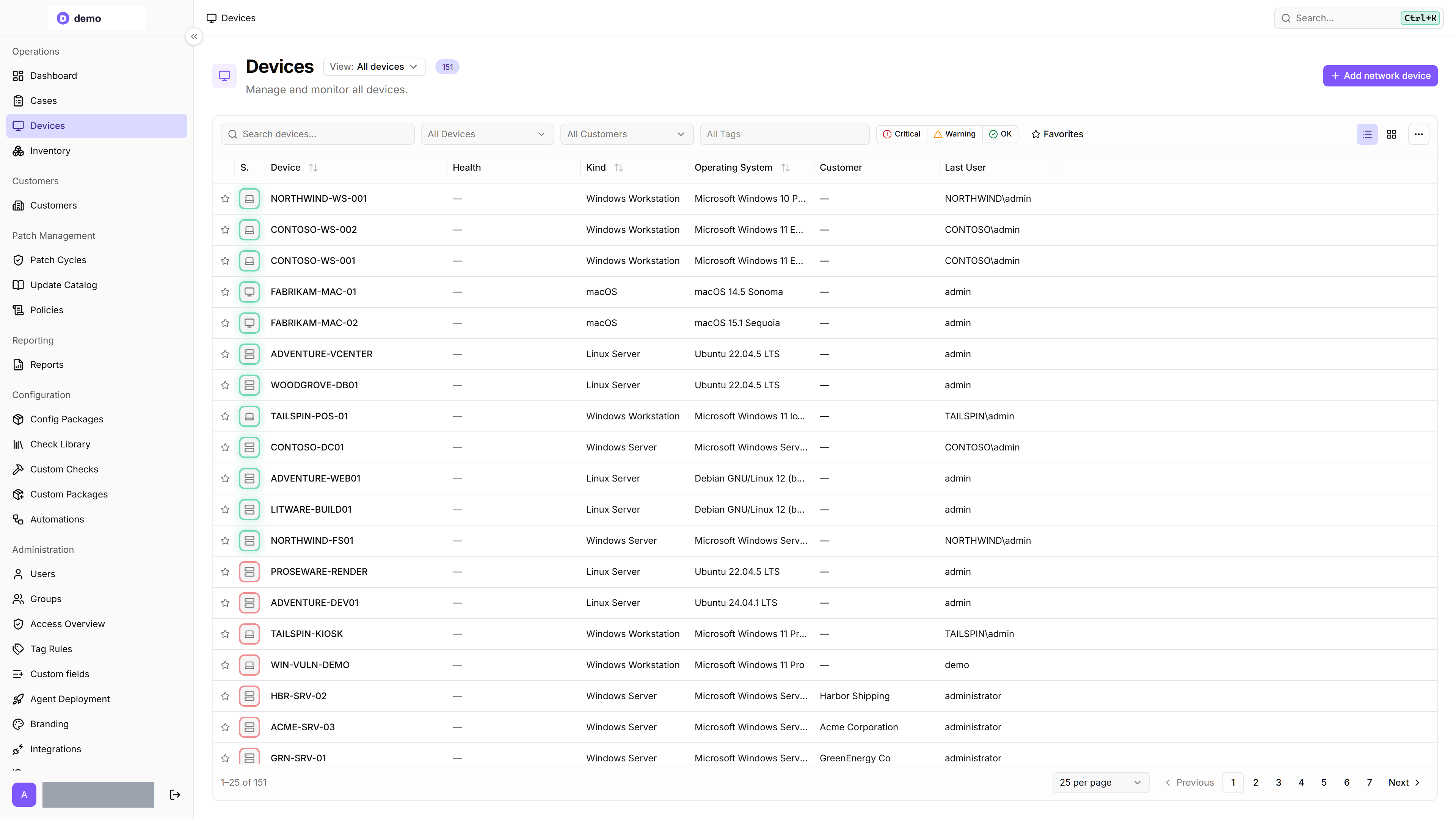
The screenshot below shows the favorite star and the view-mode toggle on the Devices page:
Mark devices as favorites
Click the star icon next to any device to mark it as a favorite. Favorites are highlighted with a star and sorted to the top of device search results in the command bar, and they can be filtered on the Devices page.
To show only your favorites, open the Devices page and toggle the Favorites filter.
Favorite status is saved to your account, so your selections persist across browsers and sessions.
Use recent items
octoja automatically tracks the last 10 items you visited — devices, cases, customers, users, and groups. To access them:
- Press Ctrl+K to open the command bar.
- With the search field empty, look under the Recent heading.
- Select any item to jump straight to it.
Recent items are stored locally in your browser. They are not shared between different browsers or devices.
Preview items with hover cards
Wherever a device, user, group, customer or case appears as a link, hover over it to see a quick preview card without leaving the page you are on.
- Device hover cards show the device name, online status, IP address, operating system, agent version, assigned customer, and when it was last seen. The icons along the top open the tools that device supports — remote desktop, terminal, file explorer, registry and event log — and Open device details goes to its page.
- User hover cards show the user's name, how many groups they belong to, and a View profile link.
- Group hover cards show the group name, how many permissions it carries, and a View group link.
- Customer and case hover cards work the same way wherever a customer or a case is linked.
Switch between table and card view
On the Devices page, two view buttons sit at the right-hand end of the toolbar above the table, just left of the ⋯ menu. They switch between Table view and Card view.
- Table view shows devices as rows — best for scanning a long list.
- Card view shows devices as cards with key details — best for a visual overview.
Your choice is remembered in that browser for 30 days. On a phone, octoja starts in card view unless you have picked one yourself.
Choose which columns to show
The device table opens with a compact set of columns — Device, Health, Kind, Operating System, Customer and Last User. To add more, open the ⋯ menu (More actions) at the right-hand end of the toolbar above the table, choose Columns, and tick the ones you want. The star and status columns on the far left always stay. The Columns list only appears in table view — in card view the same menu offers a Sort by list instead.
Around 30 further columns are available, listed alphabetically in one long menu:
The hardware, operating-system and BIOS columns come from the device's last inventory, so they show a dash until the device has reported one, and the agent-specific columns stay empty for agentless network devices. The columns you add are display-only — clicking their headers does not sort the table — but they do flow into the Export CSV file the same menu offers, which follows whatever columns you have showing.
You can also drag a column header sideways to reorder the columns, or drag the divider between two headers to make a column wider or narrower. Reset columns at the bottom of the Columns list restores the default columns, order and widths. To reuse a customized device list later, save it as a view.
Show more devices per page
The bar below the device table shows where you are in the list (for example 1–25 of 137) and lets you page through it. The picker next to the page numbers sets how many devices one page holds: 25 per page by default, or 50, 100, 250 and 500. Changing it takes you back to the first page.
Sort and filter lists
Most list pages in octoja support filters and sorting in the toolbar above the table.
Tables with locally stored preferences, such as Check repository access under Settings, remember your sorting as well as the column layout for the next visit in the same browser. Reset columns resets only the layout there, not sorting; change sorting through the column header. These local preferences do not transfer to other browsers. The device list still uses the page address and saved views described below.
Device filters
In table view, column headers also offer filters: Status narrows the list to Online or Offline, and Updates to Pending, Current or Unknown. Unknown means no usable update inventory is available. The number in the update column comes from the last inventory.
The Health column filter also lets you select a Monitoring check. Health selections then apply to that check rather than the device's overall health. For example, find devices with a critical backup check without including devices that are critical only because of another check. Clearing the selected check restores overall-health filtering.
For combined rules, open Advanced filter. Build conditions in the rule builder or turn on Advanced editor to enter OQL, for example DeviceKind IS "WindowsServer". Choose Apply and check the results. The rule applies in addition to the quick filters, not instead of them. It travels in the page link and saved views. Clear in the dialog removes only this advanced filter.
If octoja shows Advanced filter could not be applied, the rule has not been applied. Correct or clear it before selecting devices for a bulk action.
Case filters
On the device table, four headers sort the list: Status, Device, Kind and Operating System. Click one to sort by it, click it again to reverse the direction. The other headers — Health, Customer, Last User and every column you add yourself — label their columns but do not sort. The list opens sorted by Status, most recently seen first. In card view the same four choices sit under Sort by in the ⋯ menu.
Save a view
Once a device list looks the way you want it, save it and you can come back to it in one click. The view picker sits next to the Devices heading and reads View: All devices until you save something.
- Set the columns, sorting, column widths and filters you want. The picker switches to Custom and a ⋯ button appears next to it.
- Open that button — View actions — and choose Save as view.
- Name it, for example Servers – EU, and choose Save.
Your views are then listed in the picker. View actions also offers Rename, Duplicate as new view… and Delete, and Set as my default makes one view open automatically every time you visit the page. Change something while a view is active and it is flagged Modified, so you can either Update view or Revert.
Views belong to your account and follow you from one browser to the next. They start private. Sharing makes the view name and settings visible to all users of your octoja instance for that table; you cannot select individual recipients or groups. Keep views with sensitive filter values private. To share a saved view, select it and open View actions → Share with other users. It appears under My shared views and under Other shared views for colleagues. Choose Stop sharing to withdraw it.
Only the creator can update, rename, or delete the saved view. Colleagues can use it and duplicate it as their own view to make lasting changes or set it as their personal default. Sharing transfers view settings, not additional device permissions.
The device list on the dashboard has the same view picker.
Share a filtered list by link
When you apply filters, change the sort order, adjust the columns or move to another page, octoja updates the browser address automatically. Copy it from the address bar and send it to a colleague — they see the same list when they open it.
The address carries the search text, the filter selections, the sort setting, the column layout, the table or card mode, and the page number and page size. It does not carry your favorites or your recent items — those stay with your account and your browser.
Link directly to a device section
Open a device and select the tab you need, such as Checks, Updates, or Software. Then copy the browser address. The link opens that section directly, including after a reload or from a bookmark; this also applies to the subsections under Activities. Use the browser's back and forward buttons to move between sections you previously visited.
A link grants no additional permissions. Available sections still depend on the device and the signed-in user's access rights.
Collapse the sidebar
Press Ctrl+B (or ⌘B on Mac) to collapse the sidebar and give more space to the main content area. Press it again to expand the sidebar. This is especially useful on smaller screens or when working with wide tables.
Related articles
Was this helpful?
Still need help? Ask the team