Deploy browser extensions
How this action force-installs Chrome, Edge and Firefox extensions on Windows, macOS and Linux, which settings it has and when the step fails.
Use this action to force-install extensions for Google Chrome, Microsoft Edge and Mozilla Firefox for every user on a Windows, macOS or Linux device. octoja does this through the browsers' enterprise policies. The device must be online.
Prerequisites
- The View Automations and Manage Automations permissions, plus the Run Script device action on the test device for a Test run. See Create an automation for workflow setup.
- The extension ID and the appropriate source for each browser. Use only trusted sources that the target device can reach.
Deploy extensions
Open or create a workflow under Configuration → Automations.
Add Deploy browser extensions and select the step.
Click Add extension, choose the browser, and enter Extension ID and Source URL. If you change the browser, update the source URL explicitly.
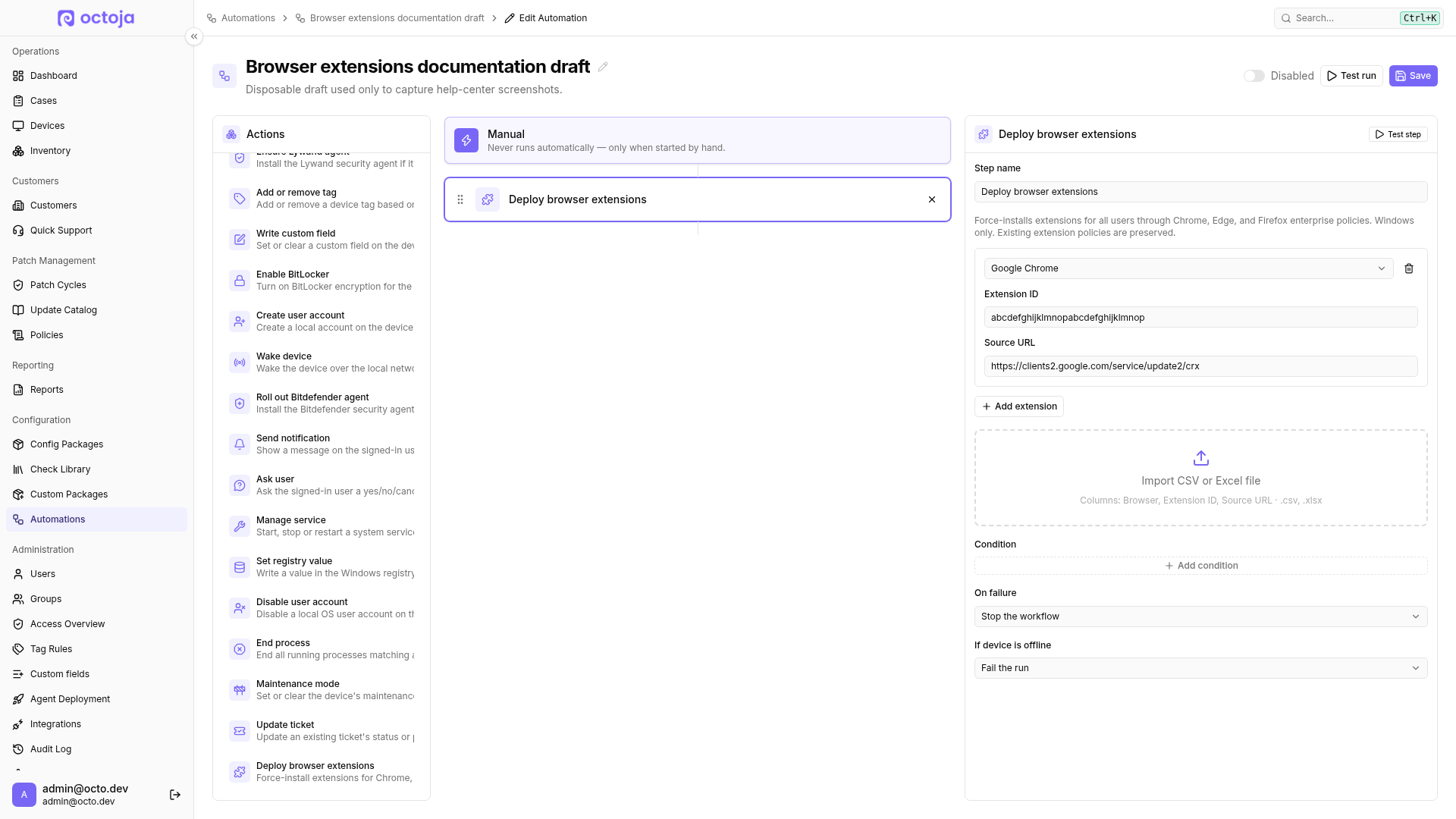
Add further extensions or import a list if needed.
Use Test run on one device. Then check the extension in the relevant browser before saving and enabling the workflow for more devices.
Policies affect all users of the device, including during a test run. The step never removes anything from the device: Remove extension only deletes the workflow row. Policies from earlier runs also stay in place if you delete the step or disable the automation.
Configuration fields
The step holds a list of extensions and needs at least one before you can save the automation. Each row has these fields:
Import a list
Import CSV or Excel file appends rows from a .csv, .xlsx or .xls file to the existing rows. Use these columns:
Column and browser names are case-insensitive, and blank rows are skipped. If any other row is missing a value or names an unknown browser, octoja rejects the whole file with No valid extensions were found. Check the column names and values. Correct the file and import it again. After importing, check for duplicate entries; IDs and URLs are validated again when saving.
Platform support
On Linux, the device needs jq to merge the policy files. Without jq, the step fails.
Outputs
Both values appear in the automation's Run history.
Result behaviour
The step writes the machine-wide policies and then finishes. It doesn't wait for the browser to download or install the extension, so Succeeded only means the policies are in place. If an extension is missing in the browser afterwards, check the applied policies there and whether the source URL is reachable from the device.
For Firefox, the step sets installation_mode to force_installed. On macOS, it then restarts the cfprefsd preferences service so the browsers read the changed policies.
You can safely run the step again. For Chrome and Edge, an existing entry with the same extension ID gets the new source URL; for Firefox, the step replaces only that extension's entry. Other extensions' entries and other policies are kept.
Extensions are written one after another. If one fails — for example because an existing Firefox ExtensionSettings value on Windows or an existing policies.json on Linux isn't valid JSON — the step fails. Extensions written before it stay configured. If the device is offline when the step starts, If device is offline decides whether the run fails or the step is skipped.
See also: Create an automation
Was this helpful?
Still need help? Ask the team