Create an automation
Create automations, select target devices safely, test actions and run saved workflows.
Create an automation
Automations let you build a workflow that runs a series of actions across your devices without doing the work by hand each time. You pick what starts the workflow (a trigger), choose which devices it runs against, and add an ordered list of actions — run a script, install software, restart, shut down or wake a device, send a webhook or a Teams message, open a ticket, add or remove a tag, write a custom field, turn on BitLocker, create a local user account, or install the lywand software agent. You can add a condition so a step only runs when it should, and use a Test run to try the whole thing on a single device before allowing it to run automatically.
Prerequisites
- You need View Automations and Manage Automations. The first allows viewing and running saved workflows; the second allows creating, editing and deleting them and testing unsaved steps. Grant them under Administration → Groups. Manual execution and cancellation also require the script-running device action on the target device.
- Some actions rely on things you set up elsewhere first: Send webhook and Send Teams message need a webhook or a Teams channel configured under Integrations, and Install or update software uses your existing software catalog.
Step 1 — Open Automations
In the left sidebar, go to Configuration → Automations. The page lists the automations visible to you, with their triggers, step counts, and whether they are enabled. If none are visible, you see No automations yet.
A lock and Read-only identify shared automations whose customer scope you do not fully cover. You can run or schedule their saved steps on devices where you have script-execution access. Editing, enabling and testing changed steps instead require full customer-scope access and Manage Automations. A linked configuration package outside your full scope can also prevent editing. See Shared configurations.
Step 2 — Create the automation
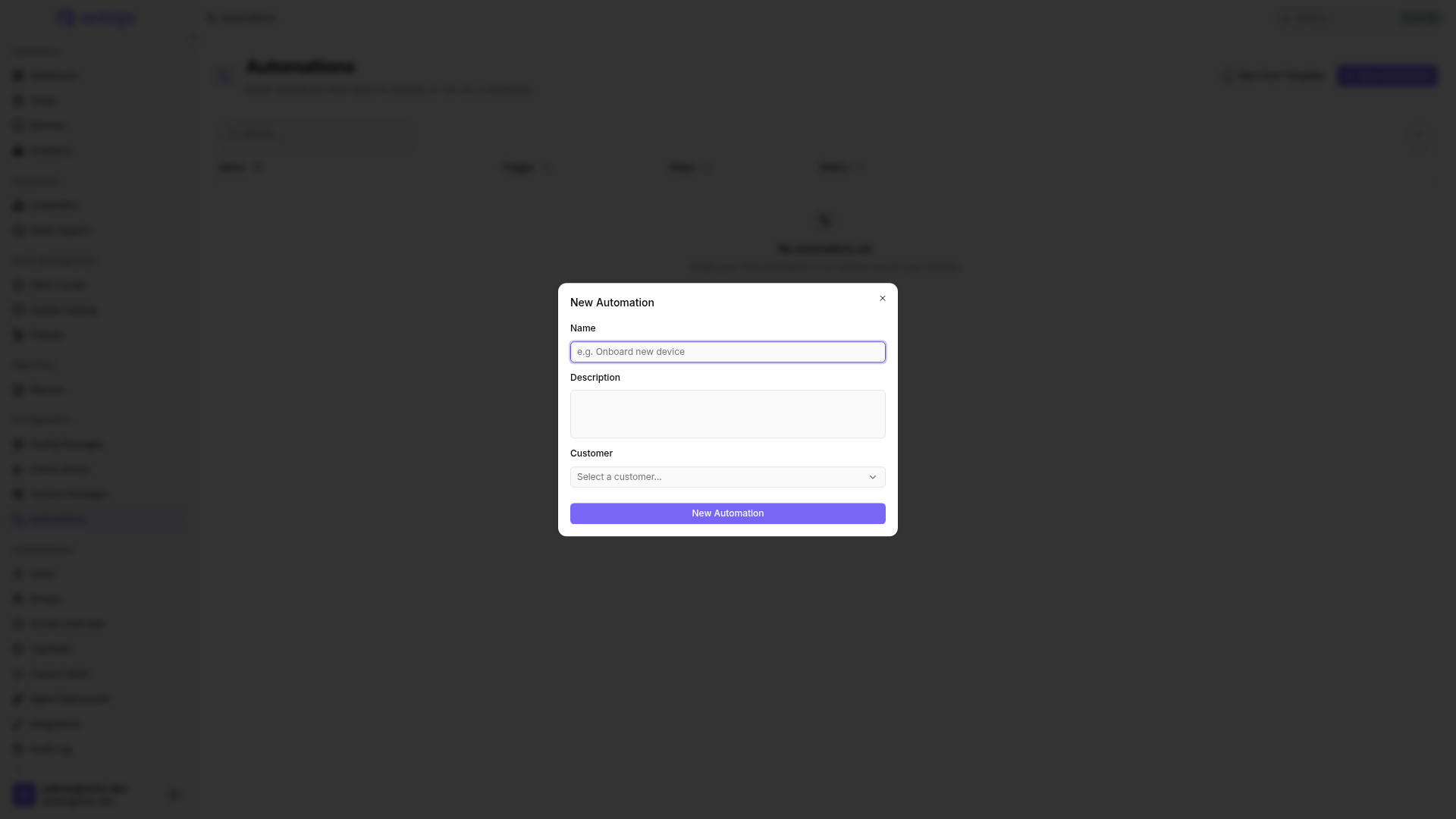
Click New Automation in the top-right corner. In the dialog, fill in:
Click New Automation to create it. octoja opens the builder. A new empty automation is already enabled, but initially has a Manual trigger and no steps. Switch it to Disabled and click Save before configuring its trigger, target devices and steps. You can then review and test it.
The Automations page also offers Start from Template. Choose a workflow under Choose a Template and name it under Name Your Automation.
Templates are enabled immediately: Creating one saves its trigger, target devices and steps. It can trigger automatically before you have reviewed it in the builder. Disabling it afterwards does not prevent a run that has already started. If review is required before the first execution, create an empty automation instead, disable and save it as described above, then configure the steps yourself.
Duplicate an existing automation
- Open New Automation and select an automation you may edit under Duplicate existing automation.
- Enter a new name. Leave the description empty to retain the source description.
- Create the copy and review its trigger, steps and target devices in the builder. Those settings and the customer restriction are copied; configuration-package links and previous runs are not.
- Adjust and test the copy before enabling it. It starts disabled, without a scheduled next run. Editing it does not change the source.
Step 3 — Choose a trigger
The builder opens with the trigger node selected. The trigger decides what starts the workflow. Pick one:
Make On boot scripts safe to repeat: check whether a repair is still needed before changing the device. Reconnecting without a device start does not trigger On boot.
For Schedule, choose Time zone explicitly. A new schedule starts with your browser's time zone (UTC if detection is unavailable). The saved zone determines how schedule times are interpreted; editing from another time zone does not replace it. A configuration package's schedule override has its own Time zone, independent of the automation's main schedule.
Step 4 — Choose which devices it targets
Under Target devices, use the rule builder to describe which devices the automation runs against — for example, by operating system, customer, or site. As you add rules, octoja shows a live list of matching devices so you can confirm the scope before saving. Add from Template, beside Add condition, offers ready-made rules such as All Windows Servers, All macOS Devices, By Customer Site or By Tag. For device custom fields, choose Custom Field, then the field and comparison.
Empty own targeting rules select no devices. To target every device, explicitly add the All Devices template. Complete or remove incomplete conditions and empty groups before saving. Stored invalid rules match no devices, even alongside a valid alternative. Top-level alternatives use OR; every condition inside an All group must match.
A linked configuration package's targets are independent of the automation's own rules. Removing its last package link does not turn empty own rules into an all-device selection. Scheduled execution rechecks the rules in effect at dispatch. Review both own targets and each package assignment's targets and pauses.
Targeting applies to the Device added, Schedule, and On boot triggers — an On boot automation checks the same rules against the device that started. A Manual automation has no targeting rules, because you choose the device each time you run it.
A saved customer restriction still applies to manual runs, in addition to your device permissions. Selecting a device outside that customer scope in a bulk run rejects the entire request. Remove out-of-scope devices from the selection before starting again.
Turn on Advanced editor to edit the targeting rules as an OQL expression. Check the matching-device preview here too. Complex nested groups that the simple rule builder cannot represent open in the advanced editor automatically; simplify them before switching back.
Step 5 — Add actions
The builder is a three-column editor: the Actions toolbox on the left, the flow in the middle, and a properties panel on the right.
- Drag an action from the Actions toolbox onto the flow, or click an action to append it to the end.
- Click a step to open its properties on the right and configure it — for example, paste your script, pick the software package, or choose the Teams channel.
- Reorder steps by dragging them; remove a step with Remove step.
Steps run top to bottom on every matched device. For Run script, you can provide separate scripts for Windows (PowerShell), Linux (Bash), and macOS (Bash). Each device runs the matching script.
A step can capture up to 100 named Output parameters, with at most 65,536 characters per value. Use Insert variable to reference these outputs in later steps. The picker also offers Custom fields (Device) and Custom fields (Customer), such as ${{ trigger.customFields.assetTag }} and ${{ trigger.customerFields.accountManager }}. These refer to the executing device and its customer and are also available in conditions.
For scripts, only exit code 0 counts as success. Any other exit code fails the step; with the default failure behavior, the automation stops there. Use On failure to change this behavior (Step 6). Output parameters are still captured. With System, the script runs as SYSTEM on Windows or root on Linux and macOS. With Logged-in user, it runs in the active session. On Linux, jq must be installed on the device for octoja to capture output parameters; without jq, they remain empty.
Step 6 — Add conditions and choose what happens on failure (optional)
Each step can carry a Condition so it only runs when it should. Click Add condition in the step's properties, then build one or more rows comparing a variable (from the trigger, from a device or customer custom field, or from an earlier step's output) against a value. When you have more than one row, choose whether All or Any of them must be true.
Choose Device tags (trigger.deviceTags) to test a complete tag. Contains with prod matches Prod, but not production; matching ignores case. Use the empty/not-empty operators to test whether any tags exist. Tags are captured when the run starts — a later step that changes tags does not change this snapshot. The tag list is intended for conditions and is not offered as a text variable in the action editor.
Use Manufacturer (trigger.manufacturer) and Chassis type (trigger.chassisType) to restrict steps, for example to Dell Inc. or Laptop. Compare against the actual inventory spelling; missing values remain empty. Insert variable also makes them available in text. Chassis type is additionally available in the rule builder for targeting the entire automation.
For device class (deviceClass), select the comparison value from a list instead of typing it freely. octoja stores the corresponding technical value. For scripts and variables, examples include:
A comparison with MacOS does not include MacOSServer devices. Include both values when a custom condition should cover all Macs.
Two more per-step settings control what happens when things go wrong:
Step 7 — Test it on one device
Keep the automation saved as Disabled until your review is complete. Click Test run in the top-right corner, pick a device, and click Run now. octoja runs your current steps — including any unsaved changes — against that one device without saving them to the automation, so you can watch each step and confirm it does what you expect.
To test one action, select its node and click Test step in its properties. Choose a suitable device and inspect the step result afterwards. This test also uses unsaved changes without saving them.
Test step really executes the action and ignores its condition. If the step references outputs from previous steps, including in its condition, individual testing is unavailable. Use the full Test run instead.
Step 8 — Enable and save
Use the Enabled / Disabled switch at the top of the builder and click Save (or press Ctrl+S) to apply the state and your changes. Automatic triggers use the saved state. An automation saved as disabled does not trigger automatically; test runs remain available. Disabling does not cancel existing runs; use Run history to cancel a run individually.
An enabled, saved automation with a Schedule and matching Target devices rules does not need an additional config-package assignment. It triggers at the next matching scheduled time, not merely because you saved it. Linking a config package is an additional way to include devices or set a package-specific schedule.
Available actions
These are the actions you can add to a workflow. Click an action's name to see all of its settings and details.
To announce maintenance, add Send notification before the maintenance action and enter a title and message, for example Maintenance on ${{ trigger.deviceName }}. Use Test run to check that the message window appears. A successful step confirms delivery, not that someone read the message; it does not wait for a reply. To continue maintenance even when nobody is signed in, set this step's On failure option to Continue to next step.
Format the message with the Markdown toolbar and use full https:// or http:// addresses for links. HTML and images are not supported. The window remains open until acknowledged. See Send a notification and request a response for formatting and input fields.
Combine maintenance and case updates
A new Maintenance mode step selects Alerts, Checks, and Automations to pause, but not Deployments or Patches. Review this selection before saving. Clear maintenance mode only removes the ad-hoc window, not other windows inherited from packages or other sources. Use a finite duration if a later clearing step might never be reached after a failure.
For Update ticket, configure at least one change: status, priority, or comment. Unselected fields stay unchanged. For example, after successful maintenance you can close the case created earlier and append the outcome as a comment. Check the ticketId, ticketNumber, status, and changed outputs in Run history, then open the case to confirm. Maintenance mode and case updates run server-side and do not themselves need an agent connection; device actions need a reachable agent.
Test runs actually perform these actions. Ending processes, stopping services or changing the registry can interrupt applications and lose unsaved work. Test on one suitable device first, and restrict Windows-specific steps with a condition.
Ask for an answer before an action
With Ask user, the workflow waits for a response instead of just delivering a message. This works on Windows and macOS devices that are online and have a user signed in. For all settings, see Ask user.
- Add Ask user before the planned action. Enter Title and Question; both support variables.
- Leave Answer timeout in seconds (optional) empty for the 120-second default, or choose 10–600 seconds. Under Button captions (optional), you can change the wording. Empty fields use Yes, No and Cancel; custom captions do not change their meaning.
- Enable Request input if needed and choose an input type such as text, number, date or selection. The entry is sent with the answer and becomes available to later steps as
input. See Send a notification and request a response for types, required fields and output formats. Do not request passwords or other secrets here. - Add a condition to the following action: use the variable picker to select Confirmed (
confirmed) from the question step and compare it withtrue. Alternatively, compare Answer (response) with Yes. Without this condition, the action also continues after No. - In Test run, check at least Yes, No and an unanswered prompt. Inspect results and outputs in Run history before saving and enabling the workflow.
For a selected answer, selectedText also contains the chosen button's caption. You can reuse a caption such as “This evening” in a later message or case comment. Without a custom caption, its value is yes, no or cancel; it is absent on timeout. Continue using response or confirmed for decisions so renaming a button does not change the logic.
For a one-off question without a workflow, send a notification and request a response instead.
With multiple connected user sessions, the prompt appears in all of them; the first answer wins. Cancel or an unanswered timeout stops execution with the default Stop the workflow behavior. To handle these outcomes in later steps, choose Continue to next step on the question step and explicitly check the answer there. Continuing after a failure does not replace consent.
Run it from a config package, the device list, or a single device
Besides its own trigger and rules, an automation can run in three more places:
- From a configuration package. Open a config package's Scheduled automations section to create a scheduled workflow or link an existing one. It then also runs on every device the package targets, and you can set a schedule override only for that package.
- From the device list. Tick the devices you want, open More actions in the selection toolbar, and choose Run or schedule action.
- From a single device. Open its Automations tab and choose Run or schedule action.
To run the same scheduled automation at different times across multiple packages, link it to each package and set a Schedule override in each. Leave the automation's Target devices rules empty so it runs only on devices targeted by those packages. Adding its own rules could also include devices outside the packages.
The device tab's assignment list shows automatically triggered automations and their triggers; scheduled entries also show the schedule and time zone. Manual automations are not listed there but remain available in the execution dialog. Pause on this device affects only this device, not the automation on other devices.
Choose Run now directly on an assignment to start its saved steps on this device. This also works for a paused assignment and does not remove its pause. Inspect the result in Run history afterwards; the start confirmation alone does not establish successful completion.
The dialog starts with Automation and Now, but no automation is selected. Choose a saved automation, restart or shutdown, then run it now or select a future date and time. You need View Automations and script-running rights on the devices; the dialog reports devices excluded from the selection. You can submit at most 500 devices at once. This one-off date and time is entered in your browser's local time zone, unlike the recurring schedule's explicit time-zone selection.
Each device gets its own run in Run history. A scheduled run waits until its planned time and uses the workflow steps saved when you scheduled it, not later edits. Disabling or deleting the automation, or using Pause on this device, does not cancel these saved runs. Disabling also does not stop or roll back work already in progress. To prevent unwanted runs from starting, open each unwanted pending run on every affected device and choose Cancel run. Confirm its status is Cancelled before deleting the automation.
Watch what happened
Every time an automation runs, it records a run in Run history with its status — Succeeded, Completed with errors, Failed, Device offline, Timed out, or Cancelled. Open a run to see each step's outcome and output on a timeline, which is where you check why a step failed or what a script returned.
While a run is still going, you can stop it: open the run and click Cancel run. The step that is running finishes, nothing further starts, and the run shows Cancelling until it settles on Cancelled.
If an automation does not run
When a workflow does not fire, or fires but skips devices, the cause is almost always one of the following. Work through them in order:
Use Test run against a single device to reproduce the behaviour with your current configuration — it runs the steps you see in the builder, including unsaved changes. If automations across the board stop running, check octoja Availability & Status for known service incidents before opening a support case.
Related articles
- How Users, Groups & Permissions Work — overview of the octoja permission model, including the Manage Automations permission required by this how-to.
FAQ
What does Membership mean in target-device rules?
What does Membership mean in target-device rules?
Membership describes the directory join recorded in the device inventory, not membership of a user group:
For Windows devices without an on-premises AD domain join, choose Membership is Workgroup under Target devices. To include cloud-only devices, add Membership is Microsoft Entra as an OR alternative. Membership is not Domain alone is not enough: it also matches Microsoft Entra (Hybrid) devices and devices with unknown or missing membership.
Check the matching-device list before saving. Targeting uses reported inventory, not a live domain-join query. Linked configuration packages have independent targeting rules; restrict those too if the automation must run only on these devices.
How do I always remove a tag at the end?
How do I always remove a tag at the end?
- Add Add or remove tag as the last step.
- Under Action, select Remove tag and enter the tag.
- Leave the general step condition empty. No tag condition is needed; if the tag is already absent, it stays absent.
- Use Test run on a suitable device, check that the tag is absent afterwards, and save the automation.
This only affects tags set manually or by automations, not tags applied by tag rules. The last step is not guaranteed cleanup: it does not run if the automation stops earlier on a failure or is cancelled. Change earlier steps' failure behavior only when continuing is safe for your task.
Do multiple automations run one after another on boot?
Do multiple automations run one after another on boot?
No. If several automations apply to the same device on boot, they may run at the same time. There is no guaranteed order between them. Actions within one automation run in the order you set. If one action must start after another, put both in the same automation.
Can a failed check trigger an automation?
Can a failed check trigger an automation?
Not directly. Putting the check and automation in the same config package does not connect them: packages can only assign scheduled automations.
Will a manually started automation run later on offline devices?
Will a manually started automation run later on offline devices?
No. A script that cannot run because the device is offline when the automation starts is not automatically retried when the device reconnects. Depending on If device is offline, the run ends with Device offline or skips the step. Check the Execution history and start the automation again for affected devices once they are online. On boot starts a new run after the device next starts, not after a mere reconnection.
Running after reconnection is tracked as a feature request.
Can a later script use the response from Send webhook?
Can a later script use the response from Send webhook?
No. The webhook response body is not available as a variable in later steps. Retrieve external data in the script itself or populate a custom field before the run.
How does my script set named output parameters?
How does my script set named output parameters?
Declare a name such as result under Output parameters. Then set $result = 'OK' in PowerShell or result='OK' in Bash. PowerShell falls back to the same-named environment variable if the ordinary variable has no value. Only declared outputs are captured; writing to stdout alone does not set a named parameter.
Values are transferred as strings. The type selection does not automatically convert or validate them. Serialize structured data explicitly, for example with ConvertTo-Json -Compress in PowerShell, and validate it in the next step. The script timeout defaults to 240 seconds; a custom value must be between 10 and 7,200 seconds.
Why is script output incomplete even though the step succeeded?
Why is script output incomplete even though the step succeeded?
Standard output, standard error and each named output parameter are individually limited to 65,536 characters. Older agents may truncate at 8,192 characters. Success does not confirm that output is complete; later steps also receive only the truncated value.
Return compact results rather than full inventory or log dumps. If a later step needs complete data, validate your own end marker or the expected data structure there, and stop on incomplete data. Do not rely on a truncation flag in the run result.
Why did a tag or custom field change when the prerequisite script never ran?
Why did a tag or custom field change when the prerequisite script never ran?
Skip this step under If device is offline continues the workflow without running the script. Stop the workflow under On failure does not override that offline setting. Later actions that do not need an online agent, such as changing a tag or custom field, can still run.
For a script that must pass before a later action, choose Fail the run for offline devices and Stop the workflow on failure. Test both a failed check and an offline device before enabling the automation.
Can an automation uninstall software before installing new applications?
Can an automation uninstall software before installing new applications?
Yes, through a Run script step. For Windows, Start from Template → Uninstall a Specific Application (on demand) provides a WinGet example; replace $target with the intended application name and test it on one device. A successful step alone does not prove removal: verify that the application is gone before adding subsequent installation steps. For security software, use the vendor's supported removal procedure.
The template does not stop when removal fails. If removal is required before installation, adapt the script to verify removal on every device, on every run, and exit with a nonzero code if the application remains or verification fails. Select Stop the workflow under On failure and Fail the run under If device is offline; test failed removal as well as success before rollout.
Use Device added for newly registering devices; it does not run retroactively on existing devices. Add one Install or update software step per application in the required order.
Was this helpful?
Still need help? Ask the team