Acknowledge check results
Temporarily suppress alerts for known issues without stopping monitoring.
When a check reports a known or expected issue, you can acknowledge its result temporarily. The check keeps running and every actual result remains in history. Acknowledgement does not fix the underlying issue.
Prerequisites
- Access to the device and Monitoring Check Management permission.
- An active check with Warning, Critical or Error. You cannot acknowledge a successful result without an existing acknowledgement.
Acknowledge a result
Open the affected device under Devices and select Checks.
In the check's row, click the Acknowledge checkmark icon under Actions.

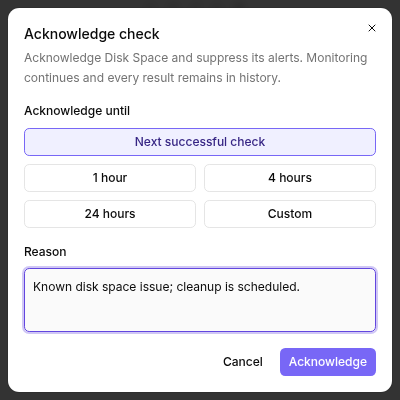
Choose the duration under Acknowledge until. The default is Next successful check. Alternatively, select 1 hour, 4 hours, 24 hours or Custom with a future time.
Enter a meaningful Reason of no more than 500 characters and confirm with Acknowledge.
Check the Acknowledged badge. Its tooltip shows the reason and when the acknowledgement ends.
Effect on status and alerts
The acknowledged check counts as OK for the current device status, overviews, TV mode and current check-status summaries in reports. History is unchanged and continues to show measured results.
Existing alerts are treated as recovered. Associated integration cases close according to the integration's rules; Service-Board tickets that have been manually progressed, for example, remain open. This recovery can happen outside the alert schedule. While acknowledgement is active, this check does not generate new problem alerts.
Next successful check ends on the next actually successful result. A fixed duration instead remains active even if the check succeeds in the meantime.
Resume alerting
Choose End acknowledgement now in the actions menu to end it early. After expiry or manual removal, the latest actual result applies again. If the issue persists, alerting is evaluated again under the assigned alert configuration.
See also: Assign checks with config packages.
Was this helpful?
Still need help? Ask the team