Open a Terminal on a Device
Open a live terminal session directly from the octoja web interface and run commands on any connected device — no VPN or extra tools required.
Open a live terminal session directly from the octoja web interface and run commands on any connected device — no VPN or separate remote access tool required.
Prerequisites
The device must be online (agent connected).
Your user account must belong to a group that grants the Terminal device action for the target device. Set this under Administration → Groups: open the group, go to its Device Access tab, and enable Terminal under Allowed actions.
Steps
Go to Devices and click the device you want to access.
Click the top-right icon with the Terminal tooltip. The Terminal tab opens in the Toolbox window. Check the device name and, if assigned, customer in the window title.
octoja detects the shells available on the device and selects one automatically. The shell prompt appears in the Terminal tab within a few seconds.
To open a different shell, click the + (New Tab) button next to the tab strip, expand Terminal, and pick another option (for example, switch between
cmd,PowerShell,pwsh,bash, orzsh). Each shell opens as a new tab in the same Toolbox window.Type commands in the active tab as normal. Output appears in real time.
To close a session, click the × on its tab. Closing the last tab closes the Toolbox window.
The Toolbox window also hosts File Explorer, Registry Editor, Event Log, Remote Desktop, and Storage Analyzer as sibling tabs. The same + menu opens them alongside your shells. Opening one of those tools from the device detail page reuses the same window — a second Toolbox window is never opened for the same device.
The Toolbox window's size and position are remembered in this browser and reused for other devices too. Move or resize it to your preference; this is not an account-wide setting.
Work as a logged-in user
The terminal starts as SYSTEM / root by default. On Windows and macOS, use Terminal → Logged-in users in the + menu to select a user and shell instead. The new tab identifies both shell and user and starts in that user's home directory. Commands run with that account's permissions, not automatically with system privileges.
This uses the same Terminal device action, with no extra permission. Windows can also list disconnected sessions whose users remain logged in. If the selected session has since signed out, select a currently available session again. Linux terminals and SSH connections do not offer this local user selection; normal system terminals remain available even if user discovery fails.
Quick Commands
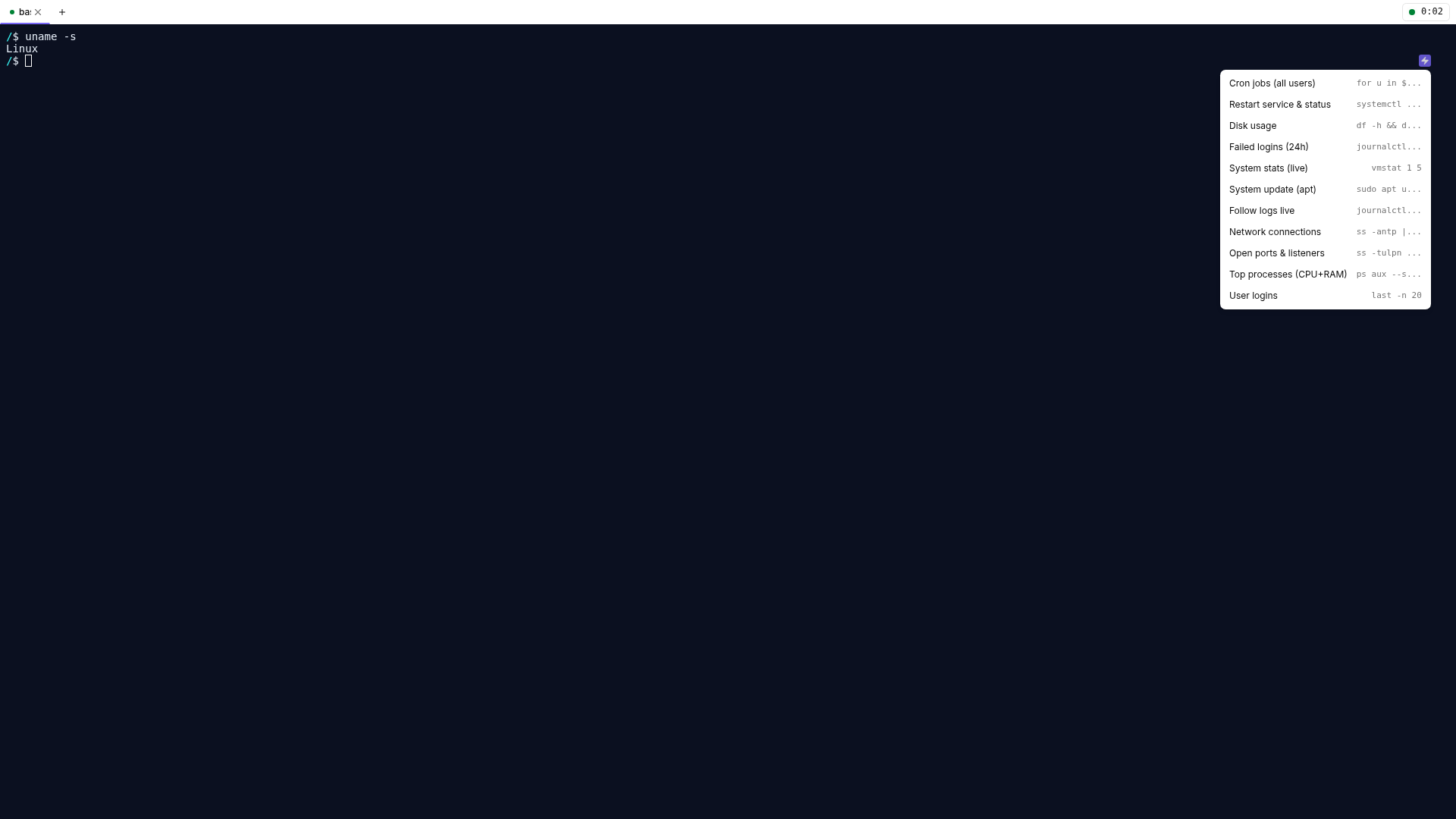
Inside the terminal, a small lightning-bolt button appears at the right edge of the current prompt line. Click it to open a menu of pre-loaded commands for common tasks. Select a command to paste it into the terminal — you can review and edit it before running. Hold Shift while selecting a command to execute it immediately instead of pasting.
The button hides while a full-screen program such as vim or htop holds the terminal, and returns when you exit back to the prompt.
The menu lists only the commands for the shell running in the active tab:
Time tracking
octoja starts tracking time the moment the Toolbox window opens and stops when you close it. A running timer sits at the right of the tab strip. Click it to add a Note, link the work to a Case, or drop the record with Delete tracked time.
One Toolbox visit is one entry however many tabs you open — terminal, File Explorer and Remote Desktop all count towards the same session. The totals reach the Remote Times report for the device's customer.
Tips
Terminal sessions are logged in the device activity log under the source Direct Session.
If the Terminal tab shows a connection error, confirm the device is still online and click Retry (in the connection-lost banner the action is labelled Reconnect).
The Toolbox window holds up to 10 tabs at once — close a tab you no longer need before opening another.
Press Ctrl+Shift+T to open another tab on the current shell and Ctrl+Shift+W to close the active one. On macOS, use Cmd in place of Ctrl.
Each session is tied to your browser session. Closing the Toolbox window or signing out ends every open session cleanly. While tabs are still live, the browser asks you to confirm before the window closes — closing the last tab yourself skips that prompt.
Your browser may block popup windows on first use. If the Toolbox window does not appear after clicking Terminal, allow popups for the octoja site and try again.
FAQ
Why does the terminal not open on Windows Server 2016?
Why does the terminal not open on Windows Server 2016?
The interactive terminal requires Windows features available from Windows Server 2019 or Windows 10 version 1809. The terminal is therefore not supported on Server 2016.
Use Remote Desktop instead, or run non-interactive commands through an automation. You need the permissions for the alternative you choose.
Was this helpful?
Still need help? Ask the team