Send a notification and request a response
Format messages, ask a signed-in device user for input and read their response in octoja.
Use Send notification to inform a user or ask for feedback before intervening. A response does not itself execute an action: agreeing to a restart does not automatically restart the device.
Prerequisites
- The device is online and reachable through its octoja agent.
- A user is signed in to an interactive desktop session.
- Your group allows the Send Notification device action for this device. See Assign permissions.
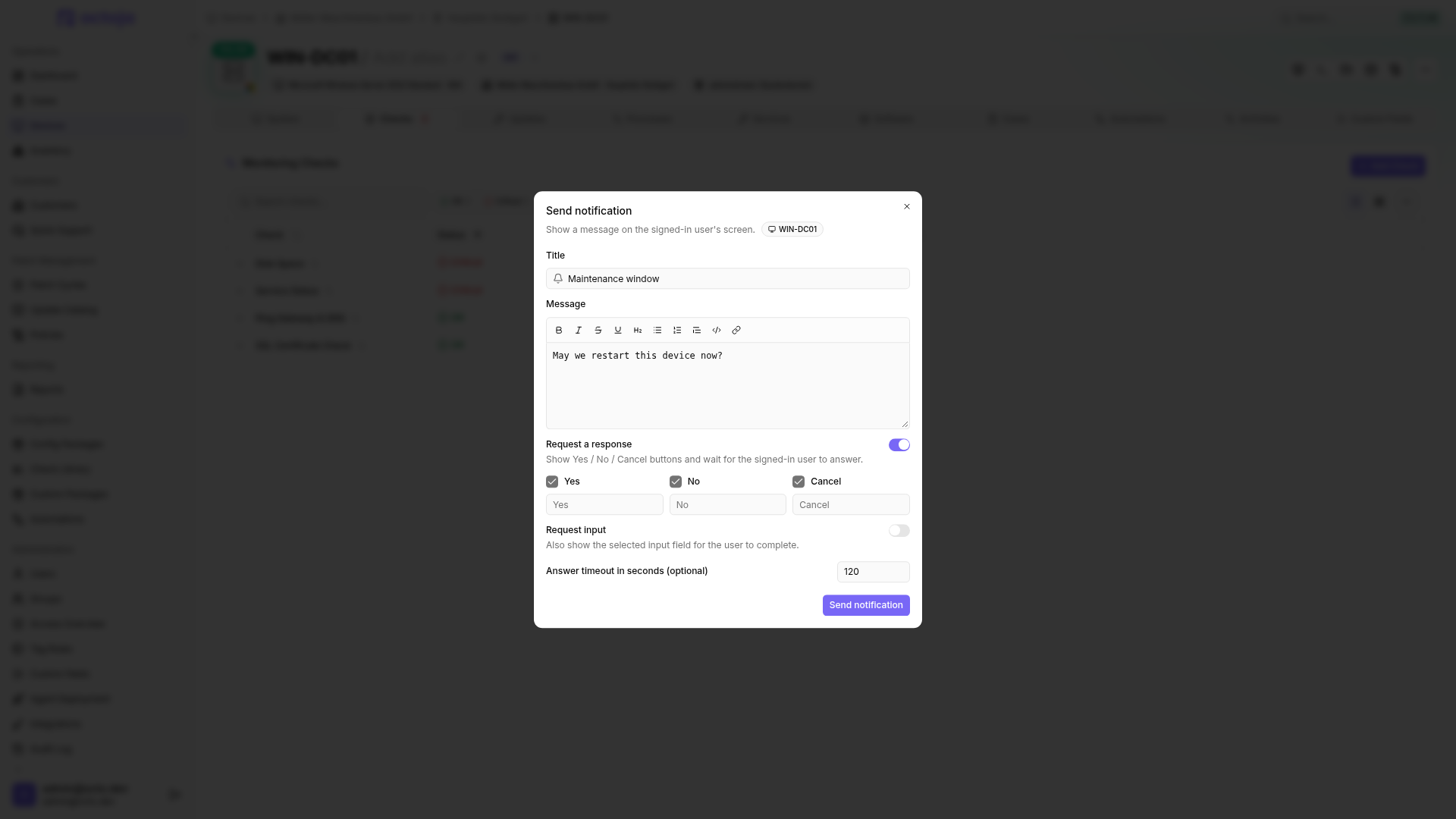
Request a response
- Open the device and choose Send notification from its action menu.
- Enter a title and message, for example a question about a suitable maintenance time.
- Enable Request a response. Without this option, you send only a notification and do not wait for an answer.
- Set the response timeout: the default is 120 seconds, with 10 to 600 seconds allowed.
- Optionally rename Yes, No and Cancel, or hide individual buttons. At least one must remain visible.
- If needed, enable Request input and choose the Input type. For Dropdown or Multi-select dropdown, enter one value per line under Options.
- Click Send notification. The dialog stays open while Waiting for response… is displayed. Afterwards, it shows the selected button and any entered value.
If several eligible user sessions exist, the first answer wins. A message that the user did not answer in time is not consent. If no signed-in user is available, octoja reports that separately; check the session or contact the user another way.
If the window covers something the user needs to see, they can move it by dragging an empty area of its background with the left mouse button.
Choose an input type
Both selection types require at least one option. You can provide up to 200 distinct options with up to 100 characters each. Empty lines, duplicates and leading or trailing whitespace are removed; capitalization remains significant.
Input is optional, so the user can submit an empty value. Invalid numbers must be corrected before choosing Yes or No; Cancel remains available. Values are returned as text: yes/no as true or false, a date as yyyy-MM-dd, decimals with a dot and multiple selections as a JSON list. Keep these formats in mind when processing input in an automation.
Format the message
Select text and use the toolbar for Bold, Italic, Underline or Strikethrough. You can also insert headings, lists, quotes and inline code. With Insert link, enter the displayed text and a web address starting with https:// or http://. The message can contain up to 2,000 characters including Markdown syntax, and the title up to 100 characters.
The user sees the formatted message in the agent window. Only HTTP and HTTPS links can be opened; HTML is not executed and images are not loaded. Use a link when referring to an illustrated guide instead. Formatting is also available for bulk notifications and the corresponding automation steps.
The device log records the title, message and outcome of the send attempt. Successful delivery does not prove that the user read the notification. Use Request a response when you need explicit feedback.
The bulk action for several devices remains notification-only. For recurring workflows that evaluate an answer, use the user-prompt step in an automation.
Was this helpful?
Still need help? Ask the team