Decide updates in patch cycles
Approve, reject or defer updates in upcoming patch cycles, approve updates globally, and override safeguards for one cycle.
Every ring of a patch policy has an upcoming patch cycle for its next maintenance window. The cycle lists the updates the ring's devices report as pending, each with a decision. When the window opens, octoja installs the approved updates automatically — there is nothing to finalize. Until then, you can change any decision.
Prerequisites
- Manage Patch Cycles to approve, reject, defer and withdraw decisions, to refresh a cycle and to cancel it. You also need access to the customers of the policy.
- Patch Policy Management to approve an update globally or to block it.
- Override patch safeguards to override a blocking safeguard for one cycle or to reactivate it, or to override an update's known problems in every cycle. If the update is not approved yet, you also need Manage Patch Cycles.
Permissions are granted per group under Administration → Groups (see How Users, Groups & Permissions Work).
Find cycles that need you
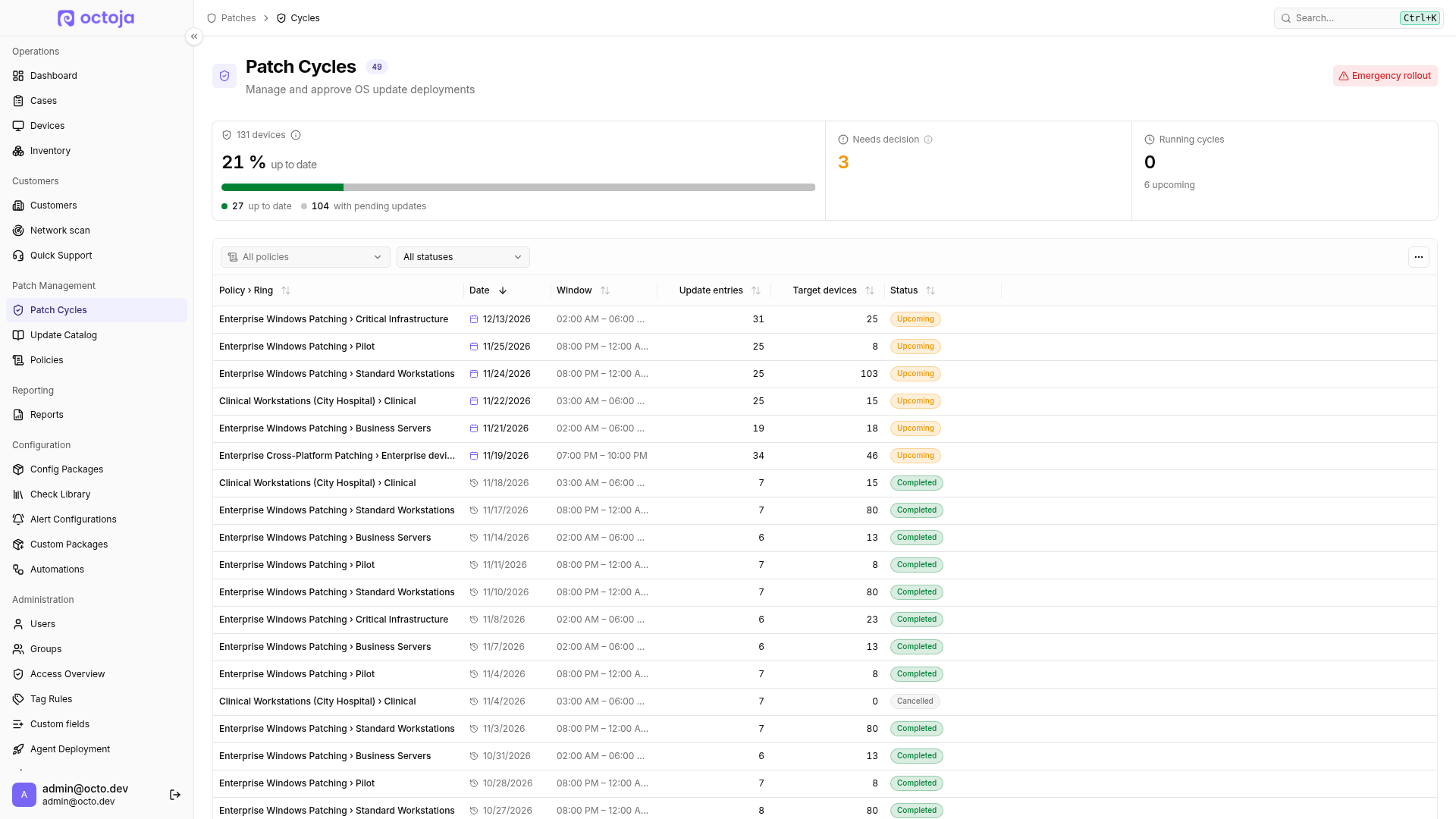
Go to Patch Management → Patch Cycles. At the top, you see the percentage of devices that are up to date according to their reported inventory. A bar splits the devices into up to date, only blocked updates — devices whose only pending updates are blocked by safeguards — and with pending updates. If any device has only blocked updates, excluding blocked updates also shows the share of devices that are up to date apart from blocked updates. Next to it, the cards show Needs decision — the cycles with updates still awaiting a decision — and Running cycles, with the number of upcoming cycles below it. Click Needs decision or Running cycles to filter the cycle table by it.
Open a cycle. The banner shows when its maintenance window starts and how the ring decides updates: by your decisions, by automatic rules or by promotion from the previous ring.
Decide updates
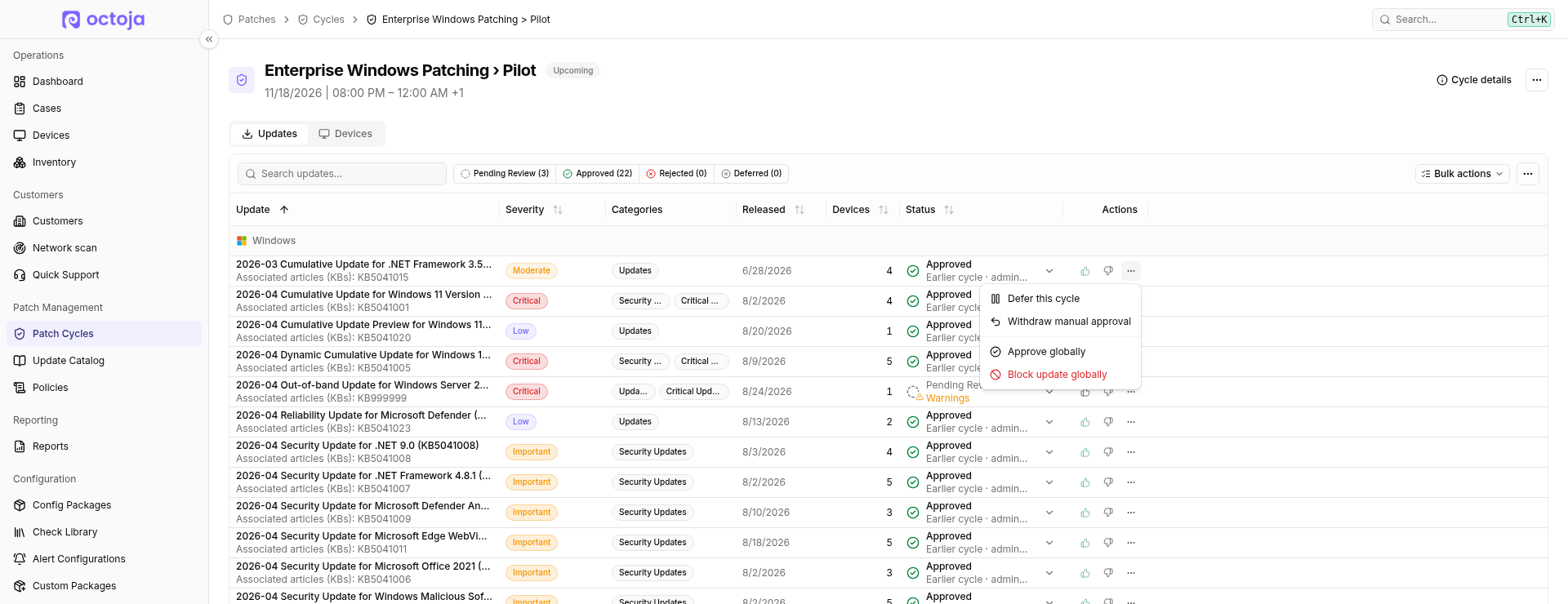
The Updates tab lists every update in the cycle with its Status; use Search updates… to find one by title, KB number or update ID. Devices shows which devices the cycle covers and which of the updates each of them needs.
- Review an update. Click its status to see where the decision comes from, its safeguards, and any warnings such as known problems.
- Click Approve or Reject in the update's row. The row's More actions (⋯) menu also offers Defer this cycle — or Undo deferral once the update is deferred — and, when a user decided the update, Withdraw manual approval or Withdraw manual rejection.
- To decide many updates at once, open Bulk actions and choose Approve All Pending, Approve Critical + Important or Reject All Pending. Bulk actions apply to all updates awaiting a decision in the entire cycle, regardless of table filters. Blocked updates are excluded.
That is all. The approved updates install when the window opens.
A decision from an earlier cycle of the same ring shows as Earlier cycle with the user who made it. Decisions in cancelled cycles are not carried over. Decisions are per ring: to approve an update for every ring and policy at once, approve it globally.
Automatic decisions
In policies with Fully automatic approval or auto-promotion, most updates are already Approved or Deferred when you open the cycle. Click the status to see the rule or the promotion criteria behind it — for promotion, which criteria were met. Your own Approve, Reject or Defer this cycle takes precedence over automatic decisions.
Approve an update globally
A global approval approves one update in every upcoming regular cycle of every policy, unless someone decided otherwise for that cycle or ring. It is useful after testing an update once, for example a fix you want everywhere without approving it ring by ring.
- Open the update under Patch Management → Update Catalog and click Approve globally. In an upcoming cycle or on a device's Updates tab, you also find Approve globally in the update's More actions (⋯) menu. On the Global approvals tab of the Update Catalog, you can instead click Approve update and search for the update.
- Optionally enter a Reason (optional), and confirm with Approve globally.
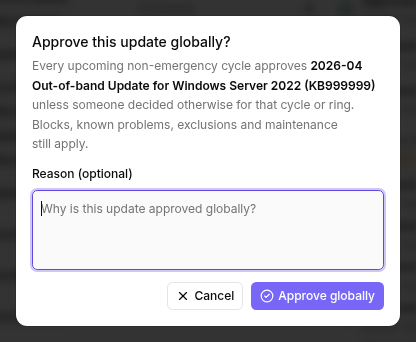
The update shows Approved globally in the catalog and in every affected cycle. A global approval bypasses auto-promotion and automatic rules, but not safeguards: global blocks, known problems, exclusions and maintenance mode with paused patches still apply. Emergency rollouts are not affected.
To withdraw it, open the update and click Revoke on its Global approval card, or click Revoke on the Global approvals tab of the Update Catalog. In a cycle or on a device's Updates tab, choose Revoke global approval (all policies) in the update's More actions (⋯) menu. Revoking removes the global approval in every policy and ring, not only in that cycle. Upcoming cycles fall back to their own decisions; cycles that already started keep theirs.
Blocked updates and safeguard overrides
A Blocked status means a safeguard prevents installation even if the update is approved: a global block, a policy exclusion, or a known problem in a policy that excludes known problems. Blocked updates are skipped and do not count as awaiting a decision. Partially blocked means a global block applies to only some of the policy's customers: those customers' devices skip the update, and the others install it. To block an update yourself, choose Block update globally in the row's More actions (⋯) menu; see Exclude or block updates.
If a blocked or partially blocked update must install anyway in this cycle, choose Override safeguards in the row's More actions (⋯) menu. If the update is already approved, confirm with Override for this cycle. If it is not approved yet, confirm with Approve and override for this cycle: octoja approves the update in the same step, even if it was rejected or deferred before. The override:
- applies only to this update in this cycle; an approval given with it is a normal approval,
- becomes invalid when the blockers change; new or changed blockers must be confirmed again,
- can be withdrawn with Reactivate safeguards in the same menu until the window opens; approval and deferral decisions stay unchanged.
If only known problems block an update, you can instead override them once for every policy and ring with Override known problems on the update's page; see Exclude or block updates. The row then shows Safeguards overridden. If a global block or policy exclusion also applies, the row stays Blocked and explains that the block still stops the update. A standing override is revoked in the Update Catalog, not with Reactivate safeguards.
Warnings, such as a known problem in a policy without Exclude updates with known problems, never prevent installation. If the policy limits how long known problems hold updates back, a known problem stops blocking once that limit has passed and shows Maximum hold ended.
Refresh a cycle
Updates that devices newly report as pending are added to the upcoming cycle right away, and octoja reconciles all upcoming cycles once an hour. To re-check the cycle against the current devices immediately, choose Refresh now from the More actions (⋯) menu. Decisions you already made are kept.
When the window opens, octoja refreshes the cycle one last time, locks the decisions and installs the approved updates that are still pending on the ring's devices.
Cancel a cycle or a run
- Upcoming cycle: choose Cancel Cycle from the More actions (⋯) menu. The cycle does not run, and decisions made in it are not reused. The ring continues with its next maintenance window.
- Running cycle: click Cancel run. Devices that have not started installing get no updates. Installations already running on a device cannot be stopped safely; they finish and their results are recorded. Updates waiting for a restart keep the device's restart prompt. The cycle ends as Cancelled; its results still count for auto-promotion.
Cancelling a running emergency rollout or Install now run needs Emergency Patch Cycles instead of Manage Patch Cycles.
See also: How patch management works for the decision order, Set up patch policies and cycles, and Review patch results.
FAQ
Why is an approved update not installed on some devices?
Why is an approved update not installed on some devices?
octoja installs an approved update only on devices that still report it as pending when the device runs. A safeguard can still block it, and a device that was offline during the whole window misses the cycle. Check the device in the cycle results and on its Updates tab; see Review patch results.
I rejected an update by mistake. How do I get it back?
I rejected an update by mistake. How do I get it back?
Open an upcoming cycle of the same ring and click Approve, or choose Withdraw manual rejection in the row's More actions (⋯) menu. If you rejected it in that cycle, the decision that applied before comes back; otherwise the policy's rules decide again. The rejection only applied to that ring, so other rings are not affected.
What happens to updates nobody decided?
What happens to updates nobody decided?
With Manual decisions, an update still Pending Review when the window opens is not installed. It stays pending on the devices and appears again in the ring's next cycle.
Was this helpful?
Still need help? Ask the team