Install updates right away
Use Install now to install pending Windows and macOS updates on one or more devices immediately, outside any patch policy schedule.
Sometimes a device cannot wait for its next maintenance window — a technician has just set it up, a user is waiting for a fix, or the device missed its window. Install now installs pending operating-system updates on one or more devices right away, outside any patch policy schedule. It also works on devices that no patch policy covers.
To roll updates out to whole rings of a policy instead, use an emergency rollout.
Prerequisites
- The Emergency Patch Cycles permission. To install a blocked update anyway, you also need Override patch safeguards; to open the run afterwards, View Patch Policies and Cycles. Permissions are granted per group under Administration → Groups (see How Users, Groups & Permissions Work).
- Windows or macOS devices with the octoja agent that report pending updates. Linux and quick-support devices are not supported.
Install updates on one device
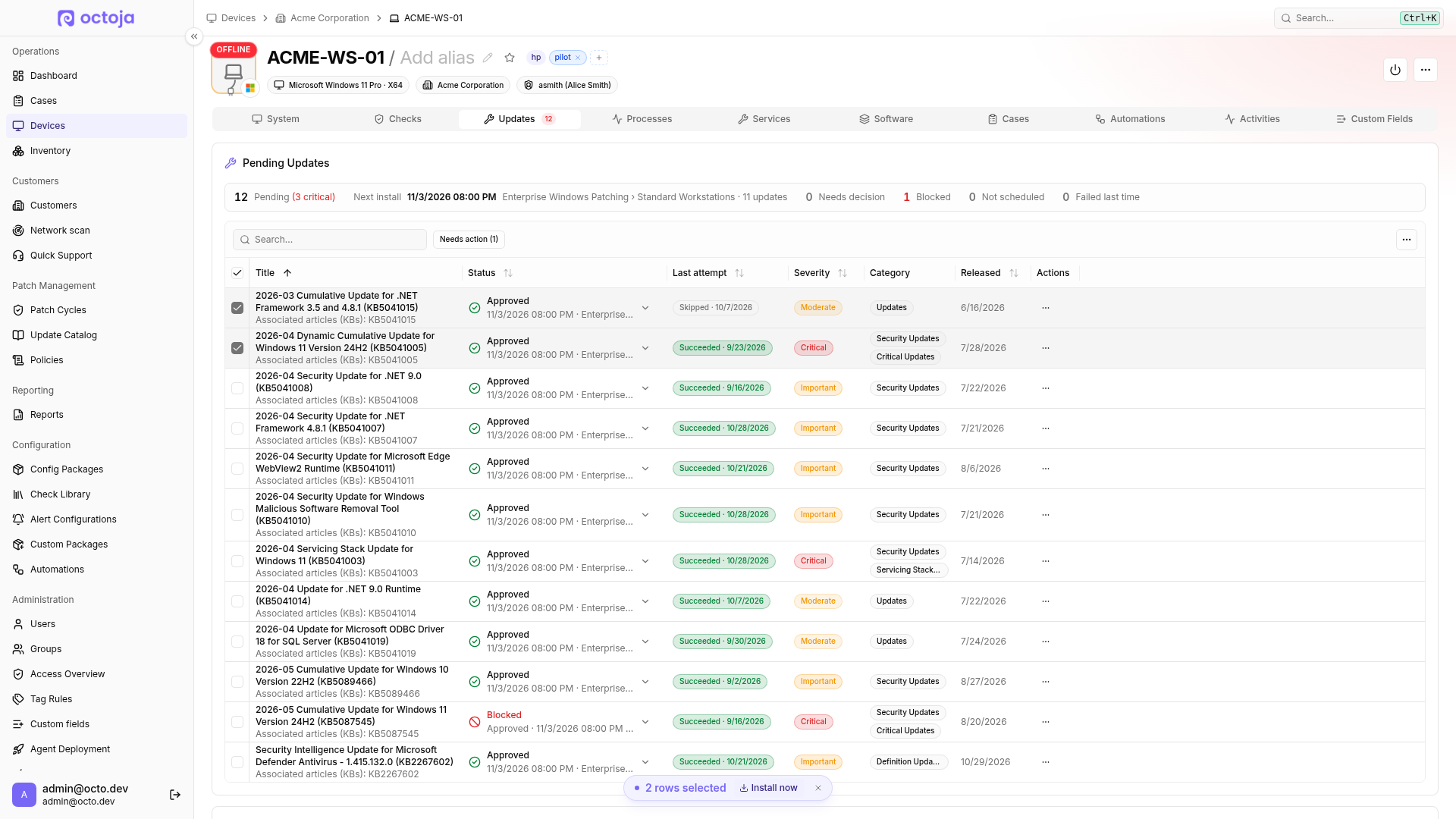
- Open the device under Devices and select Updates.
- Select the updates to install in Pending Updates and click Install now. To install every pending update, choose Install all updates now from the table's menu instead; it ignores the table's search and filters. You can also find Install all updates now with Ctrl+K.
- In the dialog, set the options (see below) and tick Start installing now.
- Click Install now.
Install updates on several devices
- Go to Devices and select the devices.
- Open More actions and choose Install updates.
- The dialog combines the pending updates of all selected devices and shows on how many devices each update is pending. Select the updates to install.
- Set the options, tick Start installing now and click Install now.
Each device installs only the selected updates that are pending on it. Devices that run Linux, are quick-support devices or are outside your access are skipped; the dialog says how many. You can select up to 500 devices.
Options
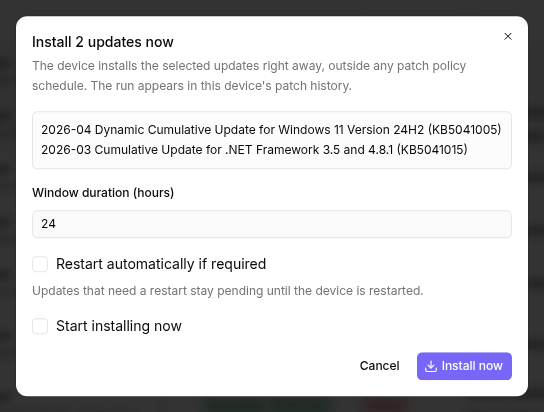
What happens next
The run starts immediately. Each device starts installing as soon as it is online and no maintenance window holds back patches. Global blocks for the device's customer still apply unless you override them. Policy exclusions and the Exclude updates with known problems switch do not apply, because the run belongs to no policy; known problems are only shown as warnings.
Click View run in the confirmation to follow the run. It also appears in the device's Patch history and its Next install labelled Install now. Results are shown like those of any patch cycle; see Review patch results. To stop the run, open it and click Cancel run.
An Install now run applies only to the selected updates. Its decisions are not carried over to patch cycles, and its results do not count for auto-promotion.
FAQ
Why does an update not appear in the Install now dialog?
Why does an update not appear in the Install now dialog?
The dialog only offers updates the device currently reports as pending. If an update is missing, wait for the device's next inventory or check whether it is already installed under Installed updates on the device's Updates tab.
Does Install now respect maintenance mode?
Does Install now respect maintenance mode?
Yes. If the device is in maintenance mode with Patches paused, the run waits. If the maintenance lasts until the run's window ends, the device is not patched.
Was this helpful?
Still need help? Ask the team