Monitor Securepoint UTMs through the cloud portal
Connect the Securepoint portal, assign UTMs to customers and sites, and verify their monitoring.
The Securepoint integration imports UTMs from the Unified Security Portal as network devices. octoja reads their status from the cloud; no on-site agent is required for this. This integration is separate from Securepoint Antivirus Pro.
Prerequisites
This feature must first be enabled for your instance. An administrator enables Securepoint integration under Settings → Beta features.
- The Integration Management permission and access to the customers you want to map.
- An API key for the Securepoint portal that can read the required tenants, UTMs and their status.
- Existing customers and, optionally, sites.
Connect and import devices
Open Administration → Integrations and choose Set up on Securepoint.
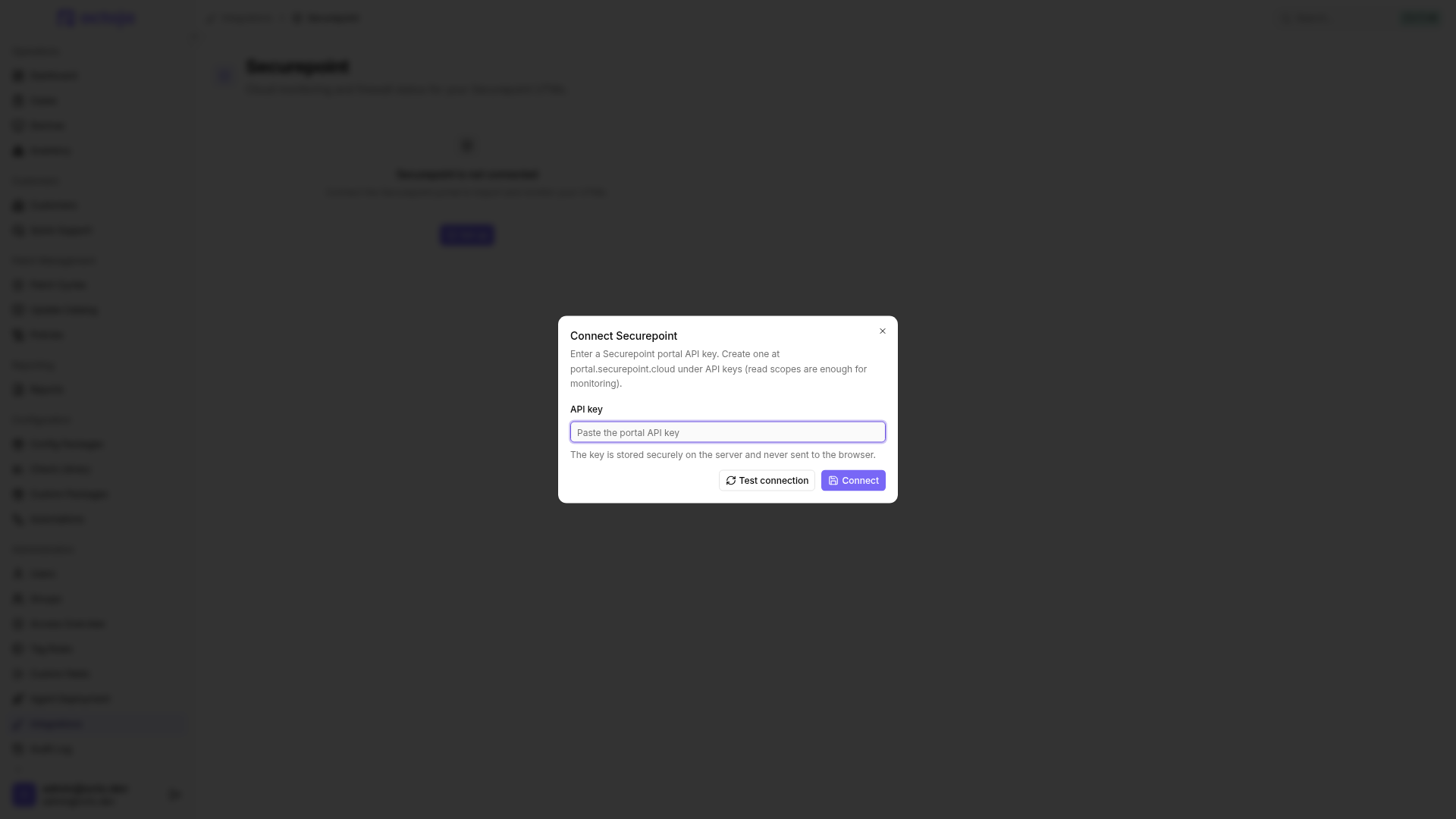
Enter the API key and choose Test connection. Once Connection successful. appears, click Connect. If the test fails, check the key and its access rights in the portal.
Open Match customers. Map each required Securepoint tenant to an octoja customer and save. Each tenant and each customer can appear in only one mapping.
Choose Sync now. octoja also synchronizes mapped tenants every five minutes. Sync started. confirms that synchronization has started, not that all devices were successfully imported.
Check the imported UTMs under Devices for the relevant customer. Under Assign sites, you can then assign each imported UTM to one of that customer's sites and save. Without a site assignment, it remains at customer level.
In the site dialog, … → Auto-match by name matches UTM names to sites belonging to the same customer. Multiple UTMs can use one site. Existing mappings are preserved and ambiguous matches stay open. Review and save the suggestions; auto-matching alone saves nothing.
Do not remove customer mappings to pause synchronization: During a later sync of the connected integration, octoja can remove imported devices belonging to unmapped tenants. After a successful fetch of a mapped tenant, octoja also removes UTMs the portal no longer returns. Use Disconnect to pause synchronization while retaining devices and mappings.
Verify monitoring
octoja creates the Securepoint UTM check for imported UTMs if it is available in your check library. Open the device and inspect the check and Last polled timestamp. Results come from synchronized portal data, not a direct reachability test from your customer's network.
Adjust thresholds and alert options in the check. Portal data older than 15 minutes generates a warning and is treated as offline for the offline evaluation. CPU, memory and services are evaluated only for a UTM considered online.
Live performance, connected clients, firewall rules and VPN status are not available through this cloud query. For additional local queries, use Edit device to set up SNMP through an on-site agent; available data depends on the device and protocol.
Troubleshoot and disconnect
- Credentials invalid: Choose Reconnect and test a valid API key. Existing mappings are retained.
- No UTMs: Check the customer mapping and whether the key can read that tenant's UTMs. A successful connection test alone does not prove access to every tenant.
- Stale data: Check the device's polling timestamp, the portal connection and status in the Securepoint portal. The integration page's last sync timestamp alone does not prove a successful fetch for every tenant.
- Disconnect: Removes the API key and stops synchronization. Disconnecting retains imported devices and mappings; devices are shown as offline. Reconnect the integration to resume synchronization.
Was this helpful?
Still need help? Ask the team