Set up the Freshservice integration
Connect octoja to Freshservice so check alarms open tickets, recoveries close them, and devices sync into the Freshservice ITAM inventory.
The Freshservice integration connects octoja to your Freshservice account so that monitoring alarms turn into tickets your team already works in. Setting it up takes three things: the connection itself, the customer matching, and an alert rule that routes alarms to the Freshservice channel.
What the integration does
Once connected and matched, the integration does three separate jobs:
- Creates a ticket from an alarm — when a monitoring check raises an alarm and an alert rule routes it to the Freshservice channel, octoja opens a ticket on the matched Freshservice customer, with the source Alerts and the status Open.
- Handles the recovery — when the check recovers, octoja adds a private note to that ticket and then closes it.
- Syncs devices into the Freshservice ITAM inventory — optionally, once an hour, octoja creates or updates one ITAM device per octoja device for every matched customer.
Everything runs outbound, from octoja to Freshservice. Nothing flows back: statuses, replies and assignments made in Freshservice never reach octoja. octoja only ever touches the tickets it created itself, and it never deletes anything in Freshservice.
Connecting on its own creates nothing. A connected integration with every customer matched still produces zero tickets until an alert rule points at the Freshservice channel. That routing step is Step 5 below, and it is the one people most often miss.
Prerequisites
- The Integration Management permission in octoja (
integrations.manage). Permissions are assigned under Administration → Groups — see How Users, Groups & Permissions Work. - The Customer Management permission (
customers.manage) as well, if you also want to import customers from Freshservice. - A Freshservice account and its subdomain — the part before
.freshservice.com. There are no regional API hosts, so the subdomain is the only address octoja needs. - An API key from a Freshservice agent. Freshservice issues the key; octoja never creates one.
- That agent needs to read your departments, create tickets, add notes to them and change their status. For device sync it also needs to create and update ITAM devices. Which Freshservice role grants exactly that is decided on the Freshservice side — check with Freshservice if you are not sure.
- An email address to use as the requester on every alert ticket. Freshservice creates that contact on first use if it does not exist yet, so pick the address deliberately.
- At least one customer in Freshservice, and a monitoring check that already runs, so there is an alarm to turn into a ticket.
Step 1 — Gather your Freshservice credentials
Collect three values: the subdomain of your Freshservice account, an API key, and the requester email address alert tickets should be attributed to.
The subdomain is only the label in front of .freshservice.com — for acme.freshservice.com it is acme. Pasting the full host or the full URL works too, because octoja reduces both to the same label. What does not work is a company domain such as acme.gmbh: octoja rejects any value that still contains a dot after that reduction. The Connect Freshservice dialog blocks the save and shows Enter only the subdomain, e.g. "acme" for acme.freshservice.com. under the field.
Step 2 — Connect octoja to Freshservice
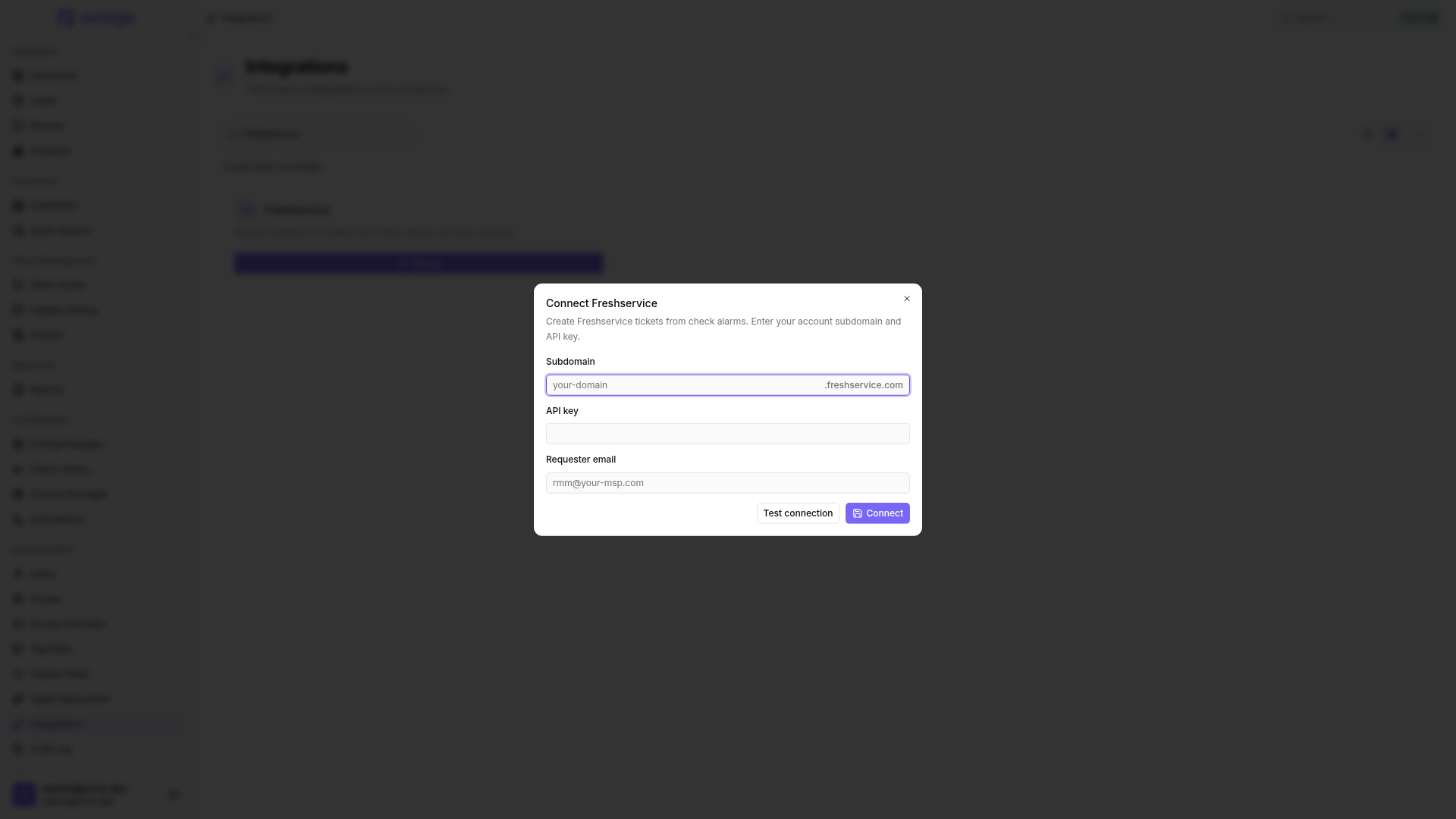
- In octoja, go to Administration → Integrations and find the Freshservice card under Ticketing systems.
- Click Set up. The Connect Freshservice dialog opens.
- Fill in the three fields:
- Click Test connection. octoja contacts Freshservice with the subdomain and API key you entered and reports Connection successful. or the error Freshservice returned.
- Click Connect. octoja stores the credentials and opens the Freshservice integration page on its Configuration tab.
Connect verifies your credentials before it saves anything. Unlike several other integrations, octoja calls Freshservice as part of connecting: if the account rejects the subdomain or the key, nothing is stored and a message at the top of the screen reads Could not connect to Freshservice: followed by the reason. So a connection that succeeds is a connection that works. The dialog stays open with everything you typed either way, but Test connection is the better way to iterate on a typo, because it reports the result under the fields rather than in a message that clears itself.
Rotating the API key needs a disconnect first. While a connection exists, connecting again is refused with The Freshservice integration is already connected. Use Disconnect, then connect with the new key — your customer matches and the device-sync setting survive that round trip, but a Workspace ID you had set does not: the Connect Freshservice dialog has no field for it, so connecting falls back to the primary workspace.
Step 3 — Match customers to Freshservice customers
Every Freshservice ticket octoja opens carries a Freshservice customer, so octoja needs to know which one each of your customers is. Without that pairing there is nowhere to route the ticket, and there is no unassigned-ticket fallback.
- On the Configuration tab, find the Customer matching section. It reports how many of your customers are matched.
- Click Match customers. The dialog lists your octoja customers next to a Freshservice customer picker, read live from Freshservice.
- Pair every customer you want tickets for, then click Save matches.
The picker is filled from your Freshservice departments — the records Freshservice for MSPs labels as companies. An entry you expect but cannot find is either missing in Freshservice or already claimed by another row — octoja hides a Freshservice customer that is matched elsewhere, including the matches that were already saved when you opened the dialog.
Matching is one to one in both directions: an octoja customer can point at only one Freshservice customer, and a Freshservice customer can be claimed by only one octoja customer. The dialog enforces that while you work: a Freshservice customer another row already claims is hidden from the remaining pickers, so a duplicate cannot be built in the first place.
An unmatched customer produces no ticket — and only a muted history row. A device whose customer has no match creates nothing; the attempt is recorded on the History tab as a gray Skipped badge. Expand that row and read the response — it says the asset has no mapped Freshservice department.
Device sync depends on the same matching: the devices of an unmatched customer are never pushed to Freshservice.
Step 4 — Check the ticket settings
The Ticket settings section holds the two values applied to every ticket octoja creates.
Settings are not saved automatically. Changes to either field, and to the device-sync switch further down, stay local until you click Save in the page header, or press Ctrl+S.
There is nothing else to map. Freshservice has no queue, status or priority picker in octoja, because octoja fills those itself:
Every ticket is created with the status Open and the source Alerts — Freshservice's own origin for monitoring tools, so alert tickets are easy to filter and report on. Because none of this is configurable, a Freshservice ticket is never skipped for a missing setting the way tickets in some other PSA integrations can be. What does make octoja skip one is an unmatched customer, or an integration that is disconnected or Paused.
Step 5 — Route alerts to the Freshservice channel
This is the step that makes tickets appear. Everything so far only prepared octoja; no alarm reaches Freshservice until an alert rule sends it there.
- Open the config package that contains the check you want tickets for, go to its Checks tab and open the check.
- Switch to the check's Alert tab and pick or create an alert configuration.
- In that configuration, add the channel Freshservice ticket.
- Set the rule for the channel — the share of recent results and the minimum severity that has to be reached — and save the check.
Freshservice is a single, tenant-wide channel: once you pick Freshservice ticket there is nothing else to select, no target and no workspace to choose again. Like the other ticketing channels, it appears in the picker once Freshservice is connected. Connect in Step 2 and match your customers in Step 3 before you rely on the rule.
For the full walkthrough of alert configurations, rules and schedules, see Set up alerts for a check.
A ticket octoja opens is titled [octoja] <check> <status> – <device>. Its description names the check, the device, the reported status, how many of the last runs failed and which customer the device belongs to, followed by the check's own output and a link back to the device's check page in octoja. That text is always written in English, whatever language your octoja is set to. A device that has no name yet appears under its octoja device id instead.
What happens when a check recovers
Recovery is a note followed by a close.
Freshservice closes on recovery even when a technician is assigned. Several other PSA integrations in octoja deliberately leave an assigned ticket open; Freshservice does not. If your team wants to keep working a ticket after the check has gone green, expect to reopen it in Freshservice.
Two more things worth knowing about the close:
- If your Freshservice admin has made fields mandatory on close, Freshservice rejects the status change. That failure is recorded on the History tab rather than swallowed — but the recovery note has already been added by then.
- The note goes first and the close second, and a failed attempt is retried as a whole. So the same recovery note can appear twice on a ticket before it finally closes.
octoja only ever touches the ticket it opened for that alarm. One alarm produces exactly one ticket, so a flapping check does not flood your service desk — but a fresh alarm after a recovery does open a new ticket.
Step 6 — Sync devices into Freshservice (optional)
Device sync pushes your managed devices into the Freshservice ITAM inventory. It is off until you turn it on, and it has one hard requirement.
Device sync needs a Freshservice instance created after 31 March 2026. Older instances do not have the ITAM devices API. octoja checks for it before every run: if it is missing, the run records a delivery reading device sync requires a Freshservice instance created after 31 March 2026 and stops. Ticket creation and recovery are unaffected.
- In the Device sync section, turn on Sync devices to Freshservice hourly.
- Click Save in the page header.
The schedule then runs once an hour, so the first automatic run follows within the hour. Sync now starts a one-off run at any time and works whether or not the hourly switch is on. Either way the work is queued rather than awaited — the button reports Device sync started. and the outcome shows up on the History tab a moment later.
Each matched customer syncs as its own run with its own history entry. For every device with a name, octoja creates or updates one ITAM device carrying:
- the device name as the ITAM device name;
- the octoja device id as the device's UUID — the stable key octoja matches on, so renaming a device in octoja updates the existing record instead of creating a second one;
- the serial number, when it has at least three characters. Shorter serials are left out, because Freshservice ignores them and falls back to matching on the name;
- a type of physical or virtual, derived from the manufacturer, model, chassis and device type in the device's inventory. Anything octoja cannot recognise as virtual is treated as physical.
Devices without a name are skipped, and devices are never deleted — if you remove a device in octoja, tidy up its ITAM record in Freshservice yourself. One device failing does not abort the rest of the run: the history entry reads synced=<n> skipped=<n>, with errors=<n> added and the first error message shown when individual devices were rejected.
If no customer is matched at all, the run still records an entry — reading that no customers are matched to a Freshservice customer and there is nothing to sync — rather than leaving you with an empty history. The Device sync section itself shows Last synced with a timestamp, or Not synced yet.
One thing to weigh before you switch this on for a large fleet: every device you sync becomes an asset in Freshservice, which has a licensing effect on your Freshservice plan. That is why the switch ships off. Check the impact with Freshservice first.
Import customers from Freshservice
If your customers do not exist in octoja yet, you can seed them from your Freshservice customers. This lives on the Customers page, not on the integration page.
- Open Customers, open the Actions menu above the list and choose Import from ticketing system.
- Select the Freshservice customers you want and confirm the import.
Each selected entry becomes an octoja customer named after it, and its match is created in the same step — so an imported customer needs no manual matching from Step 3. Entries that are matched already are marked Imported and skipped, and so are entries that no longer exist in Freshservice. The confirmation counts only the customers that were actually created, so a smaller number than you selected is normal. Importing needs the Customer Management permission on top of Integration Management.
Freshservice sits near the end of the queue. The menu item opens the first connected ticketing system in a fixed order: DocBee, HaloPSA, Inserve, Autotask, Codemeta OS, Odoo, Jira, TOPdesk, TANSS, c-entron Service-Board, Freshservice, Zammad. Ten systems come before it, so if any of those is connected as well, its import dialog opens instead and the Freshservice importer cannot be reached at all. Match those customers by hand in Step 3, or create them with Create a Customer.
When tickets stop arriving
The History tab lists recent Create ticket, Recovery and Device sync attempts with their timestamp, outcome, status code, attempt number and duration, and refreshes itself while you watch it. Expand a row to see the request and the response Freshservice returned. It is the place to look whenever a ticket you expected is missing.
- A delivery failed. octoja retries a failed ticket create or recovery after 1 minute, 5 minutes, 30 minutes, 2 hours, 12 hours and 24 hours, then gives up on that delivery. Errors Freshservice reports as a mistake on the caller's side — a rejected API key, a customer that no longer exists, a close blocked by mandatory fields — are not retried, because repeating them would not change the answer. A failed device sync is not retried either; the next run picks it up.
- The card shows the status Paused. After 20 consecutive failed deliveries octoja stops sending, so a broken connection does not keep hammering Freshservice. There is no resume button: use Disconnect and connect again. Matches and the device-sync setting survive, but you have to enter the subdomain, API key and requester email again, and octoja never shows the key back to you — keep a copy wherever you keep credentials. A Workspace ID you had set is reset to the primary workspace, so set it again afterwards.
- What a pause does and does not stop. While paused, no new tickets are created and device sync does nothing — Sync now is still accepted, but produces no run. Recoveries on tickets octoja opened earlier do still go out, so open tickets are not left dangling.
- Tickets are missing for one customer. Look for a gray Skipped row on the History tab and expand it. If the response says the asset has no mapped Freshservice department, match that customer in Step 3.
- Tickets stopped for one device. A device in Maintenance mode with Alerts ticked under Pause during this window opens no new alarms while the window runs, so it produces no new tickets. An alarm that was already open still closes its ticket when the check recovers.
- No tickets at all. Confirm that the card is not Paused, and that an alert configuration on the check really includes the Freshservice ticket channel.
- The customer picker is empty. The stored key is no longer accepted, so the lookup returns nothing and the dialog reports that customers could not be loaded. Disconnect and connect again with a working key.
Change your subdomain, API key or requester
The Requester email and the Workspace ID can be edited in place on the Configuration tab — change them and click Save. The subdomain and the API key cannot: the configuration page offers no fields for them, and octoja refuses a second connect while one is already in place. To change either:
- Disconnect Freshservice, as described below.
- Connect again with the new values.
Your customer matches, the device-sync setting and the delivery history survive that round trip, and you type the requester email again as part of connecting. One value does not come back: the Workspace ID. The Connect Freshservice dialog has no field for it, so every reconnect resets tickets to the primary workspace — enter it again on the Configuration tab and click Save. Plan the gap, too: while the integration is disconnected, alarms raise no tickets, and those alarms are not caught up afterwards.
Disconnect Freshservice
To remove the connection, open the Freshservice integration page, scroll to the Danger Zone and click Disconnect, then confirm in the Disconnect Freshservice? dialog with Disconnect.
Only the API key is removed. Your customer matches, the requester email, the workspace id, the device-sync setting and the delivery history stay exactly as they were, and every ticket and ITAM device already created remains in Freshservice. Reconnecting later is a matter of entering the subdomain, the API key and the requester email again — plus the Workspace ID, which connecting resets to the primary workspace.
Tips
- Use a dedicated address as the requester, such as
rmm@your-msp.com. Freshservice creates that contact on first use, so every alert ticket is attributed to one identity you can filter on. - Enter only the subdomain. Pasting
https://acme.freshservice.comworks because octoja reduces it, but a company domain such asacme.gmbhis rejected outright. - Auto-match by name, in the matching dialog's More actions menu, pairs customers whose names line up and tells you how many it matched. Names that are ambiguous are skipped rather than guessed — pair those by hand.
- Click Save after every change on the Configuration tab. A switch you flipped but did not save has no effect on the next alarm.
- Leave Workspace ID empty unless you actually run Freshservice with more than one workspace.
- Use the History tab as your first stop. Create ticket rows carry the id of the new ticket in the response, and Device sync rows carry the synced and skipped counts.
- Rename devices in octoja rather than in Freshservice. octoja syncs on its own stable device id, so a rename in octoja updates the existing ITAM record, while renaming it in Freshservice only makes the two lists disagree.
Was this helpful?
Still need help? Ask the team