Set up the TANSS integration
Connect TANSS, configure alarm tickets and device synchronization, and inspect history.
Set up the TANSS integration
The TANSS integration connects octoja to your TANSS service-management system. Connecting makes two things possible: octoja can open and close TANSS tickets from check alarms, and it can sync the devices you manage into TANSS. Connecting on its own creates no tickets — a ticket is raised only once an alert rule on a check routes to the TANSS ticket channel, which you wire up in Step 6.
What the integration does
The connection covers three jobs:
- Ticket creation — when an alert rule that includes the TANSS ticket channel fires on a check, octoja creates a TANSS ticket for the affected device's company, using the ticket type, department, status, and language you choose.
- Ticket recovery — when the same check clears, octoja attempts an internal comment and optionally books a support entry. Closing requires suitable credentials, Close ticket on recovery and a closing status. If an Initial status is configured, the ticket must still have that status.
- Device sync — octoja creates devices that are missing in TANSS and updates ones whose details changed, matched per company. Devices are never deleted in TANSS. The sync runs hourly once you switch it on.
So that tickets and devices land on the right company, you first map each octoja customer to its TANSS company.
Before you start
- A reachable TANSS server with an HTTPS address and an ERP API token. An employee account is optional. Without one, use a Monitoring API token for ticket recovery and a Device management API token for device sync. An employee account is required only if you want octoja to book support entries.
- The Integration Management permission in octoja, granted per group under Administration → Groups. This permission lets you connect external platforms and change their settings.
- Your octoja customers should exist before you map them.
- An alert configuration you can extend with the TANSS ticket channel. Without that last step no tickets are created.
Your TANSS API endpoint must be reachable from the octoja platform, not only from your own network. If you need to allow source IPs, see IP addresses and firewall rules.
Step 1 — Open the TANSS setup in octoja
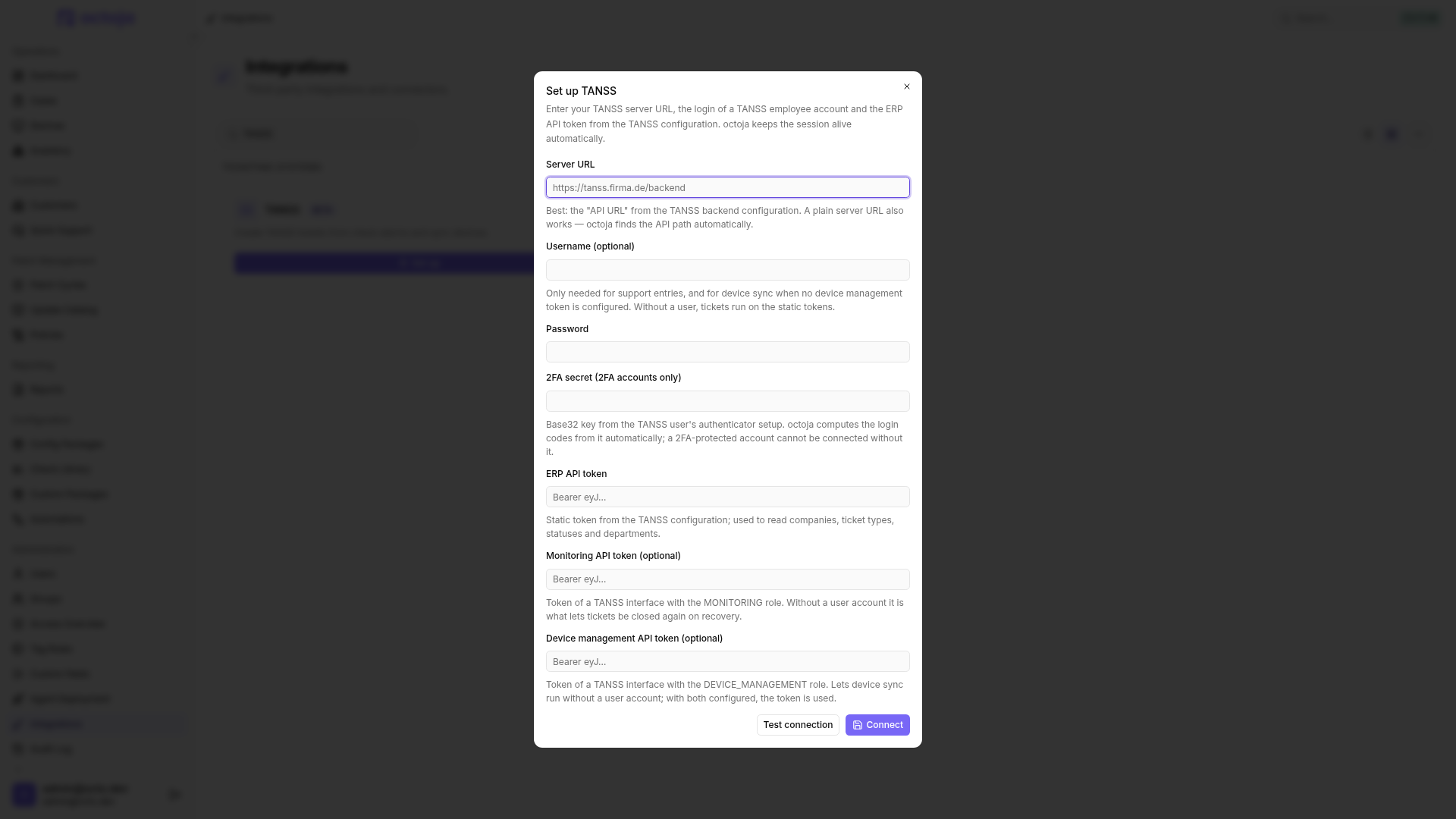
- In octoja, go to Administration → Integrations.
- Find the TANSS card — it currently carries a BETA badge — and click Set up. This opens the Set up TANSS dialog.
Step 2 — Connect with your TANSS credentials
Fill in the connection details:
- Click Test connection after entering the server URL, ERP API token and any optional credentials. If you use an employee account, fill in both its username and password.
- When Connection successful. appears, click Connect. octoja confirms with TANSS connected.
The password, the ERP API token, and the session tokens are stored on the server and stripped from every API response, so they never reach the browser. octoja keeps the employee session alive on its own by rotating a refresh token. For a 2FA-protected account it computes fresh login codes from the stored 2FA secret whenever it needs to sign in again — you never re-enter a code.
Step 3 — Map your customers to TANSS companies
After connecting, the TANSS integration page opens. Start with Customer mapping so tickets and devices route to the right company.
- Click Match customers to open the Match TANSS companies dialog and pair each octoja customer with its TANSS company. If TANSS provides a customer number, it appears in parentheses after the company name and is also searchable.
- If the customers do not exist in octoja yet, you can create them from TANSS instead. This is not on the integration page: go to Customers, open the actions menu, and choose Import from ticketing system. The customer mappings are created automatically. The menu item opens whichever ticketing system octoja finds connected first in its fixed order, so it reaches TANSS only when no earlier ticketing integration is connected.
- Once at least one customer is matched, Match sites pairs an octoja site with its TANSS branch company the same way, so tickets, devices and support entries land at the right branch.
In the site dialog, … → Auto-match by name fills unambiguous name matches from the entire available company list. Existing mappings are preserved and ambiguous matches stay open. Pay particular attention to similarly named companies and save the suggestions only after reviewing them.
Step 4 — Configure how tickets are created
In the Ticket mapping section, choose how alarm tickets look in TANSS.
Click Save settings at the top of the page when you are done. That one button stores everything on the Configuration tab, including the device-sync switch in Step 5.
Book a support entry on recovery controls whether recovery also books a one-minute internal support entry. It defaults to on with an employee login and is unavailable without one. Recovery also attempts an internal comment; older TANSS versions may not support that comment route, which does not by itself prevent closing. ERP-only credentials cannot read or close tickets. If TANSS requires a support entry before closing, either provide an employee login and enable booking or adjust that requirement in TANSS. Inspect History when a recovery does not close its ticket.
Step 5 — Turn on device sync
In the Device sync section, switch on Automatically sync devices hourly. octoja then creates missing devices in TANSS and updates ones whose details changed — PC records are matched per company by octoja key, MAC address, serial number, then hostname — and never deletes devices in TANSS. The section shows when the last sync ran, or Not synced yet. if it has not. The switch takes effect once you click Save settings. Device sync pays off in tickets too — an alarm ticket is linked to the TANSS device the sync created, so it hangs off the machine that raised the alarm.
Use Sync now for an immediate run, even when hourly sync is off, then check History for the outcome. Sync includes manufacturer, operating system, CPU and BIOS information, plus disks, RAM, physical network adapters and monitors as components. Unknown inventory values do not erase existing information. Removed components previously managed by octoja are deactivated rather than deleted; manually maintained components and existing IP entries are preserved.
After a reinstall, octoja can also match an existing TANSS PC by serial number or hostname. The next sync with hardware inventory deactivates obsolete octoja components on that PC, including those from the previous installation. New components keep the PC's existing TANSS company. Inspect the PC and its active components after syncing; a reinstall should not leave a second set of hardware components.
Network devices such as switches, routers, firewalls, printers and NAS units sync as TANSS peripherals; ESXi and vCenter remain PC records. Peripherals are matched by octoja inventory key, serial number and then name — not MAC address. Manually maintained inventory numbers are preserved. If the same network device still has an old PC record bearing the octoja inventory key, that record is marked inactive after the peripheral is matched, not deleted. Alarm tickets link to the peripheral where possible; inspect the mapping in TANSS after the first run.
UniFi devices send their MAC address as the serial number: twelve uppercase hexadecimal characters without separators. Securepoint devices send their hardware serial number. These values allow matching existing TANSS peripherals even when device names differ.
Step 6 — Route alert rules to the TANSS ticket channel
This is the step that actually produces tickets. Everything above only makes the channel available and decides what a ticket looks like — nothing is sent to TANSS until a check's alert configuration includes the channel.
- Open the alert configuration that should raise TANSS tickets — from a check's Alert tab, or by editing an existing alert configuration.
- Click Add Channel.
- Choose TANSS ticket as the channel type. TANSS is one connection for the whole tenant, so there is no channel target to pick — the settings from Steps 3 to 5 apply.
- Set the minimum severity for the channel, and limit it to a schedule if you do not want tickets around the clock.
- Save the alert configuration. Every check using it now opens a TANSS ticket when the rule fires.
For the full walkthrough of alert rules, thresholds, severities, and schedules, see Set up alerts for a check.
How alarm tickets behave
Check what was delivered
The TANSS integration page has a History tab listing recent ticket and device-sync attempts with their outcome, labelled Create ticket, Recovery, or Device sync. Start there when a ticket you expected did not appear: an attempt octoja could not route shows as Skipped, and a delivery TANSS refused shows as Failed and is retried on a widening schedule before it settles at Dead-lettered. Open a row to read the request octoja sent and the answer TANSS gave.
Find older attempts with search, the Operation, Outcome, From and Through filters, and pagination. You can export all filtered rows as CSV. See Inspect and export integration history.
Disconnect
To remove the connection, open the TANSS integration page and use Disconnect TANSS in the Danger Zone. The credentials are removed and the integration is switched off, while your customer matches and ticket settings are kept for when you reconnect. Tickets and devices already created in TANSS stay in TANSS.
Tips
- Map every customer that should raise TANSS tickets before you rely on the automation — an alarm for an unmapped customer has no company to file against and lands in the History tab as Skipped.
- Close ticket on recovery is on from the start. Also set Status when closing on recovery if you want tickets to close automatically.
- If an Initial status is configured, a different ticket status keeps the ticket open on recovery. Do not rely on this protection without a configured initial status.
- If the connection test fails, check that the server URL is an HTTPS address, that the employee account can still sign in, and that the ERP API token is still valid in your TANSS configuration.
- The TANSS card under Administration → Integrations shows whether the connection is Active or Paused, and how many of your customers are mapped.
- After 20 failed deliveries in a row octoja pauses the integration by itself, so a broken TANSS instance stops collecting retries. While it is Paused, tickets and the hourly device sync are on hold. Clear the cause in TANSS, then disconnect and connect again — that puts the card back to Active, and your customer matches and ticket settings survive it.
FAQ
Can I link alarm tickets to an existing TANSS device without syncing devices?
Can I link alarm tickets to an existing TANSS device without syncing devices?
Yes. When creating an alarm ticket, octoja looks for the inventory number OCTOJA-<id> in TANSS. The integration needs a Device management API token or an employee account with access to TANSS devices. An ERP API token alone is not enough for device linking. Also map the octoja customer and, where applicable, the site to the correct TANSS company.
- Open the device under Devices in octoja. Copy its ID from the browser address, directly after
/devices/, without any following path or query parameters. - In TANSS, open the matching PC or peripheral record at the mapped company and set its inventory number to
OCTOJA-followed by that ID. Replace<id>with the copied ID, without angle brackets. - Leave Automatically sync devices hourly off and do not start a manual sync. A newly created alarm ticket can now link to this existing device. Check the device assignment on the next alarm ticket in TANSS.
This replaces any existing inventory number. Check whether you need it for other processes before changing it. This approach does not transfer hardware data or create missing TANSS devices. If octoja cannot find or access the device, the ticket is created without a device assignment.
What should I check for “404 INVALID_PARAMETER_VALUE” during network-device sync?
What should I check for “404 INVALID_PARAMETER_VALUE” during network-device sync?
Check existing inactive peripherals in TANSS and their company assignment. Reactivate a record only if the device is genuinely back in service. The error code alone does not identify the cause: if it persists, send support the time, affected device type and detailed TANSS API error message from History.
Was this helpful?
Still need help? Ask the team