Set up the Inserve integration
Connect octoja to Inserve so check alarms open tickets, recoveries add a note, and devices sync as assets in Inserve.
The Inserve integration connects octoja to your Inserve instance so that monitoring alarms turn into tickets your team already works in. Setting it up takes three things: the connection itself, the ticket settings, and an alert rule that routes alarms to Inserve.
What the integration does
Once connected and configured, the integration does three separate jobs:
- Creates a ticket from an alarm — when a monitoring check raises an alarm and an alert rule routes it to the Inserve channel, octoja opens a ticket on the matched Inserve company.
- Handles the recovery — when the check recovers, octoja always adds a note to that ticket, and closes the ticket when nobody has picked it up yet.
- Syncs devices as assets — optionally, once an hour, octoja creates or updates an Inserve asset for each of your devices.
Everything runs outbound, from octoja to Inserve. Nothing from Inserve is copied into octoja on a schedule, octoja only ever touches the tickets it created itself, and it never deletes anything in Inserve.
Connecting on its own creates nothing. A connected integration with every setting filled in still produces zero tickets until an alert rule points at the Inserve channel. That routing step is Step 5 below, and it is the one people most often miss.
Prerequisites
- The Integration Management permission in octoja. Permissions are assigned under Administration → Groups.
- The Customer Management permission as well, if you also want to import customers from Inserve.
- An Inserve tenant, and the HTTPS address it is reached at — of the form
https://youraccount.inserve.nl. - An Inserve API key. Inserve issues it; octoja never creates one. Where a key is generated inside Inserve, and which Inserve role is needed to do it, is decided on the Inserve side — check Inserve’s own documentation if you are not sure.
- That key needs to read companies, locations, assets, categories, priorities, ticket statuses and tickets, and to create and update assets, tickets and ticket messages.
- A monitoring check that already runs, so there is an alarm to turn into a ticket.
Step 1 — Gather your Inserve credentials
Collect two values: the instance URL of your Inserve tenant, and an API key issued for it. Inserve is the smallest connection of the PSA family — there is no username, no secret and no separate integration code to look up.
The instance URL has to start with https://. octoja rejects an http:// address in the dialog and again on the server, so an instance without HTTPS cannot be connected.
Step 2 — Connect octoja to Inserve
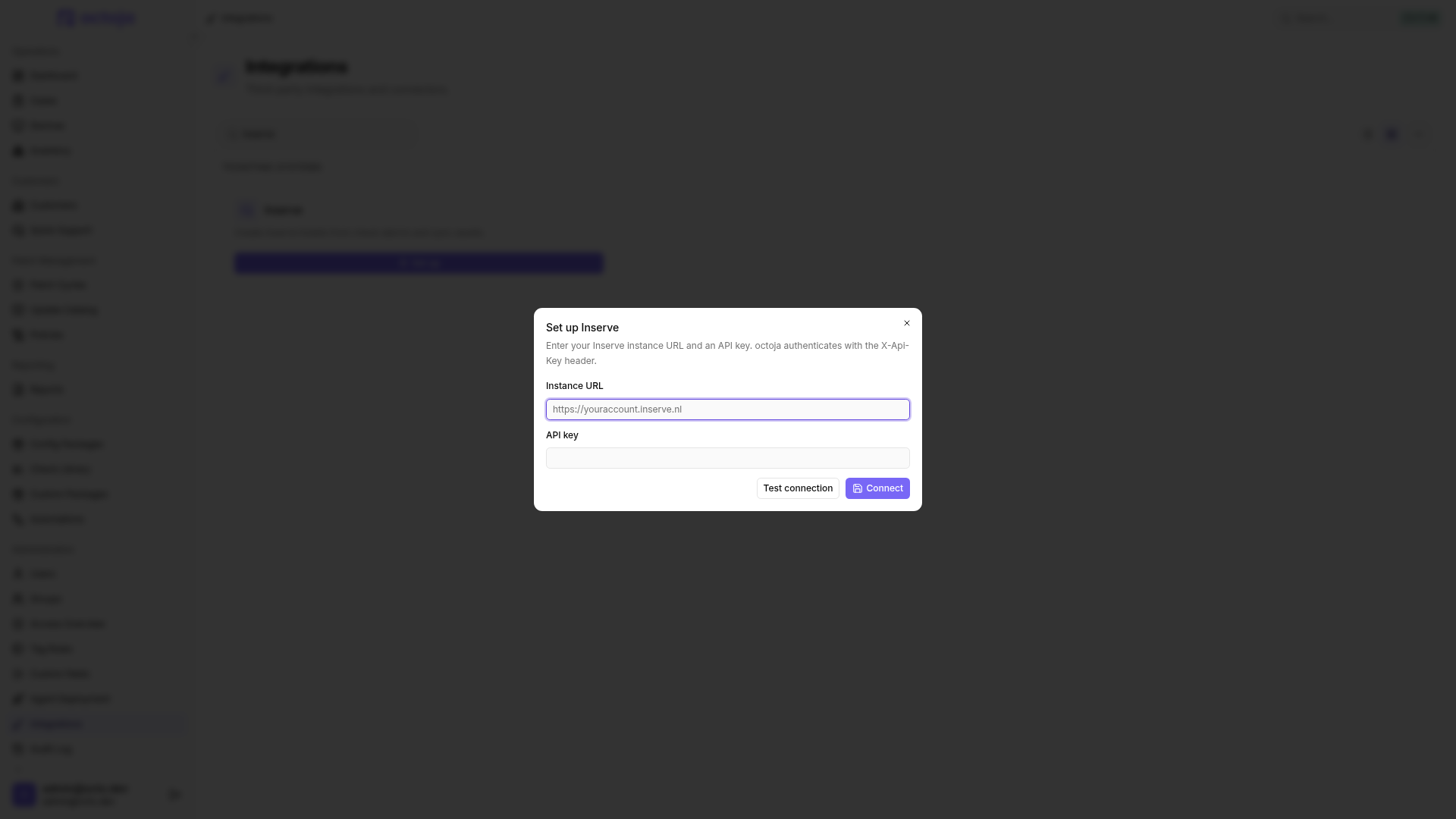
- In octoja, go to Administration → Integrations and find the Inserve card under Ticketing systems. The search box above the cards narrows the list.
- Click Set up. The Set up Inserve dialog opens.
- Fill in the two fields:
- Click Test connection. octoja contacts Inserve with the values you entered and reports Connection successful. or Connection failed.
- Click Connect. octoja stores the connection and opens the Inserve integration page on its Configuration tab.
Test connection is optional, but use it anyway. Connect checks only that the URL is a valid HTTPS address and that the key is not blank — it never asks Inserve whether the key works. A typo connects perfectly happily, and the mistake surfaces afterwards as empty dropdowns on the configuration page. An empty dropdown there means the lookup failed, not that Inserve has no categories.
Bear in mind that Test connection only proves the key can identify itself. It does not prove the key may create tickets or assets, so a read-only key passes the test and fails later, at ticket time.
Step 3 — Match customers to Inserve companies
Inserve requires a company on every ticket, so octoja needs to know which Inserve company each of your customers is.
- On the Configuration tab, find the Customer matching section.
- Click Match customers, pair each octoja customer with its Inserve company and click Save matches.
- Click Match sites to map each customer’s octoja sites to Inserve locations. This button stays disabled until at least one customer is matched, so do the customer matching first.
In the site dialog, … → Auto-match by name fills unambiguous name matches within each customer. Existing mappings are preserved and ambiguous matches stay open. Review the suggestions and save the dialog.
A device whose customer has no matched company is skipped: no ticket is created for it. The attempt is recorded on the History tab as a successful delivery reading skipped: no company match, so it reads green rather than as an error. If tickets are missing for one customer only, this is the first thing to check.
Site matching is worth doing even though it is optional. octoja finds the matching asset in Inserve by hostname within the matched company, and one company can run two same-named assets at different locations. With sites matched, octoja picks the asset at the right location; without them, it falls back to whichever same-named asset it finds.
Step 4 — Choose the ticket priorities and statuses
The Ticket mapping section decides what a ticket looks like. Two of these settings are hard requirements: if one is missing, octoja skips the ticket silently — and the skip is not recorded on the History tab either, so it leaves no trace anywhere in octoja.
Fill in at least the status for new tickets and the priority for the severity you expect to be alerted on. Set both priorities if you want tickets for Warning and Critical alike.
Settings are not saved automatically. Every dropdown you change stays local until you click Save settings, or press Ctrl+S.
All of these dropdowns are filled live from Inserve. octoja stores the id of the Inserve priority you pick, so re-pick both priorities if anyone deletes and recreates priorities on the Inserve side.
Step 5 — Route alerts to the Inserve channel
This is the step that makes tickets appear. Everything so far only prepared octoja; no alarm reaches Inserve until an alert rule sends it there.
- Open the config package that contains the check you want tickets for, go to its Checks tab and open the check.
- Switch to the check’s Alert tab and pick or create an alert configuration.
- In that configuration, add the channel Inserve ticket.
- Set the rule for the channel — the share of recent results and the minimum severity that has to be reached — and save the check.
Inserve is a single, tenant-wide channel: once you pick Inserve ticket there is nothing else to select, no target and no company to choose again. The channel only appears in the picker while the integration is connected.
For the full walkthrough of alert configurations, rules and schedules, see Set up alerts for a check.
A ticket octoja opens carries a short subject naming the check, the reported status and the device. The check’s own output and a link back to the device’s check page in octoja follow as a separate first message on the ticket, added as an internal note — so the end customer does not see it in the Inserve client portal. If the matched company already has an asset whose name matches the device hostname, octoja links the ticket to it; if not, the ticket is created without a link rather than failing.
What happens when a check recovers
Recovery is handled in two parts, and only the first is unconditional.
Only tickets octoja created for that alarm are touched. If the original ticket was skipped — because a setting was missing or the customer was unmatched — there is nothing to comment on, and the recovery passes without a trace in Inserve.
Whether a given ticket is closed therefore depends on how your Inserve tenant handles assignment. Check the History tab after the first recovery: the delivery reads commented+closed when the ticket was closed, and gives the id of the Inserve operator that kept it open when it was not.
Step 6 — Sync devices as assets (optional)
Device sync keeps the assets in Inserve in step with your octoja devices. It is off until you turn it on.
- Under Device kind → category, pick an Inserve category for each device kind you want to sync. Kinds you leave unset are skipped.
- In the Device sync section, turn on Sync devices automatically every hour.
- Click Save settings.
Sync runs on an hourly schedule rather than on demand — there is no button that triggers a run — so the first run follows within the hour of saving. For each matched customer, octoja creates or updates one Inserve asset per device, carrying the hostname, the matched company, the mapped category and the matched location.
Existing assets are recognised by hostname, compared without regard to upper and lower case, within the matched company. Devices without a name, and devices whose kind has no category mapped, are skipped without an error — so map every kind you care about, or workstations will quietly never appear. With no kind mapped at all, a run does nothing. Assets are never deleted: if you remove a device in octoja, tidy up its asset in Inserve yourself.
A run writes one Device sync entry per matched customer on the History tab, each with its own created, updated and skipped counts, and the Device sync section shows when the last run finished. A sync that fails is not retried; the next hourly run picks it up.
Import customers from Inserve
If your customers do not exist in octoja yet, you can seed them from your Inserve companies. This lives on the Customers page, not on the integration page.
- Open Customers, open the Actions menu above the list and choose Import from ticketing system.
- Select the Inserve companies you want and confirm the import.
Each selected company becomes an octoja customer, its Inserve locations become octoja sites, and both the company match and the site matches are created for you — so an imported customer needs no manual matching in Step 3. A company that already belongs to an octoja customer — whether you imported it or paired it by hand in Step 3 — is marked Already imported and skipped.
The menu item opens the first connected ticketing system in a fixed order: DocBee, HaloPSA, Inserve, Autotask, Codemeta OS, Odoo, Jira, TOPdesk, TANSS, c-entron Service-Board, Freshservice, Zammad. Inserve is third, so if DocBee or HaloPSA is connected as well, its import dialog opens instead of Inserve’s.
When tickets stop arriving
The History tab lists recent ticket, recovery and device-sync attempts with their outcome and response, and refreshes itself every few seconds. It is the place to look whenever a ticket you expected is missing. There is no button to send a delivery again from here.
- The dropdowns on the Configuration tab are empty. The stored API key is no longer valid, so the live lookups fail. Disconnect and connect again with a working key — and click Test connection first this time.
- A delivery failed. octoja retries a failed ticket create or close after 1 minute, 5 minutes, 30 minutes, 2 hours, 12 hours and 24 hours. Errors Inserve reports as a client mistake are not retried, because repeating them would not change the answer. A failed device sync is not retried either.
- The card shows the status Disabled. After 20 consecutive delivery failures octoja stops sending, so a broken connection does not keep hammering Inserve. That badge is a status, not a switch — to resume, use Disconnect Inserve and connect again with the same key. Your matches and settings survive the round trip, so nothing has to be set up twice.
- Tickets are missing for one customer. Check the History tab for
skipped: no company matchand match that customer in Step 3. - No tickets at all. Confirm that the status for new tickets and the priority for that severity are set, and that an alert configuration on the check really includes the Inserve ticket channel.
Disconnect Inserve
To remove the connection, open the Inserve integration page, scroll to the Danger Zone and click Disconnect Inserve, then confirm with Disconnect.
Only the API key is removed. Your customer and site matches, all ticket and sync settings, and the delivery history stay exactly as they were, and every ticket and asset already created remains in Inserve. Reconnecting later is a matter of entering the address and a key again.
Tips
- octoja holds one Inserve connection per instance, so a second Inserve tenant cannot be added alongside the first.
- To rotate the API key, disconnect first — connecting while already connected is refused.
- Click Save settings after every change — a dropdown you changed but did not save has no effect on the next alarm.
- Set both Warning priority and Critical priority unless you deliberately want tickets for one severity only.
- Match sites as well as customers if any company runs same-named devices at more than one location.
- Leave Status when recovered empty if your team prefers to close tickets by hand — recoveries are still noted on the ticket.
Was this helpful?
Still need help? Ask the team