Set up the Jira integration
Connect octoja to Jira Service Management so check alarms open cases and recoveries comment on and close them.
The Jira integration connects octoja to your Atlassian Jira Service Management site so that monitoring alarms turn into cases your team already works in. Setting it up takes three things: the connection itself, the case mapping, and an alert rule that routes alarms to the Jira channel.
What the integration does
Once connected and configured, the integration does three separate jobs:
- Creates a case from an alarm — when a monitoring check raises an alarm and an alert rule routes it to the Jira channel, octoja opens a customer request on the service desk you chose.
- Handles the recovery — when the check recovers, octoja always adds an internal comment to that case, and moves it to your close status when nobody has picked it up yet.
- Syncs devices into Jira Assets — if your Atlassian site licenses Jira Assets, a Device sync section appears on the configuration page. With Automatically sync devices hourly switched on, octoja pushes the devices of every matched customer into Jira Assets once an hour, creating or updating one object per device, matched on the device hostname. Devices are never deleted. Which Jira object type each device kind lands in is set through the octoja API in this release, not in the interface, so the switch alone does not yet move anything.
Everything runs outbound, from octoja to Jira. octoja only ever touches the cases it created itself, in Jira Assets it only creates and updates device objects, and it never deletes anything in Jira.
One wording note before you start: octoja calls the Jira object a case — the delivery history reads Create case — while the alert channel you pick later is named Jira ticket. Both mean the same Jira Service Management customer request.
Connecting on its own creates nothing. A connected integration with every setting filled in still produces zero cases until an alert rule points at the Jira channel. That routing step is Step 5 below, and it is the one people most often miss.
Prerequisites
- The Integration Management permission in octoja. Permissions are assigned under Administration → Groups.
- The Customer Management permission as well, if you also want to import customers from Jira.
- An Atlassian site with Jira Service Management, reachable over HTTPS. octoja calls the Service Management part of the Jira API, so a Jira site without Service Management has nothing for it to talk to.
- An Atlassian account email and an API token issued for that account. Atlassian creates the token in your Atlassian account settings; octoja never creates one.
- That account needs enough rights in the target service desk to create requests, comment on them, set an issue priority and run the transition into your close status. Which Jira permission scheme grants exactly that is decided on the Atlassian side — check with Atlassian if you are not sure.
- At least one service desk with at least one request type in Jira, and a monitoring check that already runs, so there is an alarm to turn into a case.
Step 1 — Gather your Jira credentials
Collect three values: the site URL of your Atlassian site, the email address of the Atlassian account that owns the API token, and the API token itself. You will paste all three into octoja in the next step.
The site URL has to be an absolute HTTPS address, in the shape https://your-domain.atlassian.net. Anything that is not HTTPS is rejected outright. A trailing slash is fine — octoja removes it before storing.
Step 2 — Connect octoja to Jira
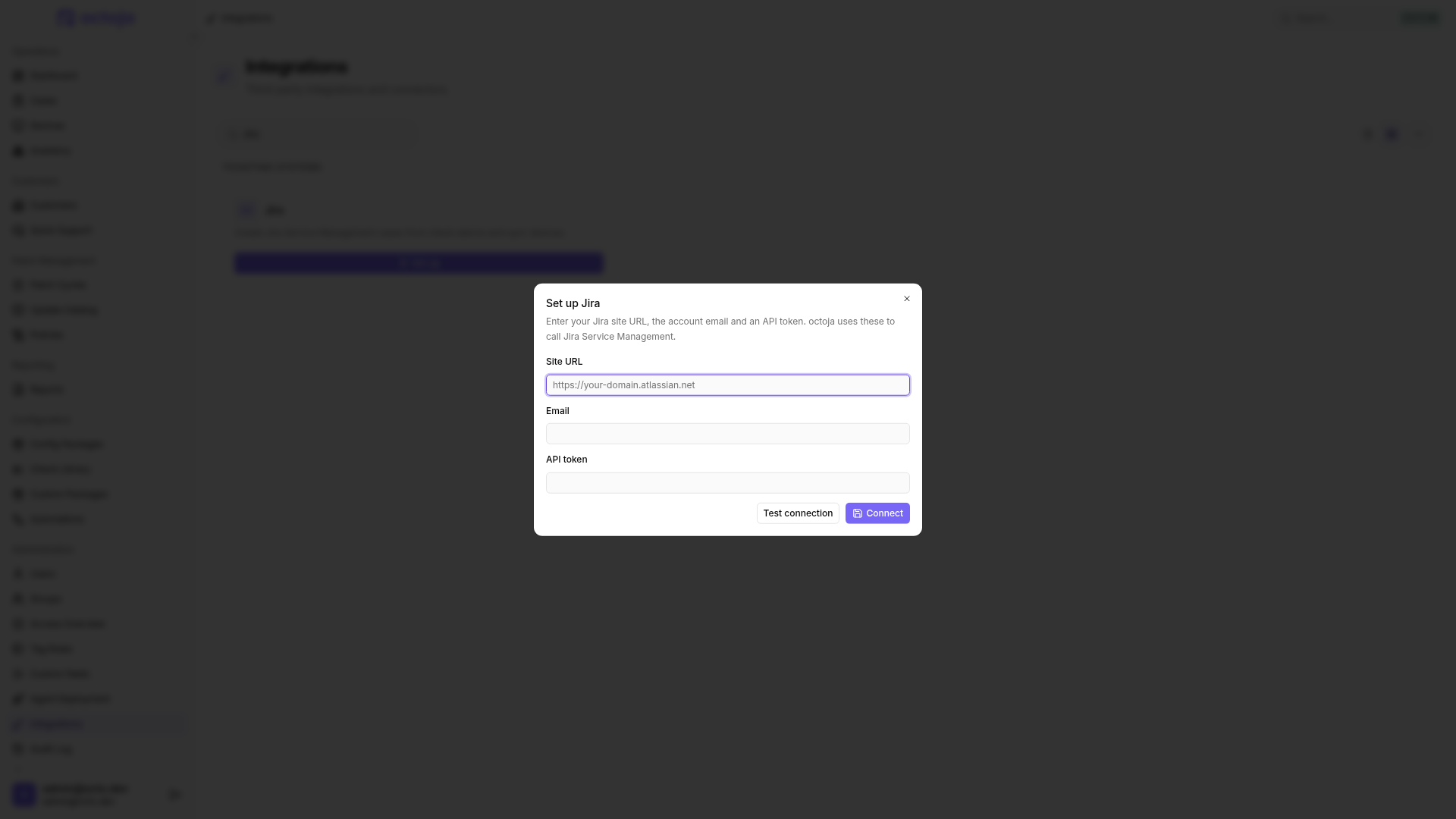
- In octoja, go to Administration → Integrations and find the Jira card.
- Click Set up. The Set up Jira dialog opens.
- Fill in the three fields:
- Click Test connection. octoja contacts Jira with the values you entered and reports Connection successful., or the reason the attempt failed — falling back to Connection failed. when there is no reason to show.
- Click Connect. octoja stores the credentials and opens the Jira integration page on its Configuration tab.
Test connection is optional, but use it anyway. Connect checks only that the three fields are filled in and that the site URL is HTTPS — octoja saves whatever you type without asking Jira whether the credentials work. Wrong credentials connect perfectly happily, and the mistake only surfaces afterwards, when every dropdown on the configuration page stays stubbornly empty. One click on Test connection before you connect turns an hour of debugging into a clear error message.
Rotating the API token needs a disconnect first. While a connection exists, connecting again is refused with the message that Jira is already connected. Use Disconnect Jira, then connect with the new token — your matches and settings survive that round trip.
Step 3 — Match customers to Jira organizations
The Customer mapping section pairs each octoja customer with a Jira organization.
- On the Configuration tab, find the Customer mapping section, which counts how many of your customers are matched.
- Click Match customers, pair each octoja customer with its Jira organization, and save the dialog.
Cases do not depend on this. Every case is created on the one service desk you pick in Step 4, whichever customer the device belongs to, and the customer name is written into the case description either way. So an unmatched customer still gets cases — matching is what keeps your two customer lists lined up, and it is what the import in the section below fills in for you. Device sync is the exception: it runs only for matched customers, so the devices of an unmatched customer never reach Jira Assets.
Each octoja customer takes one organization, and each organization can be used once. The dialog refuses to save a duplicate on either side.
Step 4 — Choose the case mapping settings
The Case mapping section decides where a case lands and what it looks like. Two of these settings are hard requirements: if one is missing, octoja skips the case silently. The skip leaves no trace at all — not even in the History tab, which only records attempts that actually went out to Jira. So an empty History plus missing cases points straight at these two settings.
Pick the service desk first. Changing it clears the request type, because request types belong to a service desk, and the close-status dropdown is filled from that service desk's project — which is why both stay disabled until a service desk is selected. A close status you had already picked survives that switch untouched, so check it again after changing the service desk.
Priorities are applied in a second call, immediately after the case is created. If that call fails, the case still exists without the priority and the delivery still counts as a success — so a case with no priority is usually a Jira permission question, not a missing setting.
Settings are not saved automatically. Every dropdown you change stays local until you click Save settings in the page header, or press Ctrl+S. That button exists only on the Configuration tab, so if you are on History you have to switch back before you can save. Leaving the page without saving is what discards the edits.
Step 5 — Route alerts to the Jira channel
This is the step that makes cases appear. Everything so far only prepared octoja; no alarm reaches Jira until an alert rule sends it there.
- Open the config package that contains the check you want cases for, go to its Checks tab and open the check. If the check sits on a single device rather than in a package, open that device and use its own Checks tab — the check opens the same way from there.
- Switch to the check's Alert tab and pick or create an alert configuration.
- In that configuration, add the channel Jira ticket.
- Set the rule for the channel — the share of results that has to fail, the window it is measured over (a number of recent results, or a span in minutes or hours) and the minimum severity that has to be reached — and save the check.
Jira is a single, tenant-wide channel: once you pick Jira ticket there is nothing else to select, no target and no service desk to choose again. The channel appears in the picker only while the integration is connected, so connect first and route second — looking for the channel beforehand is a wasted search.
For the full walkthrough of alert configurations, rules and schedules, see Set up alerts for a check.
A case octoja opens is titled [octoja] <check> <status> – <device>. Its description names the check, the device, the reported status, how many of the last runs failed and which customer the device belongs to, followed by the check's own output and a link back to the device's check page in octoja. That text is always written in English, whatever language your octoja is set to.
What happens when a check recovers
Recovery is handled in two parts, and only the first is unconditional.
All four outcomes are recorded as successful deliveries — "commented, left open" is a normal result rather than an error — and the History tab spells out which one happened for each case.
Only cases octoja created for that alarm are touched. If the original case was skipped, because the service desk or request type was missing, there is nothing to comment on and the recovery passes without a trace in Jira.
Import customers from Jira
If your customers do not exist in octoja yet, you can seed them from your Jira organizations. This lives on the Customers page, not on the integration page.
- Open Customers and choose Import from ticketing system.
- Select the Jira organizations you want and confirm the import.
Each selected organization becomes an octoja customer and its customer match is created for you, so an imported customer needs no manual matching from Step 3. Organizations that are matched already are marked and skipped. Importing needs the Customer Management permission on top of Integration Management.
The menu item opens the first connected ticketing system in a fixed order: DocBee, HaloPSA, Inserve, Autotask, Codemeta OS, Odoo, Jira, TOPdesk, TANSS, c-entron Service-Board, Freshservice, Zammad. Jira sits seventh, so if any of the six ahead of it is connected as well, that system's import dialog opens instead of Jira's.
When cases stop arriving
The History tab lists recent case, recovery and device-sync attempts with their outcome and response, and refreshes itself while you watch. It is the place to look whenever a case you expected is missing.
- Every dropdown on the configuration page is empty. The stored credentials are not working, so none of the lookups return anything. Disconnect and connect again with a valid token — and click Test connection first this time.
- A delivery failed. octoja retries a failed case create or recovery after 1 minute, 5 minutes, 30 minutes, 2 hours, 12 hours and 24 hours. Errors Jira reports as a client mistake — a rejected token, a request type that no longer exists — are not retried, because repeating them would not change the answer.
- The card shows the status Paused. After 20 consecutive delivery failures octoja stops sending, so a broken connection does not keep hammering Jira. There is no resume button: use Disconnect Jira and connect again. Matches and settings survive, but you have to enter the API token again, because octoja never shows it back to you — keep a copy of it wherever you keep credentials.
- No cases at all. Confirm that the service desk and the request type are both set and saved, and that an alert configuration on the check really includes the Jira ticket channel.
Disconnect Jira
To remove the connection, open the Jira integration page, scroll to the danger zone and click Disconnect Jira, then confirm with Disconnect.
Only the credentials are removed. Your customer matches, every case-mapping setting and the delivery history stay exactly as they were, and every case already created remains in Jira. Reconnecting later is a matter of entering the site URL, the email address and the token again.
Tips
- Click Save settings after every change — a dropdown you changed but did not save has no effect on the next alarm.
- Set both Priority for Warning and Priority for Critical, so a case carries a useful priority whichever severity fired.
- Check that your close status is reachable from the statuses your cases actually sit in. If the workflow has no transition into it, octoja comments and leaves the case open.
- Leave Status when closing on recovery empty if your team prefers to close cases by hand — recoveries are still commented on the case.
- Re-pick the request type after anyone reworks the service desk in Jira. octoja keeps using the stored id, which stops matching once the request type is removed.
- Licensed Jira Assets only after connecting? octoja looks for the Assets workspace once, while it connects, so the Device sync section stays hidden until you disconnect and connect again.
- Use the History tab as your first stop. Create case entries carry the key of the new case, and Recovery entries say whether the case was closed or deliberately left open.
Was this helpful?
Still need help? Ask the team