Set Up the woasi Integration
Connect octoja to woasi so customer, site, and device inventory flows outbound on an hourly schedule.
Set Up the woasi Integration
The woasi integration connects octoja to woasi to transfer inventory changes and selected check alerts. After connecting, octoja sends changed or deleted devices hourly; each batch sent also includes the complete customer and site list.
What gets sent?
octoja delivers inventory updates to a woasi API URL as outbound HTTP deliveries. Connecting does not send a full initial inventory. The hourly batch considers changes since connecting or the last successful push and contains:
- Your complete customer list, each customer with its sites. This part is included in full in every batch sent
- The devices whose inventory changed since the previous push — newly enrolled, renamed, re-assigned, or reporting different hardware
- The devices deleted during that window, so woasi can drop them from its view
The device part of the batch is incremental: a device that did not change is not re-sent. If no device changed and none was deleted, octoja skips that hour and sends nothing at all. Every delivery carries the bearer token woasi issued you in its Authorization header, so woasi can confirm the request came from your tenant. The delivery history stays on octoja as an audit trail — you can review it on the woasi integration page.
Inventory is not the only payload type: the same outbound pipeline delivers check alerts to woasi, which is why the setup dialog describes the field as the URL octoja should POST monitoring events to. Alerts are not automatic, though. Connecting woasi adds it to the list of alert channels, and an alarm only reaches woasi if an alert configuration names woasi as one of its channels — see Set up alerts for a check.
Set the ticket language
Open Administration → Integrations → woasi, then Alert tickets on the Configuration tab. Select Ticket language and save the settings. German is the default; English, French and Dutch are also available.
octoja sends a readable subject and problem description containing the check, device, status, frequency within the evaluation window, check result and a direct device link. Recovery text describes the return to normal instead of the failure frequency. The language setting applies to the subject and description, not inventory data.
Prerequisites
- An active woasi account with API access
- From woasi: the API URL octoja should POST inventory to, and the bearer token woasi issued for outbound deliveries
- The Integration Management permission in octoja, granted via groups under Administration → Groups
If the receiver only allows specific source IPs, it needs your octoja instance's outbound source IPs. See IP addresses and firewall rules.
How it works
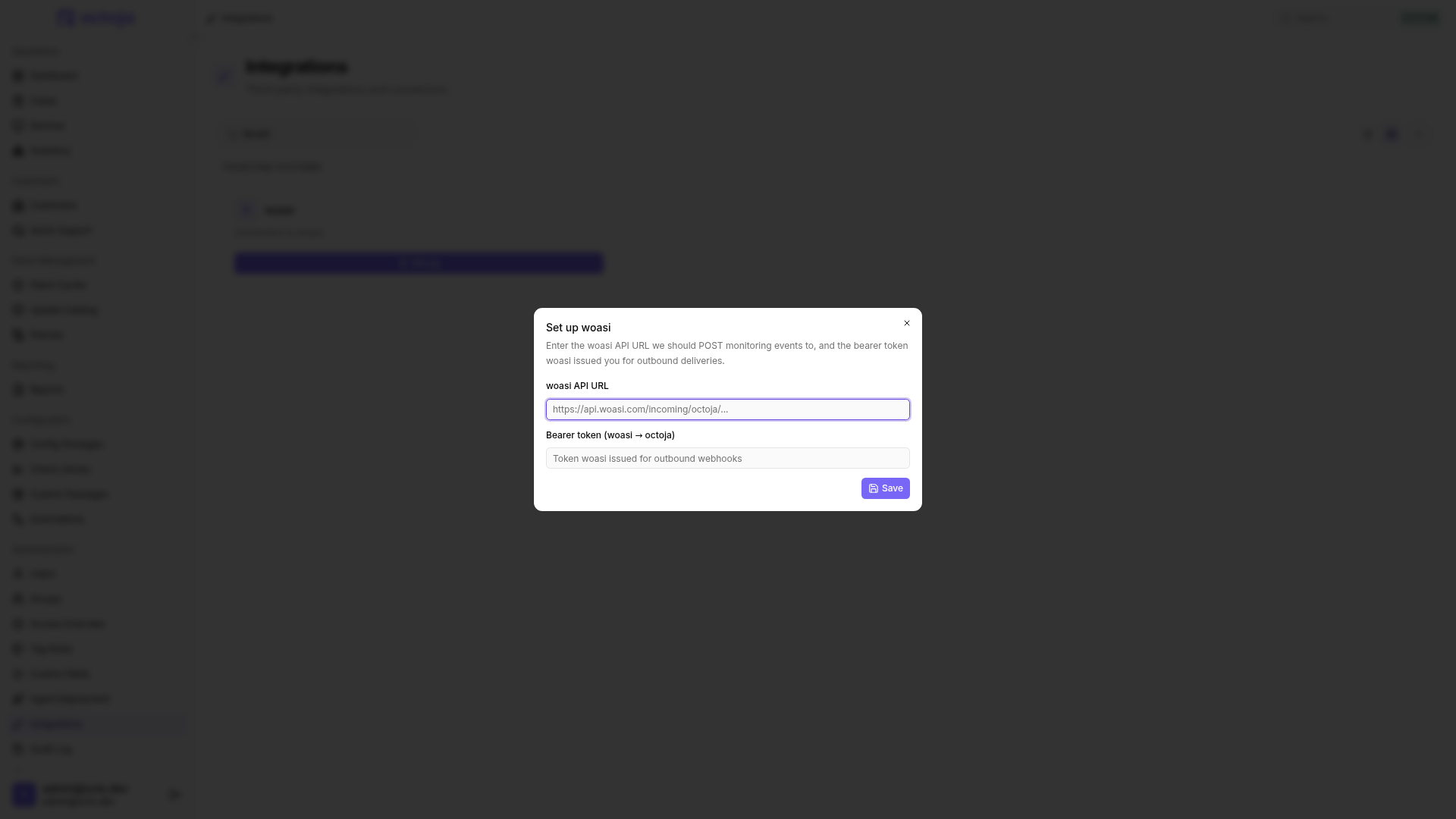
When you click Set up (the dialog titled Set up woasi opens), octoja:
- Stores the API URL and bearer token on the woasi integration record.
- Sets the start of inventory transfer to the connection time.
- Adds woasi to the hourly inventory push. This does not backfill all existing unchanged devices.
Steps — Connect
- Go to Administration → Integrations. Under Ticketing systems, find the woasi card.
- On the woasi card, click Set up. The dialog titled Set up woasi opens.
- Fill in:
- Click Save. octoja:
- Stores the URL and token on the woasi integration record
- Enables transfer of future inventory changes
octoja opens the woasi integration page, where the status reads Enabled. The next hourly run considers changes since connecting.
Send a test delivery
From the woasi integration page, click Send test. octoja queues two test events — an inventory-style event and a monitoring sample — for delivery to the configured URL with the configured bearer token; a toast confirms Test events queued for delivery. Use this to confirm woasi accepts the connection before relying on the live inventory feed. Test deliveries go out even while the integration is paused, and they stay out of the success and failure counters, so you can retest a corrected endpoint without disturbing the live feed.
Investigate a failed delivery
A 405 — Method Not Allowed in the delivery history means woasi's server was reached, but the exact address you entered does not accept POST requests. Because octoja posts to the URL exactly as stored, this is almost always an incomplete API URL — typically the domain or API root (e.g. https://api.woasi.com/) instead of the full receiver endpoint woasi issued (e.g. https://api.woasi.com/incoming/octoja/…).
To fix it:
- On the woasi integration page, open the Configuration tab, paste the complete endpoint into woasi API URL, and click Save.
- Use Send test to check the corrected connection. Under History, expand the failed delivery and inspect its request and response. Use Replay to resend a delivery that was stored in full.
Oversized requests are stored only in truncated form in the history and marked accordingly. You cannot replay them manually. Inventory changes that were not successfully delivered are considered again in the next hourly batch while the integration remains enabled.
Deliveries rejected with a 4xx status are not automatically retried as the same delivery. Server errors and timeouts are retried on their own: up to six further attempts, each one 1 minute, 5 minutes, 30 minutes, 2 hours, 12 hours, and finally 24 hours after the last. If deliveries keep failing, octoja pauses the integration automatically after 20 consecutive failures.
Pause vs disconnect
Update the bearer token
If woasi rotates the bearer token, open the woasi integration page and paste the new token into Bearer token (woasi → octoja). Leaving the field empty keeps the current token. A badge beside the field reads Stored or Not stored, so you can tell at a glance whether a token is on file.
Tips
- Use HTTPS only. The setup form will refuse anything that is not an absolute
https://URL. - Use Pause rather than Disconnect when you want to interrupt delivery temporarily and catch up on changes afterwards.
- The hourly batch is coalesced — if a device is changed multiple times within the hour, octoja sends one record with the latest state, not one per change.
- The woasi feed covers inventory changes and the check alerts you route to woasi as an alert channel.
- To deliver check alerts to other external systems, see Set up Webhooks and Send Alerts to a Microsoft Teams Channel.
FAQ
Why is a woasi alert still open after I close the Case in octoja?
Why is a woasi alert still open after I close the Case in octoja?
Closing or commenting on an octoja Case does not update the woasi alert. The integration sends a recovery when the monitoring alarm recovers, not when you change the Case status. If no recovery will follow, for example after removing an incorrectly assigned check, review and close the remaining alert directly in woasi.
Was this helpful?
Still need help? Ask the team