Set up the DocBee integration
Connect octoja to DocBee so check alarms open DocBee tickets, recoveries close the unassigned ones, and your devices sync into DocBee as objects hourly.
Set up the DocBee integration
The DocBee integration connects octoja to your DocBee ticketing platform. Once connected, octoja can open a DocBee ticket when a check raises an alarm, comment on that ticket when the check recovers, and sync the devices you manage into DocBee as objects on an hourly schedule — so alerts and hardware land where your team already works.
Connecting DocBee on its own does not create any tickets. They start arriving once you point an alert configuration at the DocBee ticket channel — that is Step 6 below.
What the integration does
The connection covers three things:
- Ticket creation — when an alert configuration that includes the DocBee ticket channel raises an alarm, octoja opens a DocBee ticket for it. The priority follows the alarm: a Warning uses your Warning priority, anything more serious uses your Critical priority. The ticket is filed on the DocBee customer you matched to the device’s octoja customer, placed at the matched DocBee location when the device’s site is mapped, and linked to the DocBee device object with the same hostname. If the device’s customer is not matched, the ticket is still raised — just without a DocBee customer and without a device link.
- Recovery — when the check recovers, octoja adds a comment to the ticket. It closes the ticket only when the ticket has no owner in DocBee and you have chosen a Status when closing on recovery. If a technician has taken the ticket, or no closing status is set, octoja leaves it open and only comments — so you never lose a ticket someone is working on.
- Device sync — for each customer you matched, octoja creates or updates one DocBee object per device, matched by hostname within that customer. Devices are never deleted in DocBee. The sync can run automatically every hour.
Prerequisites
- An active DocBee account where you can create an AccessToken — or a DocBee username and password you can connect with instead.
- The Integration Management permission in octoja, granted per group under Administration → Groups. This permission lets you connect external platforms and change their settings.
If a firewall or IP allowlist protects your DocBee API, it must allow requests from your octoja instance, including for an on-prem instance. See IP addresses and firewall rules.
Step 1 — Create an AccessToken in DocBee
The most robust way to connect is with a DocBee AccessToken. Create one in DocBee before you start.
- In DocBee, open Your Profile → Settings → AccessToken.
- Create the token with its Valid duration set to
-1. This makes it non-expiring — it stays valid until you revoke it. - Copy the token somewhere safe; you will paste it into octoja in the next step.
If you would rather not use a token, you can connect with your DocBee username and password instead — choose that method in the next step.
Step 2 — Connect DocBee in octoja
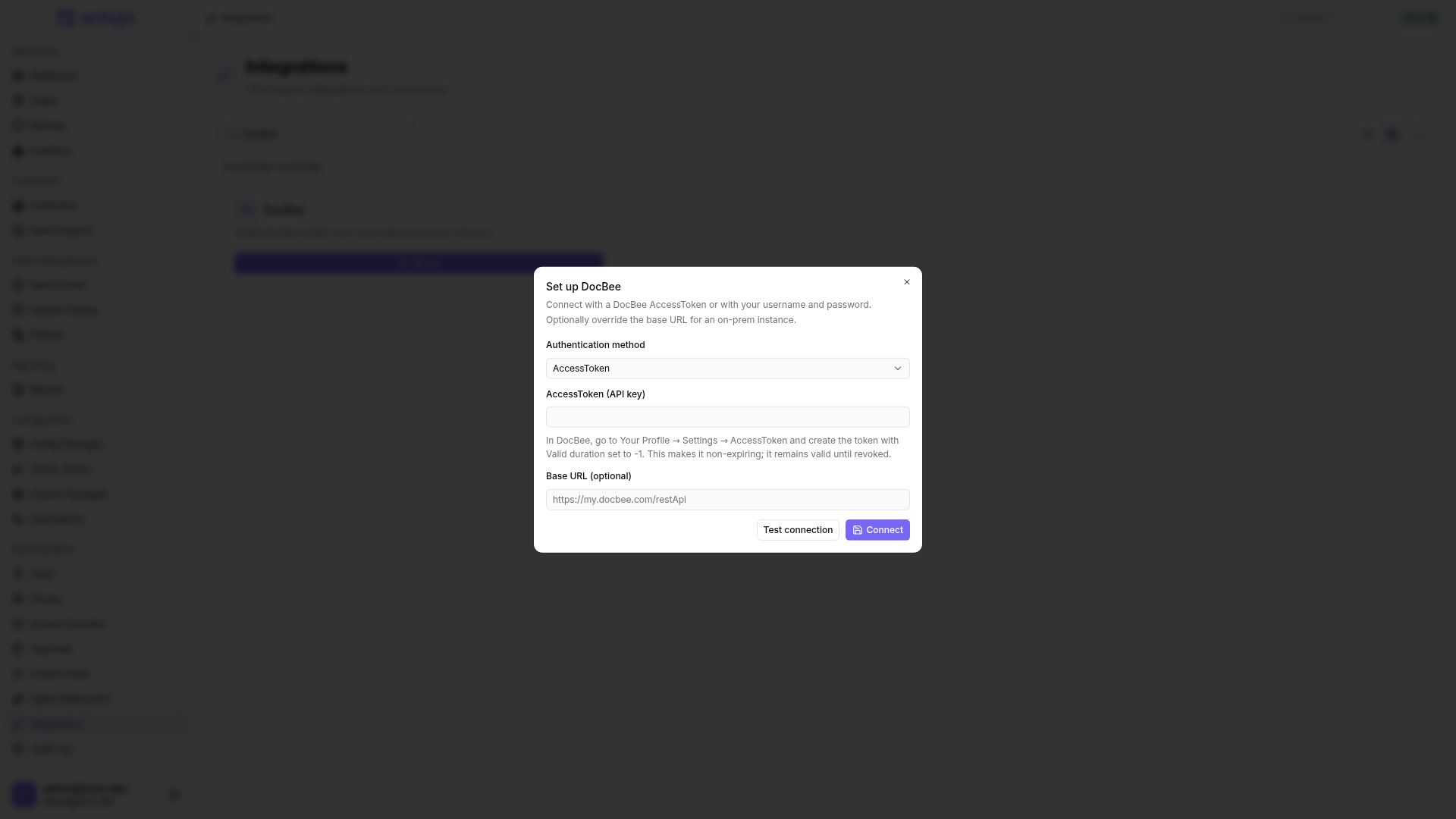
- In octoja, go to Administration → Integrations, find the DocBee card under Ticketing systems, and select Set up. The Set up DocBee dialog opens.
- Choose the Authentication method:
- AccessToken — paste the token into AccessToken (API key).
- Username and password — enter your DocBee Username and Password.
- Leave Base URL (optional) blank to use DocBee’s cloud. For an on-prem instance, enter its address — it must be an absolute HTTPS URL and usually needs to end with
/restApi. - Select Test connection. When you see Connection successful, select Connect.
The token and password are stored on the server and are never returned to your browser.
Step 3 — Map customers and sites
After connecting, the DocBee integration page opens. Start with the Customer mapping section so tickets land on the right customer.
- Select Match customers and pair each octoja customer with its DocBee customer.
- If your customers have several locations, select Match sites and map each octoja site to a DocBee location, so tickets and devices land at the right place. Match sites stays greyed out until at least one customer is matched.
In the site dialog, … → Auto-match by name fills unambiguous name matches within each customer. Existing mappings are preserved and ambiguous matches stay open. Review the suggestions and save the dialog.
If your customers live in DocBee rather than octoja, you can bring them across instead: open Customers, choose Import from ticketing system, and select the DocBee customers you want. octoja creates them as customers, turns their locations into sites, and sets up the customer and site mappings for you.
Step 4 — Configure the ticket mapping
Open the Ticket mapping section and choose how DocBee tickets are created. octoja only opens tickets once you set a status for new tickets and a matching priority.
Select Save settings when you are done.
Step 5 — Turn on device sync
In the Device sync section you decide whether octoja keeps DocBee’s device list up to date.
- Turn on Automatically sync devices hourly so octoja creates and updates DocBee objects on its own every hour.
- Select Save settings. The switch belongs to the settings form, so it only takes effect once you save.
octoja matches devices to DocBee objects by hostname within each matched customer, pushing details such as operating system, IP and MAC addresses, serial number, manufacturer and model. A device created this way also gets two links back into octoja — one to the device page, one straight into its remote session. Only customers you matched in Step 3 are synced, and only device kinds you gave a category in Step 4 — map no categories at all and nothing is synced. octoja never deletes an object in DocBee.
Step 6 — Send alarms to DocBee
Connecting DocBee only makes the channel available. Tickets are raised by your alert configurations, so add DocBee as a channel and use that configuration on the checks you want tickets for.
- Open the check you want to alert on — from the config package that carries it, or from the device’s Checks tab — and switch to its Alert tab.
- Pick an existing alert configuration or create a new one, then select Add Channel and choose DocBee ticket.
- Set that channel’s rule — how much of the check’s recent history has to fail before the alarm fires — and save the check.
A DocBee channel is only offered once the integration is connected. For the full walkthrough of rules, schedules, and what happens on recovery, see Set up alerts for a check.
If tickets stop arriving
The History tab on the DocBee integration page lists recent ticket and device-sync attempts with their outcome and DocBee’s response — the fastest place to see what went wrong.
- After 20 consecutive failed deliveries octoja pauses the integration by itself. The DocBee card under Administration → Integrations then reads Paused instead of Active, and no further tickets or device syncs are sent.
- There is no resume switch on the page. To bring a paused integration back, fix the cause in DocBee, then select Disconnect DocBee and connect again — your customer matches and settings survive the reconnect.
- Tickets are also skipped whenever Status for new tickets or the priority for that alarm’s severity is unset. Set both in Step 4.
Disconnect
To remove the connection, open the DocBee integration page and select Disconnect DocBee, then confirm. Your customer matches and settings are kept for when you reconnect, so you do not have to redo the mapping.
Tips
- Create the AccessToken with a Valid duration of
-1so it does not expire and silently break the connection later. - If Test connection fails against an on-prem instance, check the Base URL — it usually needs to end with
/restApi, and the casing matters. - Match your customers before you expect tickets: an alarm on a device whose customer is not matched still raises a ticket, but it arrives without a DocBee customer and without a device link.
- Leave a device kind’s category unset to keep those devices out of DocBee — you can sync only servers, for example, and skip workstations.
- The hourly sync never deletes objects in DocBee. Removing a device in octoja does not remove its DocBee object; clean those up in DocBee if you want them gone.
Was this helpful?
Still need help? Ask the team