Set up the TOPdesk integration
Connect octoja to TOPdesk so check alarms raise incidents, recoveries comment or close them, and devices sync as TOPdesk assets.
The TOPdesk integration connects octoja to your TOPdesk environment so that monitoring alarms turn into incidents your service desk already works in. Setting it up takes three things: the connection itself, the incident settings, and an alert rule that routes alarms to the TOPdesk channel.
What the integration does
Once connected and configured, the integration does three separate jobs:
- Raises an incident from an alarm — when a monitoring check raises an alarm and an alert rule routes it to the TOPdesk channel, octoja opens an incident on the matched TOPdesk branch.
- Handles the recovery — when the check recovers, octoja always comments on that incident, and closes it when nobody has picked it up yet.
- Syncs devices as TOPdesk assets — optionally, once an hour, octoja creates or updates an asset in TOPdesk Asset Management for each of your devices.
TOPdesk calls its tickets incidents, and so does octoja throughout this integration. Alarm and device data only flows outbound, from octoja to TOPdesk: octoja only ever changes the incidents it raised itself, it never copies TOPdesk changes back into octoja, and it never deletes anything there.
Connecting on its own creates nothing. A connected integration with every setting filled in still produces zero incidents until an alert rule points at the TOPdesk channel. That routing step is Step 5 below, and it is the one people most often miss.
Prerequisites
- The Integration Management permission in octoja. Permissions are assigned under Administration → Groups.
- The Customer Management permission as well, if you also want to import customers from TOPdesk.
- A TOPdesk operator account for octoja to act as, and an application password issued to that operator. The application password is not the operator's normal login password — octoja needs the application password specifically.
- A TOPdesk environment reachable over HTTPS. Plain
http://addresses are rejected, in the dialog and again on the server. For a firewall or IP allowlist in front of your TOPdesk API, see IP addresses and firewall rules. - Access to the TOPdesk Asset Management API, but only if you want device sync. Asset Management is permissioned separately from the incident API.
- A monitoring check that already runs, so there is an alarm to turn into an incident.
Step 1 — Gather your TOPdesk credentials
Collect three values before you start: the login name of the TOPdesk operator octoja should act as, the application password issued to that operator, and the URL of your TOPdesk environment.
The environment URL is the address you reach TOPdesk at in a browser, in the shape https://yourcompany.topdesk.net. There is no default and no region picker: TOPdesk has no universal host, so octoja needs your own instance's address. Where TOPdesk issues application passwords, and which licence covers the APIs, is TOPdesk's own documentation to answer.
Step 2 — Connect octoja to TOPdesk
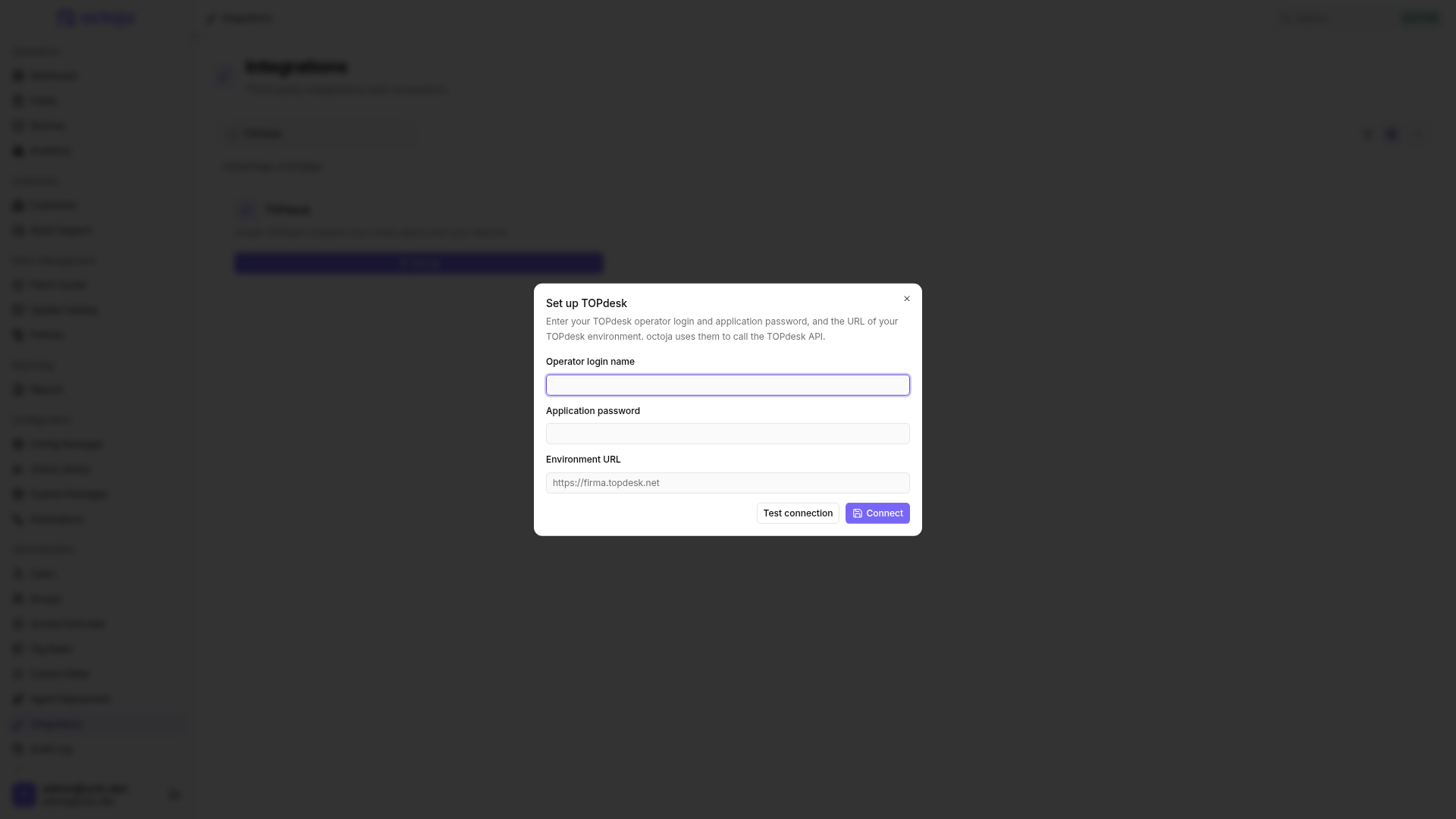
- In octoja, go to Administration → Integrations and find the TOPdesk card.
- Click Set up. The Set up TOPdesk dialog opens.
- Fill in the three fields:
- Click Test connection. octoja calls your environment with the credentials you entered and reports Connection successful. or Connection failed. with the reason TOPdesk gave.
- Click Connect. octoja stores the credentials and opens the TOPdesk integration page on its Configuration tab.
Test connection is optional, but use it anyway. Connect saves whatever you type without asking TOPdesk whether it works, so wrong credentials connect perfectly happily and the mistake only surfaces later — as dropdowns that stay empty and incidents that never arrive. One quirk to know: the test button does nothing at all while any of the three fields is still blank, so fill in all three before you click it.
The test asks your environment for its version. That proves the URL and the credentials are accepted; it does not prove that the incident API or Asset Management are open to this operator.
Step 3 — Match customers to TOPdesk branches
In TOPdesk a branch is the customer and the location in one, so an octoja customer maps to a branch, and each of that customer's octoja sites can map to a branch of its own.
- On the Configuration tab, find the Customer mapping section.
- Click Match customers and pair each octoja customer with its TOPdesk branch. Save the dialog.
- Click Match sites to give a matched customer's sites their own branches. This button stays disabled until at least one customer is matched, so do the customer matching first.
In the site dialog, … → Auto-match by name fills unambiguous name matches from the entire available branch list. Existing mappings are preserved and ambiguous matches stay open. Pay particular attention to similarly named branches and save the suggestions only after reviewing them.
Matching decides where an incident lands, not whether it appears. A device whose customer has no matched branch still raises an incident — it is created unassigned, with no branch and no link to a TOPdesk asset. When the device belongs to a site that has its own matched branch, the incident goes to that site branch; otherwise it goes to the customer's branch.
Device sync is stricter than incidents here: a customer with no matched branch is skipped by the sync entirely.
Step 4 — Choose the incident settings
The Incident mapping section decides what an incident looks like. Its settings fall into two groups: how the incident is prioritised, and how it is filed.
Priority and urgency. These are the settings that decide whether an incident is created at all.
If neither a priority nor an urgency is set for a severity, alarms of that severity create nothing. They are dropped quietly, with no message anywhere except the absence of an entry on the History tab. Leaving both Warning fields empty means Warning alarms vanish while Critical alarms still work, and the other way round.
TOPdesk environments with an impact-and-urgency matrix work out the priority themselves, and octoja follows that: whenever an urgency is set for the severity that fired, octoja sends the impact and the urgency and no priority at all, so the priority you picked is ignored. Only when no urgency is set does octoja send the priority directly. Pick the priorities if your environment has no matrix, and the urgencies if it has one.
Category, status and language. The first three are optional, and two of them change behaviour you will notice. Incident language always holds a value — it starts on English and cannot be cleared.
Settings are not saved automatically. Every dropdown you change stays local until you click Save settings in the page header, or press Ctrl+S.
Saving writes every one of these fields at once, including the ones you never touched. A dropdown whose list could not be loaded from TOPdesk keeps the value that was already saved — octoja re-sends the stored id, so saving never clears it; only the label is missing until the list loads again.
Step 5 — Route alerts to the TOPdesk channel
This is the step that makes incidents appear. Everything so far only prepared octoja; no alarm reaches TOPdesk until an alert rule sends it there.
- Open the config package that contains the check you want incidents for, go to its Checks tab and open the check.
- Switch to the check's Alert tab and pick or create an alert configuration.
- In that configuration, add the channel TOPdesk incident.
- Set the rule for the channel — the share of recent results and the minimum severity that has to be reached — and save the check.
TOPdesk is a single, tenant-wide channel: once you have picked TOPdesk incident there is nothing else to choose, no target and no branch to select again. The channel only appears in the picker while the integration is connected, so connect first and open the alert configuration afterwards — otherwise the entry is missing from the list, with nothing on screen to explain why.
For the full walkthrough of alert configurations, rules and schedules, see Set up alerts for a check.
An incident octoja raises is titled octoja: check "<check>" on <device> reported <status>. Its request text names the check, the device, the reported status and how many of the last runs failed, followed by the check's own output and a link back to the device in octoja — both written in the configured incident language. If TOPdesk Asset Management already holds an asset for that device — found by serial number first, by hostname second, anywhere in TOPdesk rather than only in that branch — octoja links the incident to it; when there is none, the incident is raised without a link rather than failing.
What happens when a check recovers
Recovery is handled in two parts, and only the first is unconditional.
Only incidents octoja raised for that alarm are touched. If no incident was raised in the first place — because no priority or urgency was set for that severity — there is nothing to comment on, and the recovery passes without a trace in TOPdesk.
Recoveries keep working even after octoja has stopped raising new incidents because of repeated failures. Open incidents still get their comment, and still close, for as long as the connection is in place.
The recovery comment is always written in English, whatever you picked under Incident language. That setting covers the incident title and body only.
Step 6 — Sync devices as TOPdesk assets (optional)
Device sync creates missing assets in TOPdesk Asset Management from your octoja devices. It is off until you turn it on, and it needs three things rather than one.
- Under Device templates, pick a TOPdesk asset template for each device kind you want to sync. All fifteen kinds are listed, from Windows Server, Windows Workstation and Linux Server through macOS, Switch and Firewall to NAS, ESXi and IP Camera. New assets are created from the mapped template, and kinds you leave unset are skipped.
- In the Device sync section, turn on Automatically sync devices hourly.
- Click Save settings.
The switch on its own does nothing: with no template mapped for any device kind, the whole run stops before it starts.
Sync runs on an hourly schedule rather than on demand, so the first run follows within the hour of saving. For each matched customer octoja creates or updates one asset per device and writes the hostname, the serial number, the primary IP address and the operating system. Values a device does not have are left out.
An existing asset is recognised by its serial number first and its hostname second. A match found only by hostname — which happens when the octoja device itself has no serial number — counts only when that TOPdesk asset already sits in the customer's branch; otherwise octoja treats it as a different device and creates a new asset. New assets are created from the mapped template and then assigned to the branch, while assets that already exist keep the branch they are in and only get their hardware fields refreshed. Assets are never deleted — if you remove a device in octoja, tidy up its asset in TOPdesk yourself.
Devices with no name are skipped, as are devices whose kind has no template. A single device that fails does not stop the run: the rest are still pushed, and the run is still recorded as successful.
Each run appears on the History tab as a Device sync entry, and the Device sync section shows when the last one finished.
Import customers from TOPdesk
If your customers do not exist in octoja yet, you can seed them from your TOPdesk branches. This lives on the Customers page, not on the integration page.
- Open Customers and choose Import from ticketing system.
- Select the TOPdesk branches you want and confirm the import.
Each selected branch becomes an octoja customer and its match is created for you, so an imported customer needs no manual matching in Step 3. Branches you already imported are marked and skipped, as are branches that are no longer in TOPdesk.
The menu item opens the first connected ticketing system in a fixed order: DocBee, HaloPSA, Inserve, Autotask PSA, Codemeta OS, Odoo, Jira, TOPdesk, TANSS, c-entron Service-Board, Freshservice, Zammad. TOPdesk sits eighth, so if any of the seven ahead of it is connected as well, that system's import dialog opens instead and TOPdesk branches never appear. There is no picker.
When incidents stop arriving
The History tab lists recent incident, recovery and device-sync attempts with their outcome, status code and response, and is the place to look whenever an incident you expected is missing. Deliveries cannot be replayed from there, so one that ran out of retries is final.
- No incidents at all. Check that an alert configuration on the check really includes the TOPdesk incident channel, and that a priority or an urgency is set for the severity that fired. Those two are far and away the most common causes.
- A delivery failed. octoja retries a failed incident create or recovery after 1 minute, 5 minutes, 30 minutes, 2 hours, 12 hours and 24 hours. Errors TOPdesk reports as a client mistake are not retried, because repeating them would not change the answer. A failed device sync is not retried either — the next hourly run picks it up.
- The card shows the status Paused. After 20 consecutive delivery failures octoja stops raising incidents, so a broken connection does not keep hammering TOPdesk. There is no resume button: use Disconnect TOPdesk and connect again with working credentials. Your matches and settings survive the round trip, so nothing has to be set up twice.
- All the dropdowns are empty. The lists are fetched from TOPdesk live, so an empty page means the stored credentials are no longer accepted. Disconnect, then connect again and test first.
- Only the device templates are empty. The connection is fine and the Asset Management API is not open to this operator — it is permissioned separately in TOPdesk.
- Incidents arrive without a branch. The device's customer has no matched branch. Match it in Step 3.
Disconnect TOPdesk
To remove the connection, open the TOPdesk integration page, scroll to the danger zone and click Disconnect TOPdesk, then confirm with Disconnect.
Only the credentials are removed. Your customer and site matches, the device templates, every incident setting and the delivery history stay exactly as they were, and every incident and asset already created remains in TOPdesk. Reconnecting later is a matter of entering the login name, application password and environment URL again.
Tips
- Cover both severities — two priorities, or two urgencies — unless you deliberately want incidents for one severity only.
- Do not fill in priorities and urgencies together expecting both to apply. The urgency wins and the priority is dropped.
- Click Save settings after every change — a dropdown you changed but did not save has no effect on the next alarm.
- Leave Status when closing on recovery empty if your team prefers to close incidents by hand; recoveries are still commented on the incident.
- Match customers before you match sites — the sites button is disabled until the first customer is matched.
- Branch, priority, category and status names come straight from TOPdesk, so they read exactly as they are named there. The Incident language setting does not translate them.
Was this helpful?
Still need help? Ask the team