Connect UniFi through Site Manager
Map, import and monitor customer UniFi devices through the cloud.
The UniFi integration imports access points, switches and gateways from UniFi Site Manager as network devices in octoja. It works through the cloud, without a local octoja agent or SNMP configuration.
This feature must first be enabled for your instance. An administrator enables UniFi integration under Settings → Beta features.
Prerequisites
- Permission to manage integrations.
- A UniFi Site Manager API key with access to the required consoles. Use a Site Manager key, not credentials for a local controller login.
- Customers and any locations must already exist in octoja.
Connect and map sites
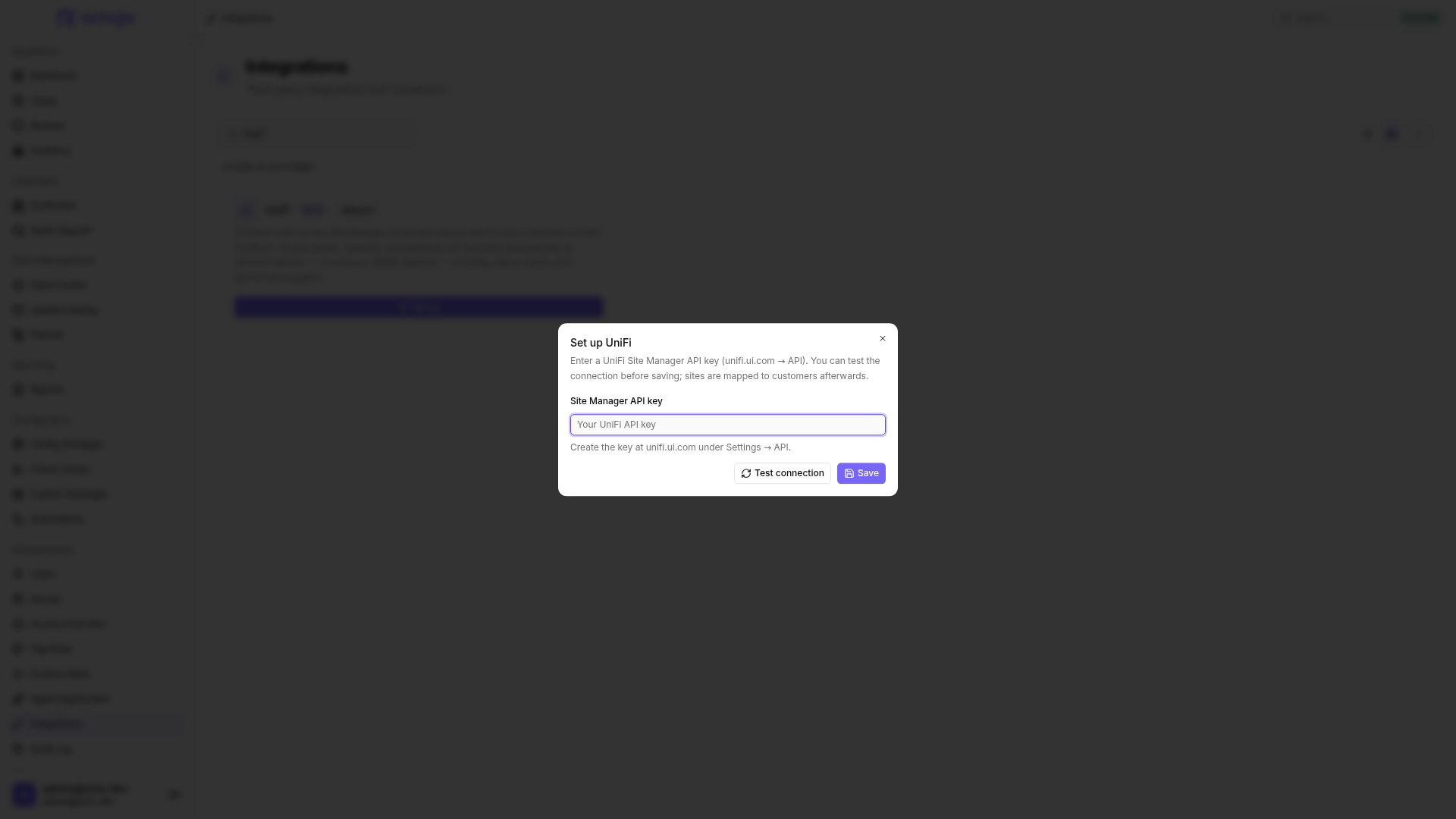
- Open Administration → Integrations → UniFi → Set up.
- Enter the Site Manager API key and choose Test connection. Once you see Connection verified., choose Save. If the key is rejected, check it in UniFi Site Manager.
- Open Map sites. Map each required UniFi site (console) to a Customer and optionally a Location. Whole customer leaves the location unset. Multiple consoles can belong to the same customer.
- Save the mappings and choose Sync now, or wait for the next automatic run. Sync runs every five minutes.
- Check Imported devices and open a device. Its name, type, inventory and metrics come from UniFi. Devices not yet adopted and unknown device types are not imported.
In the mapping dialog, … → Auto-match by name compares console names with customer names. Multiple consoles may map to one customer. Existing mappings are preserved; ambiguous matches stay open. Suggestions do not set a location: choose one yourself if needed, review the mappings and save them.
Monitor devices
When the check definition is available, octoja automatically assigns the UniFi device check to imported devices. It evaluates cloud state; it is not an independent reachability test from the customer's network.
On the device's Clients tab, Connected clients shows currently connected clients directly from the controller. The view refreshes every 30 seconds.
Gateway firewall policies
A UniFi gateway's Firewall policies and Firewall zones are on the device's Firewall tab. You need the Edit Device device action. Manage user-defined policies and zones there; system policies remain read-only. Changes apply directly to the UniFi controller. Check zones, action and ordering carefully before saving to avoid blocking required connections.
If the console still uses classic firewall rules, octoja shows Zone-based firewall is not configured. Migrate the site in UniFi Network first. Continue managing additional filters such as apps, regions and schedules there; editing in octoja preserves them.
Change mappings or disconnect
UniFi remains the source for device names and types; customer and location follow the site mapping. Change these values at their source rather than on the imported device.
Removing a site mapping removes its imported devices from octoja. A successful sync also removes devices no longer present in the mapped site.
Disconnect instead removes only the API key and stops synchronization. Mappings and imported devices remain, but devices are shown offline. Use Update credentials to replace a rejected or rotated key.
Related articles
FAQ
What should I check when a mapped site returns “403 Forbidden” during sync?
What should I check when a mapped site returns “403 Forbidden” during sync?
access denied: user is not the owner of this host means UniFi denied access to that console. With its owner, check which account owns the Site Manager API key and whether that account can access the console. Replace the key through Update credentials if needed, then choose Sync now.
If the error persists, send support the affected site and sync time, not the API key. Keep the site mapping: removing it deletes already imported devices.
Was this helpful?
Still need help? Ask the team