Set up the IT Glue integration
Connect octoja to IT Glue so your devices are written into IT Glue as configurations every hour, under the right organization and location.
Set up the IT Glue integration
The IT Glue integration connects octoja to your IT Glue documentation platform. Once it is set up, octoja writes the devices it manages into IT Glue as configurations, so the hardware you monitor appears alongside the rest of your documentation without anyone maintaining it by hand.
What the integration does
The connection runs in one direction only — from octoja into IT Glue, for devices.
- Devices become configurations — octoja creates or updates one IT Glue configuration per device, under the IT Glue organization you matched its customer to.
- Nothing is ever deleted — octoja only creates and updates. Removing a device in octoja leaves its IT Glue configuration in place.
- Nothing is read back — octoja does not pull organizations, configurations or documentation from IT Glue into its own inventory. It reads the lists that fill the dropdowns while you set things up, and on every run the configurations already sitting in the matched organization, so it can tell a new device from one it has written before.
The sync runs automatically every hour once you switch it on. Four things must all be true before a single configuration appears in IT Glue: the connection is set up, at least one customer is matched to an IT Glue organization, at least one device kind is mapped to a configuration type, and the hourly sync is switched on. If any one of them is missing, the run ends quietly and nothing is written.
Prerequisites
- The Integration Management permission in octoja, granted through groups under Administration → Groups.
- An IT Glue API key. Create it in IT Glue and keep it to hand — check IT Glue's own documentation for where API keys are managed in your account.
- The IT Glue region your account runs in. A key only works against its own region, so a European key cannot be used with the United States or Australia address.
- The configuration types you want to use — and a configuration status, if you want one — must already exist in IT Glue. octoja reads them live from your account, so set them up in IT Glue first.
- Your customers must already exist in octoja. Create them in octoja, then match each one to its IT Glue organization in Step 2.
Step 1 — Connect IT Glue in octoja
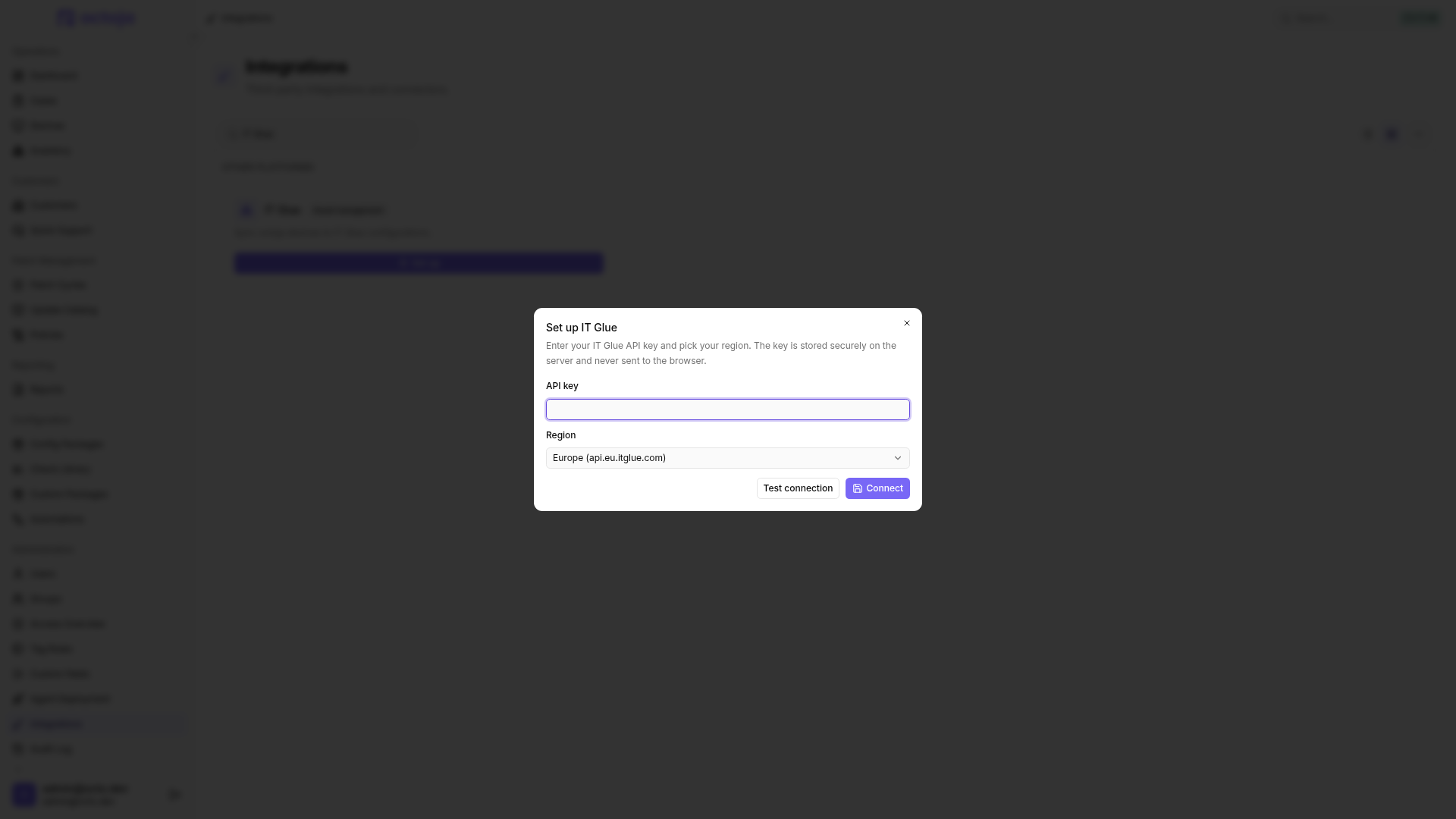
- In octoja, go to Administration → Integrations, find the IT Glue card, and click Set up. This opens the Set up IT Glue dialog.
- Paste your key into API key. The key is stored on the octoja server and is never sent back to your browser.
- Pick your Region — Europe (api.eu.itglue.com), United States (api.itglue.com) or Australia (api.au.itglue.com). Europe is preselected.
- Click Test connection. When you see Connection successful., click Connect.
Testing is optional — octoja stores whatever key you enter. If the key turns out to be wrong, the integration page shows an IT Glue connection problem warning and the configuration-type and status dropdowns stay empty, so it pays to test first.
Step 2 — Match customers to IT Glue organizations
Devices only sync for customers that are matched to an IT Glue organization. Unmatched customers are passed over silently — no error, and no entry in the history.
- On the IT Glue integration page, open the Configuration tab and find the Customer mapping section.
- Click Match organizations and pair each octoja customer with its IT Glue organization. Auto-match by name fills in the obvious pairs for you — it looks past case, punctuation and trailing company forms such as GmbH, and leaves any customer with several plausible organizations for you to decide. The pairing is one-to-one in both directions: a customer points at a single organization, and an organization can be claimed by a single customer.
- Click Save matches. This dialog saves on its own, separately from the rest of the page.
- Optionally click Match sites to map each site of a matched customer to an IT Glue location, so devices land at the right location. This button stays greyed out until at least one customer is matched, and only lists customers that have at least one site. It has its own Save matches button.
In the site dialog, … → Auto-match by name fills unambiguous name matches within each customer. Existing mappings are preserved and ambiguous matches stay open. Review the suggestions and save the dialog.
Devices at a site you did not map still sync — they arrive without a location.
Step 3 — Map device kinds to configuration types
In the Device mapping section, the Device types grid lists every octoja device kind: Windows Server, Windows Workstation, Linux Server, Linux Desktop, macOS, Switch, Router, Firewall, Access Point, Printer, NAS, UPS, ESXi, vCenter and IP Camera.
- Choose the IT Glue configuration type each kind should be created as. The dropdowns are filled from your IT Glue account.
- Kinds you leave on Choose… are skipped during the sync. That doubles as a filter — map only Windows Server, for example, and nothing else is written.
- Optionally set a Default configuration status. It is applied to every configuration octoja creates or updates.
At least one device kind must be mapped. With an empty grid the sync stops before it even looks at a customer.
Step 4 — Turn on the hourly sync
- In the Device sync section, switch on Automatically sync devices hourly. It is off when you first connect.
- Click Save settings in the page header. The device mapping, the default status and the sync switch are saved together, and nothing here is stored until you do.
The hourly schedule is the only trigger, so allow up to an hour before the first configurations show up. The same section shows Last sync: with a timestamp once a run has happened, and Not synced yet. until then.
What octoja writes to IT Glue
Empty values are left out of the update, so a field that is blank in octoja never clears the value already stored in IT Glue. Note that manufacturers and models are account-wide in IT Glue — creating one affects your whole account, not just that customer's organization.
How devices are matched inside IT Glue
Before writing, octoja looks for an existing configuration inside the customer's organization, in this order:
- The link octoja saved the last time it wrote that device.
- The serial number.
- The device name.
Exactly one hit means the configuration is updated. No hit means a new one is created. More than one hit means nothing is written — the device is counted as a conflict and left for you to resolve in IT Glue. Duplicate serial numbers or duplicate names inside one organization are the usual cause. Devices are also passed over when they have no device name, or when their kind has no configuration type mapped.
If you reassign a device to a different customer, IT Glue cannot move the configuration between organizations. octoja leaves the old configuration where it is, replaces its notes with a line saying the device moved, and creates a fresh configuration under the new organization.
Check the sync history
The History tab lists one Device sync entry per matched customer per run. Open an entry to see the counters octoja recorded:
A successful entry does not by itself mean devices were written: a run counts as successful as long as nothing broke outright, even if every device was skipped. Read the counters. If a run does fail, octoja tries again on the next hourly pass — there is no separate retry to trigger.
Disconnect
To remove the connection, open the IT Glue integration page, click Disconnect IT Glue in the Danger Zone, and confirm with Disconnect. The API key is removed, while your customer matches and settings are kept for when you reconnect. Configurations already created in IT Glue stay in IT Glue.
Disconnecting is also how you replace a key: octoja refuses to connect while a connection already exists, so disconnect first, then connect with the new key.
Tips
- Start small. Map a single device kind, wait for a run, read the history, then map the rest once you are happy with the result.
- Switching Automatically sync devices hourly back off stops octoja writing to IT Glue while keeping your matches and mapping intact.
- Watch the
conflictscounter after the first run — it usually points at duplicate configurations that were already sitting in IT Glue. - octoja never deletes in IT Glue. Devices you retire in octoja keep their configuration, so clean those up in IT Glue if you want them gone.
- To connect other documentation or alerting tools, see the rest of the Integrations section.
Was this helpful?
Still need help? Ask the team