Set up the c-entron Service-Board integration
Connect the c-entron web service, import customers into octoja and optionally create tickets from check alarms.
The c-entron Service-Board integration lets you import customers from c-entron into octoja and create tickets from check alarms. You can use customer import on its own; it does not require ticket mapping or an alert rule.
Prerequisites
- A c-entron Developer API license. Contact Nexoware for licensing and activation; a Service-Board login alone is not enough.
- The HTTPS address of your c-entron web service and credentials for a c-entron user with access to the data you need.
- The Integration Management permission in octoja, plus Customer Management for importing customers. Assign permissions under Administration → Groups.
Use the web service URL
The Instance URL field needs the base address of the c-entron web service, not the address you use to open Service-Board in your browser. Although the integration is called “c-entron Service-Board” in octoja, it accesses c-entron through the web service.
For example, if your web service login endpoint is https://centron.example.com/CentronService/REST/Login, enter:
https://centron.example.com/CentronService
octoja adds /REST/Login itself. The hostname and the path before /REST depend on your installation. Do not simply copy the example or the address from your Service-Board browser window. If you do not know your web service address, ask your c-entron administrator or Nexoware. For background, see the c-entron web service API documentation.
The web service must be reachable from your octoja instance over HTTPS. octoja connects to the API, not the agent on a device. The firewall in front of the web service must allow these requests to its host and port. An internal-only address or http:// is not sufficient. See IP addresses and firewall rules.
Connect the integration
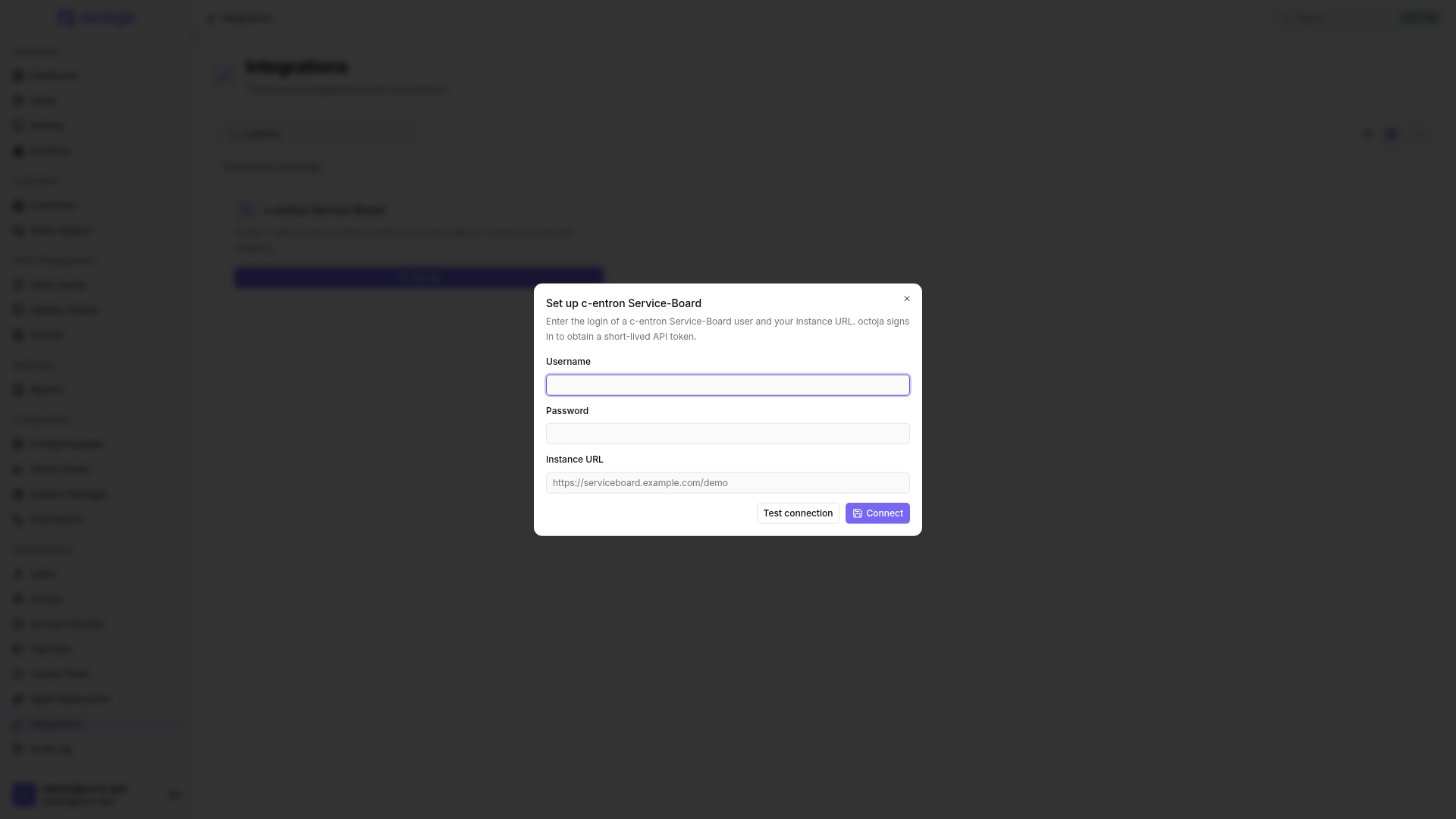
- Open Administration → Integrations and click Set up on the c-entron Service-Board card.
- Enter the c-entron user's Username and Password. A dedicated service account is recommended for ongoing ticket creation.
- Enter the web service base address in Instance URL, as described above.
- Click Test connection. Continue once you see Connection successful.
- Click Connect. The integration page opens on the Configuration tab.
Connect saves the credentials without testing them. Use Test connection first.
The URL placeholder in the dialog is only an example. Use your web service address here, not the Service-Board website address.
Import customers from c-entron Service-Board
Once connected, you can import customers straight away. You do not need to fill in the ticket settings on the integration page.
- Open Customers.
- Choose Import from ticketing system from the … menu next to Add Customer.
- Find and select the customers you want, then confirm the import.
- The new customers appear in the octoja customer list.
octoja copies the customer name and stores the c-entron customer number as the external reference. It also creates the match needed for future tickets. Only active customer accounts with a customer number are offered, not suppliers or contacts. Customers already matched are marked Already imported and cannot be selected again.
Do the customers already exist in octoja? Match them as described in the next section instead of importing them again. Import creates new customers; it does not match existing customers by name.
If another connected ticketing system's import dialog opens instead, this menu does not currently let you switch to Service-Board. If needed, create the missing customers in octoja and match them manually. Do not disconnect an integration you use in production just to run the import.
Optional: Create tickets from check alarms
Automatic tickets also need customer matches and an alert rule. Connecting the integration or importing customers does not create tickets on its own.
Match customers
Imported customers are already matched. For existing octoja customers:
- On the integration page, open Configuration → Customer mapping → Match customers.
- Select the corresponding c-entron Service-Board customer for each octoja customer.
- Alternatively, use … → Auto-match by name. Review the suggestions and fill in missing matches. Ambiguous matches need to be selected manually.
- Click Save matches.
Use … → Show only unmatched to hide customers you have already matched.
Each customer can only be matched once. octoja does not create a ticket for a device without a customer or without a matching customer; the attempt appears as Skipped in History.
Set ticket options
Under Ticket mapping, you can choose the ticket type, categories and priorities. The options come from active records in c-entron Service-Board.
Click Save settings. Changing the main category clears both subcategories; select them again if needed.
Enable alerts
- Open the config package, go to Checks and open the check you want.
- On the Alert tab, select or create an alert configuration.
- Add the c-entron Service-Board ticket channel and set the minimum severity and the proportion of failed results required to raise an alarm.
- Save the check.
The channel is only available while the integration is connected. For the full steps, see Set up alerts for a check.
The next matching alarm creates a ticket for the matched customer. It includes the check, device, status, check output and a link to the check in octoja. Review the delivery attempt in History and the ticket in Service-Board.
The Service-Board template determines the initial ticket status; octoja does not override it.
What happens when a check recovers
When the check recovers, octoja adds a comment to the corresponding ticket. It closes the ticket only if its current status matches the status recorded when it was created.
- If the status has changed or the original status is unknown, the ticket remains open. Review and close it in Service-Board once your team's work is finished.
- Returning the status to its original value allows octoja to close the ticket on recovery. The current status matters, not the ticket's history.
- If the ticket qualifies for closure, empty mandatory fields do not prevent it from closing. Retrying after a failure may add the comment more than once.
- If the ticket was deleted, History records that it was not found. No recovery is sent if no ticket was created in the first place.
A new alarm after recovery creates a new ticket. Ticket statuses, comments and assignments are not continuously synchronized back to octoja, and devices are not sent to Service-Board as assets.
Review open tickets: If you switch, remove or delete a check's alert configuration, or remove its Service-Board channel, no recovery is sent for the affected open alarms. Close those tickets in Service-Board if needed. Deleting a device, removing a check or disconnecting the integration does not close existing tickets either.
Troubleshooting
After successful creation, the history entry's response includes the ticket number (number) if it could be retrieved. Use it to find the ticket in Service-Board. A missing number alone does not mean creation failed.
Search and operation, outcome and date filters in History also find older stored attempts. CSV export includes all matching rows, not just the visible page. See Inspect and export integration history.
Failed deliveries are retried after 1 minute, 5 minutes, 30 minutes, 2 hours, 12 hours and 24 hours. If the web service reports an HTTP 4xx error, that attempt is not retried. A paused integration can still send recovery updates for tickets created earlier.
Change credentials or disconnect
- Open the integration page and scroll to Danger Zone.
- Click Disconnect c-entron Service-Board and confirm with Disconnect.
- If you only want to change the URL or credentials, set up the connection again with the new values and test it before connecting.
Imported customers, customer matches, ticket settings and history are retained. Existing Service-Board tickets also remain. No new tickets are created while disconnected, and alarms raised during that time are not sent after reconnecting.
FAQ
Can I restrict web service access to specific source IP addresses?
Can I restrict web service access to specific source IP addresses?
Ask octoja support for the current outbound source IPs for your octoja instance and its c-entron connection. Do not use your octoja website's IP addresses; the outbound source IP can change. For background, see IP addresses and firewall rules.
After a one-off import, you can disconnect the integration and remove a temporary rule; automatic tickets require the connection to remain available.
Does renaming an octoja customer break its Service-Board match?
Does renaming an octoja customer break its Service-Board match?
No. The saved match does not depend on the display name. You can rename the existing octoja customer without matching it again.
Was this helpful?
Still need help? Ask the team