Set up the HaloPSA integration
Connect octoja to HaloPSA so check alarms open tickets, recoveries note or close them, and devices sync as HaloPSA assets.
The HaloPSA integration connects octoja to your HaloPSA instance so that monitoring alarms turn into tickets your team already works in. Setting it up takes three things: the connection itself, the ticket settings, and an alert rule that routes alarms to HaloPSA.
What the integration does
Once connected and configured, the integration does three separate jobs:
- Creates a ticket from an alarm — when a monitoring check raises an alarm and an alert rule routes it to the HaloPSA channel, octoja opens a ticket on the matched HaloPSA client.
- Handles the recovery — when the check recovers, octoja always adds a note to that ticket, and closes the ticket while nobody has picked it up yet.
- Syncs devices as assets — optionally, once an hour, octoja creates or updates a HaloPSA asset for the devices of every customer you have matched to a HaloPSA client.
Alarm handling and asset sync run outbound, from octoja to HaloPSA. octoja only touches the tickets it created itself, and it never deletes anything in HaloPSA. It does read from HaloPSA where it has to: the lists that fill its dropdowns, the assets of a matched client so a ticket or a sync can find the right one, the assigned agent on a ticket it is about to close, and — if you use the customer import below — the clients and sites it copies into octoja.
Connecting on its own creates nothing. A connected integration with every setting filled in still produces zero tickets until an alert rule points at the HaloPSA channel. That routing step is Step 5 below, and it is the one people most often miss.
Prerequisites
- The Integration Management permission in octoja. Permissions are assigned under Administration → Groups.
- The Alert Management permission, so you can create the alert rule in Step 5.
- The Customer Management permission as well, if you also want to import customers from HaloPSA.
- A HaloPSA instance reachable over HTTPS. An
http://instance URL is rejected when you connect. For a firewall or IP allowlist in front of your HaloPSA API, see IP addresses and firewall rules. - An API application registered in HaloPSA that uses the OAuth client-credentials flow, plus the client ID and client secret it was issued. HaloPSA generates both; octoja never creates them. Where API applications live in the HaloPSA menu, and which HaloPSA edition or permission set they need, is decided on the HaloPSA side — check the HaloPSA documentation if you are not sure.
- At least one asset type, one priority, one ticket status and one ticket type in HaloPSA. octoja fills its dropdowns live from your instance and creates no defaults of its own.
- A monitoring check that already runs, so there is an alarm to turn into a ticket.
Step 1 — Gather your HaloPSA credentials
Collect three values: the URL of your HaloPSA instance, and the client ID and client secret of the API application you registered there. octoja exchanges them for a short-lived API token with the scope all; there is no user name and no password to supply.
Copy the client secret carefully. octoja stores it exactly as you paste it, including a stray space at the start or end, and a secret carrying invisible whitespace connects without complaint but never authenticates.
Step 2 — Connect octoja to HaloPSA
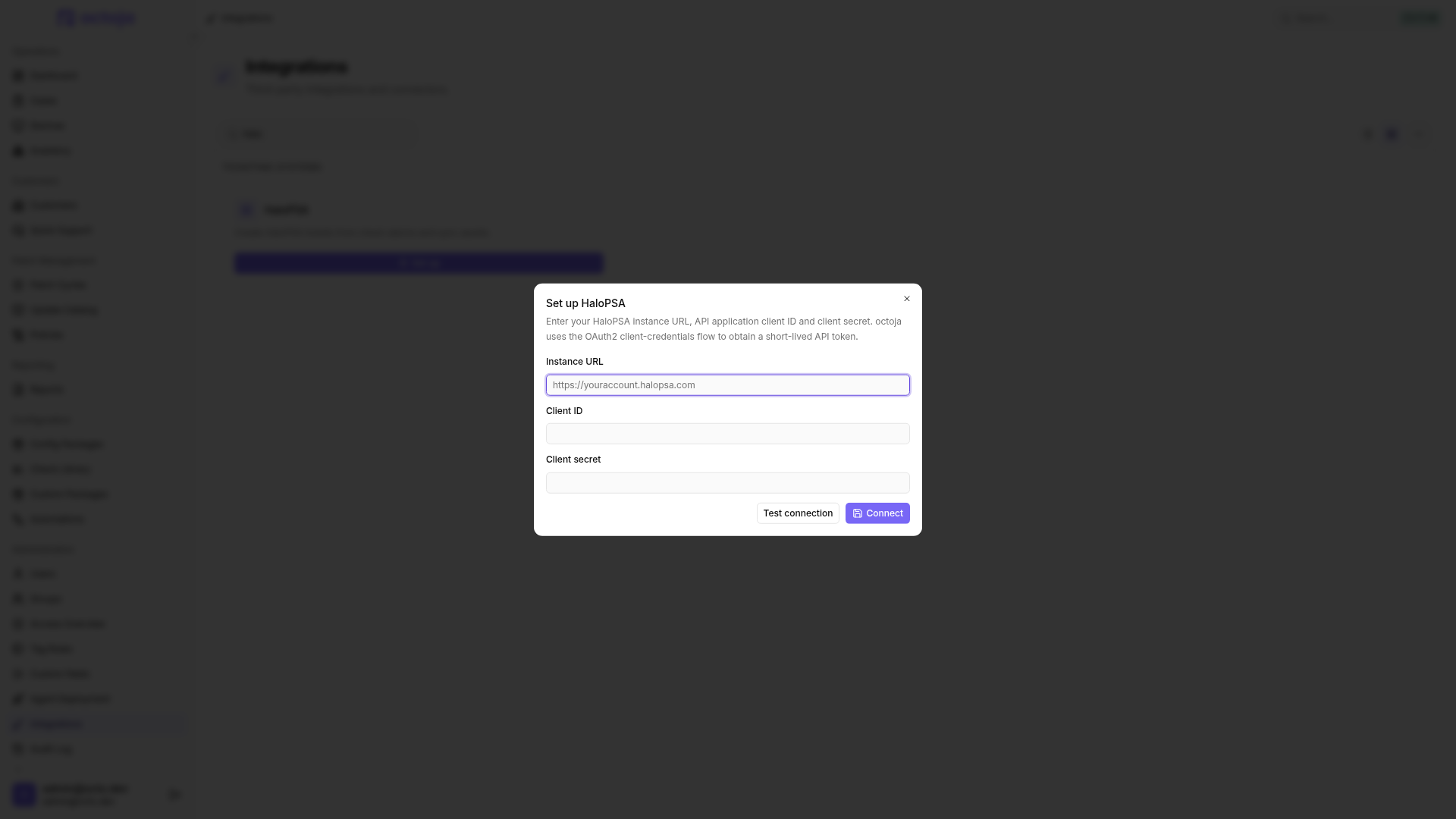
- In octoja, go to Administration → Integrations and find the HaloPSA card under Ticketing systems.
- Click Set up. The Set up HaloPSA dialog opens.
- Fill in the three fields:
- Click Test connection. octoja fetches a token from HaloPSA with the credentials you entered and reports Connection successful. or the error HaloPSA returned.
- Click Connect. octoja stores the credentials and opens the HaloPSA integration page on its Configuration tab.
Test connection is optional, but use it anyway. Connect does not verify your credentials — octoja saves whatever you type without asking HaloPSA whether it works. Wrong credentials connect perfectly happily, and the mistake only surfaces afterwards, as dropdowns on the configuration page that stay stubbornly empty. There is no error banner for it: the lookups fail quietly on purpose, so the page still renders and the connection can still be removed. One click on Test connection before you connect turns an hour of debugging into a clear error message.
Step 3 — Match customers to HaloPSA clients
octoja needs to know which HaloPSA client each of your customers is, so tickets land on the right one.
- On the Configuration tab, find the Client mapping section.
- Click Match clients and pair each octoja customer with its HaloPSA client. Save the dialog.
- Click Match sites to map each customer's octoja sites to HaloPSA sites. This button stays disabled until at least one client is matched, so do the client matching first.
In the site dialog, … → Auto-match by name fills unambiguous name matches within each customer. Existing mappings are preserved and ambiguous matches stay open. Review the suggestions and save the dialog.
An unmatched customer still gets a ticket. Unlike some other integrations, octoja does not skip the alarm — it raises the ticket with no client, no site and no asset link. The result is an orphan ticket in HaloPSA rather than no ticket at all, which is easy to overlook until somebody wonders where those unassigned tickets came from.
Matches are saved by the dialog you are in. The Save settings button in the page header covers the ticket settings only — it does not persist client or site matches.
Step 4 — Choose the ticket settings
The Ticket mapping section decides what a ticket looks like. Several of these settings are hard requirements: if one is missing, octoja skips the ticket entirely.
Fill in at least the status for new tickets, the ticket type, and the priority for the severity you expect to be alerted on. Set both priorities if you want tickets for Warning and Critical alike.
A skipped ticket leaves no trace. When one of the required settings is missing, octoja stops before it contacts HaloPSA, and nothing appears on the History tab — so an incomplete configuration looks exactly like an alarm that never fired. If tickets are missing and the history is empty, re-check this section before anything else.
Settings are not saved automatically. Every dropdown you change stays local until you click Save settings in the page header, or press Ctrl+S.
The priority dropdown is shorter than HaloPSA's own priority list, and that is deliberate. HaloPSA returns one row per SLA, so the same priority level repeats several times; octoja collapses those into a single entry each.
Step 5 — Route alerts to the HaloPSA channel
This is the step that makes tickets appear. Everything so far only prepared octoja; no alarm reaches HaloPSA until an alert rule sends it there.
- Open the config package that contains the check you want tickets for, go to its Checks tab and open the check.
- Switch to the check's Alert tab and pick or create an alert configuration.
- In that configuration, add the channel HaloPSA ticket.
- Set the rule for the channel — the share of failing results, counted either over a number of recent runs or over a time window, and the minimum severity that has to be reached — and save the check.
HaloPSA is a single, tenant-wide channel: once you pick HaloPSA ticket there is nothing else to select, no target and no queue to choose again. The channel only appears in the picker while the integration is connected.
For the full walkthrough of alert configurations, rules and schedules, see Set up alerts for a check.
A ticket octoja opens is summarised as octoja: check "<check>" reported <status> on <device>. Its details name the check, the device, the reported status and how many of the last runs failed, followed by the check's own output and a link back to the device's check page in octoja. Ticket text is always written in English, whatever language your octoja is set to.
Placement follows your matches. The ticket goes to the matched client, picks up the HaloPSA site when the device's octoja site is mapped, and is linked to a HaloPSA asset when that client has one whose inventory number equals the device's hostname — preferring the asset at the mapped site. octoja only looks inside the matched client, never across your whole instance, so identical hostnames at different clients cannot collide.
What happens when a check recovers
Recovery is handled in two parts, and only the first is unconditional.
The recovery note is not private. octoja files it under HaloPSA's Internal Note outcome, but leaves it visible to the end user — so a customer reading the ticket in your HaloPSA portal sees it too.
Only the ticket octoja created for that alarm is touched. If the original ticket was skipped — because a required setting was missing — there is nothing to comment on, and the recovery passes without a trace in HaloPSA.
Step 6 — Sync devices as HaloPSA assets (optional)
Asset sync keeps HaloPSA's assets in step with your octoja devices. It is off until you turn it on, and it needs two things set rather than one.
- Under Device asset types, pick a HaloPSA asset type for each device kind you want to sync — Windows Server, Windows Workstation, Linux Server, macOS, Switch, Firewall and so on. Kinds you leave unset are skipped, and none of them is set by default.
- In the Asset sync section, turn on Automatically sync devices hourly.
- Click Save settings.
Sync runs on an hourly schedule rather than on demand, and there is no way to trigger a run by hand — so the first run follows within the hour of saving. For each matched client, octoja creates or updates one asset per device and writes the client, the mapped asset type, the hostname as the asset's inventory number, and the mapped HaloPSA site.
That is the whole payload. No operating system, IP address, MAC address or serial number is written, because those live in instance-specific HaloPSA custom fields that have no portable names.
Existing assets are recognised by hostname within the client, preferring one at the same site. Devices without a name, and devices whose kind has no asset type mapped, are skipped. Assets are never deleted — if you retire a device in octoja, tidy up its HaloPSA asset yourself. Two devices sharing a hostname within the same client and site collapse onto a single asset.
Each run is recorded on the History tab as a Device sync entry with its created, updated and skipped counts, and the Asset sync section shows when the last run finished. A run in which every device was skipped is still recorded as a success, so read the counts rather than the outcome badge.
Import customers from HaloPSA
If your customers do not exist in octoja yet, you can seed them from your HaloPSA clients. This lives on the Customers page, not on the integration page.
- Open Customers and choose Import from ticketing system.
- Select the HaloPSA clients you want and confirm the import.
Each selected client becomes an octoja customer, its HaloPSA sites become octoja sites, and both the client match and the site matches are created for you — so an imported customer needs no manual matching in Step 3. Clients you already imported are marked and skipped.
The menu item opens the first connected ticketing system in a fixed order: DocBee, HaloPSA, Inserve, Autotask, Codemeta OS, Odoo, Jira, TOPdesk, TANSS, c-entron Service-Board, Freshservice, Zammad. HaloPSA sits second, so only a connected DocBee takes precedence over it.
The confirmation counts the customers actually created, not the clients you ticked. Selecting ten clients of which seven were already imported legitimately reports three.
When tickets stop arriving
The History tab lists recent ticket, recovery and device-sync attempts with their outcome and response, and is the place to look whenever a ticket you expected is missing.
- Every dropdown is empty. The stored credentials no longer work, so the live lookups cannot load. There is no banner for this — empty dropdowns are the symptom. Disconnect and connect again with working credentials, and click Test connection first this time.
- Test connection reports an invalid client. octoja caches the API token for hours precisely because HaloPSA locks an OAuth client that is asked for tokens too often. Wait a few minutes before trying again rather than clicking repeatedly.
- A delivery failed. octoja retries a failed ticket create or recovery after 1 minute, 5 minutes, 30 minutes, 2 hours, 12 hours and 24 hours. Errors HaloPSA reports as a client mistake are not retried, because repeating them would not change the answer. A failed asset sync is not retried either — the next hourly run picks it up.
- The card shows the status Paused. After 20 consecutive delivery failures octoja stops opening tickets, so a broken connection does not keep hammering HaloPSA. Failed asset syncs count toward that total too, so a broken sync can stop your ticketing. Recoveries on tickets that are already open keep working. There is no resume button: use Disconnect HaloPSA and connect again, entering the client secret once more. Matches and settings survive the round trip, so only the credentials have to be re-supplied.
- Tickets arrive in HaloPSA with no client on them. The octoja customer behind them has no client match. Match it as described in Step 3 — the orphan tickets already created stay as they are.
- No tickets at all, and the history is empty. Confirm that the status for new tickets, the ticket type and the priority for that severity are set, and that an alert configuration on the check really includes the HaloPSA ticket channel.
Disconnect HaloPSA
To remove the connection, open the HaloPSA integration page, scroll to the Danger Zone and click Disconnect HaloPSA, then confirm with Disconnect.
Only the credentials are removed. Your client and site matches, all ticket and sync settings, and the delivery history stay exactly as they were, and every ticket and asset already created remains in HaloPSA. Reconnecting later means filling the setup dialog in again from scratch, so have the client secret to hand before you disconnect.
Tips
- Click Test connection before Connect, every time. It is the only live check octoja makes against HaloPSA during setup.
- Paste the client secret without leading or trailing spaces — octoja keeps them exactly as pasted, and the token request then fails.
- Click Save settings after every change — a dropdown you changed but did not save has no effect on the next alarm.
- Set both Priority for Warning and Priority for Critical unless you deliberately want tickets for one severity only.
- Match your clients before you rely on tickets. An unmatched customer produces orphan tickets rather than none at all, which is easy to miss.
- Leave Status when closing on recovery empty if your team prefers to close tickets by hand — recoveries are still noted on the ticket.
Was this helpful?
Still need help? Ask the team