The customers overview
How to read, search, sort, and export the Customers table — your single list of every customer you manage in octoja.
What the Customers page shows
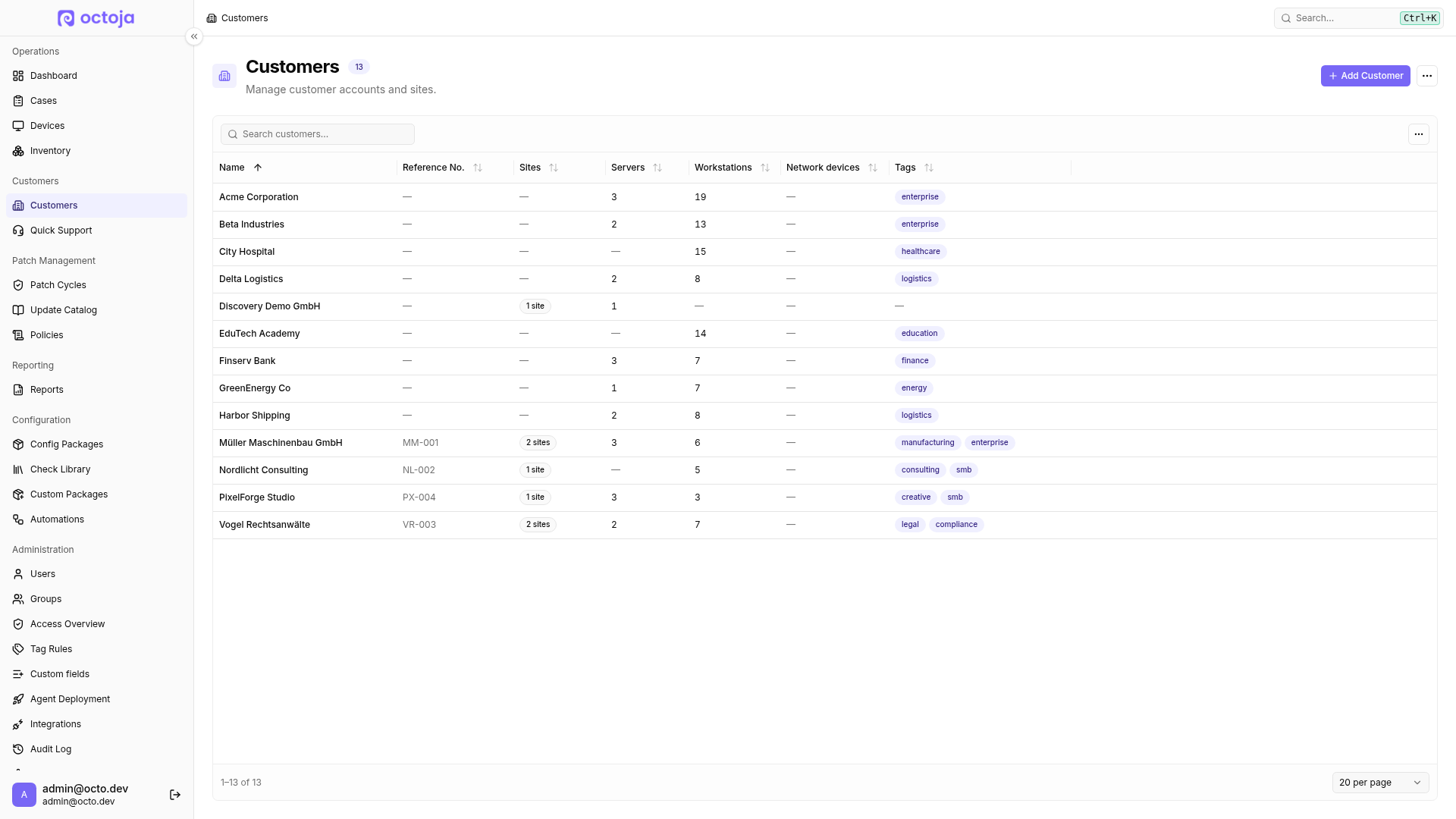
The Customers page lists every customer you manage in octoja in one searchable, sortable table. A customer represents a company or organization whose IT you look after; each device, case, and site in octoja belongs to a customer. The page header shows the total number of customers next to the title.
The built-in NFR customer carries an NFR badge. It cannot be deleted.
Searching the list
The search box above the table (placeholder Search customers...) filters the list as you type. It matches the customer Name, Reference No., Tags and custom-field values. Clearing the box restores the full list.
The columns
Every column header is sortable — click a header to sort by that column, and click again to reverse the direction. The table is sorted by name ascending by default.
The Servers, Workstations and Network devices columns give you a per-customer device count at a glance, broken out by device type; a count column shows a dash rather than a zero when the customer has none of that type. Click any row to open that customer and see its full detail.
Choosing which columns you see
The table's own menu — the … button at the right-hand end of the toolbar, beside the search box — has a Columns submenu. Tick a column to show it, untick it to hide it; the list is ordered alphabetically in your language. Reset columns returns the table to its default set.
Every field you have defined for customers under Custom fields is offered here as a column of its own. These start hidden, so tick the ones you want — a contract number or a renewal date then sits beside the built-in columns.
You can also drag a column header sideways to reorder it, or drag its edge to change its width. octoja remembers visible columns, their order and widths, sorting and the selected page size in this browser. The current page number is not saved; changing page size returns to the first page.
Exporting to CSV
The same … menu includes Export CSV. It exports the table exactly as you are currently viewing it — your active search filter, your sort order and the columns you have showing all carry into the file — as customers.csv, which opens in any spreadsheet. This makes it easy to pull a current snapshot of your customer list, with each customer's site and device counts, into another tool.
The actions menu in the page header (the … button next to Add Customer) is for bringing customers in rather than exporting them. It offers Import Customers (upload a CSV or Excel file) and Import from ticketing system, which takes the client list from whichever ticketing system you have connected — with none connected, octoja points you to Integrations to set one up first. Import from Hudu appears only once the Hudu integration is connected.
Many MSPs use this page as a billing input: the Reference No. links each customer to your CRM or accounting record, the per-customer Servers, Workstations and Network devices counts give the device numbers many bill on, and Export CSV hands you all of it in a spreadsheet.
Related articles
To add a customer to this list, see Create and edit customers.
FAQ
What should I do if the NFR badge is missing or assigned to the wrong customer?
What should I do if the NFR badge is missing or assigned to the wrong customer?
Contact support and identify the intended customer entry. Do not delete or recreate customers to change the NFR assignment.
Was this helpful?
Still need help? Ask the team