Add a Site
Step-by-step guide to adding a new location to a customer in octoja.
A site is a physical place — an office, warehouse, or data centre — that belongs to a customer. Sites help you organise devices by where they physically are.
When to use sites
Use sites when a customer has:
- Multiple offices or branches
- A server room separate from the main office
- Devices spread across different cities or countries
Before you start
You need the Customer Management permission. View Customers on its own is enough to open the Customers pages and see a customer's existing sites, but the Edit Customer button — and the edit page where sites are added — stay hidden without Customer Management.
Steps
- Go to Customers and open the customer you want to add a site to.
- Click Edit Customer to switch to edit mode. The customer's overview page lists existing sites in a read-only Sites card, but adding and renaming them happens on the edit page.
- Scroll to the Sites section.
- Click Add Site.
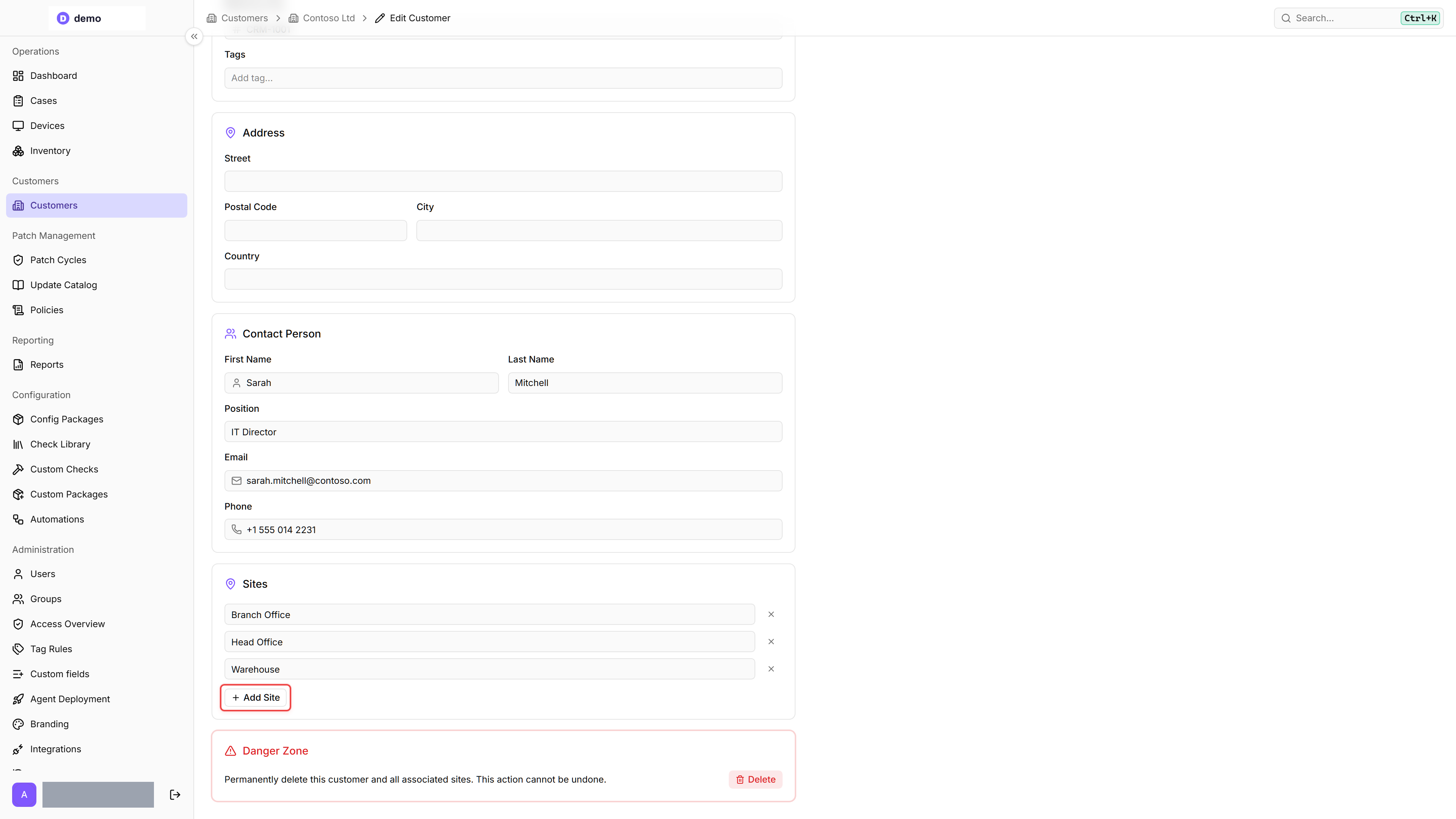
- Fill in the site name.
- Click Save at the top of the page (or press Ctrl+S / Cmd+S).
The site is created and you can assign devices to it during agent deployment.
Alternative: from device assignment
You can also create a new site while assigning a device to a customer. When the Assign Customer dialog is open, an Add site button sits next to the Site field for anyone with the Customer Management permission. The button is disabled until you pick a customer, then becomes active and opens a small dialog where you can name the new site and create it inline. The new site is pre-selected as the device's site after creation — no need to leave the assignment flow. Without the Customer Management permission, the Add site button is not shown — in that case, ask a colleague or admin with that permission to create the site for you.
Was this helpful?
Still need help? Ask the team