Custom fields
Field types, formatted notes and using device and customer custom fields in rules, checks and automations.
Custom fields let you record information octoja does not collect on its own — an asset tag, a cost centre, a contract end date, a room number — against your devices and your customers. You define a field once, centrally, and it then appears on every device or every customer, ready to be filled in by hand and matched in rule-based assignment. A monitoring check or an automation can also write into device and customer fields.
octoja keeps two independent sets of definitions: device fields and customer fields. They are separate lists, so the same key can exist once in each set without clashing.
Where to find this screen
Field definitions are managed under Administration → Custom fields. The page has one tab per set — Devices and Customers. You need the Custom Field Management permission to open it; like every permission, it is granted through groups under Administration → Groups — see How Users, Groups & Permissions Work.
That permission governs the definitions only. Reading a definition and filling in its value on a device or a customer needs no custom-field permission at all — see Filling in values below.
Each tab lists the fields of that set in four columns: Label (with the field's description underneath), Type, Group, and Details — the key, the dropdown options, and the default value shown as badges. The search box filters by label, key, and group, and the list can be exported to CSV like any other table in octoja.
Field types
A field's type decides the input control octoja shows, how the value is validated, and how it is stored.
A value that does not fit its type is rejected when you save it: a dropdown value has to be one of the defined options, a date has to be a real date, and a number has to be a number. Clearing a field removes the value.
For example, choose Dropdown for one contract type and Multi-select dropdown for several agreed services. A multi-select default can also contain several options. Existing fields containing multiple values remain multi-select dropdowns. In check tokens, multiple values are supplied as a JSON list, such as ["Backup","Monitoring"], not as a single option name.
Define a field
Open the tab for the set you want — Devices or Customers — and click Add Field. The new-field dialog asks for three things:
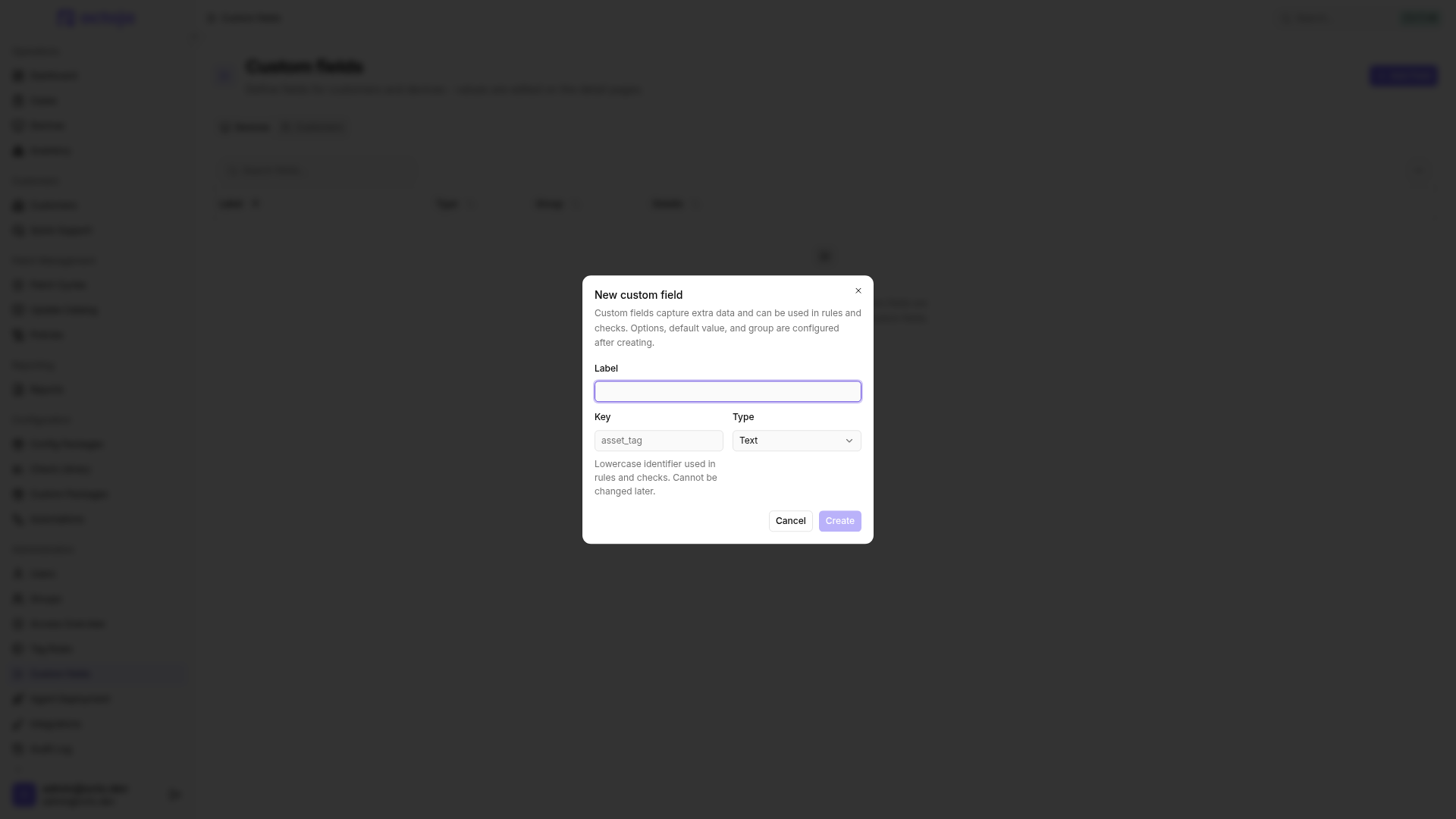
Click Create. octoja creates the field and opens its detail page, where the remaining settings live:
- Options — dropdown fields only. One option per line; blank lines and duplicates are dropped when you save. At least one option has to remain, otherwise the save is rejected.
- Default value — the value a newly created device or customer starts with. The control matches the type: a switch, an option picker, a date picker, or a number or text box. The value is validated against the type before it is stored.
- Description — free text, shown in the info hover next to the field.
- Group — an optional heading. Fields that share a group are displayed together in their own box, and octoja suggests groups already used in the same set.
Click Save to apply your changes (Ctrl + S works too). Key and Type stay visible on the detail page but are locked.
Delete a field
The detail page ends with a Danger zone. Delete field removes the definition after a confirmation. Values already stored on customers and devices initially remain stored but are no longer shown. The field disappears from the rule builders, the check write-back picker, and the automation variable list.
Warning: Deleting a field does not archive its values. When you later save custom fields on an affected customer or device, values belonging to deleted field definitions are removed from that record. Options removed from a dropdown or multi-select are also removed from stored selections on a later custom-field save. Save a copy of important values first and review rules, check write-backs, and automations that use the field.
Filling in values
Values are edited on the record itself, not on the definition page.
There is no separate save button on either tab. A text, number, or date value is written as soon as you leave the field; a switch or a dropdown is written as soon as you pick it.
To set a device field on many devices at once, select them in the device list and use Set custom field, see Edit multiple devices at once.
Fields are laid out by group, with ungrouped fields first in a box called General. The info icon next to each label shows the field's description, its type, its key, its options, its default value, and its group. If you hold the Custom Field Management permission, the card also carries a Manage fields button that jumps straight to the matching tab of Administration → Custom fields.
Customer fields also show up in the customer list. Each one is available as its own column through the table's column menu, switched off until you turn it on, and it comes along when you export the table to CSV. Number fields sort as numbers and date fields as dates, not as text.
Device fields are available in the device list under More actions → Columns. These columns start hidden and are included when you export the visible columns to CSV. Unlike customer-field columns, they cannot be sorted by clicking their headers.
The customer-list and device-list search fields, as well as global search in the command bar (Ctrl+K, ⌘K on Mac), also search stored custom-field values. This lets you find a device by its asset tag or a customer by a contract reference without first showing the matching column. Values are searched, not technical field keys, and the usual customer and device access rules still apply.
Edit formatted notes
A Formatted text (Markdown) field opens in Preview. Switch to Edit to change its source. octoja saves the value when you leave the text field. Without edit access, you only see the formatted content.
You can use headings, lists, tables, links and code blocks, for example. HTML is not rendered. Images are not loaded; their alternative text appears instead. Links open in a new tab. Device and customer list columns show a short text summary; select Details to open the complete formatted content.
In a report template, the All Devices (Table) widget lets you select a device field under Markdown custom field. Its content appears below each device row. See Create a report template.
Open links from text fields
When a Text or Multi-line text field contains a web address, a link icon appears beside it. For one address, it opens the link directly in a new tab; for several addresses, choose the link from a menu. Use full addresses such as https://example.com or www.example.com — a bare example.com is not recognized.
Application links such as teamviewer10://control?device=123456789 are also supported when a matching application is registered on your computer. Local file links (file://) are not offered. Opening a link does not change the field value.
How default values are applied
A default is applied when the record is created — when an agent enrols, when you add a network device without an agent, when a device reports its first inventory, and when a customer is created by hand or through the CSV or Excel import. Adding a default to an existing field does not go back and fill it in on records that already exist. On such a record the field shows the default, but stays unset until you actually change something.
Using the values
A field is only worth defining if something reads it. Once a value is set, three parts of octoja can act on it: rule-based assignment matches it, monitoring checks can write it, and automations can read and write it.
In rule-based assignment
Wherever octoja targets devices by rules — config packages, tag rules, patch policy rings, an automation's device targeting, and a group's Device Access — the field picker offers Device Custom Field as soon as at least one device field is defined. It also offers Customer Custom Field once customer fields exist, so a device rule can match on a field kept on the customer that device belongs to. Pick the field next to it, choose an operator, then type the value to compare against. Complete every condition before saving. Incomplete conditions are rejected; an already stored invalid rule selects no devices.
A group's Customer Access rules target customers rather than devices. They accept Customer Tags and a custom-field condition, which there matches the customer fields.
Custom fields are compared as text, using the operators equals, does not equal, contains, does not contain, starts with, and does not start with. The comparison ignores upper and lower case. In the advanced (OQL) editor the same condition reads customField.cost_center EQUALS "4711"; a customer field reads customerCustomField.industry EQUALS "Retail".
Because assignment is re-evaluated when a value changes, editing a custom field can move a device into or out of a config package, a patch ring, or a group's reach.
When no value is stored, the rule compares the field definition's default. Changing that default can therefore change assignments too. Positive comparisons with a customer field require the device to belong to a customer.
Warning: Negated customer-field conditions — does not equal, does not contain, and does not start with — also match devices without an assigned customer. This can expand a group's device access or assignment targets. To exclude those devices, select the intended customers explicitly or use a suitable positive customer-field condition.
In checks
Device and customer fields connect to monitoring checks in two directions.
Feeding a value into a check. These check inputs offer Insert custom field when a matching device or customer field is defined:
List inputs (including Hosts to ping), password inputs, and inputs that select from predefined options have no insert button. Tokens inside list items are not substituted, even if you enter them manually.
For text inputs, the button appends a token such as {{device.customField.install_path}}; for number and Yes/No inputs, your selection replaces the current value. Before the check runs, octoja substitutes the value from the device or customer, so one shared package can carry per-device parameters.
Use the same insert button for customer fields, with a token such as {{customer.customField.install_path}}. It reads from the customer assigned to the device. For either field set, a missing stored value falls back to the definition's Default value; without a default the token is empty. Without an assigned customer, a customer token stays empty even if the definition has a default.
When the input consists solely of a recognized field token, the configuration displays a linked field with its label and Device or Customer source. Click it to choose another field; X removes the link and clears the value. Text containing embedded tokens remains editable as text.
Writing a check result back into a field. In a custom check's output schema and in an SNMP check's OID rows, select a device or customer field as the target. octoja writes the output value into it on every result. With no target selected, fields stay untouched. If the device has no customer, customer-field writes are skipped.
All devices belonging to a customer share that customer's fields. If several checks write into one, the last processed result overwrites the previous value. Use a device field for device-specific results.
For how checks are assigned in the first place, see Assign checks with config packages.
In automations
Every defined device field is available to an automation as a variable named trigger.customFields.<key>. Use Insert variable to insert a token such as ${{ trigger.customFields.asset_tag }}. A missing stored value falls back to the definition's default; without a default it is an empty string. The same variables are available in step conditions.
The Write custom field action can set a device field on the current device or a customer field on its customer. The value accepts the same tokens and is validated against the field's type; leaving it empty clears the field. A customer-field write step fails if the device has no customer.
Triggers expose both sets as variables — device fields under Custom fields (Device) and the device's customer fields under Custom fields (Customer), named trigger.customerFields.<key>. Customer variables also use defaults, but only when a customer is assigned.
Related articles
- Assign checks with config packages
- Create an automation
- Configure Tag Rules
- How Users, Groups & Permissions Work
FAQ
Can I store a secret installation token in a customer text field?
Can I store a secret installation token in a customer text field?
Do not use ordinary text fields as a secrets vault. Their values are readable and searchable within the user's customer and device access. Withholding Custom Field Management prevents definition changes; it does not hide stored values. Hiding a column is not access protection either. Keep passwords and confidential tokens in a purpose-built secrets store rather than relying on a hidden field.
You can follow and vote for the feature request for a protected password field type.
Was this helpful?
Still need help? Ask the team