Set up patch policies and cycles
Configure patch policies, approvals, rings and optional automatic maintenance mode.
A patch policy controls how operating-system updates roll out across your fleet. It targets customers and gives them a Maintenance Window, and it can optionally split their devices into staged deployment rings, each with its own window. From those windows octoja generates patch cycles — one scheduled maintenance occurrence per window. In the default Manual approval mode you review and approve the updates before they install; in Automatic approval mode octoja decides them for you by rule.
This guide walks through creating a policy, then shows how the cycles it produces are reviewed and approved.
Prerequisites
- You need the Patch Policy Management permission to create and edit patch policies. To review and finalize cycles you also need Manage Patch Cycles, and to create emergency cycles you need Emergency Patch Cycles. Permissions are assigned under Administration → Groups.
- At least one managed device with the octoja agent installed, so the policy has devices to patch.
Create a patch policy
To open visible policies, you need the View Patch Policies and Cycles permission; to edit them, you need Patch Policy Management and access to every affected customer. A shared policy can be Read-only with partial customer access. Devices, cycles and result counts remain limited to your access; see Shared configurations.
Patch management lives under the Patch Management navigation group, which holds Patch Cycles, Update Catalog and Policies.
- Go to Patch Management → Policies and click Create Policy. Enter a Name and choose the time zone and customer scope. Without global customer access, you must select customers. Creating the policy opens its editor.
- In the editor, add an optional Description.
- Review the Customer scope. Pick the customers this policy applies to. Only with global customer access can you leave it empty to apply it to every customer's devices.
Choose how updates are approved
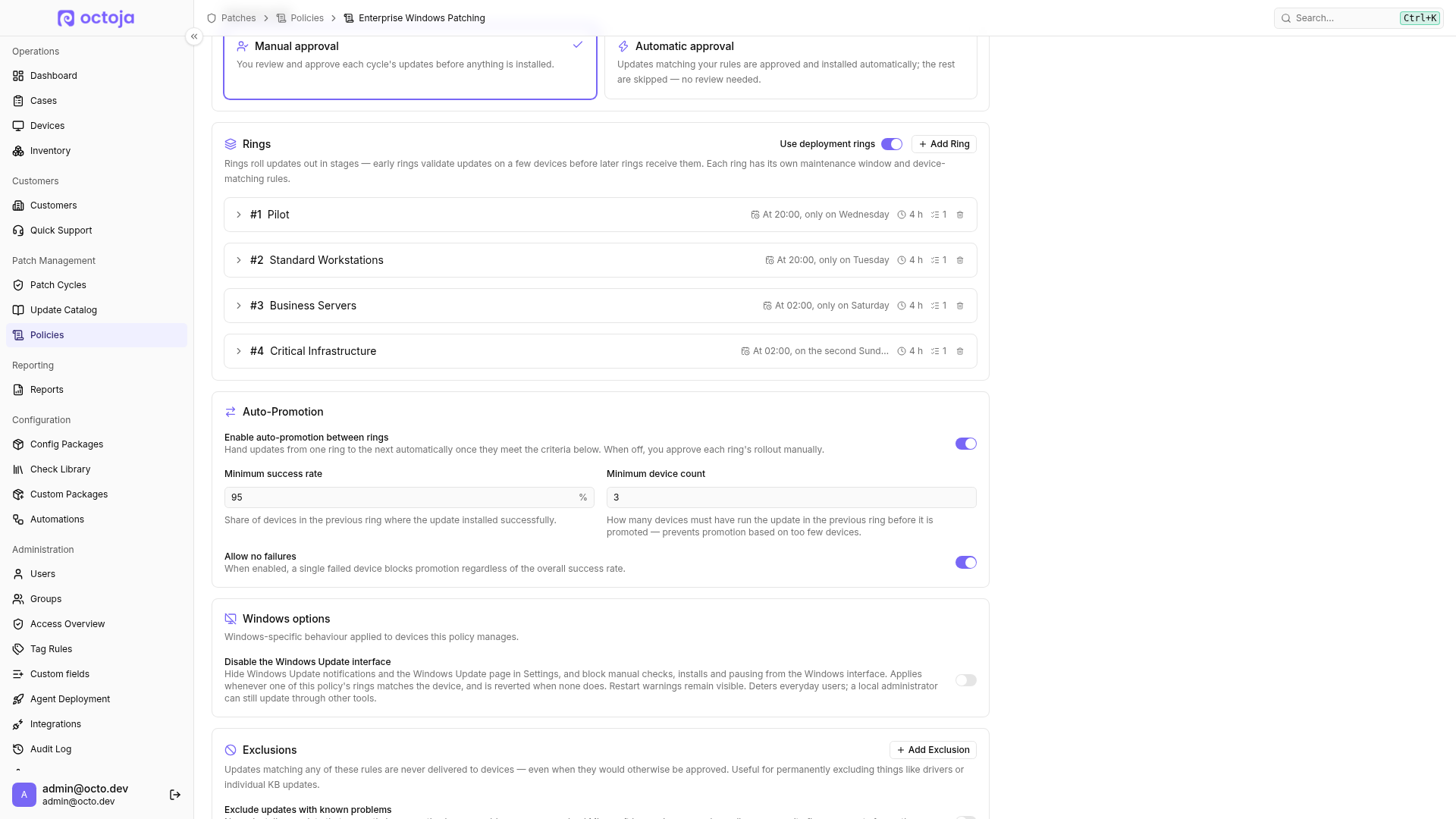
The Approval section decides whether a human reviews each cycle. Pick one of the two cards under Approval mode.
- Manual approval (the default) — you review and approve each cycle's updates before anything is installed. Every cycle is created as a draft and waits for you.
- Automatic approval — updates matching your rules are approved and installed automatically and the rest are skipped. octoja creates the cycle already finalized, so nobody reviews it.
Automatic approval needs at least one rule — the policy is rejected on save without one. Click Add Rule and match on Severity (pick one severity), Category, or Title (is or contains a value). Each rule also carries Install only when the update is at least this many days old, a maturity delay in days (0 for no delay). An update that matches no rule — or that has not yet aged past its rule's delay — is set to Deferred for that cycle; a later cycle re-evaluates it, so a delayed update is picked up once it is old enough.
Two limits are worth knowing. Automatic approval only runs when a maintenance-window schedule exists — with Automatic schedule off no cycles are generated, so nothing is approved. And the maturity delay needs the update's release date, which only Windows Update reports, so a rule with a delay above 0 always defers macOS updates.
You cannot change approval mode while a regular cycle for the policy is Approved or In Progress. Cancel approved cycles or wait for running cycles to finish. Automatically approved cycles cannot Reopen as Draft; change the approval rules instead.
Approval mode, auto-approval rules, and exclusions apply to the whole policy and therefore to all its rings. Use separate policies when these rules or exclusions need to differ.
Add deployment rings
Rings let you roll out updates in stages — for example a small pilot ring first, then the rest of the fleet. Each ring has an order, a schedule, and rules that decide which devices belong to it. Rings are optional: the Rings section carries a Use deployment rings switch, and on a policy you have just created it is off. With it off, the fields below are set once for the whole policy and every device the policy covers is patched together on one schedule.
- To stage the rollout, turn on Use deployment rings, click Add Ring and enter a Ring Name. Create rings in the intended promotion order, from first ring to last. Leave the switch off to skip this step — the remaining fields then belong to the policy itself.
- Under Rules, define which devices match this ring — or, with rings off, which devices the policy covers. Pick the All devices template to take everything in the customer scope. Rules left empty match no devices, so a ring without rules patches nothing.
- Set the Maintenance Window schedule. This is when the cycles run. Click the highlighted words in the schedule sentence to choose how often the window opens — daily, on chosen weekdays, monthly, or Every few hours for an interval of 1, 2, 3, 4, 6, 8 or 12 hours. For Microsoft's monthly releases, open Templates and pick Patch Tuesday at 02:00, which puts the window on the month's second Tuesday. A +0 days pill then joins the schedule sentence; click it to set Days after the reference Tuesday, up to 31. That offset is how you stage rings around a single release — the pilot ring on the day itself, the next ring seven days later. Set a Duration of maintenance window (minutes) for how long the window stays open (default 240); the duration must be shorter than the gap between scheduled runs, so a short interval caps it. Turn Automatic schedule off if you do not want automatic cycles — no cycles are generated on a schedule, but you can still create emergency cycles by hand.
- Set Auto-reboot after patching if devices may restart on their own after installing updates, and set Max reboot cycles to cap how many reboot passes a single maintenance window allows (default 3).
- Decide whether the person at the device may put that restart off. Max restart delays is how many times a logged-in user may postpone it — 0 allows no postponement. A policy created from the quick-create dialog or from a template starts at 0; a ring you add yourself starts at 3. Set it above 0 and Minutes per delay appears (default 30) for how long each postponement lasts. Both fields are only shown while Auto-reboot after patching is on.
How rings pick devices: a device is patched by every ring whose rules it matches — octoja does not assign it to just one ring for you. Give each ring a distinct set of devices (for example by tag, group, or operating system) so that every device falls into exactly one ring; a device that matches two rings is patched by both.
Wait for pilot results: Ring order only determines where updates are promoted. Each ring generates cycles independently on its schedule; an approved cycle does not wait for the previous ring to complete or succeed. Schedule later maintenance windows for the other rings. If the pilot result must determine whether they run, choose Manual approval and click Finalize Cycle in the later cycle only after reviewing the pilot. Under Automatic approval, scheduled cycles for each ring are approved independently.
Restarts and completing execution
Keep agents up to date so they support patch execution.
Allowed postponements also apply when nobody is signed in: an unanswered or dismissed prompt consumes one postponement and waits for its duration. Once no postponements remain — including a setting of 0 — a final countdown warning replaces an immediate restart. This final warning lasts five minutes by default. Restart now ends the wait early; the final warning offers no further postponement.
The maintenance window's end is the cutoff for new installation requests, not necessarily for completion of a request already accepted. Its result, a required reboot, and the subsequent check may still be pending. Review the device and update status before starting another run. A reboot required before installation also uses the ring's reboot settings; if it is not allowed or the reboot limit is reached, execution can end incomplete.
Optional: suppress alerts during patching
In the policy editor, enable Automatic maintenance mode under Windows options, then save the policy. It is off by default.
When enabled, octoja suppresses device alerts during patch execution, at most until the patch window ends. Checks, automations, software deployments and patches continue running. The device's maintenance banner names the patch policy as a reason. Other maintenance windows remain unchanged, and any pauses configured in them still apply.
Optional: auto-promotion between rings
After a cycle completes, auto-promotion copies its update approvals into a Draft for the next ring when the configured conditions are met. The destination cycle remains a draft and still needs to be finalized.
- Open the Auto-Promotion section and turn on Enable auto-promotion between rings. The section only appears once Use deployment rings is on and the policy has at least two rings.
- Set the gate that the current ring must clear before promotion:
The conditions are evaluated per operating system. A Completed device result does not mean every update installed successfully. Review individual update results before widening the rollout.
After promotion, open the destination cycle under Patch Management → Patch Cycles. Promoted updates are already Approved there. Decide any remaining Pending Review updates and click Finalize Cycle so the cycle can install in its maintenance window. This also applies to a draft created by promotion under Automatic approval. Promotion conditions do not hold back independently approved cycles in other rings.
Optional: lock down the Windows Update interface
As soon as a patch policy's ring matches a device, octoja pauses its automatic operating-system updates — even without an approved or running cycle. Under Windows options, you can also turn on Disable the Windows Update interface to hide the Windows Update page in the device's Settings app and block manual checks, installs and pausing from the Windows interface. This switch belongs to the policy rather than to a single ring. The interface restriction remains while any matching policy enables it, but a local administrator can still update through other tools.
Blocking the Windows Update interface also suppresses all Windows Update notifications, including restart warnings. This setting does not replace your policy's restart rules.
Approvals and exclusions apply to installations performed by octoja, not manual installations through Windows Settings or other tools.
Optional: exclude updates
The Exclusions block permanently withholds specific updates from every device the policy covers, even when they would otherwise be approved — useful for holding back drivers or a problematic KB. Open Exclusions, click Add Exclusion, and match by Update ID, KB article number, or Category.
The same block carries Exclude updates with known problems. Turn it on and octoja holds back any update that currently has an unresolved Microsoft known issue, a red or yellow community flag, or reports from other tenants — and delivers it again on its own once the problem clears.
Click Save Policy. octoja now generates patch cycles from the Maintenance Window schedule — one per ring when deployment rings are on.
How patch cycles get reviewed and approved
A patch cycle is one scheduled maintenance occurrence — one per ring when deployment rings are on, otherwise one for the whole policy. Its status flows from Draft to Approved to In Progress to Completed (or Cancelled, or Missed if its maintenance window passed before the cycle was finalized). You review and approve the updates while the cycle is still a draft. Scheduled cycles under Automatic approval are created straight in Approved. A destination cycle created by promotion remains Draft even in this mode; review and finalize it using the steps below.
- Go to Patch Management → Patch Cycles and open a cycle. The Updates tab lists every update in scope.
- Decide each update. An update is Pending Review until you set it to Approved, Rejected, or Deferred. Use Approve All Pending or Approve Critical + Important to decide in bulk. If the fleet changed since the cycle was drafted, click Refresh now to re-check it against the current devices while keeping the decisions you have already made.
- When every update has been reviewed, click Finalize Cycle. The cycle moves to Approved and waits for its Maintenance Window, then installs during the window and moves to Completed.
Once an hour, octoja reconciles open regular cycles with the pending updates on their devices. Under Manual approval, new updates can appear as Pending Review; an Approved cycle stays approved and starts on schedule with its approved updates. To include new updates, reopen the cycle before its maintenance window, review them, then click Finalize Cycle again. Do not leave it as a draft afterward: a cycle that is not finalized by the window's end becomes Missed and installs nothing. Under Automatic approval, the rules decide new updates.
The Update Catalog page shows where each update stands across your environment, so you can see which rings have already received it.
Delete a policy
Deleting a policy cancels its unstarted Draft and Approved cycles. It does not immediately stop running executions. Historical cycles and results remain available; the deleted policy generates no new cycles and no longer promotes updates automatically.
Emergency cycles
An emergency patch cycle bypasses ring ordering and rolls a chosen update out to the rings you select, at the time you choose. Use it for an urgent fix that should not wait for the normal staged rollout. Creating one needs the Emergency Patch Cycles permission.
One policy patches Windows and macOS together
A single policy, ring, and cycle covers a mixed Windows and macOS fleet. There is no per-policy operating-system switch: octoja derives each device's operating system from the device itself and sends it only its own operating system's updates. When auto-promotion is on, the success gate is evaluated per operating system independently, so a healthy Windows rollout is not held back by macOS results and the reverse.
See also: How patch management works for how patching works, the Update Catalog page for tracking a single update across rings, and your group and permission settings under Administration → Groups.
FAQ
Can I drag and drop existing rings to reorder them?
Can I drag and drop existing rings to reorder them?
No, the interface currently has no reorder control. New rings are added at the end. Plan their order when creating the policy.
What happens if a device comes online after the maintenance window starts?
What happens if a device comes online after the maintenance window starts?
While the window is still open and the cycle is approved, the device can still start updating automatically. For a window from 06:00 to 14:00, a device connecting at 10:00 can therefore participate.
Once the window closes, a device that has not started cannot begin that cycle; rebooting outside the window does not catch it up. Plan the next maintenance window or a suitable emergency cycle. Choose a sufficiently long window for mobile devices and account for your restart rules.
Why is Windows Update still blocked after I turn off the interface restriction?
Why is Windows Update still blocked after I turn off the interface restriction?
Check every patch policy that targets the device. If another matching policy still enables Disable the Windows Update interface, the restriction remains. Turn it off in all applicable policies or correct their targeting, then let the online agent synchronize. Do not delete registry values to override an active policy.
What happens to an existing WSUS assignment?
What happens to an existing WSUS assignment?
While a patch policy's ring matches a Windows device, octoja temporarily replaces its Windows Update policy settings. This includes any existing WSUS assignment. It happens regardless of whether a patch cycle is active or Disable the Windows Update interface is enabled. Once no patch policy matches the device, octoja restores the previous settings.
For Windows update searches, the agent queries the default source as well as Windows Update, Microsoft Update and other registered update services. Installations through octoja are therefore not limited to updates approved in WSUS; approvals and exclusions in octoja apply instead. There is no mode that preserves an existing WSUS assignment while patch management is active.
Can a patch cycle wait for a successful backup?
Can a patch cycle wait for a successful backup?
No, patch cycles do not automatically check backup success. Scheduling a maintenance window after the planned backup only aligns the times; it does not prevent installation if the backup fails. A backup check or a separately scheduled script does not automatically block the cycle either.
If a successful backup is a prerequisite, use Manual approval. Verify the required backup yourself and only then click Finalize Cycle to approve installation during the maintenance window. You can follow and vote for the feature request for an automatic dependency.
Was this helpful?
Still need help? Ask the team