Review patch results
See which devices installed, failed, or missed an update in octoja — across your whole fleet in the Update Catalog, or per maintenance cycle.
After a maintenance window runs, you can see exactly what installed. octoja shows patch results in two places: the Update Catalog tracks a single update across your whole fleet, and each patch cycle shows what happened during one ring's maintenance occurrence.
Before you start
- You need the View Patch Policies and Cycles permission to see patch status and history. Permissions are granted per group under Administration → Groups, in the Patch Management section (see How Users, Groups & Permissions Work).
Track one update across your fleet
The Update Catalog is the fleet-wide view — use it to answer "where does this update stand everywhere?"
- Go to Patch Management → Update Catalog. Each row is an update with its Severity, Categories, release date, and how many devices still have it Pending. Managed by names the policies that cover the update, or flags it Unmanaged when no policy reaches it. Search by KB number or title, narrow by severity, and set the last filter to Pending only to focus on outstanding updates.
- Select a policy in the picker above the table to swap Managed by for one column per ring. A ring shows one of Not yet scheduled, Awaiting review, Scheduled, Installing, Installed, Installed (with failures), Rejected, or Deferred, and a ring that has already run adds its succeeded, failed, and missed counts underneath. A globally blocked update is marked Blocked.
- Expand a row with the arrow on the left for the per-device breakdown — Device, Customer, Ring, Status, and Details. Each device shows Installed, Already installed, Pending, Not yet scheduled, Failed, Missed — device offline, Incomplete, Requires Reboot, Skipped, Not Applicable, or Withdrawn. Details carries the error code and message for a failed device, the install time for an installed one, and the cycle date for a pending one. A ring can be Scheduled while its devices are still Pending.
- Click the row itself to open the update in full. Select All devices for the overall view or an applicable policy for its rings. Update spread across rings plots every device as a dot around its ring and customer, and the cards above the table summarize the device statuses, including Pending and Incomplete. All devices underneath repeats the breakdown with a search box.
Managed by reflects current policy targets and devices where the update is still pending — an old approval alone does not mean current coverage. A policy may remain available in the selector for historical review even when no installation is pending. You can also open the catalog entry through an update title in a device's pending updates if you have permission to view patch management.
See the results of one cycle
Open a cycle to review a single maintenance occurrence — what installed on which device, and what failed.
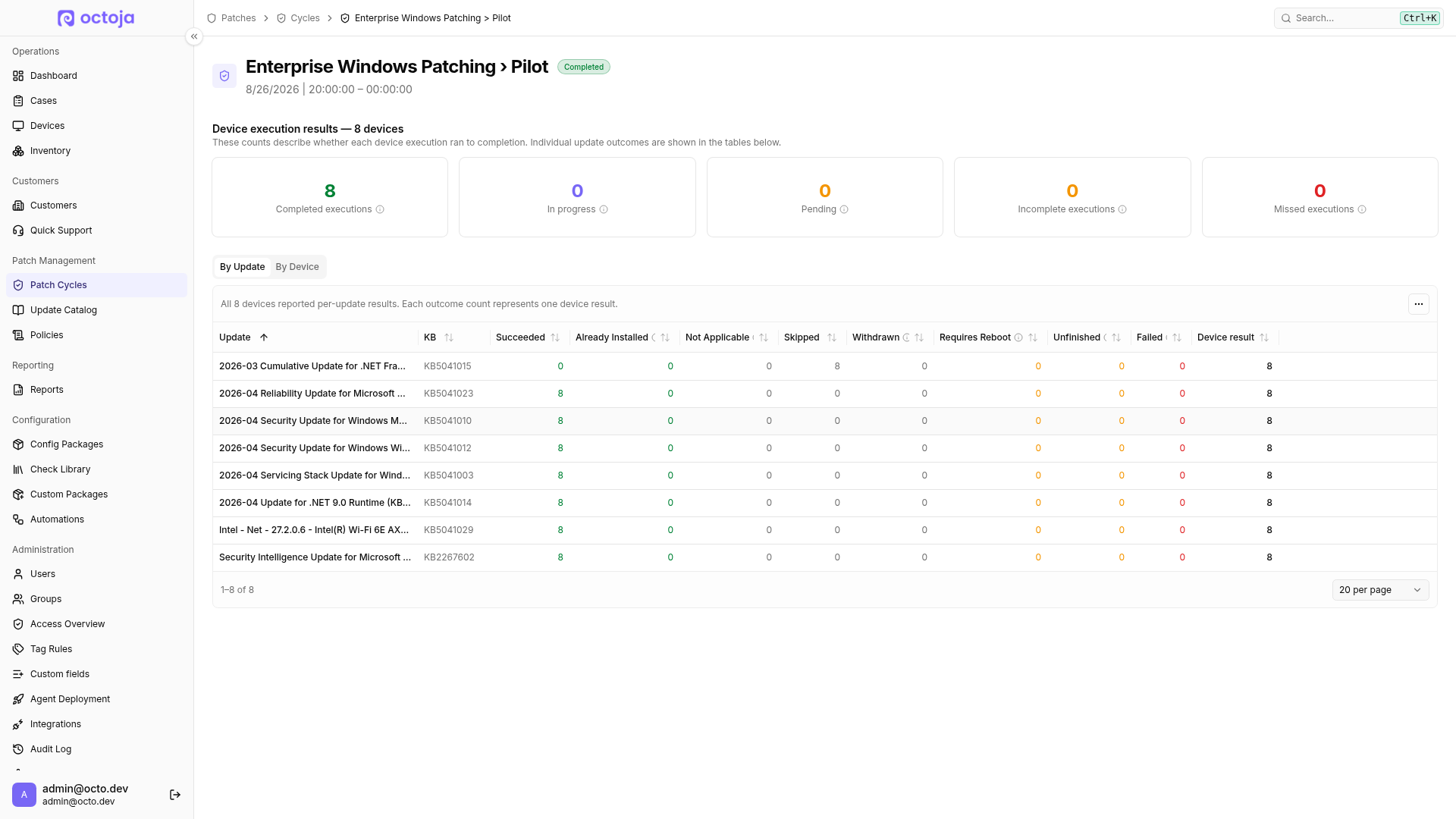
- Go to Patch Management → Patch Cycles and find the cycle under All Cycles; the Status column tells you where it stands. Open one marked Completed or Missed — those are the cycles that carry results. A cycle still marked In Progress shows its device list live and refreshes on its own; the tabs and summary cards below appear once it finishes.
- The cards under Device execution results count Completed executions, Missed executions, Incomplete executions, In progress, and Pending. They count devices, not successfully installed updates.
- The cycle opens on By Update. Each update has its KB number and separate counts for Succeeded, Already Installed, Not Applicable, Skipped, Withdrawn, Requires Reboot, Unfinished, and Failed. Together they add up to Device results — the number of devices with a result for that update. Unfinished covers the last-known states Pending, Downloading, and Installing. The information icons explain the counts.
- Switch to By Device for the device status, Reboots, and Result rows. Expand a device to inspect individual updates, error codes, and messages. An error affecting the whole device execution appears above its update list. Skipped updates can show a reason such as a global block, known problem, policy exclusion, or automatic approval rule.
- By Device hides not-applicable update results by default. Turn on Include not applicable to see them. Result rows showing
7 / 10means 7 of 10 results are visible, not 7 successful installations. The switch only changes this table view; By Update still counts not-applicable results.
Incomplete means a device started but could not finish its execution. Missed means it did not start before the maintenance window closed. The Update Catalog distinguishes these states too. Successful or failed individual update results already reported are retained. An operation already accepted can finish after the window closes; wait for its final status. Check the individual update results rather than treating “Completed” as “all updates succeeded.”
The cycle list marks a window as past once its end time in the policy's time zone is reached — even on the same day or for a window crossing midnight. This time marker is not an execution result; use the status and device results to judge the outcome.
The note above By Update shows how many devices reported any individual update results. Devices without update rows are listed separately: missed window, completed with no updates, or unfinished/incomplete. A device without an update row does not automatically count as a failed installation of that update.
Approved updates remain visible under By Update even when no device has reported an individual result. Zero counts are therefore not proof of installation. Check By Device to see whether devices started or missed the maintenance window.
Which view should you use?
See also: How patch management works for the full picture, Set up patch policies and cycles for creating policies and cycles, and How Users, Groups & Permissions Work for the View Patch Policies and Cycles permission.
Why wasn't an update installed?
When a cycle completes but an update you expected is missing on some devices, walk this checklist from top to bottom — it covers the causes in the order they usually occur:
FAQ
How can you patch devices that missed their maintenance window?
How can you patch devices that missed their maintenance window?
If you cannot wait for the next regular window, create an emergency rollout with the still-pending updates for the affected ring. Choose an additional window when the devices are likely to be online. The rollout applies to every device in the selected ring, not just those that missed the previous window. A device that stays offline through the new window will not automatically catch up when it turns on. You can follow and vote for a request to add that option.
Why does an update appear in both pending updates and installation history?
Why does an update appear in both pending updates and installation history?
On a device's Updates tab, pending updates come from its latest inventory, while patch history records the results of individual runs. These can reflect different points in time. Compare the update's installation result and time before treating its presence in the pending list as a failed installation. If the discrepancy persists, send support the device, update name or KB number, and the run time so they can check whether the inventory is stale or Windows still offers the update.
Where can I see which policy schedules an update on a device?
Where can I see which policy schedules an update on a device?
Open the device under Devices and select Updates. In pending updates, the Installed by policy column shows the planned time and ring. Hover over it to see the policy name, maintenance window and time zone. You need the View Patch Policies and Cycles permission.
This column shows planning per update, not every policy that targets the device. No policy means no plan is shown for that update — not necessarily that no policy targets the device. Check targeting under Patch Management → Policies using the Customer scope and device rules; see Set up patch policies and cycles.
Was this helpful?
Still need help? Ask the team