Roll Out Windows Feature Updates
Learn why a Windows feature update such as 11 25H2 appears in a patch cycle but never installs, and how to configure a policy that deploys it.
A feature update moves a device to a new Windows version — for example Windows 11 25H2. octoja handles it through the same patch policies and cycles as every other update, but it behaves differently in three ways that regularly surprise people: it is excluded by default in many policies, it takes far longer to install, and it always needs a reboot. This article shows what to check when a feature update is listed in a cycle but never installs.
Why the update is listed but not installed
Work through these in order — the first two cover most cases.
Set up a policy for feature updates
Use a dedicated policy for feature updates when their approval rules or exclusions need to differ from monthly updates. These settings apply to every ring in a policy; an additional ring only separates devices, maintenance windows, and restart behaviour.
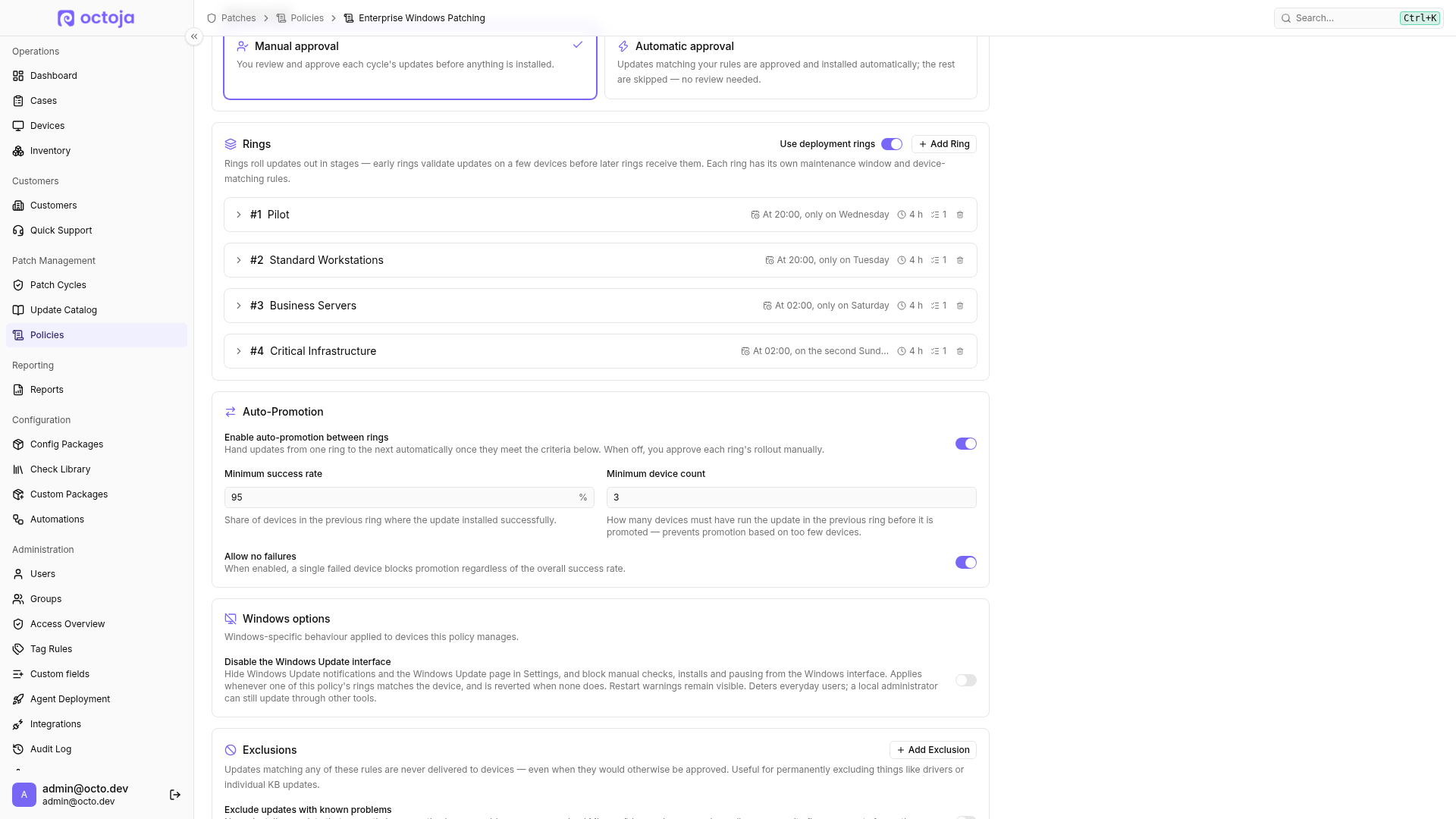
- Create a dedicated policy under Patch Management → Policies. Select its target devices and add a pilot ring and later rings if needed.
- Give the ring a long window outside working hours — several hours, for example a weekend night.
- Allow automatic reboot on that ring. If users may be signed in, allow a couple of postponements so nobody loses work.
- For a rule-based rollout, choose Automatic approval, match the feature-update category, and add a maturity delay of a few weeks. This rule applies to every ring in the policy. To wait for a pilot review before continuing the rollout, choose Manual approval instead and finalize later cycles only after that review.
- Make sure the feature-update policy does not exclude the category. Keep the feature-update exclusion in your monthly-update policies if they should not upgrade Windows versions. Also review the rules and targeting of other policies that cover the same devices: an exclusion applies only to its own policy.
- Schedule the pilot window before the other rings' windows. Ring order does not enforce waiting for the pilot; under Automatic approval, each approved ring cycle starts independently on its schedule. If you use auto-promotion, the pilot must supply enough results for Minimum device count (the editor defaults to 5). Promotion copies approvals into a Draft: review it and click Finalize Cycle. The setup guide explains the conditions.
Check the result
After the cycle, open it and look at the per-device rows: a device that installed the feature update reports the new Windows version at its next inventory run. Review patch results explains both views in detail.
Tips
- Roll feature updates separately from your monthly cumulative updates. Mixing them makes a normal patch night unpredictable in length.
- Check free disk space before a broad rollout — a feature update needs several gigabytes on the system drive, and a device that fails on space keeps failing every cycle until it is cleaned up.
- If a device does not pick up the feature update at all, Windows may not be offering it yet (hardware or driver blocks, or the staged rollout has not reached the device). octoja can only install what the device is offered.
Was this helpful?
Still need help? Ask the team