The customer dashboard
An overview of octoja's customer dashboard plus check-name filtering and saved page sizes on the main dashboard.
Overview
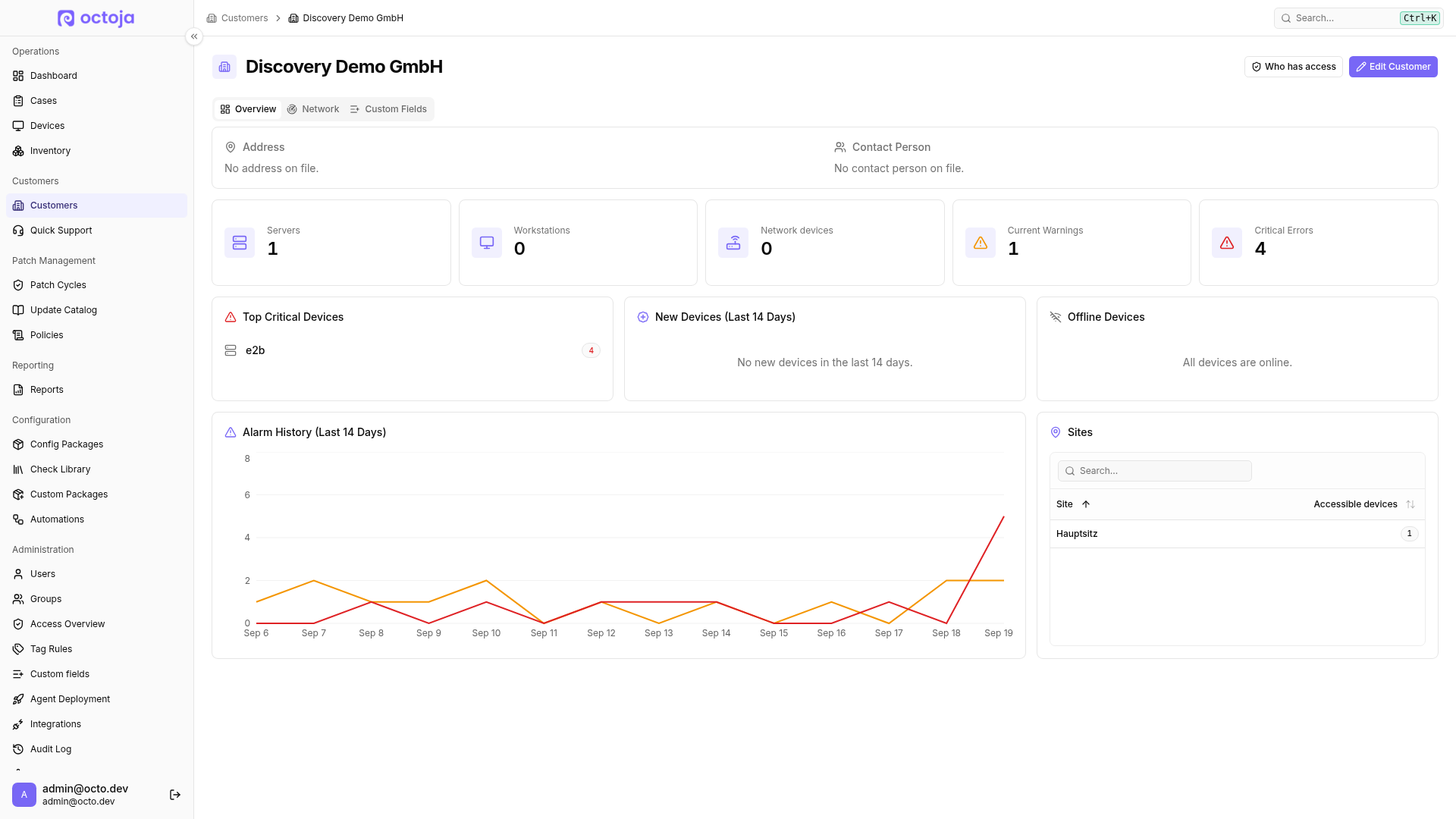
Every customer in octoja has its own dashboard. Open a customer from the customer list to see it. The dashboard opens on the Overview tab, with a Custom Fields tab beside it, and starts with a card carrying the customer's address and contact person. Below that sits a quick health summary for that customer's devices: headline KPI tiles, three device cards, an alarm history chart, and — for a customer with sites — a site table. This article describes each tile and card.
KPI tiles
Five KPI tiles sit at the top of the dashboard. For a customer that is matched to a lywand software partner and has been scanned by lywand software, a sixth tile — Lywand Score — is added in front of them. Each tile is clickable: selecting one opens the device list pre-filtered to this customer and, where the tile has one, the matching status, so you can jump straight from a number to the devices behind it.
Device cards
Below the KPI tiles, three cards sit side by side in a single row and highlight devices that need attention. From left to right they are Top Critical Devices, New Devices, and Offline Devices. Each entry in every card links to that device's detail page, and hovering a device name opens a preview card.
Top Critical Devices
The leftmost card ranks up to five of the customer's devices with the most checks in a critical state, with a badge showing the critical count for each device. It points you to the devices contributing most to the Critical Errors total. When there are none, the card reads "No critical devices."
New Devices (Last 14 Days)
Lists up to five devices added to this customer in the last 14 days, newest first, with how long ago each one was enrolled. When there are none, the card reads "No new devices in the last 14 days."
Offline Devices
Lists up to five of the customer's devices that are currently offline, longest offline first, with a badge showing how many days each one has been offline. When every device is reporting, the card reads "All devices are online."
Alarm History (Last 14 Days)
This chart plots two lines over the last 14 days: a Warnings line and a Critical line. It counts alarming checks per day — for a given day, each check counts at most once per severity no matter how many times it ran. So a single check that fails repeatedly through the day adds one to that day's count, not one per run. The chart shows how many checks were alarming each day, not how often they ran. When there have been no alarms in the period, the card reads "No alarms in the last 14 days."
Sites
A customer with sites gets a Sites table beside the alarm history chart. It lists every site of that customer, sorted by name, with the devices at each one. Both columns sort, and a search box above the table narrows a long list. The count column is headed Accessible devices because it counts only the devices your own permissions let you reach, so two colleagues can read different numbers for the same site — as they can for every count on this dashboard. A customer with no sites gets the alarm history chart across the full width instead.
Filter main-dashboard devices by check name
The main dashboard also has a device table with a filter sidebar. Under Check names, select one or more configured check names, such as System disk. This filters on the actual configured name regardless of which config package supplied the assignment. It is more precise than Check types when several configurations of one check type have different names. The picker suggests active check names only from devices matching your current customer, site, and other filters. The selection also narrows customer and unassigned counts and is included in saved views.
At the bottom of the table, choose 20, 50, or 100 devices per page. Page size is part of the saved view and is restored when you next open that view; the current page number is not saved. Changing the page size returns the table to the first page.
Was this helpful?
Still need help? Ask the team