Configure White-labeling
Customize logos, colours and product names for the web interface and Quick Support.
White-labeling replaces the octoja logo, colours, and product name with your own values. Configure custom domains and email senders on their separate Settings pages.
Prerequisites
- You need the Branding Management permission. It is granted via groups in Administration → Groups. See How Users, Groups & Permissions Work.
Steps
- Open Settings → White-labeling.
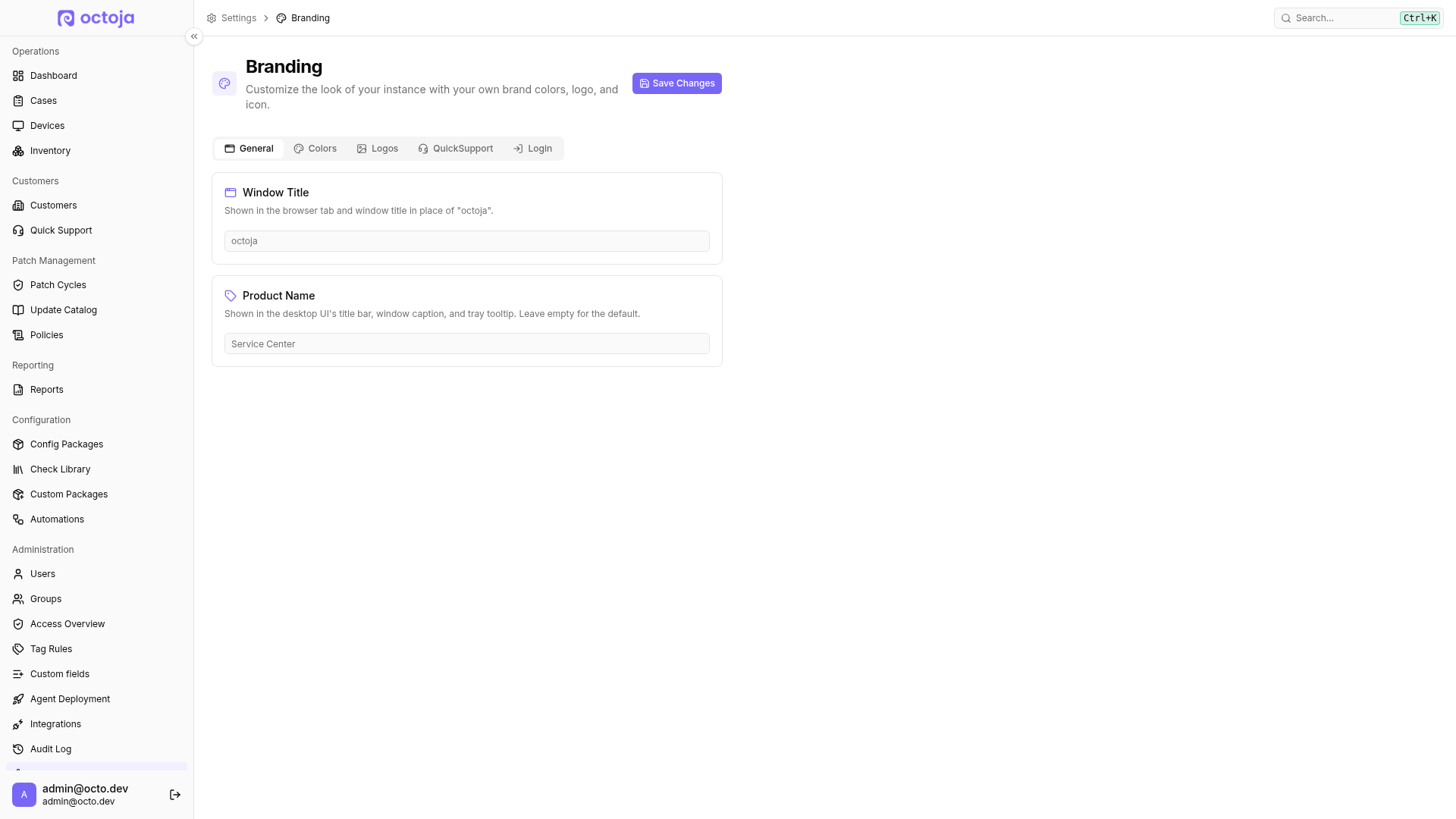
- On the General tab, optionally set a Window Title (max. 60 characters) — it is shown in the browser tab and window title in place of "octoja".
- Optionally set a Product Name — it is shown in the self-service desktop app's title bar, window caption, and tray tooltip. Leave it empty to use the default.
- On the Logos tab, upload your logo (PNG, JPEG, or WebP, max 512 KB, recommended 285 × 80 px). Every logo and icon has a Light mode and a Dark mode slot — the dark version is optional and falls back to the light one when empty.
- On the same tab, upload an icon (PNG, JPEG, or WebP, recommended 64 × 64 px, max 512 KB) — shown in the collapsed sidebar and as the browser-tab favicon.
- On the Login tab, optionally upload a mascot image (PNG, JPEG, or WebP, recommended 512 × 512 px, max 512 KB) and toggle Show mascot to display it on the sign-in screen.
- On the Colors tab, set your Brand Color (hex code, e.g. #7B61FF) under Light mode, and optionally a different one under Dark mode — an empty dark value reuses the light one.
- On the same tab, set your Secondary Color (hex code, e.g. #10B981), again with an optional Dark mode value.
- Click Save Changes. Your changes apply immediately; other users see them the next time they load the page.
- To reset the window title, product name, colours, logos, icons, mascot and Quick Support overrides, click Reset to Defaults and confirm. The button appears once at least one value has been customized.
Quick Support name and logo
On the QuickSupport tab, you can customize the Quick Support application's appearance. The tab is always shown, but Quick Support itself must first be enabled by an administrator under Settings → Beta features:
- Enter the QuickSupport name, up to 80 characters.
- Upload a PNG, JPEG or WebP image of up to 512 KB under QuickSupport logo.
- Click Save Changes.
Leaving either value empty uses the general product name or general logo instead. Reset to Defaults also clears these two overrides. Custom domains and email senders remain separate settings.
See Start Quick Support to prepare a connection.
What customers see
Customers see your logo and colours. Setting a Window Title also puts your name in the browser tab instead of octoja.
Related articles
Was this helpful?
Still need help? Ask the team