Connect a Community Check Repository
Connect an external check repository and use its checks in the Check Library.
Your Check Library lists every monitoring check octoja can run on a device. It is filled from check repositories: the built-in official repository, your own custom checks, and any community check repositories you connect. A community check repository is an external location that publishes ready-made checks — connect one and its checks appear in your Check Library, ready to assign like any built-in check. The URL comes from whoever publishes the repository — that can be another octoja instance, which hands out its own repository URL and credentials under Settings → Check repository access.
When creating repository credentials, you can generate a secure password, reveal it, and copy it directly. Store the username and password safely: the other octoja instance needs both when connecting the repository.
Before you start
- You need the Check Repository Management permission to open the Check repositories page and add a repository. Permissions are granted through groups under Administration → Groups.
- To browse the Check Library and assign the resulting checks, you also need Monitoring Check Management.
- The repository's base URL — the address where its
registry.jsonis published, for examplehttps://checks.example.com/. - If the repository is private: the HTTP basic-auth username and password for it, plus an
https://base URL — octoja sends credentials over plainhttp://only to loopback addresses such aslocalhost.
Steps
- Open Settings.
- Select Check repositories.
- Click Add community repo.
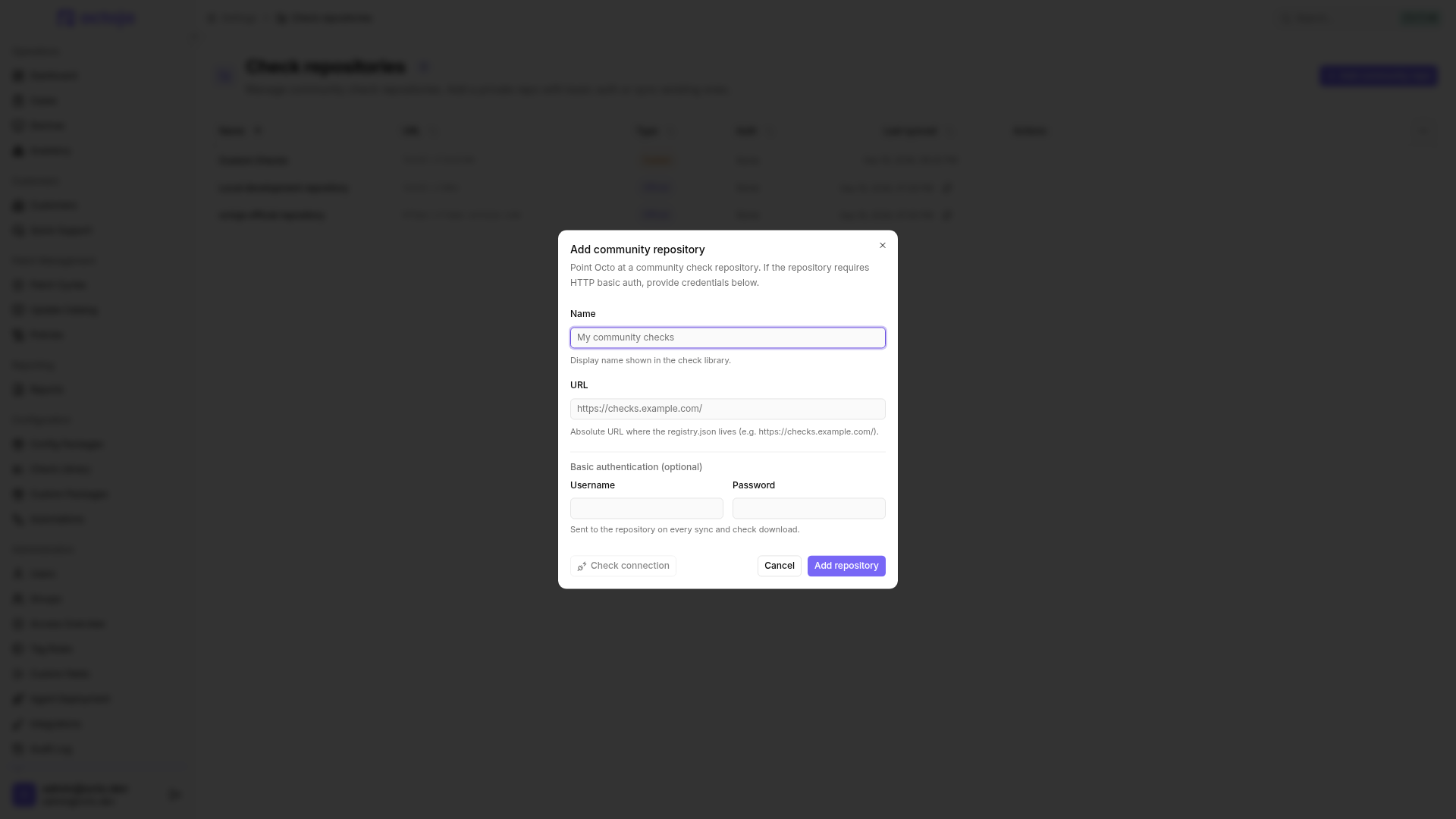
- Fill in the dialog:
- Click Check connection. octoja probes the URL and any credentials and reports how many checks it found. If it fails, see Troubleshooting below.
- Click Add repository.
What happens next
Adding the repository only saves the connection. On its first sync — the next hourly one, or right away with Sync now — octoja reads the repository's registry, downloads each check definition, and adds the checks to your Check Library, where each one carries a Community badge and its version. From there you assign them exactly like built-in checks — open a device's Checks tab or a config package and add the check. See Assign checks with config packages.
octoja re-syncs each connected repository automatically once an hour and picks up new or changed checks. You can also sync on demand — see below.
Sync a repository
On the Check repositories page, every official and community repository shows a Last synced time and a Sync now action. The automatic hourly sync only pulls when the repository has published something newer than your last sync; Sync now always forces a full refresh. Your own custom checks appear as a Custom repository and need no sync — they already live inside octoja.
Edit a repository
Use the Edit action on a community repository to change its name, URL, or basic-auth credentials. Leave the password field blank to keep the current password. The HTTPS rule applies here too: while the entry keeps a username, saving needs an https:// URL, so an older http:// entry with credentials fails validation the next time you edit it — switch it to https://, or clear the username to drop the credentials. Official and custom repositories are managed by octoja and are read-only.
Remove a repository
The Delete action removes a community repository. Existing check assignments that reference the repository's checks stop working until you reassign them, so move or remove those checks first. Official and custom repositories stay in place; the action is offered on community repositories only.
Repository types
For the exact structure a repository must publish so octoja can read it — registry.json, per-check manifests, and how syncing decides what to pull — see the Check Repository Reference.
Troubleshooting
The URL field says basic authentication requires an HTTPS repository URL. You entered a username, so the URL has to use https://. octoja accepts plain http:// together with credentials only for loopback addresses such as localhost. Switch the URL to https://, or clear the username and password if the repository is public. Check connection stays greyed out until the combination is allowed.
The connection test says the repository is unreachable. octoja could not reach the URL. Check that the URL is correct and reachable from the internet, includes the http:// or https:// scheme, and — for a private repository — that the basic-auth username and password are correct.
The connection test says the registry is invalid. The URL responded, but octoja could not read a valid registry.json at that address. Confirm that registry.json exists directly under the base URL and is well-formed. The Check Repository Reference describes the required format.
The checks don't appear in the Check Library. Make sure the connection test passed and the repository was added, then wait for the next hourly sync or click Sync now. You also need the Monitoring Check Management permission to see the Check Library.
Was this helpful?
Still need help? Ask the team