Add a Network Device Without an Agent
Monitor a switch, router, firewall, printer or FRITZ!Box without an agent — an agent probes it over the network, from SNMP to custom script checks.
Not every device can run an agent — network switches, routers, firewalls, printers, NAS and UPS units, and internet gateways all sit on your network without one. octoja can still monitor them: you register the device once, choose one of your existing agents to probe it on your behalf, and octoja reaches it over SNMP or, for a FRITZ!Box-class gateway, TR-064. The checks you assign later are not limited to those two protocols: anything the probing agent can reach over the network works, including your own custom script checks. This guide covers adding an agentless network device, testing the connection, and where the device shows up afterwards.
Before you start
Agentless network devices do not incur an octoja device-license charge. This also applies to a vCenter appliance or ESXi host added as a network device. The device running the monitoring agent is still an agent-managed device; adding network devices does not remove its normal licensing requirement.
- You need at least one device with the octoja agent already installed and online on the same network as the device you want to monitor — this becomes the monitoring asset that probes it. There is no separate appliance to deploy.
- You need the Edit Device permission on the agent you pick as the monitoring asset — Add network device only appears once you hold it on at least one agent-managed device. Device permissions are granted per group under Administration → Groups, on the group's Device Access tab, under Allowed actions.
- Have the device's IP address or hostname ready, plus the credentials it needs: an SNMP community string (SNMP v2c) or an SNMP v3 user with its protocols and passwords for most equipment, or the TR-064 login for a FRITZ!Box. Make sure SNMP (or TR-064) is enabled on the device itself.
Open the add-device form
- Go to Devices.
- Select Add network device. The form opens.
Enter the basics
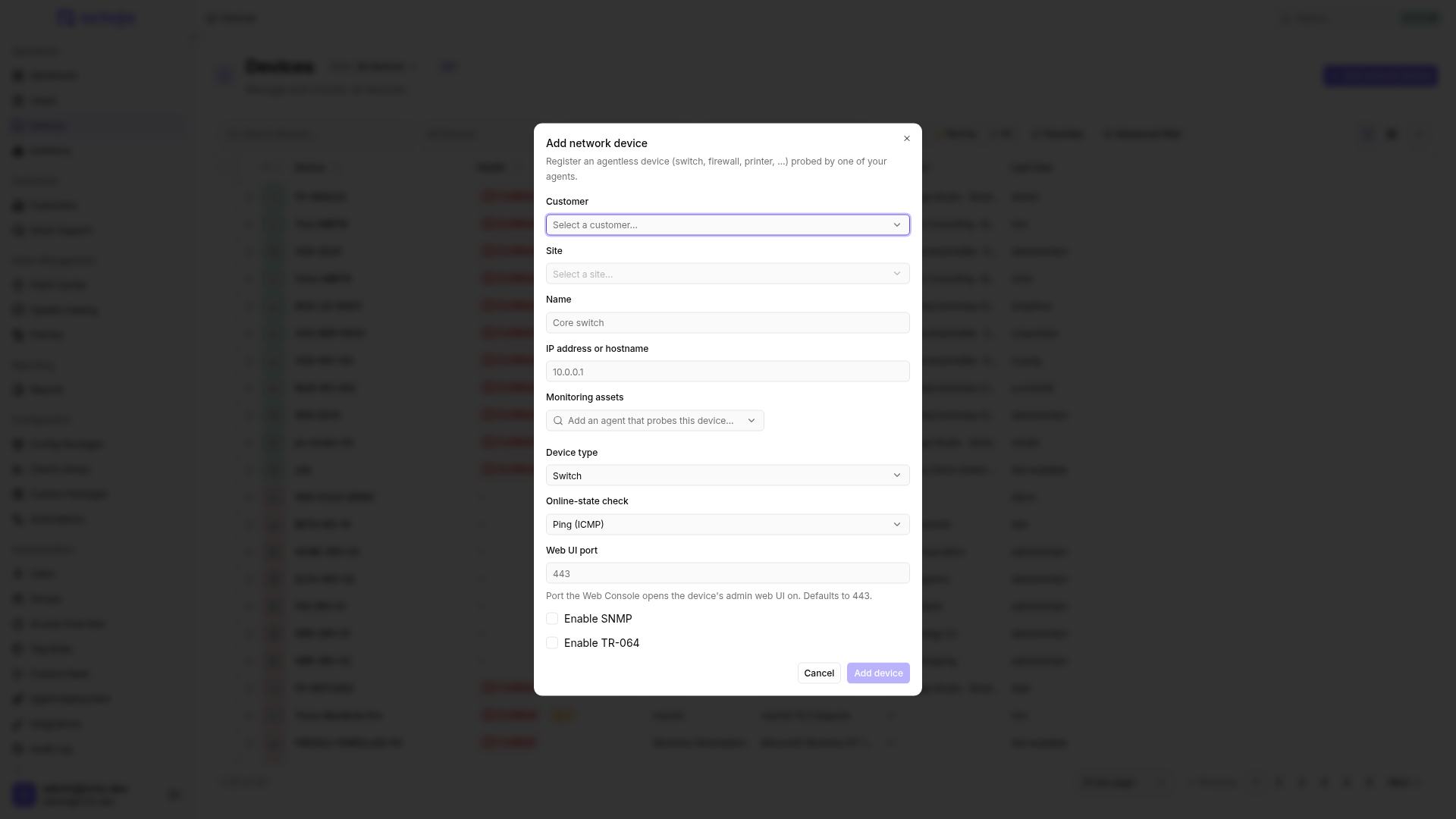
These fields apply to every network device, whichever protocol you use:
You can select several monitoring devices and use the arrows to order them by preference. Each needs Edit Device access and network reachability to the target. The active device performs the probing; the others are fallbacks. After the active agent stops reporting for about two minutes, octoja selects the first online fallback. It does not automatically switch back when a preferred agent returns. Change the saved order to request a fresh selection; saving an unchanged list does not reselect. A connection test checks the selected test path, not every fallback; verify network access from each candidate.
Connect over SNMP
SNMP suits switches, routers, firewalls, printers, NAS and UPS devices.
- Turn on Enable SNMP. (If you chose SNMP as the online-state check, it is already on and stays on.)
- Choose the SNMP version:
- v2c — check the Community string. octoja pre-fills
public, the usual read-only community; replace it if your device uses a different one. - v3 — enter the User (v3), then match the device's settings: Auth protocol (v3) offers SHA-1 and SHA-256, Privacy protocol (v3) offers AES-128, AES-192 and AES-256, and each can stay on None where the device does not use it. Enter the Auth password (v3) and Privacy password (v3) that go with them.
- v2c — check the Community string. octoja pre-fills
- Check SNMP port (default 161; valid range 1–65535). With v3, encryption requires an authentication protocol; each selected protocol needs its matching password. None means that protection is not used.
- Select Test connection to confirm octoja can reach the device with these settings before you save.
When editing, version, port, v3 user and protocols remain visible. Community and passwords are not returned: leave those fields empty when keeping the same SNMP version and security configuration to retain the stored secrets. For a new security configuration, enter the required credentials and test again. Disabling SNMP removes its stored settings.
Assigned SNMP checks automatically use the connection settings saved on the network device: version, port, community and, where applicable, SNMP v3 credentials. At execution time, these values take precedence over the corresponding check or config-package settings. You do not need to maintain credentials separately for each check. Thresholds and other monitoring settings remain in the check; test runs of custom SNMP checks also use the selected network device's connection settings.
When adding or editing a check on a network device, the automatically supplied host field is hidden. SNMP or TR-064 connection fields are also hidden when that protocol is configured on the device. Change these settings through Edit device, not in the check. Other credentials, such as those for a vendor API, and check thresholds still belong in the check.
Connect a FRITZ!Box over TR-064
When SNMP is not available — as on a FRITZ!Box-class internet gateway — octoja can read the device over TR-064 instead.
- Turn on Enable TR-064.
- Fill in the login: Username (optional) and Password. Turn on Use TLS (HTTPS) if the gateway serves TR-064 over HTTPS, and set Port to match — a FRITZ!Box listens on 49000 without TLS and 49443 with it.
- Select Test connection to verify access before saving.
When editing, port and TLS remain visible; stored usernames and passwords are not returned. Leave both login fields empty to retain the existing values, or enter replacements. Disabling TR-064 removes its saved TR-064 settings.
SNMP and TR-064 are alternatives — turning one on turns the other off, and with SNMP as the online-state check Enable TR-064 is not offered at all. Choose whichever the device supports.
For WAN/DSL state, line quality and firmware warnings, add the TR-064 Gateway check next. Connecting the device alone does not set up this monitoring.
Update FRITZ!OS
After inventory collection, the device page shows the installed and newest available firmware and Update status, when the FRITZ!Box supplies this information. With Update available, Install update appears if you have the RunMaintenance device action.
- Make sure the monitoring agent is online and can reach the FRITZ!Box.
- Click Install update, check the target version and confirm the dialog.
- Wait for the restart, then check the firmware after another inventory collection. The success message confirms that the update started, not that it finished.
The FRITZ!Box restarts. The internet connection is interrupted for several minutes. Choose a suitable maintenance window.
Add a VMware ESXi host or vCenter
If you set the device type to ESXi or vCenter, the form asks for VMware credentials instead of SNMP or TR-064:
- Enter the VMware user (for example
administrator@vsphere.local), the VMware password, and the VMware API port (defaults to 443). - Verify TLS certificate is off by default. Turn it on only if the host presents a certificate the monitoring asset can validate.
- Select Test connection to check host access before saving.
After saving, the Device Info tab shows the host's virtual machines, and you can power them on and off there; see Manage VMware VMs.
Finish and find the device
- Check the Customer and Site fields at the top of the form. A Customer is required — Add device stays disabled until Name, IP address or hostname, Monitoring assets and Customer are all filled in — and octoja preselects the customer and site from the device list's active filter. Site is optional, and can only be chosen once a customer is selected.
- Select Add device.
octoja saves the device and opens its page straight away. It also joins Devices alongside your agent-managed machines; to see its address in that list, switch on the IP Address column from the Columns menu. On the home dashboard you can narrow the fleet to these devices with the Network role filter. To change any setting later — including rotating credentials — open the device and choose Edit device; leave the credential fields blank there to keep the stored values.
Work with the device
From an agentless device's hover card or the command menu you can reach it directly through its monitoring asset:
- SNMP — run ad-hoc SNMP queries against the device.
- Shell — open an SSH session to the device.
- Web Console — open the device's own admin web interface, tunnelled securely through the monitoring asset. You need the device action for running maintenance tasks. Each session uses its own browser origin, separate from octoja. After the session expires or you sign out of octoja, reopen the Web Console; its link is not a permanent device address.
Tips
Open in new tab opens the same Web Console session in a full browser tab. You do not need to wait for the embedded device interface to finish loading. The device login does not always carry over: depending on the device interface and browser, you may need to sign in to the device again in the new tab.
HTTP transfers are streamed and WebSocket-based device interfaces are supported. Device-specific redirects or browser requirements can still affect compatibility; this is not a guarantee that every vendor interface works.
- Pick monitoring devices with reliable uptime and network access to the target. Probing pauses if no configured candidate is reachable.
- Prefer SNMP v3 with authentication and encryption where the device supports it: v2c community strings are sent unencrypted. v3 only protects the connection when the corresponding protocols are selected.
- Once the device is added, assign checks to it from its Checks tab — for example Network Firewall (Appliance), VMware (ESXi / vCenter) or Printer (SNMP) — to monitor beyond a simple online state. The catalogue there is much shorter than on an agent-managed device: it lists only checks that probe a target over the network, since that is all a device without an agent can be asked to do. A custom script check meets that bar only if you give it a host or target parameter, and without one it is not selectable here at all — see Custom Script.
- Use Test connection before saving whenever you change credentials, so you catch a wrong community string or password immediately instead of waiting for a failed check.
FAQ
What happens if a network device gets a new IP address via DHCP?
What happens if a network device gets a new IP address via DHCP?
octoja does not automatically update the network device's saved address by its MAC address. Open Edit device and enter the new address under IP address or hostname. Alternatively, use a hostname that resolves to the current address after the DHCP change.
What should I do when the embedded Web Console stays blank?
What should I do when the embedded Web Console stays blank?
Try Open in new tab. If the device login appears there, use that tab and report the difference to support. Include the browser version, device model, protocol, port and attempt time, plus agent logs from the monitoring device.
Are passwords encrypted when I use the Web Console?
Are passwords encrypted when I use the Web Console?
The Web Console displays the device's own login form. Masked password fields, including ones filled by a password manager, do not establish transport encryption. Select HTTPS and the device's HTTPS port when opening the connection. With an HTTP target, traffic between the monitoring agent and the device remains unencrypted, even though the browser's tunnel address uses HTTPS.
Why does VMware VM uptime remain high after the guest operating system restarts?
Why does VMware VM uptime remain high after the guest operating system restarts?
The VMware view shows the VM uptime reported by ESXi or vCenter, not the time since the guest operating system last booted. A guest restart does not necessarily restart the virtual machine itself. To verify an operating-system reboot, check inside the guest; do not use this column as proof that Windows or Linux has not restarted.
Was this helpful?
Still need help? Ask the team