Sign in with Microsoft (SSO)
Connect your Microsoft account and sign in to octoja without a separate password
You can sign in to octoja with your Microsoft account instead of a separate octoja password — one less password to remember. octoja handles the connection to Microsoft for you: there is no app to register in Microsoft Entra or Azure, and no IDs or secrets to provide.
Before you start
- There are two routes to a working Microsoft sign-in: invite someone who has no octoja account yet — accepting the invitation with Microsoft creates the account — or link Microsoft to an octoja account that already exists.
- octoja identifies each person by their Microsoft account itself, not by their email address. Whichever Microsoft account completes the sign-in during linking is the one that gets connected, so let each person sign in with their own.
- Microsoft sign-in has to be switched on for your octoja instance. If the Continue with Microsoft button is missing from the sign-in page, first check whether an administrator turned Microsoft off under Settings → Authentication in the SSO providers section, see How sign-in works. If Microsoft is not offered there, contact octoja support to have it enabled. The button carries the display name configured for the provider, so it may read slightly differently.
- The first time someone signs in with Microsoft, Microsoft asks them to approve octoja's access to their name, email address, and profile. If your organization requires administrator approval for apps, a Microsoft Entra administrator has to approve octoja once — in Microsoft's approval prompt or the Microsoft Entra admin center. After that, everyone else signs in without being asked again.
Require SSO for every user
Members of an administrator group can enable Require SSO sign-in under Settings → Authentication and apply it with Save. This disables password sign-in for all users, including administrators; there is no per-user exception list. If you need an emergency account that can sign in with a password, leave this policy disabled.
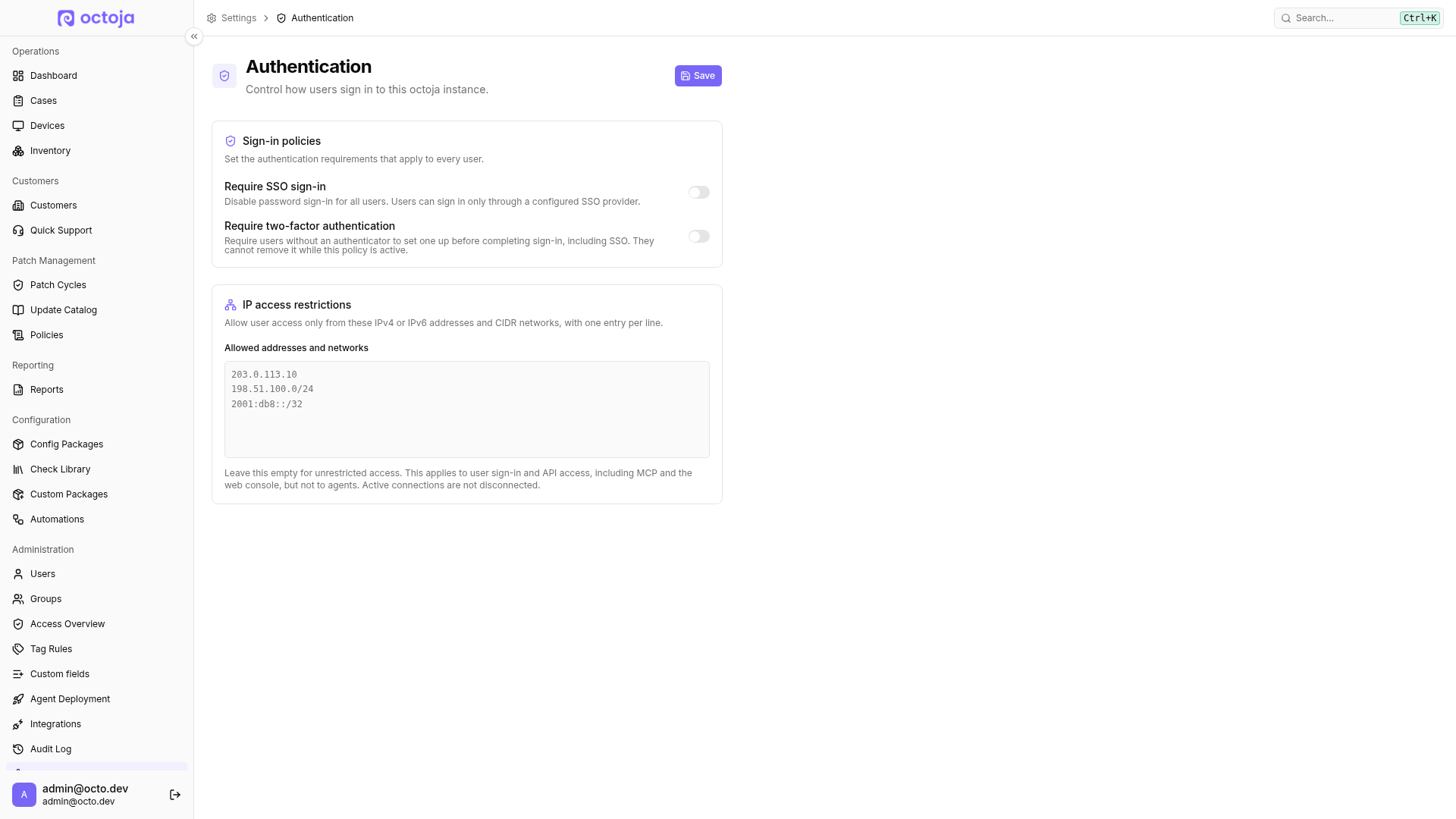
Warning: Enable this policy only after at least one SSO provider is configured and linked to your administrator account. Users without a linked provider cannot sign in afterwards. If you lock yourself out, contact octoja support through the support chat or email support@octoja.de.
Invite someone who has no octoja account yet
An invitation creates the account and links the Microsoft identity in one step, so no temporary password ever changes hands. Do this once per person.
- Go to Administration → Users and open the Invitations tab.
- Select Invite User.
- Enter the person's Email and Last Name. A First Name is optional.
- Under Groups, choose the groups the person should belong to. A user with no group can sign in but cannot reach any customers, devices, or other managed content. This field appears if you hold the group-management permission.
- Select Send invitation. The invitation now sits under Pending invitations, where Copy invite link, Resend invitation, and Revoke invitation are also available.
The invited person opens the link and lands on Accept your invitation. There they select Continue with Microsoft — it sits above the password fields, separated by an or set a password divider — and complete the Microsoft sign-in. octoja creates the account, links the Microsoft identity, and applies the groups from the invitation. From then on they sign in with Microsoft from the octoja sign-in page.
Link Microsoft to an existing account
Use this when the octoja account already exists. Either the account holder links Microsoft themselves, or an administrator links it for them.
Link your own account
- Sign in to octoja, open your profile, and find the Authentication section.
- Under Linked Logins, select Link Account and choose Microsoft from the list.
- Complete the Microsoft sign-in with your own Microsoft account. You return to octoja, and Microsoft now appears under Linked Logins.
- Optional — for Microsoft-only sign-in, remove your octoja password: in the same Authentication section, select the trash icon next to your password and confirm. This is available once Microsoft is linked; octoja keeps at least one sign-in method on every account.
Link an account for someone else
An administrator with the user-management permission can link Microsoft from the admin area — useful when the account has no password to sign in with.
- Go to Administration → Users and select the person to open Edit User.
- In the Authentication section, under Linked Logins, select Link now and choose Microsoft.
- Have that person complete the Microsoft sign-in with their own Microsoft account. octoja links whichever Microsoft account signs in here, so sign out of any other Microsoft session in this browser first.
Sign in with Microsoft
- Open the octoja sign-in page.
- Select Continue with Microsoft.
- Complete the Microsoft sign-in. You arrive back in octoja, signed in to your account.
Note: If you choose Continue with Microsoft before your account is linked, octoja shows the message "This SSO login is not linked to any account. An administrator must connect it first." Accept your invitation or link Microsoft to your account first, then sign in.
Unlink your Microsoft account
To disconnect Microsoft, open your profile, find Microsoft under Linked Logins, and select Unlink. When password sign-in is allowed, an octoja password or another linked login for an enabled provider must remain. When Require SSO sign-in is active, first link another enabled SSO provider; a password is not sufficient. Links to disabled providers do not count as a remaining way in. Your profile offers Change Password once a password exists; if it shows the password as Not set, ask an administrator to set one for you from Edit User.
Troubleshooting the first sign-in
Almost every failed first login with Microsoft comes down to one of four situations:
Was this helpful?
Still need help? Ask the team