Restart a Device Remotely
Restart a managed device from octoja — run an automation with a Restart device step, use a remote terminal, or restart a single service instead.
You can restart a managed device without leaving octoja. Run an automation that carries a Restart device step to reboot it on a warning delay, or open a remote terminal session in your browser and run the operating system's restart command yourself — no separate remote-access tool, VPN, or console access required. If a full reboot is more than you need, you can also restart a single service or end a process from the device's live tabs.
Prerequisites
- The device must be online (agent connected).
- Device actions are granted per group. Set them under Administration → Groups: open the group, go to its Device Access tab, and tick the actions you need under Allowed actions. Each remote capability is its own permission — see How remote access works.
- Restarting from a terminal needs the Terminal action. Restarting a service or ending a process needs Service Control and Process Control.
- Running a saved automation on a device requires View Automations and the script-running device action. Creating or editing one also requires Manage Automations.
Restart the device with an automation
octoja ships a ready-made Emergency Reboot Now template: a manual automation that reboots the device you run it against after a short delay, with a reason the logged-in user sees.
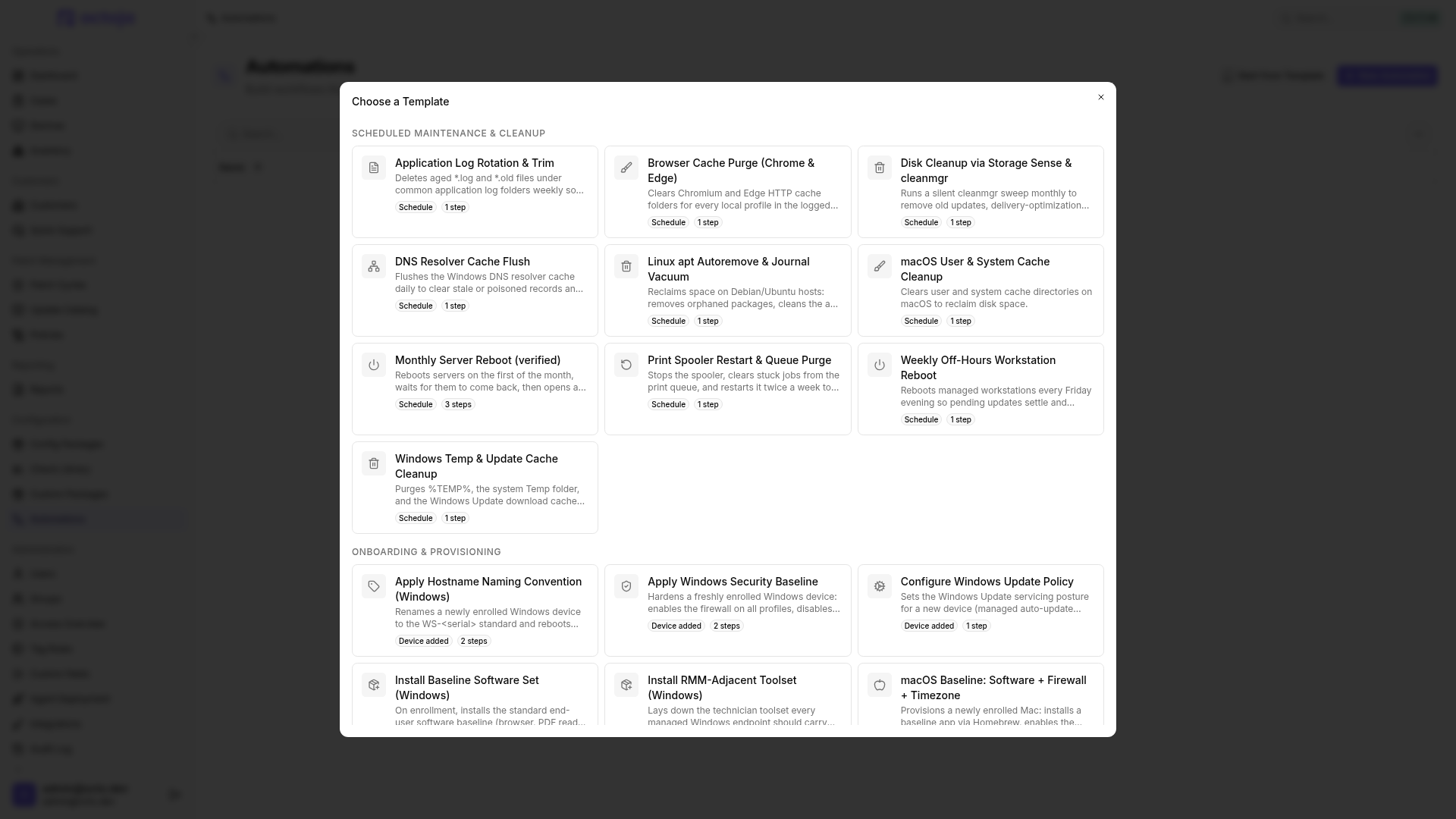
- Go to Configuration → Automations and choose Start from Template.
- Pick Emergency Reboot Now, name the automation and choose Create automation. The builder opens so you can check the Restart device step before you use it.
- Adjust the step if you want. Delay (seconds) is how long the device waits before it goes down, Reason (optional) is the text shown to whoever is logged in, and Wait for reconnect (seconds) is how long any later steps wait for the device to come back —
0means they do not wait at all. - Save the automation.
- Go to Devices, open the device and choose Run or schedule action on its Automations tab. Pick your automation and run it now or schedule a later time.
Check the run in Run history. For multiple devices, select the rows in the device list and open More actions → Run or schedule action. The dialog also offers a restart without creating your own automation. See running automations for scheduling, permissions and cancellation.
Restart from a remote terminal
When you want the device down right now, or want to control the exact command, run the restart yourself.
- Go to Devices and click the device you want to restart.
- Open a terminal session on the device. For the full walkthrough, see Open a Terminal on a Device.
- In the terminal, run the restart command for the device's operating system:
However you trigger it, the device goes offline while it reboots. The agent reconnects on its own once the device is back online — you do not need to re-enroll it or take any further action. Any interactive sessions you had open (terminal, remote desktop, file browser) end when the device restarts.
Restart a single service instead
If you only need to recover one service — a stuck print spooler or a backup agent, for example — you do not have to reboot the whole device. Open the Services tab on the device detail page, find the service, and choose Restart service. The tab is available on every device that has an agent, whatever its operating system. Running processes can be stopped from the Processes tab with the Kill process action. These actions take effect immediately and do not restart the device. See Monitor Device Performance Live.
Tips
- Restarting a device needs administrator rights on Windows or root on Linux and macOS. The terminal session runs with the privileges of the agent on the device.
- Warn anyone working on the device first — a remote restart signs out the logged-in user just like a local one. The Restart device step does this for you through its delay and reason; from a terminal, add the grace period yourself.
- On Windows you can add a grace period:
shutdown /r /t 60restarts after 60 seconds, andshutdown /acancels a restart that has not happened yet. - The device shows as offline in octoja for as long as the reboot takes, then returns to online by itself.
Was this helpful?
Still need help? Ask the team