Disk Space
Monitor how full your devices' drives are, with global or per-drive thresholds.
The Disk Space check monitors how full a device's drives are. By default, a single check covers all drives on the device simultaneously and reports a result per drive; if a specific drive crosses the threshold, the check reports which drive triggered the alert. The check runs on a fixed 60-minute interval, the same on every device.
Steps
- Go to Devices and open the device.
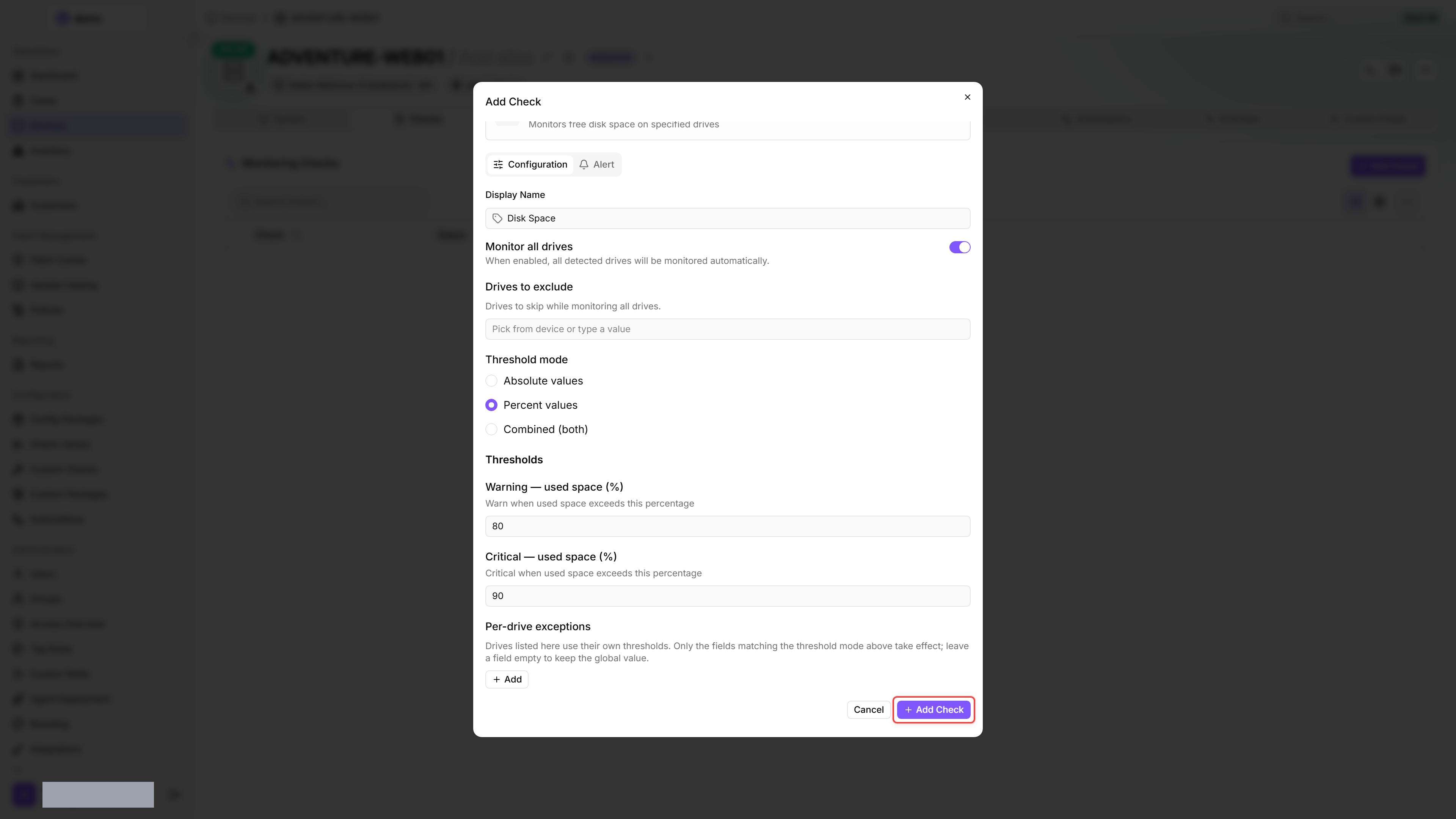
- Click the Checks tab → Add Check → Disk Space.
- By default, the check monitors all drives on the device. To keep that behaviour but leave a few drives out, keep Monitor all drives on and add their drive letters to Drives to exclude. To monitor only specific drives instead, turn off the Monitor all drives toggle — the Drives to monitor selection then appears and lets you pick one or more detected drives (e.g. C: on Windows or / on Linux).
- Under Threshold mode, select Percent values, then configure:
- Warning — used space (%): e.g. 80
- Critical — used space (%): e.g. 90
- Click Add Check.
After the first check interval, the result appears in the device's Checks tab.
Settings
The UI displays absolute thresholds in GB, including per-drive exceptions. For API input, warningMB and errorMB remain in MB: 1 GB means 1024 MB here. Existing values are converted for display, not changed in meaning.
Monitor all drives covers local disks only: on Windows, network drives, removable drives (such as USB sticks) and optical drives are skipped; on Linux, virtual file systems such as tmpfs or squashfs are skipped. Drives that are not ready are left out.
Per-drive exceptions
When one drive needs its own thresholds — a data drive that runs nearly full by design, for example — add it under Per-drive exceptions below the thresholds instead of creating a second check: enter the drive letter, then fill in only the values that should differ. An empty field keeps the global value, and only the fields matching the threshold mode you picked take effect. A single check therefore covers drives with different thresholds.
Results
For each monitored drive the check reports:
- Drive letter
- Drive name (volume label, when available)
- Free space (bytes)
- Total capacity (bytes)
- Per-drive result status (OK / Warning / Critical)
Used space and fill percentage are derived from free and total space in the result view. If no drive is selected for checking, the check reports a warning.
Recommended thresholds
Was this helpful?
Still need help? Ask the team