Password Policy
Check the local password and lockout policy of your Windows devices against your minimum requirements.
The Password Policy check audits the local password and lockout policy on Windows devices and warns when a setting does not meet the configured security thresholds. This helps you identify machines with weak password policies — especially servers set up without Group Policy. The check runs on Windows only, every 1440 minutes (daily); the interval is fixed by the check definition and is not configurable.
Prerequisites
- You need the Monitoring Check Management permission.
- The target device must be running Windows with a connected agent. The agent runs as Local System, which has the access the check needs to read the policy. There is nothing to set up on the device.
Steps
- Go to Devices and open the device.
- Click the Checks tab → Add Check → Password Policy.
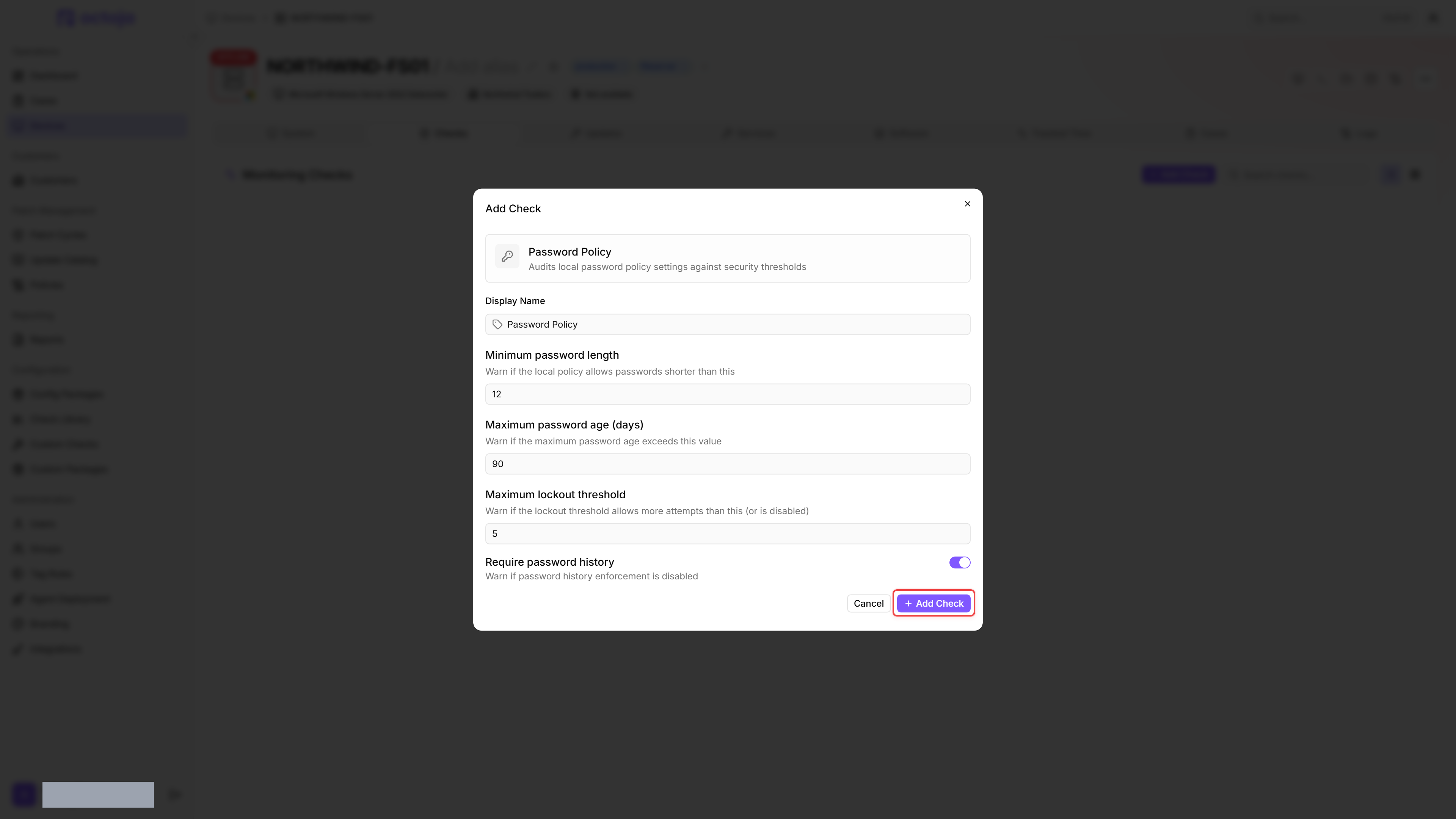
- Configure the security requirements. Adjust the thresholds to match your organization's security standards or compliance requirements.
- Click Add Check.
After the first run, the result appears in the device's Checks tab.
Settings
If the policy lets passwords never expire, the check does not report an issue for Maximum password age (days). The Policy Summary then shows -1 for Max age (days). Check this setting yourself if needed.
Results
The check inspects the policy settings on the device, so it tells you whether the policy itself meets your standards. Individual user passwords are never read. It reads the local password and lockout policy directly from Windows. On domain-joined machines, the effective policy may come from Group Policy; standalone machines use the local security policy.
The check collects:
- Password length (minimum required characters)
- Max age (days until password expiry)
- Lockout threshold (failed attempts permitted before lockout) — shown as
Disabledwhen account lockout is switched off - Lockout duration (minutes)
- History length (number of previous passwords remembered) — shown as
Nonewhen no history is kept
Detected issues
For each policy setting that fails the configured thresholds, the check emits one issue row with the following fields:
Result views
The check result is shown in two views. The Detail view renders the latest run: a Policy Summary block listing Password length, Max age (days), Lockout threshold, Lockout duration (min) and History length, followed by one card per issue carrying its status badge and the current and expected values. When every setting passes, the view says so instead of listing issues.
The History view keeps a record per run so you can follow the policy over time. Check results are kept for 30 days by default. It lists each recorded run with the following columns:
Was this helpful?
Still need help? Ask the team