Veeam Backup & Replication
Use the Veeam Backup & Replication check to monitor the result and age of every job directly on your Veeam server, including cadence-aware age checks.
The Veeam Backup & Replication check monitors the jobs running on a Veeam Backup & Replication server. It runs hourly on the octoja agent installed on the Veeam server, queries the local Veeam installation for each job's latest session, and reports the last result and age of every job back to octoja. You can see at a glance whether backups ran successfully, when the last backup completed, and whether any jobs are overdue. The check covers backup, backup-copy, agent, and tape job types (agent jobs are included by default; tape jobs are opt-in). It runs on Windows only; the interval is not user-configurable.
Which Veeam check for which Veeam product?
octoja provides separate Veeam checks. They read different data sources, so a check assigned to the wrong Veeam product fails permanently even while every job in Veeam is green. For Microsoft 365 backups, use the Veeam Backup for Microsoft 365 check on the Veeam M365 server.
Leading symptom of a wrong assignment: the check reports failed although all jobs in Veeam are green. Verify which of the two checks is assigned to the device — also when checks are assigned through tags, where an automatic tag can attach this check to a device that only runs Veeam Agent for Windows. Agent jobs that are managed by a Backup & Replication server are covered by this check on the server (option Include agent jobs); the Veeam Backup Agent check is only for standalone installations.
Prerequisites
- The octoja agent is installed on the Veeam Backup & Replication server itself. The check only queries the local Veeam installation — it cannot monitor a remote Veeam server.
- The Veeam PowerShell module is present. It is installed together with Veeam Backup & Replication; the check also finds it when the module is not registered on the PowerShell module path.
- The Veeam Backup Service is running on the device. The check signs in to the Veeam server on the same machine (localhost) and enumerates its jobs.
- The check signs in with the Windows account the octoja agent service runs under — no separate Veeam credentials are required or configurable. That account must be allowed to query jobs on the Veeam server.
Not sure which server runs Veeam? Look for a Windows server with "Veeam Backup & Replication" in its Start menu or taskbar, or ask the person who set up your backup infrastructure.
Supported Veeam versions
The check supports Veeam Backup & Replication v12 (the Veeam module runs in Windows PowerShell) and v13 (the module runs in PowerShell 7, pwsh); it selects the matching PowerShell host automatically.
Steps
The Veeam Backup & Replication editor lets you watch every job type on the server or narrow monitoring to specific types and names.
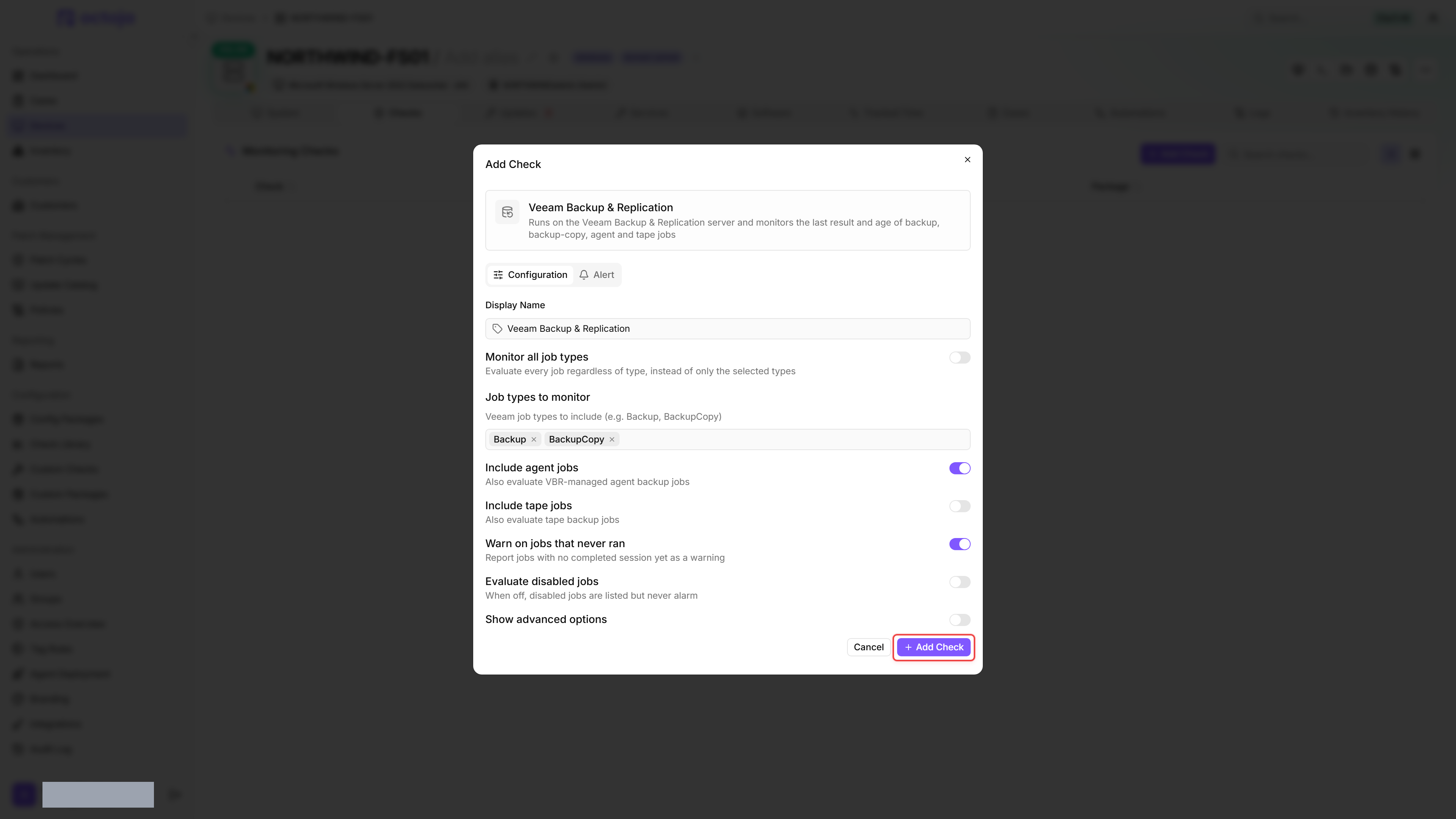
- Make sure the octoja agent is installed on the Veeam server.
- Go to Devices and open the Veeam server.
- Click the Checks tab → Add Check → Veeam Backup & Replication.
- Leave Monitor all job types off to watch the default job types (Backup and BackupCopy) under Job types to monitor, or turn it on to watch every job type regardless of type.
- Decide which jobs count: Include agent jobs and Warn on jobs that never ran are on by default; optionally turn on Include tape jobs or Evaluate disabled jobs.
- (Optional) Enable Show advanced options to adjust job names and the query timeout. New assignments already enable Flag successful jobs older than thresholds, with Age threshold mode → Cadence-aware (from job schedule). Use Warning schedule tolerance (hours) and Critical schedule tolerance (hours) to set how long the check waits after an expected start. For fixed age limits, choose Manual (fixed hours) and set Warning after (hours) and Critical after (hours).
- Click Add Check.
Existing assignments and overrides retain their previous settings. Review them individually before enabling age-based alerting or changing their mode.
After the first check interval, the result appears in the device's Checks tab.
Settings
In Manual mode, when Warning after (hours) is set higher than Critical after (hours), the two values are swapped before evaluation.
For agent backup policies managed by Veeam as ManagedByAgent, each computer appears separately as Policy — Computer. A successful computer cannot hide another computer's failure. In Limit to specific job names (optional), continue to use the parent policy name, not the combined display name. A computer without a session is treated as never run, controlled by Warn on jobs that never ran. These policies are included by default through Include agent jobs.
Results
The check evaluates each job's latest session and reports the worst severity across all monitored jobs. The age rows apply only when Flag successful jobs older than thresholds is enabled. Existing assignments and overrides retain their previous age-check settings; the defaults above apply to new assignments.
Cadence-aware age check
- In Cadence-aware mode, the check finds the most recent scheduled start at or before “now minus tolerance” for each tolerance. A successful session satisfies the check when it started at or after that occurrence. The check therefore uses the expected start, not an estimated completion. Include the expected job duration in each tolerance. The defaults are 12 hours for Warning and 24 hours for Critical.
- Daily schedules use the selected weekdays. Monthly schedules use the actual calendar day or a rule such as “second Monday”, instead of assuming 31 days. Periodic schedules are evaluated for intervals of 1, 2, 3, 4, 6, 8, 12 or 24 hours without restricted backup windows. Minute intervals, restricted windows and event-driven schedules are not calculated. Unsupported schedules or missing required data produce a “Schedule unknown” warning. Dates follow the Veeam server's local time zone.
Metrics collected
For each monitored job, the check reports:
- Job name and job type
- Last run status (Success, Warning, Failed, Never run, Running, Disabled, or Unknown). A job that succeeded but breached an age threshold keeps its Success status and is labelled Stale on the device's check detail
- Last run timestamp and start time
- Session state (for example Working, Idle, Post-processing) and progress percent while running
- Backup type (Full, Active full, or Incremental), whether the schedule is enabled, compression level, VSS, encryption, dominant bottleneck (Source, Proxy, Network, or Target), and whether the last result came from a retry
- Computed severity (OK, Warning, Critical, or Error) based on the last status and the configured age thresholds. Failed jobs and breaches of the critical age threshold both report as Critical; the Error severity covers cases where the check itself cannot run — the Veeam PowerShell module fails to load, the query times out or returns no usable output, or an unexpected error occurs.
- Across all jobs, the check also reports the total job count, per-category counts (failed, warning, never run, running, disabled), and the age of the most recent successful backup.
Error messages
When the check itself cannot run, it reports one of these errors:
Notes
- The agent reads backup data through the local Veeam PowerShell module (installed with Veeam Backup & Replication). No REST API configuration or separate Veeam credentials are required, so the check works even if the Veeam REST API is not enabled.
- The agent auto-detects the PowerShell host:
pwshis tried first (required for Veeam 13+), and Windows PowerShell (powershell.exe) is used as a fallback when the Veeam module fails to load inpwsh. Mixed-version Veeam estates work without configuration. - This check reads Veeam Backup & Replication only. octoja ships separate checks for other backup products: Windows Backup for native Windows Server Backup, plus Acronis Backup, Acronis Cyber Protect Cloud, Altaro Backup, Arcserve UDP, Comet Backup, Cove Backup, NAKIVO Backup & Replication, NovaStor backup, Synology Backup, TERRA CLOUD Backup, TERRA CLOUD Satellite and Xopero Backup.
Tips
- A typical setup for daily backups: enable Flag successful jobs older than thresholds in Manual mode and keep the warning threshold at 50 hours and the critical threshold at 80 hours. This way you get a heads-up if a nightly backup misses one cycle, and a critical alert if it keeps slipping.
- For jobs that do not run daily, switch Age threshold mode to Cadence-aware (from job schedule) and include the expected job duration in both tolerances. For “Schedule unknown”, review the supported schedules under Cadence-aware age check; for unsupported schedules, you can use fixed age limits in Manual (fixed hours) mode.
- If you run multiple Veeam servers, install the octoja agent on each one and configure a separate Veeam Backup & Replication check on each device.
FAQ
What should I check for Identity-service or gRPC errors with Veeam 13?
What should I check for Identity-service or gRPC errors with Veeam 13?
For Failed to connect to Identity service, run Get-VBRLocalHost in the Veeam PowerShell environment on the same server. If it also reports No grpc-status found on response, check antivirus HTTP/HTTPS scanning. Veeam documents ESET Web Access Protection interference in its troubleshooting discussion.
Have your security administrator apply narrowly scoped exclusions according to the security product's guidance, then retest the local command and the octoja check. Do not permanently disable web protection. The connection error alone does not mean backup jobs failed.
Was this helpful?
Still need help? Ask the team