Firewall Status
Verify that the operating system firewall is enabled on Windows, Linux and macOS devices and get alerted when it is disabled.
The Firewall Status check verifies whether the operating system's built-in firewall is enabled and triggers an alert when it is disabled. It runs on Windows (Windows Firewall), Linux (ufw, firewalld, or iptables), and macOS (Application Layer Firewall) on a fixed 60-minute interval.
Prerequisites
- You need the Monitoring Check Management permission.
- The target device must have a connected agent.
Steps
- Go to Devices and open the device.
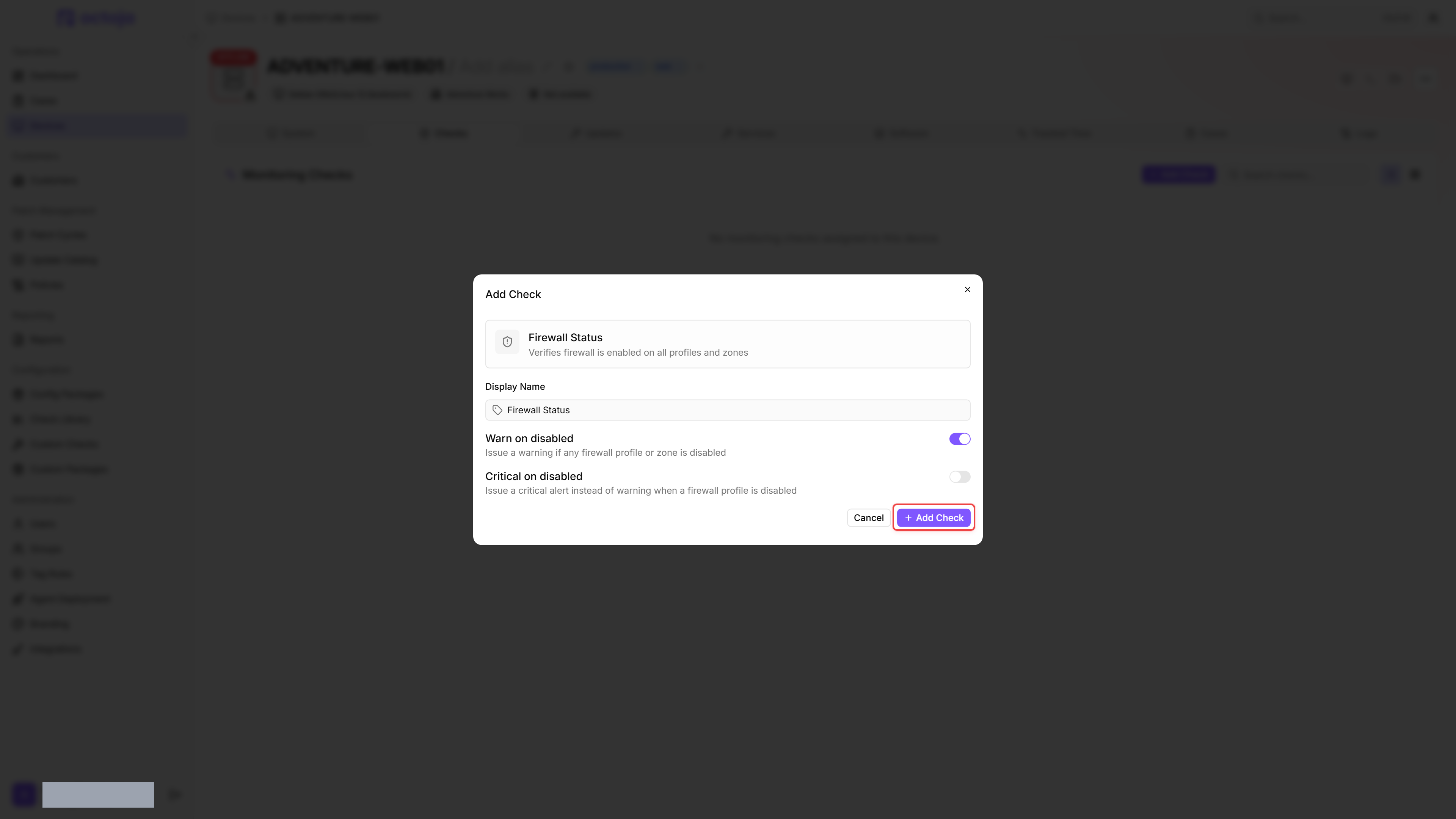
- Click the Checks tab → Add Check → Firewall Status.
- Configure the severity with Warn on disabled and Critical on disabled.
- Click Add Check.
After the first check interval, the result appears in the device's Checks tab. Open the check to see each profile and its state.
Settings
- On Windows servers, set Critical on disabled to Yes. A server with a disabled firewall is a serious security risk.
- On workstations, a Warning is usually sufficient — the user may have temporarily disabled the firewall for troubleshooting.
- Third-party firewalls that switch the operating system firewall off are reported as a disabled firewall. On those devices, turn Critical on disabled off to keep the result at warning level, turn Warn on disabled off as well to leave the result at OK, or use Disable on this device on the device's Checks tab.
Results
The overall result is the worst severity across every profile and, on Windows, the firewall service. A failure names its reason in the check's detail view — an unreadable registry, a timeout, an empty query, or an unexpected error — so you can tell a read problem apart from a disabled firewall.
The check collects:
- Firewall enabled / disabled
- Per-profile status on Windows (Domain, Private, Public)
- Whether the Windows Firewall service (
mpssvc) is running - A named profile entry on Linux (
ufw,firewalld, oriptables) and on macOS (macOS Firewall or, when stealth mode is enabled, macOS Firewall (Stealth)) - Per-profile result severity
Platform differences
- Windows: The check inspects all three firewall profiles (Domain, Private, Public) and reads their state from the registry rather than from the firewall service, so it still returns an answer on a machine whose firewall service or WMI is unhealthy. For each profile, Group Policy takes precedence over MDM policy (such as Intune), which takes precedence over the local setting. A profile with no value at all counts as enabled — the Windows default. The check also reads the state of the Windows Firewall service (
mpssvc). A stopped service means the rules are not enforced even while every profile reads as enabled, so it raises the result the same way a disabled profile does. A service state the check cannot read counts as running and raises nothing. - Linux: The check probes
ufw,firewalld, andiptablesin that order and reports on the first one present. A plainiptablessetup that accepts all traffic is reported as disabled; it counts as enabled only when it actively drops or rejects traffic (restrictive DROP/REJECT policies or rules). - macOS: The check reports whether the Application Layer Firewall (ALF, queried via
defaults read /Library/Preferences/com.apple.alf globalstate) is enabled, including stealth mode. The reported profile is macOS Firewall or macOS Firewall (Stealth). The check does not inspectpf(packet filter).
FAQ
What should I compare when Windows and the check show different firewall states?
What should I compare when Windows and the check show different firewall states?
If Windows and the check disagree, first compare the last check result's timestamp and the affected profile. The check inspects all three profiles, not just the profile currently used by the network connection.
For local and Group Policy settings, it reads EnableFirewall in these subkeys:
The base paths are HKEY_LOCAL_MACHINE\SOFTWARE\Policies\Microsoft\WindowsFirewall for Group Policy and HKEY_LOCAL_MACHINE\SYSTEM\CurrentControlSet\Services\SharedAccess\Parameters\FirewallPolicy for local settings. 0 means disabled and 1 enabled. Account for the MDM precedence and separate service status described above. A missing value does not automatically mean disabled.
Read these values for diagnosis; do not make speculative registry changes. Correct a managed setting in the responsible Group Policy or MDM configuration, then compare a new check result.
Was this helpful?
Still need help? Ask the team