Service Status
Monitor system services on Windows, Linux, and macOS and get alerted when a service stops
The Service Status check monitors whether system services are running. It runs on Windows, Linux, and macOS every 10 minutes by default and reports a critical result as soon as a monitored service stops. The check is read-only: it does not restart a service.
Steps
- Go to Devices and open the device.
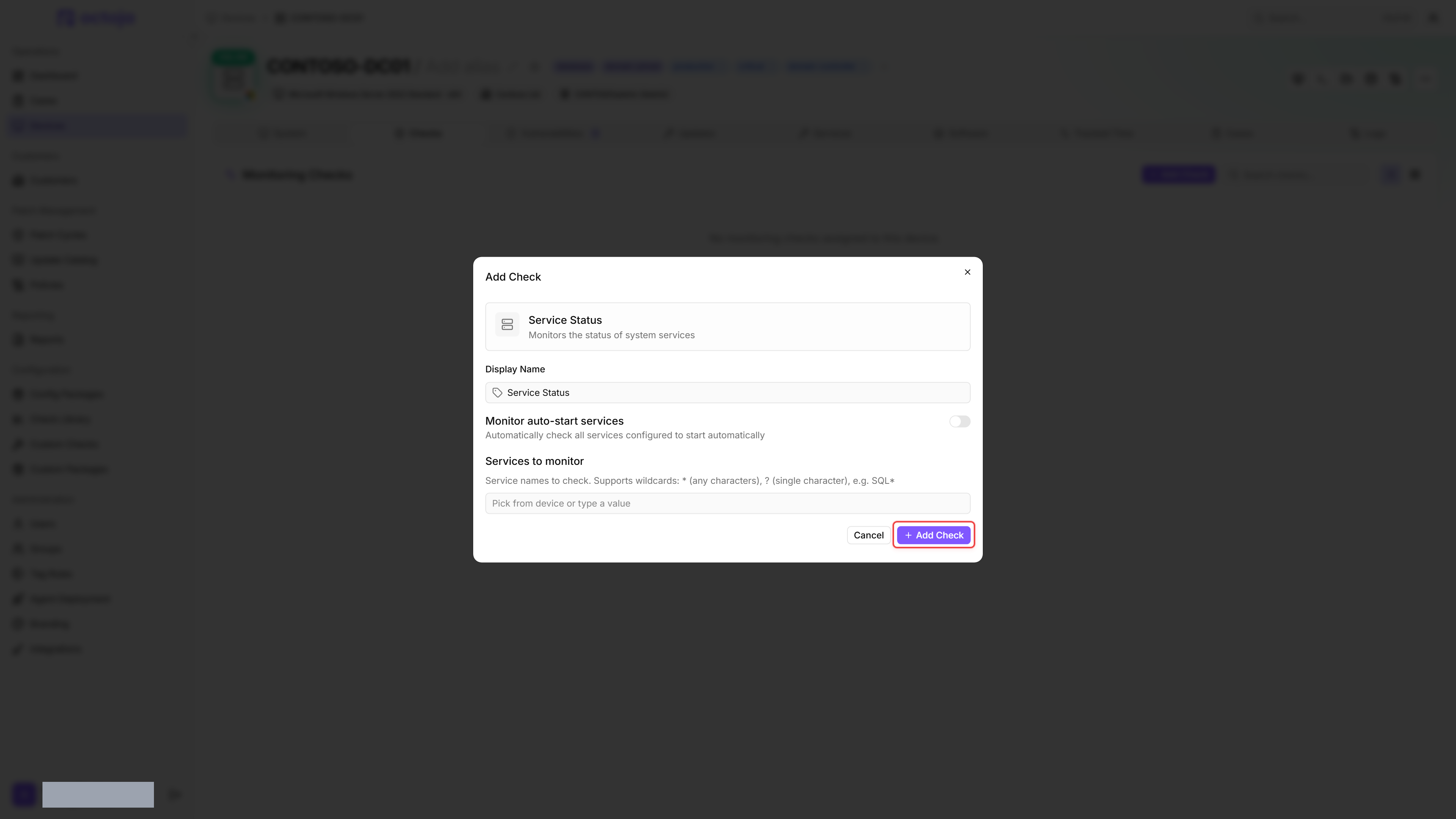
- Click the Checks tab → Add Check → Service Status.
- Either enable Monitor auto-start services (octoja watches every service set to auto-start) or list specific service names under Services to monitor. Wildcards are supported:
*matches any characters and?matches a single character — for example,SQL*matches anything starting with SQL. - When Monitor auto-start services is enabled, the Excluded services field appears. Add any auto-start services you want octoja to ignore (wildcards work here too).
- Click Add Check.
After the first check interval, the result appears in the device's Checks tab.
Settings
When the device has reported its installed services, the Services to monitor and Excluded services dropdowns list each service by its friendly display name with the underlying service name in parentheses — for example Windows Update (wuauserv). Selecting an entry stores the underlying service name, and the chip shown in the field always displays that exact name, so the stored value stays unambiguous regardless of the display name. You can also type a name that is not in the list. When you edit a check that has already run, the services that failed in the latest run move to the top of the list with a Suggested badge.
Results
When every monitored service is running, the check returns a success result. As soon as one monitored service is stopped or not found, the check returns a critical result and lists the affected services in the result detail. If no services match the configuration at all — an empty list, a wildcard that matches nothing on the device, or an auto-start selection where every service is excluded — the check returns a Warning result.
All four statuses can occur on Windows. On Linux, the status column shows the systemd state reported by systemctl is-active — for example Active, Inactive, Failed, Activating, or Deactivating. Any state other than Active counts as a critical result. On macOS the agent reads launchctl, which only distinguishes running from not running, so a service that is installed but stopped and a service that is not installed both report Stopped.
A wildcard entry is resolved against every service on the device, so SQL* also covers services that are not set to start automatically. A name without a wildcard is used exactly as typed and is not resolved first, so a typo in a plain name reports Not Found and a critical result, while a typo in a wildcard matches nothing at all. On macOS a wildcard only matches running launch jobs, so a stopped service drops out of the selection instead of being reported as Stopped. Monitor it there by its exact name.
FAQ
Why does auto-start monitoring report many inactive services on Linux?
Why does auto-start monitoring report many inactive services on Linux?
The check expects enabled systemd services to be active. A one-shot service can successfully finish its task and normally become inactive; these services are not automatically excluded.
Inspect the affected units with systemctl status <service> and check their intended role. Turn off Monitor auto-start services and select services that must stay running, or exclude individual confirmed one-shot services. Do not hide a genuinely failed service behind a blanket exclusion.
Was this helpful?
Still need help? Ask the team