Network Interface
Monitor link status, speed, and error and drop rates of your network adapters to catch faulty NICs or cables early.
The Network Interface check monitors the health of network adapters — link status, speed, packet errors, and losses. It detects hardware issues such as a faulty NIC or cable problem before they cause connectivity loss. The check runs on Windows, Linux, and macOS every 5 minutes on the agent; the interval is not user-configurable.
Prerequisites
- You need the Monitoring Check Management permission.
- The target device must have a connected agent.
Steps
- Go to Devices and open the device.
- Click the Checks tab → Add Check → Network Interface.
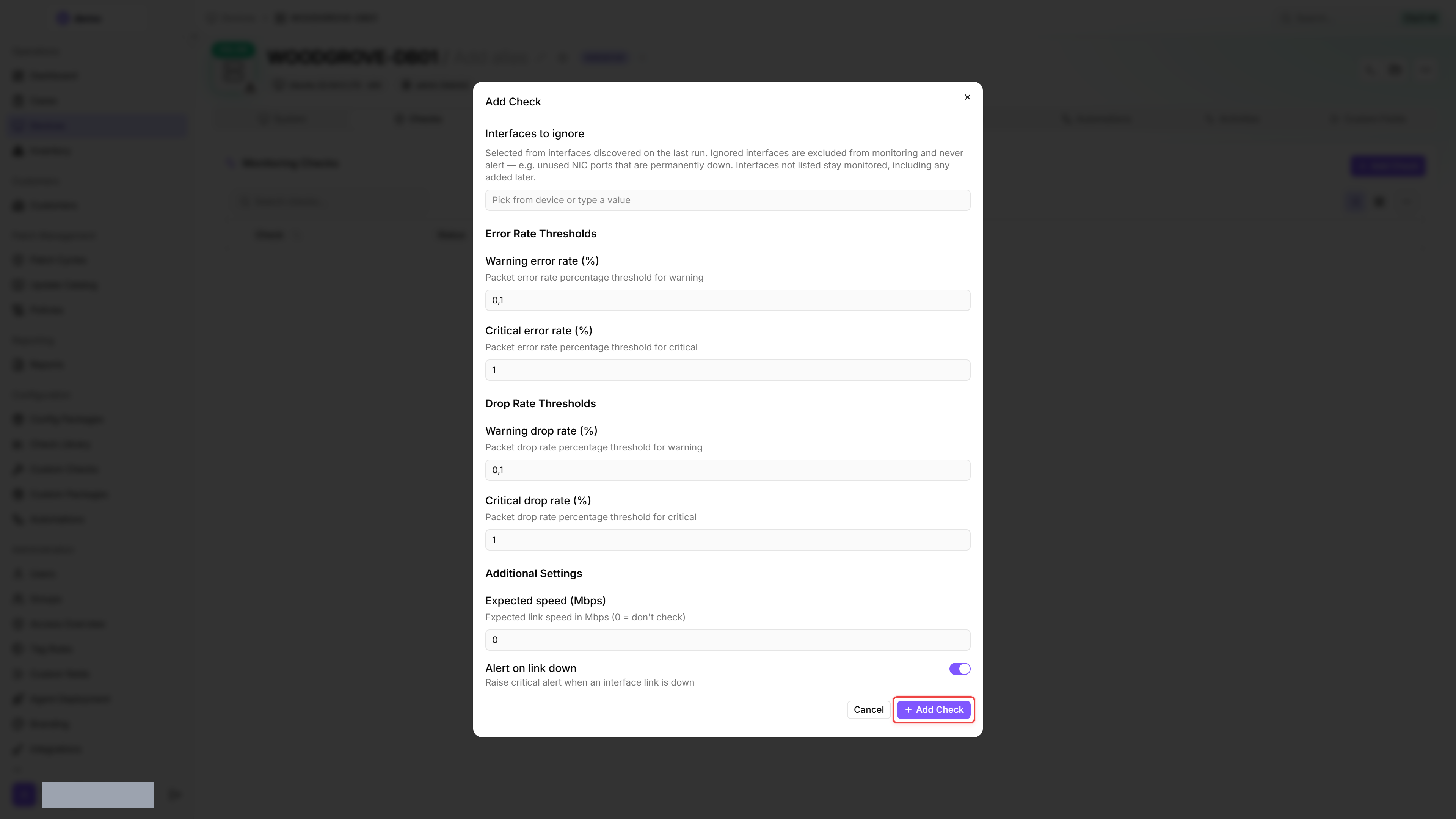
- Set the scope. By default, the check monitors all non-loopback interfaces except virtual adapters. To narrow the scope, list the adapters you want under Interface names. To leave single adapters out — an unused port that stays down, for example — pick them under Interfaces to ignore; that picker offers the interfaces found on the last run, so it fills up once the check has run at least once.
- Adjust the thresholds if needed.
- Click Add Check.
After the first check interval, the result appears in the device's Checks tab.
Settings
The fields are listed in the order they appear in the check configuration.
Which interfaces are monitored
- Loopback interfaces are always excluded. Virtual adapters (VPN, Docker bridges, Hyper-V, VMware, vEthernet, tun/tap, etc.) are excluded by default; clear Exclude virtual adapters to include them. If you need to monitor a virtual adapter, turn the option off and list the adapter explicitly in Interface names.
- The filters run in a fixed order: loopback first, then virtual adapters, then Interface names, then Interfaces to ignore. Because the name list is applied after the virtual-adapter filter, naming a virtual adapter under Interface names while Exclude virtual adapters is enabled leaves nothing to monitor.
- Interfaces to ignore matches interface names exactly, ignoring capitalisation, and is applied last — so it also removes interfaces you listed under Interface names.
- With Alert on link down enabled (the default), interfaces that are down are still included so they can raise a critical alert. Disabling it filters non-active interfaces out of monitoring — but only when Interface names is empty. Interfaces you name explicitly are always monitored, whatever their link state.
- On Windows, when Exclude virtual adapters is enabled, adapters that share a MAC address collapse into one entry and the connected adapter is the one kept. This is what stops the filter miniports Windows creates for traffic shaping and packet capture from counting a physical port more than once.
- On a Hyper-V guest, Exclude virtual adapters keeps the machine's real network adapter. A guest's primary NIC reports as "Microsoft Hyper-V Network Adapter" and is monitored, while the host-side virtual switch (a "Hyper-V Virtual Ethernet Adapter" named "vEthernet (...)") is still filtered out as genuinely virtual.
Results
Every monitored interface is graded on its own, and the check reports the worst grade in the set. Per interface, the first condition that matches wins:
- Critical — the link is down and Alert on link down is enabled.
- Critical — the packet error rate is at or above Critical error rate.
- Critical — the packet drop rate is at or above Critical drop rate.
- Warning — the packet error rate is at or above Warning error rate.
- Warning — the packet drop rate is at or above Warning drop rate.
- Warning — Expected speed is set and the measured link speed is below it.
- OK — none of the above applies.
If the filters leave no interface to grade, the check reports Warning instead of OK, so a check that watches nothing still stands out. The agent's local logs on the device record how many interfaces each filter step removed. Widen Interface names, remove entries from Interfaces to ignore, or turn Exclude virtual adapters off to bring adapters back.
Error and drop rates are cumulative since the interface came up — total error/drop counters divided by total packets, not the rate observed in the last polling interval.
Collected metrics
- Link status (up / down)
- Link speed (Mbps)
- MAC address
- Bytes sent and received
- Packets sent and received
- Inbound and outbound errors
- Inbound and outbound drops
- Packet error rate (%)
- Packet drop rate (%)
Outbound drops are counted on Windows and Linux. On macOS only inbound drops are available, so the packet drop rate there reflects inbound drops alone. An interface with no IPv4 statistics — an IPv6-only or tunnel interface, for example — reports zero for the traffic counters.
Tips
- Packet errors on a wired interface usually indicate a faulty cable, a defective NIC, or a switch port issue. Investigate immediately.
- Set Expected speed (Mbps) for critical interfaces to detect speed negotiation problems (e.g. a 1 Gbps NIC falling back to 100 Mbps).
Was this helpful?
Still need help? Ask the team