Synology NAS
Monitor disks, RAID, volumes, temperatures, I/O load and DSM updates of your Synology NAS devices over SNMP.
The Synology NAS check monitors Synology NAS devices via SNMP — disk health, RAID status, volume usage, temperature, I/O load, and available DSM updates. It gives you an early warning about storage and hardware problems. The check runs on an agent device on Windows, Linux, or macOS and queries the NAS over the network, every 5 minutes by default. Backup jobs on the NAS are monitored by the separate Synology Backup check.
Prerequisites
- You need the Monitoring Check Management permission. Your administrator assigns permissions under Administration → Groups.
- The target device must have a connected agent with network access to the NAS.
- The Synology NAS must have SNMP enabled in DSM (Control Panel → Terminal & SNMP) — see Synology's SNMP documentation. Turn on SNMPv2c and set a community string, or turn on SNMPv3 if your security policy requires authenticated access.
- The check uses Synology SNMP MIBs and works with Synology models that expose the standard Synology SNMP MIB (DS, RS, SA series).
Steps
- Go to Devices and open the device that has network access to the Synology NAS.
- Click the Checks tab → Add Check → Synology NAS.
- Enter the NAS hostname or IP address in the Host field. Leave SNMP version at the default
v2cunless your NAS only allows SNMPv3 — in that case switch it tov3and fill in the credential fields. Withv2c, the SNMP Community field is pre-filled withpublic— change it only if your NAS uses a different community. - Adjust the thresholds if needed.
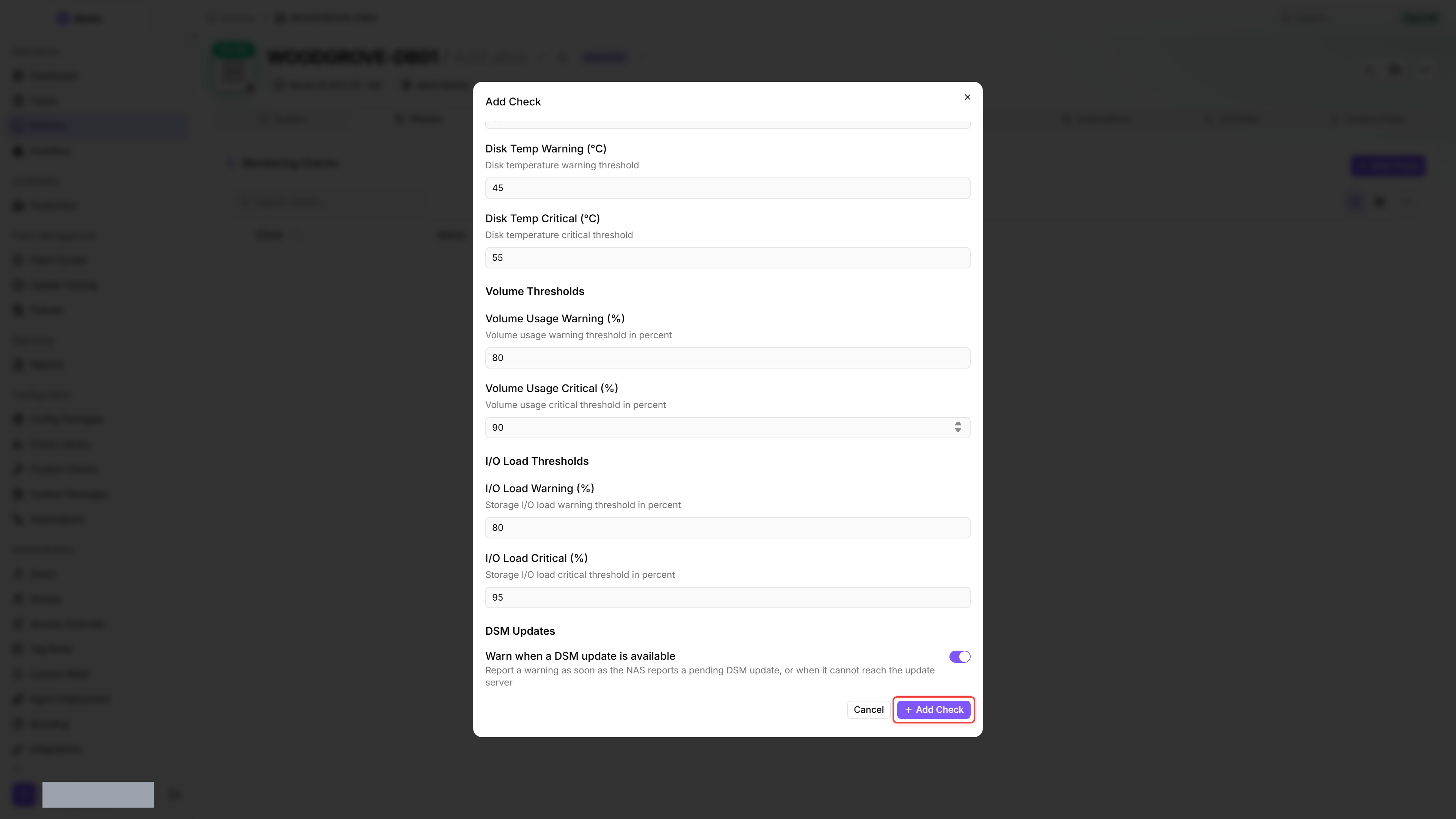
- Under DSM Updates, leave Warn when a DSM update is available switched on if you want the check to flag pending DSM updates. Turn it off if you track DSM patching elsewhere.
- Click Add Check.
After the first check interval, the result appears in the device's Checks tab.
If you added the NAS as a network device, add the check on the NAS itself instead; it then takes the host and SNMP credentials from the device. See Monitor a NAS Without an Agent.
Settings
The check editor groups the fields under Temperature Thresholds, Volume Thresholds, I/O Load Thresholds, and DSM Updates headers; the table lists every field in the order it appears in the UI.
Results
- A threshold triggers its result as soon as the reading reaches or exceeds it.
- The check monitors RAID status automatically — a degraded RAID array triggers a critical alert.
- System and CPU fan status are also monitored on models that expose the standard Synology SNMP MIB — a failed fan triggers an alert.
- With Warn when a DSM update is available switched on, a pending DSM update raises a warning rather than a critical alert. The check also warns when the NAS cannot reach Synology's update server, so a failed update check does not pass silently.
- If the NAS returns an empty SNMP response, the check reports Failure because no SNMP data is available. If the SNMP query times out instead, it reports the NAS as unreachable; check connectivity as well as the community string or SNMPv3 credentials.
Collected metrics
- Device info: model name, DSM version, serial number, DSM update status
- System component status: System, Power, System Fan, CPU Fan (OK when reported as
Normal) - CPU utilization (%) and memory utilization (%)
- System temperature (°C)
- Per disk: name, model, type, temperature, status, health status, remaining life (%), bad sectors
- RAID volumes: name, status, total / free size, used (%), hotspare count
- Storage I/O per device: instantaneous load (%), 5-minute and 15-minute load averages
- Per-check issues: list of detected problems with severity, code, subject, value, threshold, and detail
Was this helpful?
Still need help? Ask the team