Process Monitor
Monitor whether important processes are running on your devices and get alerted when they stop or use too much memory.
The Process Monitor check verifies whether specific processes are running on a device. It reports a warning or critical result when a required process stops — catching application crashes, failed services, and terminated background tasks. It also tracks how many instances are running and optionally monitors their memory usage. The check runs on Windows, Linux, and macOS every 5 minutes by default.
Prerequisites
- You need the Monitoring Check Management permission.
- The device must have an octoja agent installed. The check runs on the device itself, so it is not offered for agentless network devices.
Steps
- Go to Devices and open the device.
- Click the Checks tab → Add Check.
- Find Process Monitor under Services, or type its name in the search box, then click Add.
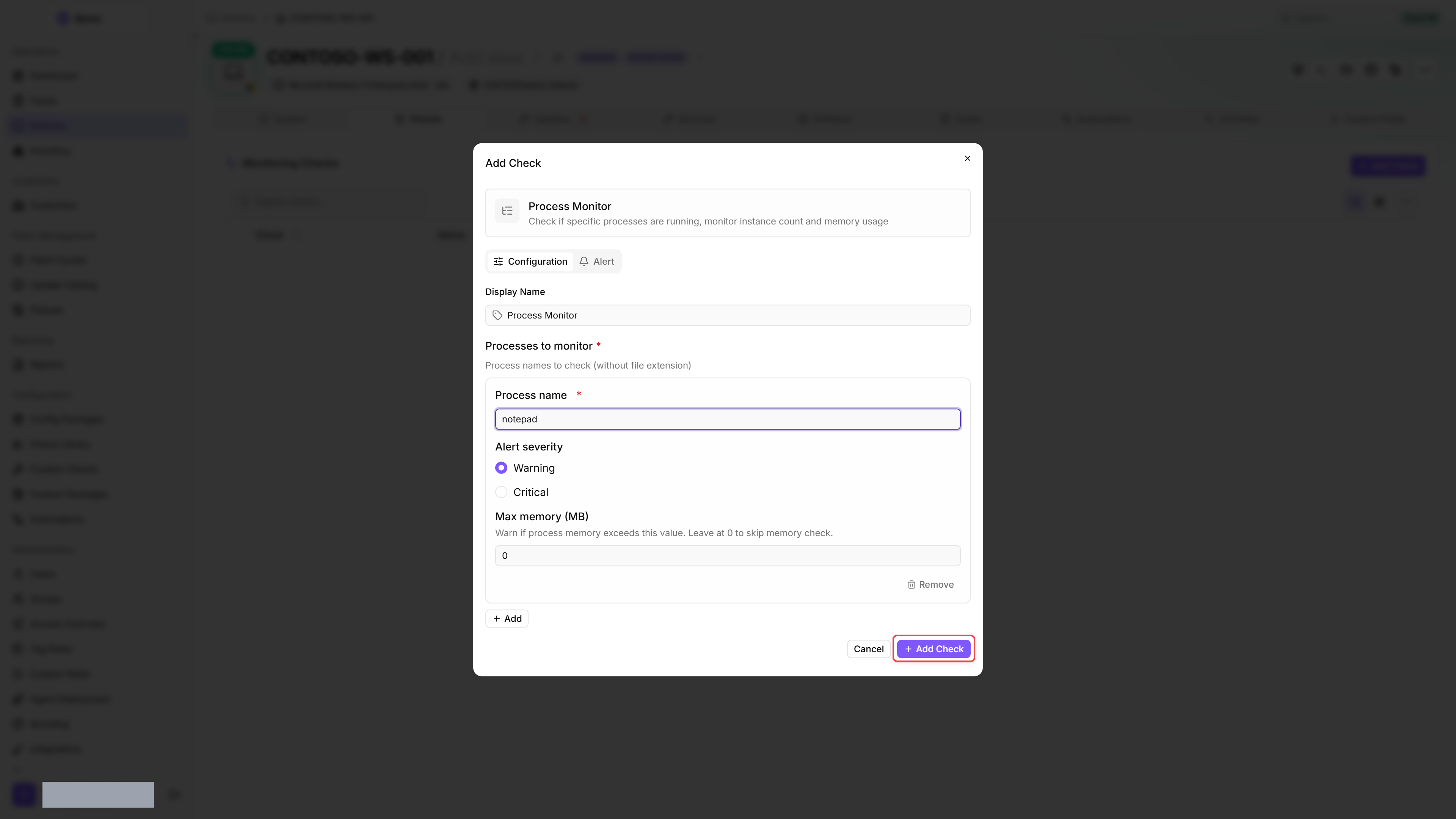
- On the Configuration tab, enter a Display Name — the name the check appears under on the device, for example
Print Spooler. Add Check stays disabled until you fill this in. - Add one or more processes under Processes to monitor, for example
nginxorsqlservr, and choose the Alert severity and, optionally, Max memory for each. - Optional: on the Alert tab, pick an alert configuration. New checks start on No alert — the result shows on the device, but nobody is notified.
- Click Add Check to save the configuration.
After the first run, the result appears in the device's Checks tab.
Settings
Use the process name as it appears in Task Manager or ps output, without the file extension. For example, sqlservr, not sqlservr.exe.
Results
The check reports the most severe result across all monitored processes: Critical outranks Warning, and the check is OK only when every process passes.
- If a process is not running, the check reports the Alert severity set for it.
- If the combined memory use exceeds Max memory, the check reports a Warning.
- If the process list is empty or contains only blank entries, the check returns a Warning result.
- If the agent cannot look up a process at all (for example, access denied when querying it), that process is reported as Critical.
Collected metrics:
- Processes checked (total)
- Process running status (yes / no)
- Instance count
- Memory usage (MB) per process, summed across all instances
- Access-denied count (instances the agent could not read)
If multiple instances of the same process are running, all are counted and their combined memory usage is reported. Instances the agent cannot read are counted in the access-denied metric, and their memory is not part of the reported total.
Per-process details appear in the check detail view only for processes with a problem — with their instance count and memory use. When everything is healthy, the detail view shows a single summary line ("All N processes running.") without per-process metrics.
Tips
- Set the alert severity to Critical for essential processes (database engines, web servers). Use Warning for nice-to-have processes. New entries start at Warning.
- The Max memory threshold detects memory leaks. Set the value against the combined total of all instances rather than a single instance — 2–3 times normal working memory is a good starting point.
Was this helpful?
Still need help? Ask the team