User Account Audit
Find locked, inactive and enabled default administrator accounts on Windows, Linux and macOS devices.
The User Account Audit check inspects local user accounts on a device and warns about locked accounts, inactive users, and an enabled default administrator account. It helps you detect security hygiene issues such as dormant accounts that should be removed. It runs on Windows, Linux, and macOS every 24 hours (1440 minutes) by default.
On Windows, identities from current console and RDP logons are included, including domain accounts. The check does not enumerate all of Active Directory. Accounts detected as currently logged on are exempt from inactivity warnings, not from other warning rules.
Prerequisites
- You need the Monitoring Check Management permission.
- The target device must have a connected agent.
Steps
- Go to Devices and open the device.
- Click the Checks tab → Add Check → User Account Audit.
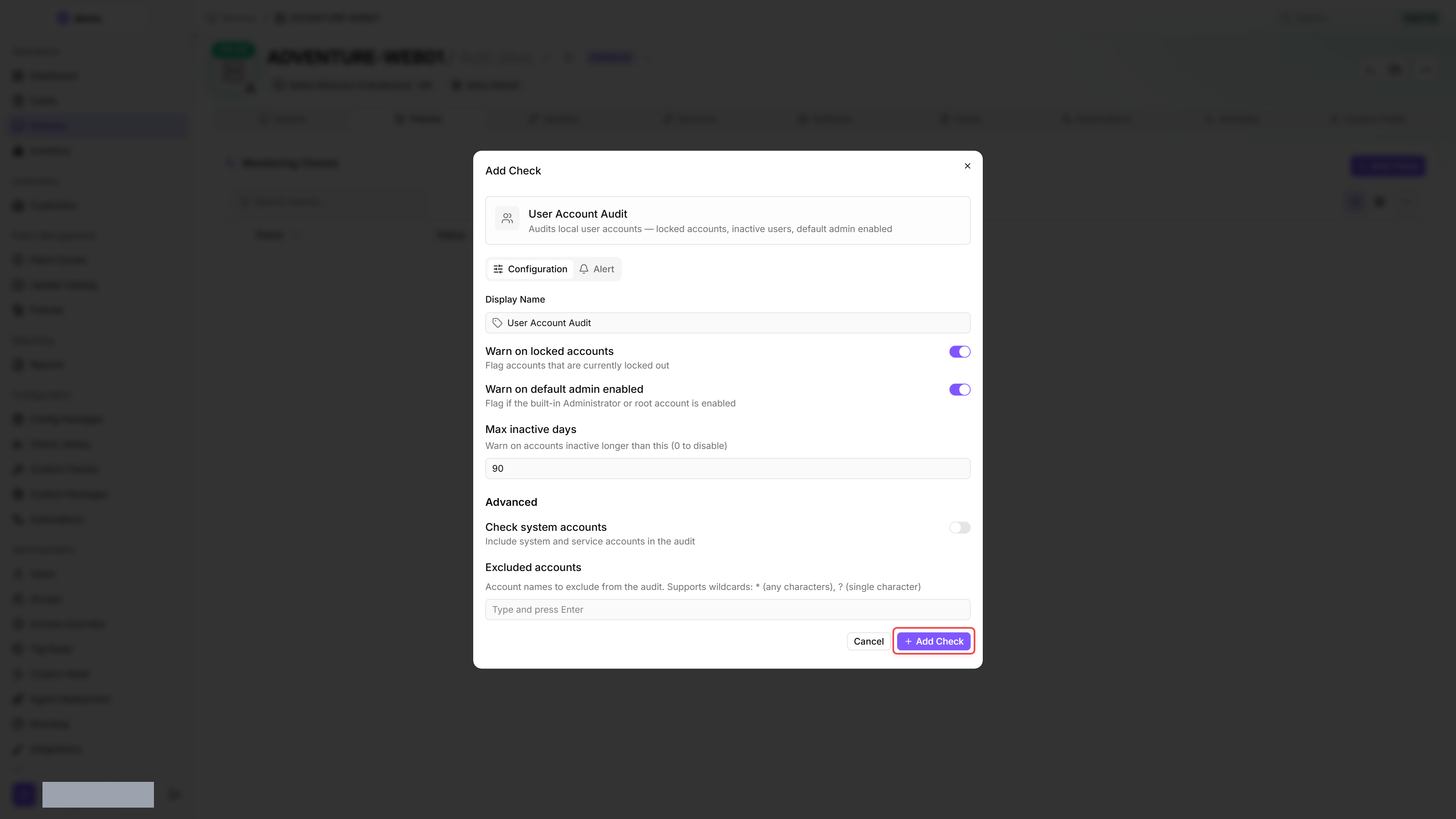
- Configure the audit rules. Check system accounts and Excluded accounts sit under Advanced.
- Click Add Check.
After the first check interval, the result appears in the device's Checks tab.
Settings
- Locked accounts may indicate brute-force attempts — investigate why the account was locked.
- The default admin warning detects servers where the built-in Administrator account is still enabled. Best practice is to disable it and use a named admin account.
- Set Max inactive days based on your organisation's policy. 90 days is a common compliance requirement. Brand-new, unused accounts can also appear with
Never logged in or last login date unknown. - Leave Check system accounts disabled unless you need to audit service accounts specifically. On Linux and macOS, system and service accounts usually never log on interactively and would be flagged as inactive.
- Use Excluded accounts for accounts you keep on purpose, such as an emergency admin or a backup service account. Enter one account name per entry.
Results
Every flagged account results in a Warning; the check never reports Critical. If no account remains after filtering and exclusions, or the check cannot read the accounts, it also reports Warning.
The check collects:
- Account statistics: total, enabled, disabled, admin, locked, and inactive account counts
- Full account inventory — every inspected account with username, enabled/admin/locked tags, last-login timestamp when known, days inactive, and the per-account result
- List of flagged accounts — each entry carries the username, the reason it was flagged (for example
Account is locked,Inactive for N days,Default admin account is enabled, orNever logged in or last login date unknown), the last-login timestamp when known, and the per-account result severity
Open the check in the Checks tab to see two views. The Detail view renders the latest run as a point-in-time snapshot: a statistics line reading Total, Enabled, Admins, Locked, Inactive and Flagged, the flagged accounts highlighted with their reasons, and the full account inventory table. The History view shows how the audit has changed over previous runs.
History view
The History view keeps a per-run record so you can follow the audit over time. It shows one day at a time — the most recent day that has results when you open it — and the date control moves between the days that carry results or selects a range spanning several of them. Check results are kept for 30 days by default. Below the date control the view has two parts.
A trend chart (labelled Total accounts) plots the total account count of each recorded run in chronological order, with the date of the first and last run on the axis and the most recent total called out alongside the label. The count can change when accounts are created or removed, but on Windows also when the logged-on identities change. It is a trend you read from the rising or falling line, not an explicit accounts-added or accounts-removed metric, so read it together with the per-run table below. The chart is drawn only when at least two runs carry a total count, so at the default 24-hour interval a single day rarely fills it — select a date range to see the trend.
Below the chart, a per-run table lists each recorded run with the following columns:
Comparing the rows lets you see when an account first appeared or was flagged, so you can tie a change in the trend line to a specific run.
Platform differences
- On Windows, the check enumerates local accounts through PowerShell
Get-LocalUserand adds identities from current console and RDP logons, including domain accounts. This is not a complete Active Directory inventory. Currently logged-on accounts are not flagged for inactivity, even if their login date is missing. Other warning rules still apply. Changing sessions can therefore also change the historical account total. The check does not detect locked accounts on Windows, so Warn on locked accounts has no effect there. It recognizes the default admin account by name only, so a renamed built-in Administrator account is not detected. - On Linux, the check reads
/etc/passwdfor the account list, usespasswd -S <user>to detect locked accounts, and reads last-login times vialastlog -u <user>, falling back tolast -1 -F <user>wheneverlastlogreturns no usable date — including when it reports the account as never logged in, a caselastcan often still resolve. An account locked according topasswd -Salso counts as disabled: it is reported as locked, but neither for inactivity nor as an enabled default admin account. Ifroothas a locked password on your devices, addrootto Excluded accounts if needed. - On macOS, the check enumerates accounts via
dscl . list /Users, readsdscl . read /Users/<user> AuthenticationAuthorityto detectDisabledUser/LockedAccountmarkers, and useslast -1 -y <user>for the last-login time. - The "last login" metric uses the OS-reported last interactive login time. Service accounts that authenticate via APIs may appear as inactive.
Was this helpful?
Still need help? Ask the team