Databases & applications

Microsoft SQL Server

Monitor health, backups, disk space, blocking and the error log of local Microsoft SQL Server instances.

The Microsoft SQL Server Health and Microsoft SQL Server Activity checks monitor Microsoft SQL Server and complement each other. Microsoft SQL Server Health watches the slow-moving fundamentals — service state, connectivity, database states, backup age, disk space on SQL volumes, failed agent jobs, and Always On availability groups — and runs every 30 minutes by default. Microsoft SQL Server Activity watches live behavior — blocking sessions, severe error-log entries, and key performance counters — and runs every 5 minutes by default. Both run on Windows against SQL Server instances installed locally on the device.

Prerequisites

  • You need the Monitoring Check Management permission. Your administrator assigns permissions under Administration → Groups.
  • The device runs Windows with one or more local SQL Server instances, is online, and has the octoja agent installed.
  • By default the checks connect with Windows authentication as the agent's system account. If that account cannot access your instances, create a monitoring login and enter it in the check — see Set up the database monitoring account.

Steps

  1. Go to Devices and open the SQL server.
  2. Click the Checks tab → Add Check → Microsoft SQL Server Health.
  3. Configure what to monitor. The fields are described under Settings.
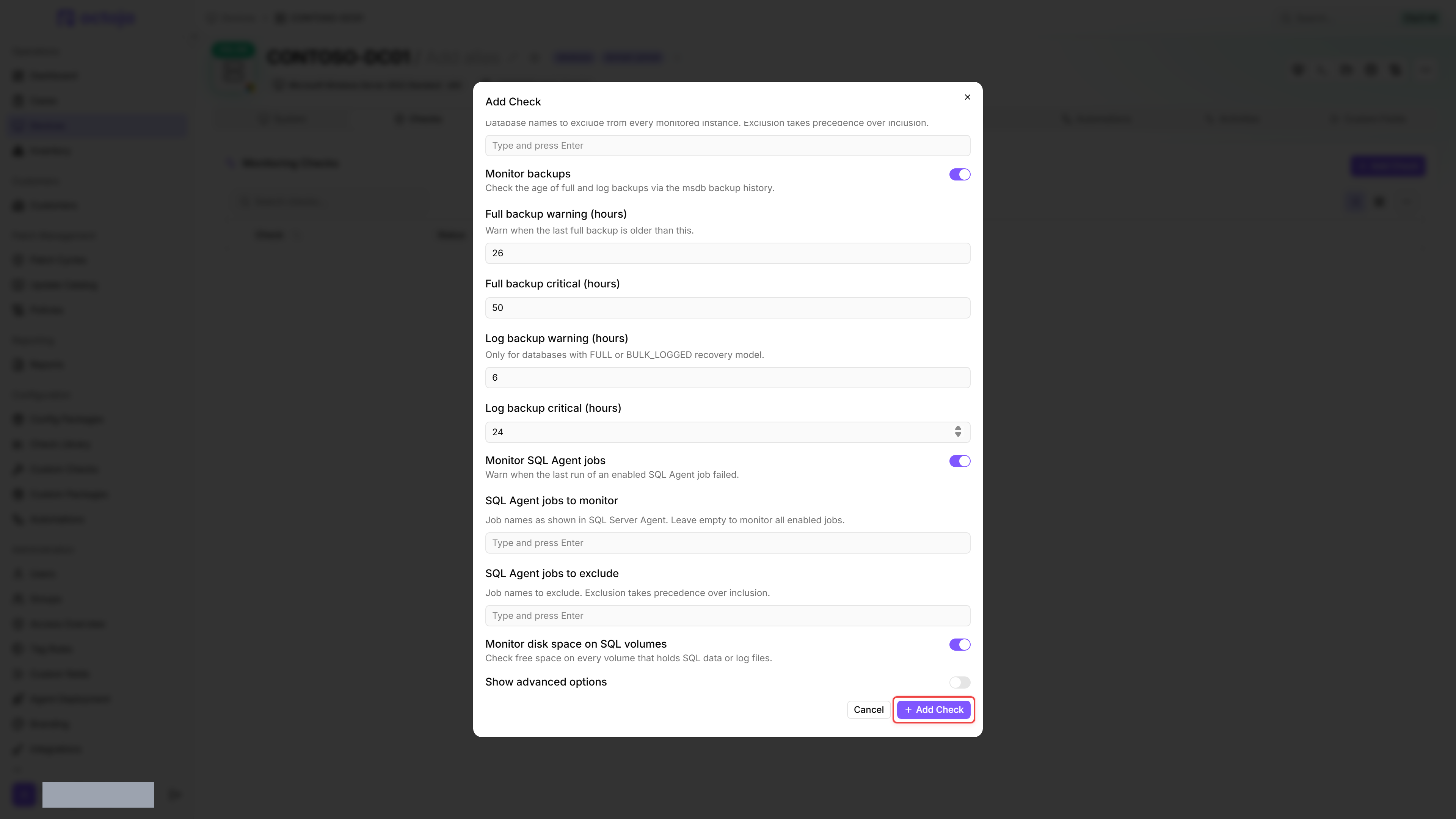
The Add Check dialog on CONTOSO-DC01 with the Microsoft SQL Server Health editor open, showing the instance and database filters, backup monitoring toggles with warning and critical hours, and the Add Check button at the bottom.

  1. Click Add Check.
  2. Add the second check the same way — Add Check → Microsoft SQL Server Activity.

Settings

Microsoft SQL Server Health

FieldTypeRequiredDefaultDescription
Instances to monitorListNoempty = allFull local instance names, for example SERVER\INSTANCE; the default instance is just the computer name. Leave empty to monitor every discovered instance
Instances to excludeListNoemptyInstances that are not monitored. Exclusion takes precedence over inclusion
Databases to monitorListNoempty = allDatabase names without the server or instance prefix. A listed name that does not exist on an instance is reported as a warning
Databases to excludeListNoemptyDatabases excluded from every monitored instance. Exclusion takes precedence over inclusion
Monitor backupsToggleNoonChecks the age of the last full and log backups via the msdb backup history. System databases and databases that are not online are skipped
Full backup warning (hours) / Full backup critical (hours)IntegerNo26 / 50Shown only when Monitor backups is on. When the last full backup is at least this old, the check reports Warning or Critical. A database with no full backup at all is Critical
Log backup warning (hours) / Log backup critical (hours)IntegerNo6 / 24Shown only when Monitor backups is on. Applies only to databases with the FULL or BULK_LOGGED recovery model; if such a database has no log backup at all, that is Critical
Monitor SQL Agent jobsToggleNoonWarns when the last run of an enabled SQL Agent job failed
SQL Agent jobs to monitor / SQL Agent jobs to excludeListNoempty = all enabledShown only when Monitor SQL Agent jobs is on. Job names as shown in SQL Server Agent. Exclusion takes precedence over inclusion
Monitor disk space on SQL volumesToggleNoonChecks free space on every volume that holds SQL data or log files
Disk warning (% free) / Disk critical (% free)IntegerNo15 / 7Shown only with Show advanced options while Monitor disk space on SQL volumes is on. When a volume's free share is at or below this value, the check reports Warning or Critical
SQL username / SQL passwordText / PasswordNoemptyShown only with Show advanced options. Leave empty to use Windows authentication with the agent account
Query timeout (seconds)IntegerNo30Shown only with Show advanced options. Values outside 10–300 are clamped

If a warning and critical value are in the wrong order, the check swaps them before evaluation. Always On availability groups have no field of their own: the check evaluates them automatically when the instance hosts replicas.

Microsoft SQL Server Activity

FieldTypeRequiredDefaultDescription
Databases to monitorListNoempty = allOnly alert on blocking in these databases
Blocking warning (seconds) / Blocking critical (seconds)IntegerNo30 / 120When a blocked session has been waiting at least this long, the check reports Warning or Critical
Monitor SQL Server error logToggleNoonScans the SQL Server error log for severe entries. Entries with severity 20–24, stack dumps, FlushCache messages and I/O stalls are Critical; other matches such as deadlocks are a Warning
Error log lookback (minutes)IntegerNo10Shown only when Monitor SQL Server error log is on. How far back the check looks before each run (at least 1 minute)
SQL username / SQL passwordText / PasswordNoemptyShown only with Show advanced options. Leave empty to use Windows authentication with the agent account
Query timeout (seconds)IntegerNo30Shown only with Show advanced options. Values outside 10–300 are clamped

Results

Down or unreachable instances are alerted by the Health check only, so the two checks never page you twice for the same outage.

Microsoft SQL Server Health

ConditionSeverity
An instance's service is not running, or connecting to the instance failsCritical
A database is SUSPECT, RECOVERY_PENDING or EMERGENCYCritical
A database is OFFLINE or RESTORINGWarning
The instance has been running for less than 15 minutesWarning
Backup age, free disk space or a failed agent job, as described under SettingsWarning or Critical
An availability group is PARTIALLY_HEALTHYWarning
An availability group is NOT_HEALTHY, or a database in it is not synchronizingCritical
A partial query (database state, backups, disk space) failsWarning
No SQL Server instance is found on the deviceWarning

Microsoft SQL Server Activity

Only blocking and error-log entries raise an alert. The performance counters (buffer cache hit ratio, page life expectancy, connections, blocked processes) are displayed but never raise an alert.

Tips

  • Tune the backup-age thresholds to the customer's actual backup plan first — the defaults assume a nightly full backup and hourly log backups. Databases in the simple recovery model have no log backups, so they are only checked for their full backup. If a database reports missing log backups, it runs in the FULL or BULK_LOGGED model — set up log backups or change its recovery model.
  • Use the instance and database filters to keep noise out of shared servers — for example, exclude a vendor's utility databases you do not manage.
  • The error-log look-back window is deliberately short. If you raise it substantially, one old error can keep the check red across many runs even though the incident is over.

FAQ

No. Monitor disk space on SQL volumes checks free space on the volumes holding SQL files, not database size relative to the installed SQL Server edition's limit. The check reports the edition but does not derive a capacity threshold from it. A database can reach its edition limit while the volume still has plenty of free space.

Monitor that limit separately using database-aware measurements for your SQL Server version and edition. A threshold on a single .mdf file is not an equivalent measurement of database capacity and should not replace it.