Disk I/O
Detect overloaded disks from their I/O utilization and read and write throughput.
The Disk I/O check measures how heavily a device's disks are utilized. It samples I/O activity on the device and compares every disk it finds against the configured thresholds. High utilization slows down applications and can indicate that a device needs faster storage or a workload redistribution. The check runs on Windows and Linux, with limited support on macOS, on a fixed interval of 5 minutes; the interval is not a configurable field in the check editor.
Prerequisites
- You need the Monitoring Check Management permission.
- The target device must have a connected agent.
Steps
- Go to Devices and open the device.
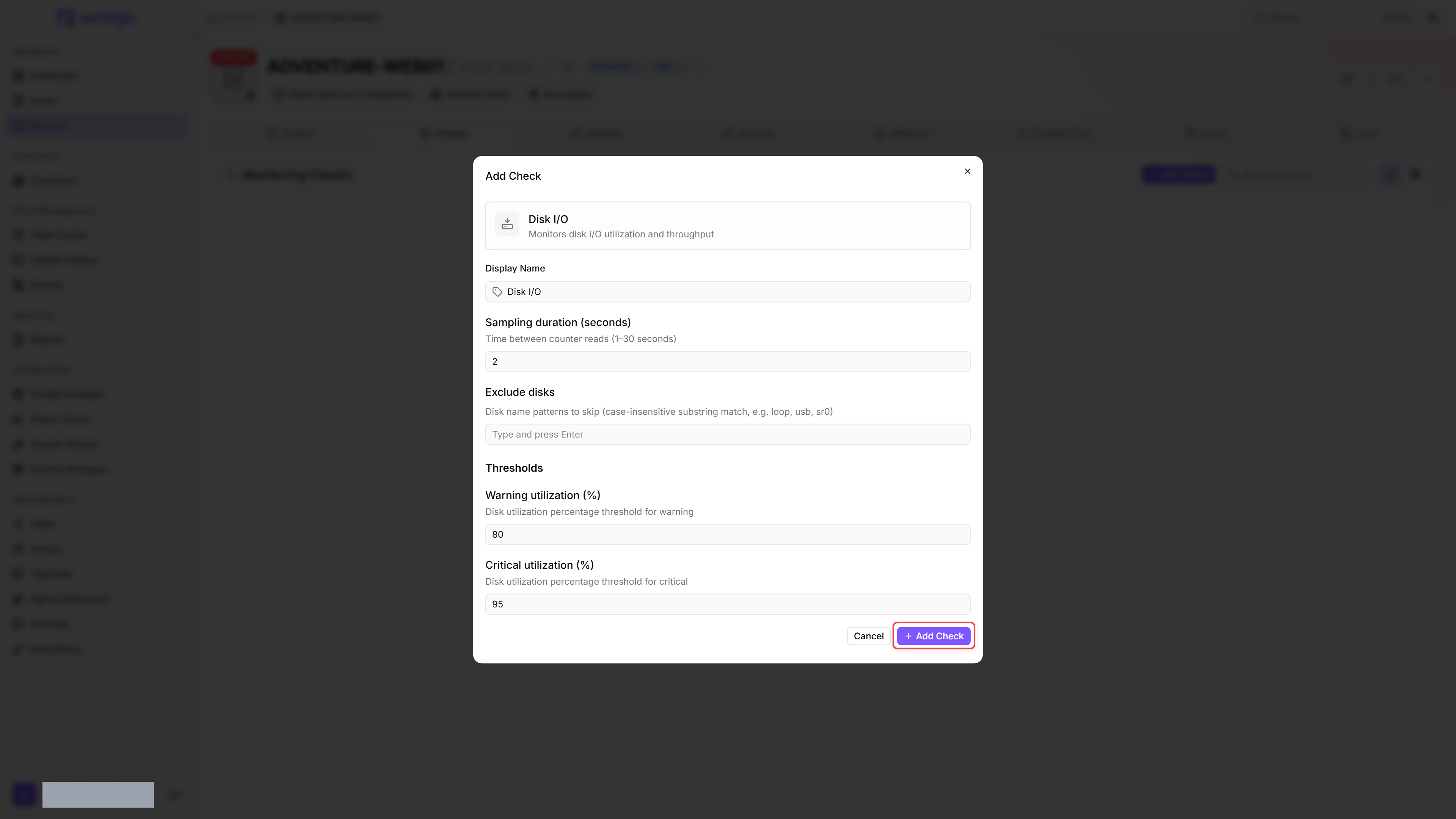
- Click the Checks tab → Add Check → Disk I/O.
- Configure the thresholds Warning utilization (%) (recommended: 80%) and Critical utilization (%) (recommended: 95%).
- Optional: Under Exclude disks, exclude specific disks that are expected to have high I/O load (e.g. dedicated database volumes).
- Click Add Check.
After the first check interval, the result appears in the device's Checks tab.
Settings
- If the warning threshold is configured higher than the critical threshold, the two values are automatically swapped at runtime so warning is always the lower bound.
- On Linux, virtual and partition devices are skipped automatically: loop devices (
loop*), ramdisks (ram*), device-mapper entries (dm-*), and partitions of a parent disk are filtered out so only physical disks are reported. - The three numeric fields accept a device custom field in place of a fixed number. Use Insert custom field in the check's configuration to add a token such as
{{device.customField.io_warning}}; octoja replaces it with that device's value before the check runs, and falls back to the field's Default value when the device has none of its own. The button appears once at least one integer device field exists, so one shared configuration can carry per-device thresholds.
Results
The check reports one result per disk. The status of the check as a whole is the most severe of the individual disk results.
For each disk, the check collects:
- I/O utilization percentage
- Read throughput (bytes/sec; the UI auto-scales the displayed unit)
- Write throughput (bytes/sec; the UI auto-scales the displayed unit)
The check takes a short I/O sample at each interval. Results reflect the load during that sample, not sustained averages.
Platform support
Tips
- High I/O utilization on an SSD is less concerning than on a traditional hard drive — SSDs handle parallel I/O operations significantly better. Adjust thresholds accordingly.
- Exclude backup volumes that are regularly saturated during backup windows to avoid false positives.
Was this helpful?
Still need help? Ask the team