HP iLO
Monitor temperatures, fans, power supplies, drives and memory of your HPE ProLiant servers over SNMP through the iLO.
The HP iLO check monitors HPE ProLiant servers via their Integrated Lights-Out (iLO) management interface using SNMP. It captures temperature, fan status, power supplies, hard drive health, and memory status — giving you hardware visibility without needing to install software on the server. The check runs on an agent device on Windows, Linux, or macOS and connects to the iLO interface over the network, every 5 minutes by default.
Prerequisites
- You need the Monitoring Check Management permission.
- The target device must have a connected agent with network access to the iLO interface.
- An HPE ProLiant server with iLO and SNMP enabled (v2c or v3) on the iLO management processor, reachable on UDP
161, with a known community string (v2c) or SNMPv3 credentials. - The check uses standard Compaq/HPE Health (CPQHLTH, CPQIDA, CPQSINFO) MIB OIDs, which are present on iLO 2 and later.
Steps
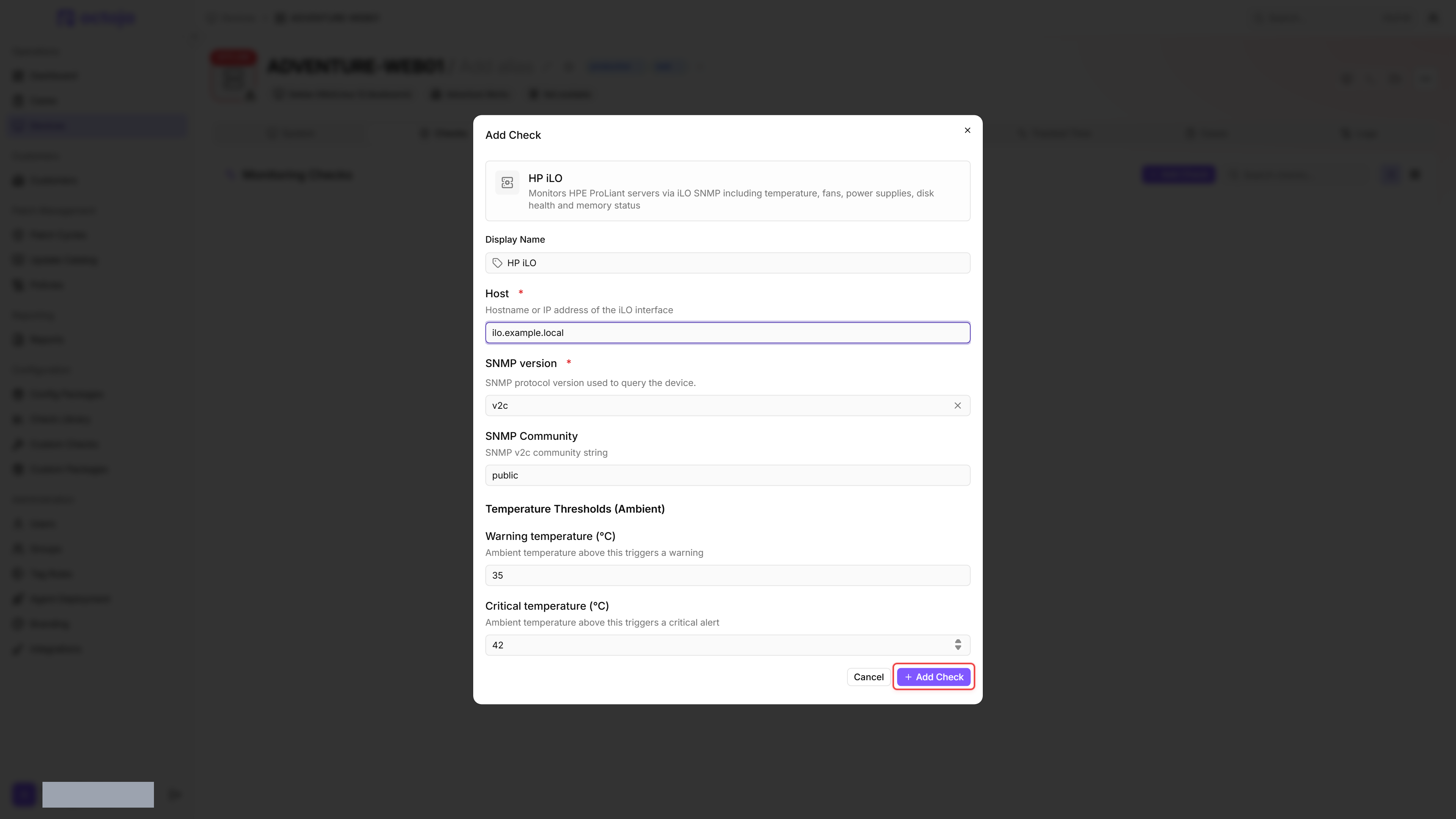
- Go to Devices and open the device that has network access to the iLO interface.
- Click the Checks tab → Add Check → HP iLO.
- In Host, enter the iLO hostname or IP address, then choose the SNMP version. For v2c, enter the SNMP Community string; for v3, fill in the SNMPv3 user and, if your iLO requires them, the Authentication protocol and Privacy protocol with their passwords instead.
- Adjust the temperature thresholds if needed.
- Click Add Check.
After the first check interval, the result appears in the device's Checks tab.
Settings
Temperature Thresholds (Ambient)
The ambient temperature thresholds are the only ones you set. They apply to sensors whose name begins with Ambient; CPU, System, and Memory sensors are graded by the condition the server itself reports.
Results
The overall result is the worst severity across every component and sensor. A Degraded reading on the server's overall health alone does not raise the result: HPE firmware reports it for a chassis that is not fully populated, which is a normal configuration, so the individual components decide.
Empty fan and power-supply bays, and drive bays the array controller cannot read, stay out of the result — they neither alarm nor appear in the details. A bay reporting a fault is always shown.
Collected metrics
- Server model and serial number
- Overall health status (Ok, Degraded, Failed, Other)
- Ambient and component temperatures, each with its current reading, the server's own threshold and its condition
- Fan speed (Normal or High), condition, and whether the bay is populated
- Power supply condition (Ok, Degraded, Failed, Other), whether the bay is populated, and whether it is redundant
- Physical drive model, serial number, bay, and status (Ok, Failed, Predictive Failure, Erasing, Erase Done, Erase Queued, SSD Wear Out, Not Authenticated, Other)
- Overall memory status (Ok, Degraded, Other)
Tips
- The iLO interface has its own IP address, separate from the server's operating system IP. Make sure you enter the iLO IP, not the server IP.
- Temperature thresholds depend on your datacenter cooling. The defaults are conservative — adjust them based on the normal operating temperatures of your environment.
- This check complements the SMART Disk Health check. The iLO check monitors the entire server chassis; the SMART check monitors individual hard drive health at the operating system level.
FAQ
Why can iLO report a failed overall status while the listed components are OK?
Why can iLO report a failed overall status while the listed components are OK?
Check the Integrated Management Log (IML) in iLO as well as the component details. An old, unresolved log entry can keep the overall status failed. Save the relevant entries and confirm the underlying issue is resolved before marking it repaired; do not clear the entire log just to silence an alert. Then rerun the check and compare the results.
Why is the Host field missing when I add the check to an ESXi network device?
Why is the Host field missing when I add the check to an ESXi network device?
On a network device, the check uses the address saved on that device. The iLO interface has a different address from ESXi: add it as a separate network device with its iLO address and SNMP credentials, then assign HP iLO there. Choose a device type that offers SNMP, not ESXi or vCenter, which request VMware credentials.
Was this helpful?
Still need help? Ask the team