Event Log
Scan the Windows Event Log for errors or missing expected events and get alerted when your thresholds are reached.
The Event Log check scans the Windows Event Log for entries at or above a specified severity level and raises an alert when the count reaches or exceeds a threshold. Instead of manually checking the event logs on each device, you set a threshold and octoja notifies you when something needs attention. The check is Windows-only and runs every 15 minutes by default. For Linux and macOS, use the System Log Check instead, which monitors syslog/journald.
Prerequisites
- You need the Monitoring Check Management permission.
- The target device must be running Windows with a connected agent.
Steps
- Go to Devices and open the device.
- Click the Checks tab → Add Check → Event Log.
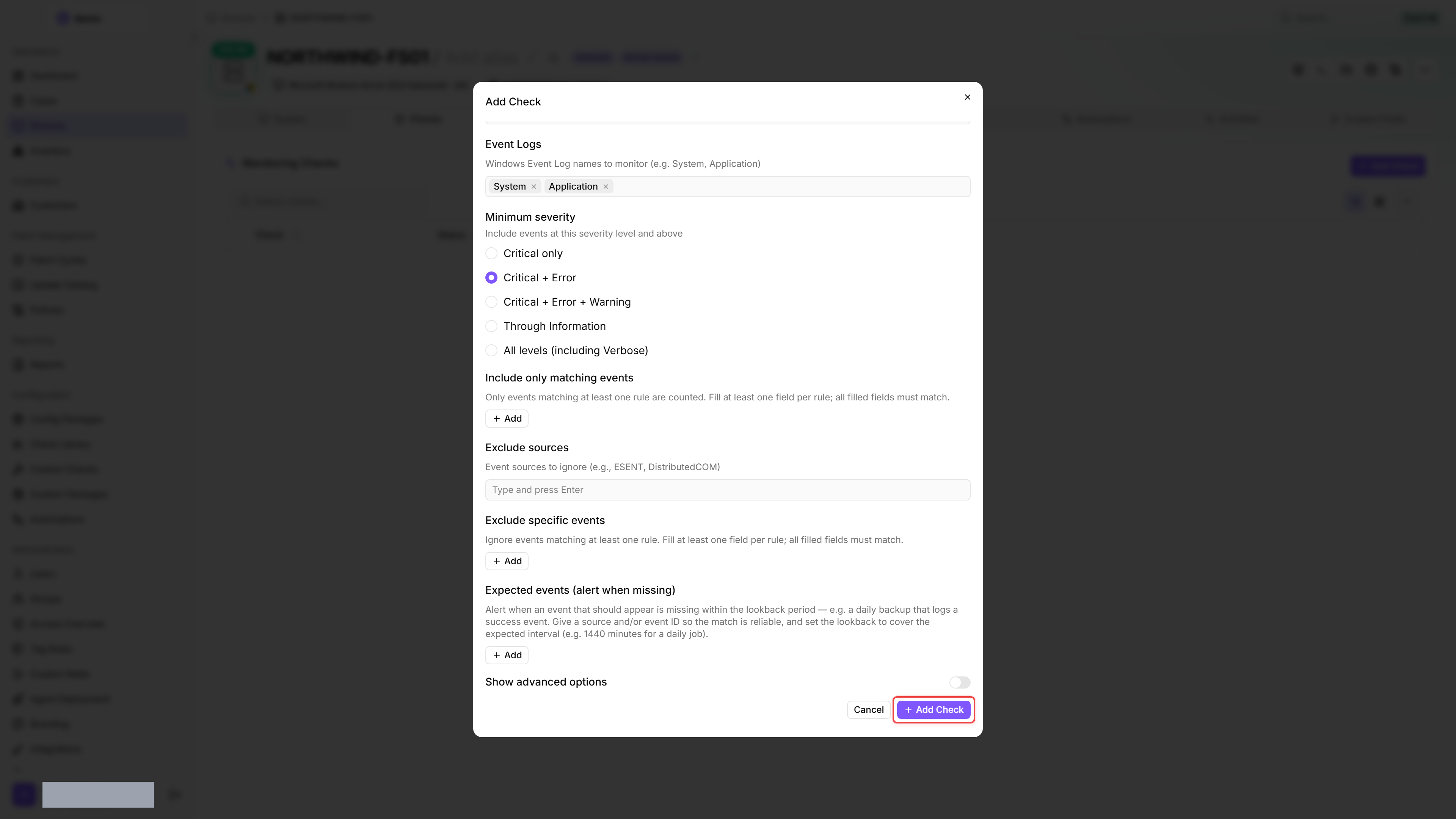
- Choose the Event Logs and the Minimum severity. Lookback period, Maximum event details, Filter scan limit per log, and the two threshold counts live behind Show advanced options — toggle it open to see them.
- Optionally, narrow the check further. Include only matching events counts nothing but the events matching your rules, Exclude specific events drops individual events, and Exclude sources filters out known noisy event sources that produce harmless errors. Use Add to append a rule.
- Optionally, invert the logic with Expected events (alert when missing): the check alerts when an event that should appear is missing within the lookback period.
- Click Add Check.
After the first check interval, the result appears in the device's Checks tab.
Settings
Interval is a check-level setting and is not part of the per-assignment configuration. Set the lookback period to match or exceed the check interval to avoid gaps between runs; with the 15-minute interval, the default 60-minute lookback misses no events between runs.
Severity levels
Critical only, Critical + Error and Critical + Error + Warning count levels 1 to 3 only, so informational entries stay out of the totals. Through Information also picks up events that Windows records without a level, which Event Viewer displays as Information. All levels (including Verbose) removes the cap altogether, so provider-defined levels above 5 are counted as well.
Results
The check reports a warning or critical result as soon as the number of matching events reaches or exceeds the Warning threshold (event count) or Critical threshold (event count). If an expected event is missing, it reports the Severity when missing chosen in that rule.
The result includes:
- Total count of matching events across the selected logs. With include rules or message-text exclusions the full filtered count is reported, up to Filter scan limit per log for each log; otherwise the count is capped at Maximum event details
- The most recent matching entries (up to Maximum event details, default 50), each with its source, event ID, log name, message, and timestamp. This helps you spot patterns — for example, a single source flooding the log with repeated errors
- One result per expected-event rule: how many matches were found, the required minimum, and whether the rule was satisfied
- List of logs that were requested but could not be read
An OK result does not confirm that every requested log was readable: read errors appear under Skipped logs but do not directly affect the overall status. That status comes from the collected events and expected-event rules. For skipped logs, verify their names and the agent service's read access before treating the result as a complete check.
The default cap of 50 shown events keeps the result payload manageable. If you need more detail, open the device's Event Log view in the toolbox to browse entries directly — or query the event log via the remote terminal.
Tips
- Start with the System and Application logs. These cover the most common issues (service failures, driver errors, application crashes). Add specialized logs like Security only when needed.
- Use Exclude sources for event sources that produce frequent, harmless errors. Common examples:
ESENTandDistributedCOM.
FAQ
Can I monitor DFS replication problems without remote WMI access?
Can I monitor DFS replication problems without remote WMI access?
Yes, through the local event log on each participating server. Enter DFS Replication as the log name, including on German Windows, and select the required severities. Use include rules to narrow the check to relevant event IDs. Validate the rules against existing events and choose suitable count thresholds and a sufficiently long lookback.
This monitors logged problems, not the number of pending files. It does not replace a DFSR backlog counter, and an empty result does not prove healthy replication. Do not blanket-grant administrator rights to computer accounts just to work around denied remote backlog access.
Was this helpful?
Still need help? Ask the team