RAM Load
Monitor memory usage on your devices and get alerted before memory leaks or insufficient RAM lead to swapping or crashes.
The RAM Load check samples memory usage on a device over a short window and raises a warning or critical alert when the result reaches your thresholds. Use it to catch memory leaks, undersized servers, and runaway processes before they start swapping or crashing applications. The check runs on Windows, Linux, and macOS — anywhere the agent can read memory usage from the operating system — every 5 minutes on the agent; the check interval is not user-configurable.
Prerequisites
- You need the Monitoring Check Management permission. This permission lets you add and edit checks on devices. Your administrator assigns permissions under Administration → Groups.
- The target device must be online and have the octoja agent installed.
Steps
- Go to Devices and open the device you want to monitor.
- Click the Checks tab → Add Check → RAM Load.
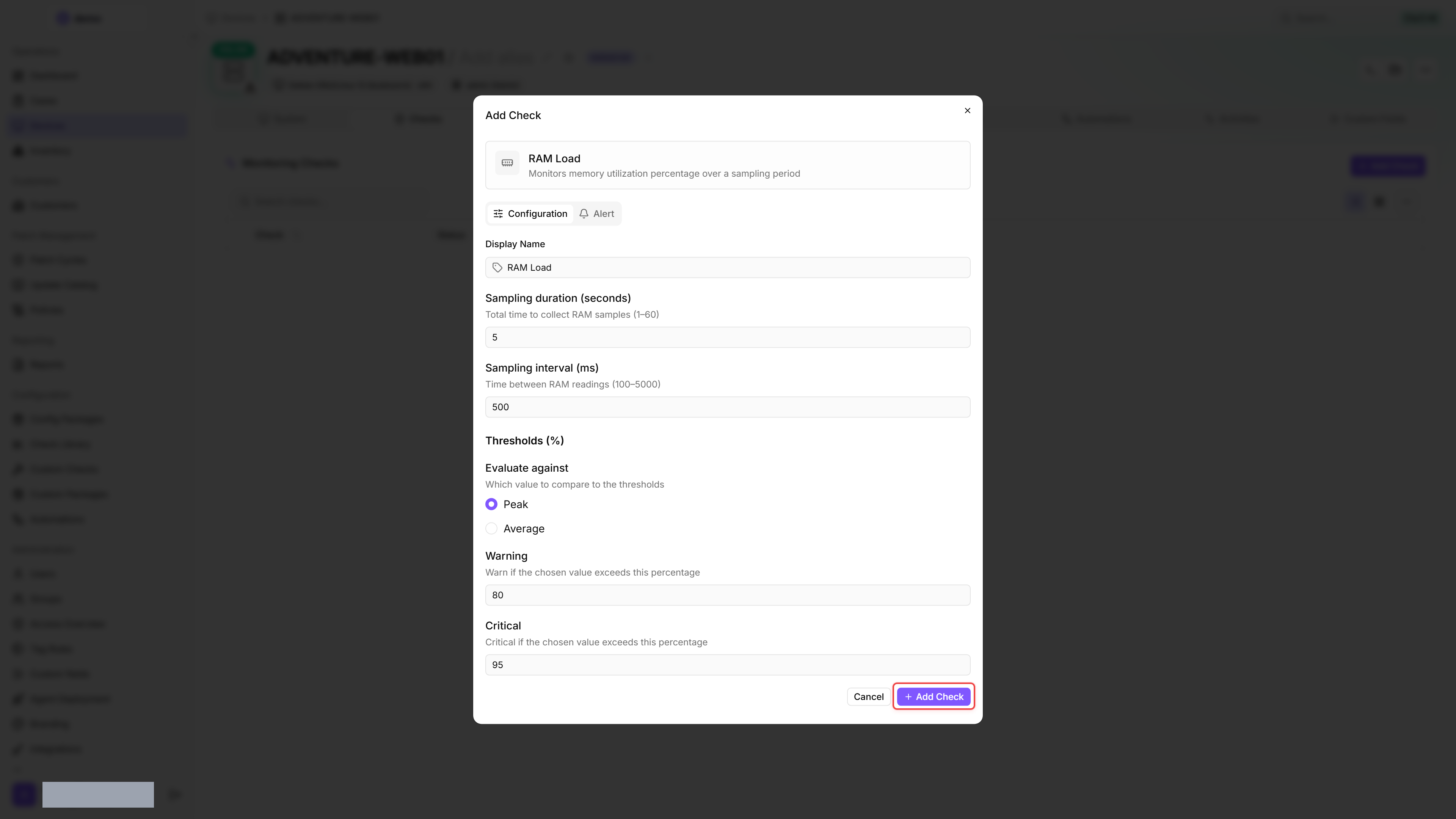
- Configure the thresholds under Evaluate against, Warning, and Critical.
- Click Add Check.
After the first check interval, the result appears in the device's Checks tab.
Settings
If you set the Warning threshold higher than the Critical threshold by mistake, the agent automatically swaps them — the lower value is treated as Warning, the higher as Critical.
Sampling happens inside a single check run; the sampling window (default 5 seconds at 500 ms intervals = ~10 samples) is independent of the check interval (every 5 minutes).
The four numeric fields accept a device custom field in place of a fixed number. Use Insert custom field in the check's configuration to add a token such as {{device.customField.ram_warning}}; octoja replaces it with that device's value before the check runs, and falls back to the field's Default value when the device has none of its own. The button appears once at least one integer device field exists, so one shared configuration can carry per-device thresholds.
Results
Each run reports:
- Average memory usage over the sampling window (%)
- Peak memory usage in any single sample (%)
- Number of samples collected
- Total installed memory (the check detail view shows it in GB)
- The threshold metric used for the alert (Peak or Average)
Total installed memory is reported once per run alongside the usage percentage, so you can see absolute consumption (e.g. 24% of 32 GB) at a glance in the check detail view without leaving it.
If the agent cannot read memory counters, the check returns the warning "Unable to collect RAM samples". This is rare — check octoja Availability & Status if you hit it on a device that previously worked.
Tips
- For end-user workstations, the default 80% / 95% thresholds usually work. For servers that intentionally cache aggressively (database servers, file caches), raise the warning threshold or switch to Average evaluation.
- Use the Peak evaluation metric for memory-leak detection — a single spike past the threshold fires the alert.
- RAM-load alerts often precede CPU swap-thrashing alerts by minutes. Combining this check with a CPU Load check on the same device catches both ends of the memory-pressure spectrum.
Was this helpful?
Still need help? Ask the team