File Age
Verify that backup files, logs or exports are updated on schedule and detect stale or missing files.
The File Age check monitors the last modification time of a file — or, when the path points at a folder, of the newest file in that folder matching a pattern — and warns when a file is stale or missing. Use it to verify that backup files, log files, or data exports are being created on schedule. The check runs on Windows, Linux, and macOS (x64 and Arm64 each) every 60 minutes. The interval is fixed for this check and is not a field in the configuration form.
Prerequisites
- You need the Monitoring Check Management permission.
- The target device must have a connected agent.
- The agent must have read access to the monitored file paths.
Steps
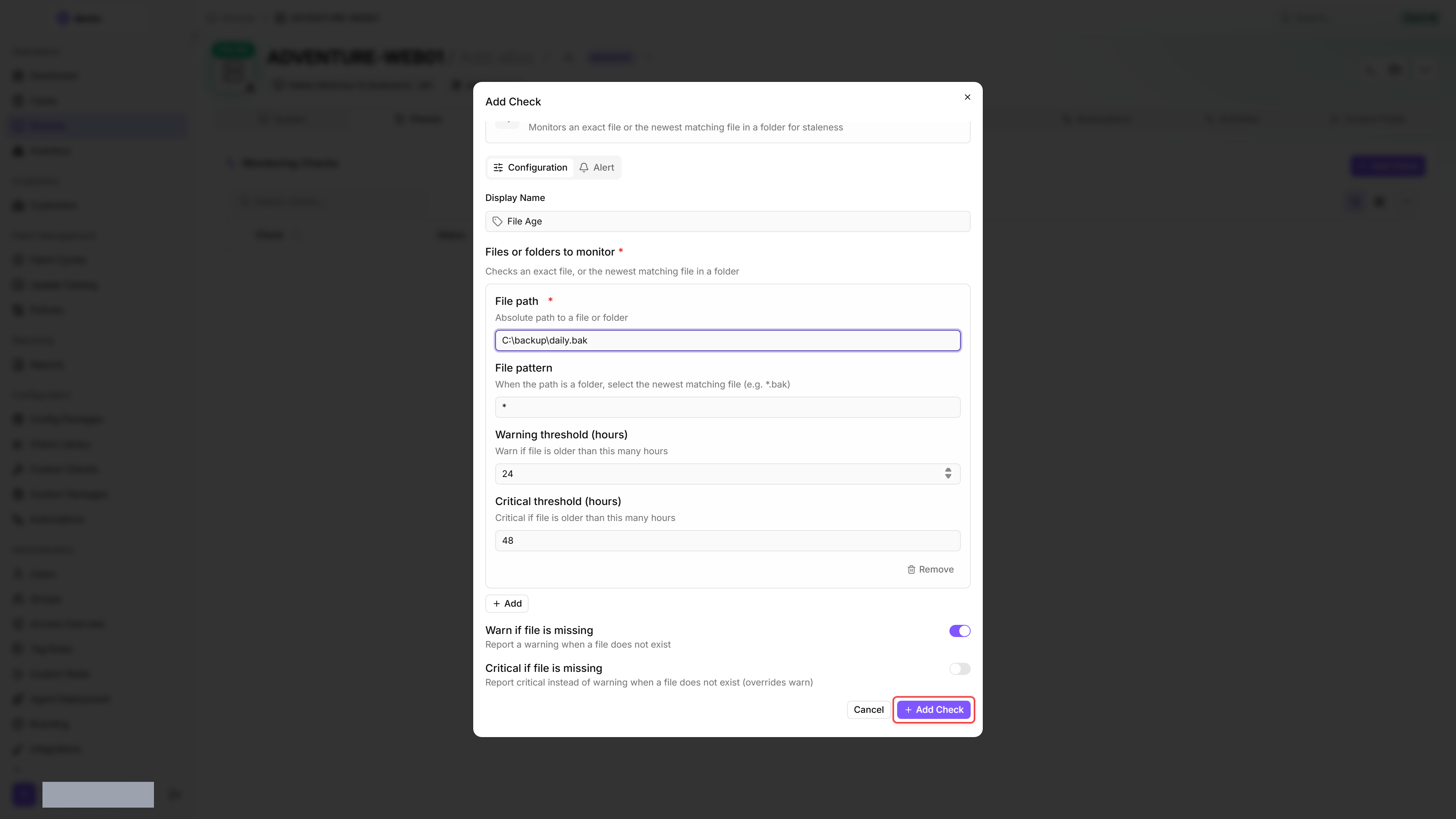
- Go to Devices and open the device.
- Click the Checks tab → Add Check → File Age.
- Under Files or folders to monitor, add one or more entries, each with a File path, an optional File pattern and its own thresholds — for example
C:\Backups\daily.bakwith Warning threshold (hours) 24 and Critical threshold (hours) 48. - Use Warn if file is missing and Critical if file is missing to choose what happens if the file does not exist.
- Click Add Check to save.
After the first check interval, the result appears in the device's Checks tab.
Settings
- The check uses the file's last modification time, not the creation or access time.
- When a path points at a folder, the check measures the newest file in that folder that matches File pattern. Only the folder itself is searched — files in subfolders are ignored.
- Multiple entries can be monitored in a single check, each with independent thresholds.
- If Warning threshold (hours) is configured higher than Critical threshold (hours) for a file, the agent silently swaps the two thresholds for that target so the critical threshold is always greater than the warning threshold.
Results
The check reports the last modification time, the file age in hours and the file's existence status for each entry. For a folder, it also shows which file was measured, listed as Newest file with the full path. The check's overall result is the worst result across all entries.
Two states cover a file the check could not measure: File or folder not found when the path itself does not exist, and No matching file found when the folder exists but no file matches the pattern. Both are treated as a missing file, so the severity follows your Warn if file is missing and Critical if file is missing settings. If both options are turned off, a missing file reports Success.
If the Files or folders to monitor list is empty, the whole check reports a Warning result (rather than Success or an error).
The agent process must have read permission on the file or folder. If reading the metadata throws (for example, an access-denied error in a restricted directory), the entry reports the Error status (a distinct status, separate from Critical and Warning) and stores the exception message — truncated to 200 characters — in the errorMessage field.
Tips
- For a backup folder whose filenames change with every run, enter the folder path (e.g.
C:\Backups) and a pattern such as*.bak. The check measures the newest matching file directly in that folder. - Set the thresholds based on the expected update frequency. A daily backup file should warn at 24 hours and go critical at 48 hours.
- On Linux, use forward slashes in paths (e.g.
/var/backups/daily.sql.gz). On Windows, both backslashes and forward slashes work.
Was this helpful?
Still need help? Ask the team