QNAP NAS
Monitor disks, storage pools, volumes, temperatures and CPU of your QNAP NAS devices over SNMP.
The QNAP NAS check monitors QNAP NAS devices via SNMP — disk health (including per-disk SMART status), storage-pool (RAID) health, volume usage, system and CPU temperature, and CPU usage. It also displays memory readings and fan speeds. It gives you early warning of storage problems on your QNAP devices. The check runs on an agent device on Windows, Linux, or macOS and queries the NAS over the network, every 5 minutes by default.
Prerequisites
- You need the Monitoring Check Management permission.
- The target device must have a connected agent with network access to the NAS.
- The QNAP NAS must have SNMP enabled with a known community string (v2c) or SNMPv3 credentials.
Steps
- Go to Devices and open the device that has network access to the QNAP NAS.
- Click the Checks tab → Add Check → QNAP NAS.
- Enter the NAS hostname or IP address in the Host field. Choose the SNMP version your NAS is configured for: for v2c, enter the community string under SNMP Community; for v3, enter the SNMPv3 user and, if needed, authentication and privacy settings.
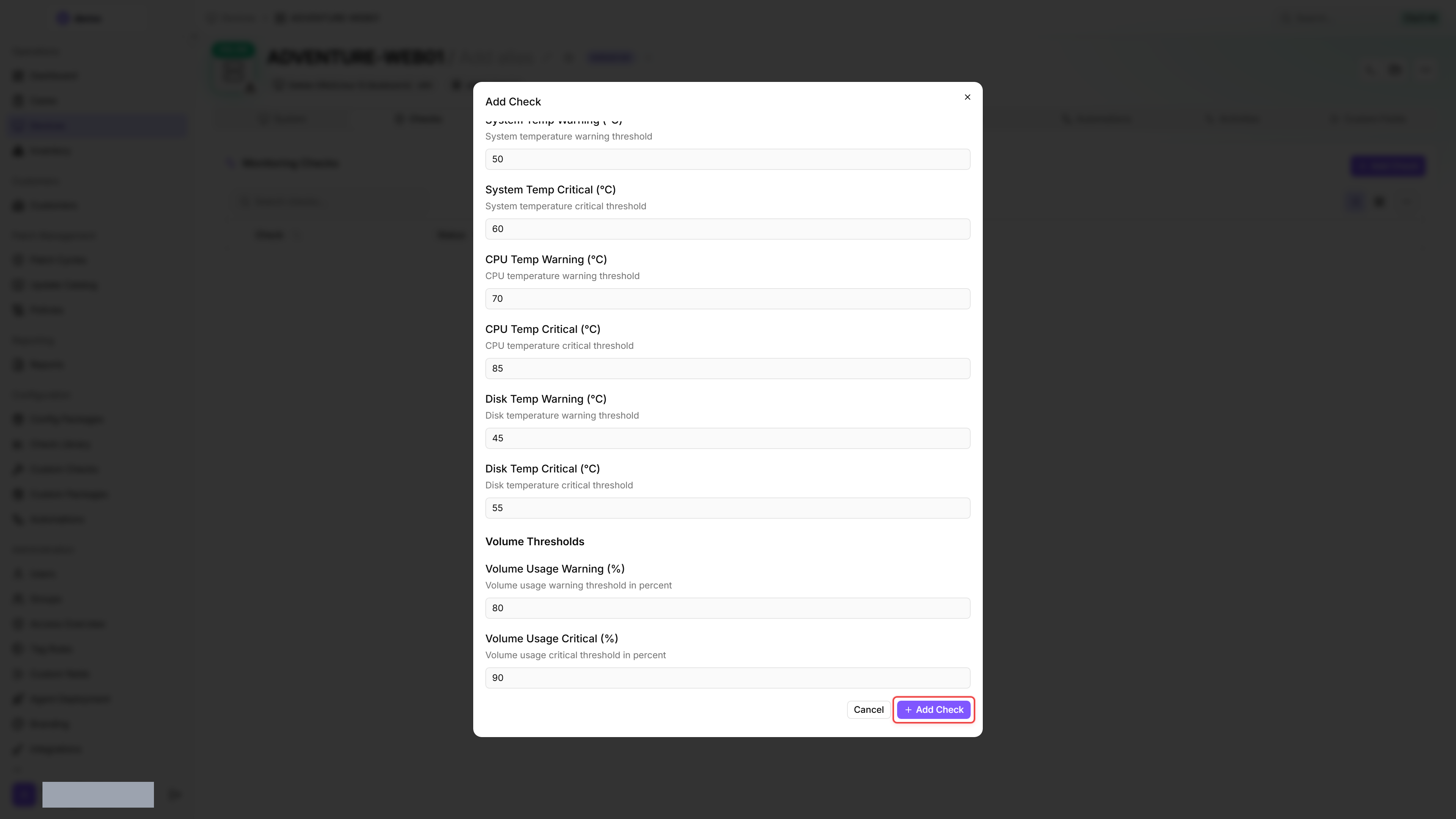
- Adjust the thresholds if needed.
- Click Add Check.
After the first check interval, the result appears in the device's Checks tab.
If you added the NAS as a network device, add the check on the NAS itself instead; it then takes the host and SNMP credentials from the device. See Monitor a NAS Without an Agent.
Settings
The check editor groups the thresholds under CPU Thresholds, Temperature Thresholds, and Volume Thresholds headers; the table lists every field in the order it appears in the UI.
Results
A threshold triggers its result as soon as the reading reaches or exceeds it. A degraded, rebuilding, not ready, or errored storage pool sets the check result to Critical. Empty drive bays are ignored, so they never count as failed disks.
Collected metrics
- Device info: model name and hostname
- Per disk: bay name, model, capacity, SMART status, temperature (°C), and result
- Per volume: name, total and free size, used (%), and result
- Per storage pool: RAID status
- System temperature (°C) and CPU temperature (°C)
- CPU usage (%)
- Total and free memory (MB) — informational, with no independent alert threshold
- Per fan: name and speed (RPM) — informational; the check does not evaluate fan failures from these readings
- Per-check issues: list of detected problems with severity, code, subject, value, threshold, and detail
Tips
- SNMP must be enabled on the NAS itself before octoja can query it — enable it in the QNAP QTS Control Panel with a community string (v2c) or SNMPv3 user that matches what you enter in the check. The check uses standard QNAP SNMP MIBs. See QNAP's SNMP documentation for the exact steps on your QTS version.
- Set volume usage thresholds based on your capacity planning — NAS performance degrades significantly above 90 % usage.
- This check covers hardware health. For file-level monitoring (backup freshness), use the File Age check.
Was this helpful?
Still need help? Ask the team