IIS App Pool
Get a warning or critical alert when an IIS application pool on your Windows Server is stopped.
The IIS App Pool check monitors the status of application pools on a Windows Server running Internet Information Services (IIS) and alerts when pools are stopped. A stopped application pool means the hosted web application is unreachable. The check runs on Windows only, every 5 minutes on the agent. The interval is not user-configurable.
Prerequisites
- You need the Monitoring Check Management permission.
- The target device must be a Windows Server with IIS installed and a connected agent.
appcmd.exemust be available at%WINDIR%\system32\inetsrv\appcmd.exe; the check runs it and reads its XML output.
Steps
- Go to Devices and open the device.
- Click the Checks tab → Add Check → IIS App Pool.
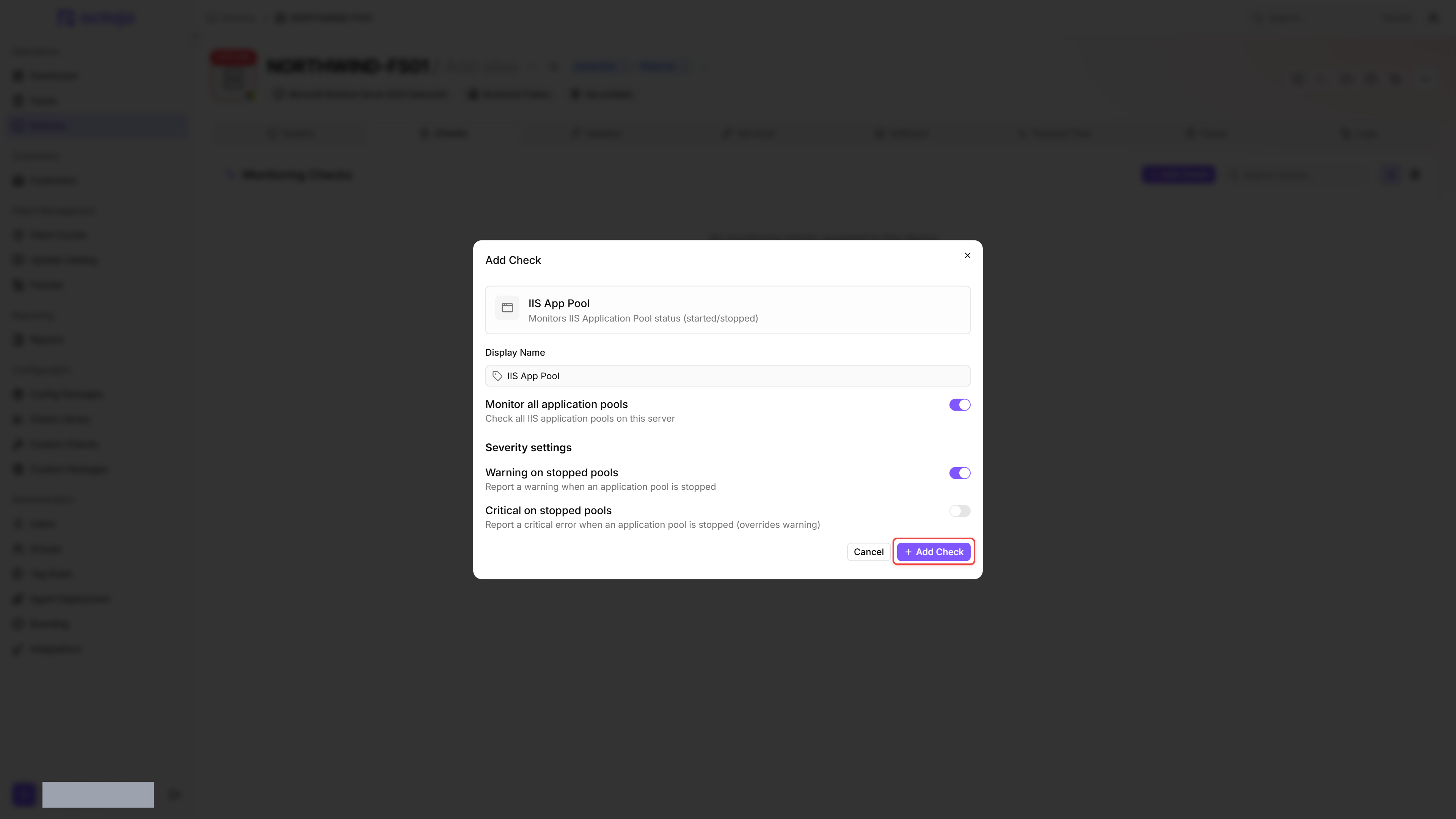
- By default, the check monitors all application pools. To monitor only specific pools, turn off Monitor all application pools and enter the pool names under Application pools to monitor.
- Under Severity settings, configure the alert behaviour with Warning on stopped pools and Critical on stopped pools.
- Click Add Check.
After the first check interval, the result appears in the device's Checks tab.
Settings
Warning on stopped pools and Critical on stopped pools sit under Severity settings in the check form.
If Monitor all application pools is off but the pool list is left empty, the filter is skipped and all application pools are checked.
Results
A pool counts as stopped when its state is anything other than Started, so a pool caught mid-restart in Starting or Stopping is reported as well. The state is passed through exactly as IIS reports it.
The check gives appcmd.exe 15 seconds to answer. If it takes longer, the check stops waiting and reports a warning or a failure instead of a pool list.
Collected metrics
- Total application pools evaluated
- Name of each stopped application pool
- State of each stopped application pool
- Per-pool result severity, shown as OK, Warning, or Critical
Only stopped pools are listed individually; started pools contribute to the total count but are not listed.
Tips
- Set Critical on stopped pools to
Yesfor application pools hosting production websites. This overrides the warning, so the check reports a critical error instead of a warning when a pool is stopped. - IIS may recycle application pools on a schedule — brief restarts are normal. The check evaluates the status at the time of execution, so a pool that briefly stopped for a recycle and is running again shows as started.
- If you have application pools that are intentionally stopped (staging, decommissioned sites), monitor specific pools by name instead of all pools.
Was this helpful?
Still need help? Ask the team